If you use the Tradejini CubePlus API to place orders, there is one important action you need to complete before 1st April 2026: register a static IP address against your API app on the Developer Portal.
Starting 1st April 2026, all API-based order requests must originate from a registered static IP address. Any order sent from an unregistered IP will be automatically rejected. This applies to all Tradejini API users, regardless of how many orders you place.
The registration process takes less than five minutes. Here is exactly how to do it.
Deadline: 1st April 2026. API orders from unregistered IPs will be rejected after this date. Complete this step before the deadline to avoid any disruption to your trading.
Going to the Tradejini Developer Portal
Open your browser and navigate to theTradejini Developer Portal. This is where all your CubePlus API apps and settings are managed, including IP registration.

Logging In to Your Account
Click Login from the top navigation bar
Two ways to log in:
- Tradejini SSO Login: Click the Tradejini button to log in using your existing Tradejini trading account. No separate credentials needed
- Email and Password: Enter your registered Developer Portal email and password, then click Login
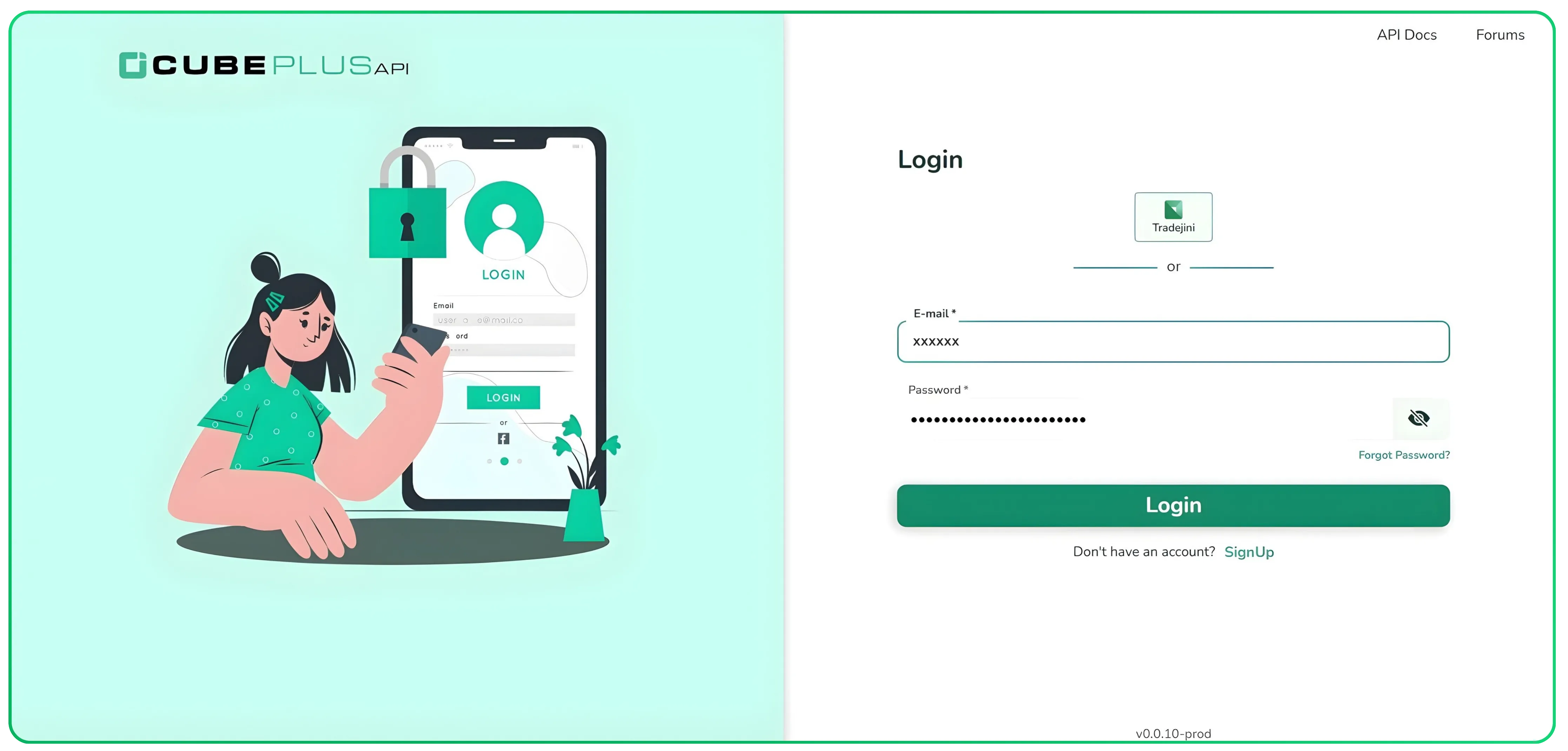
- Once logged in, you will land on the My Apps dashboard where all your existing API apps are listed
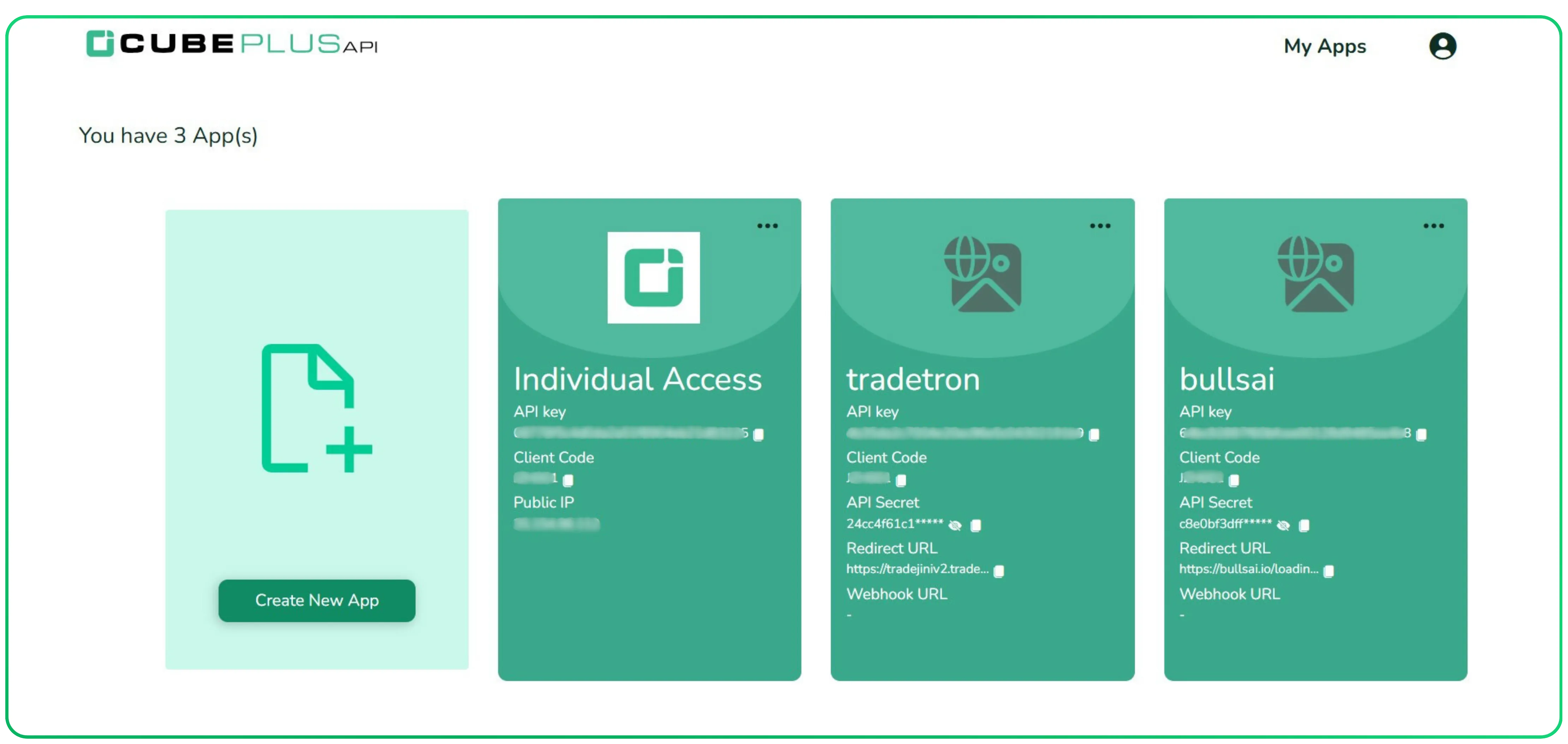
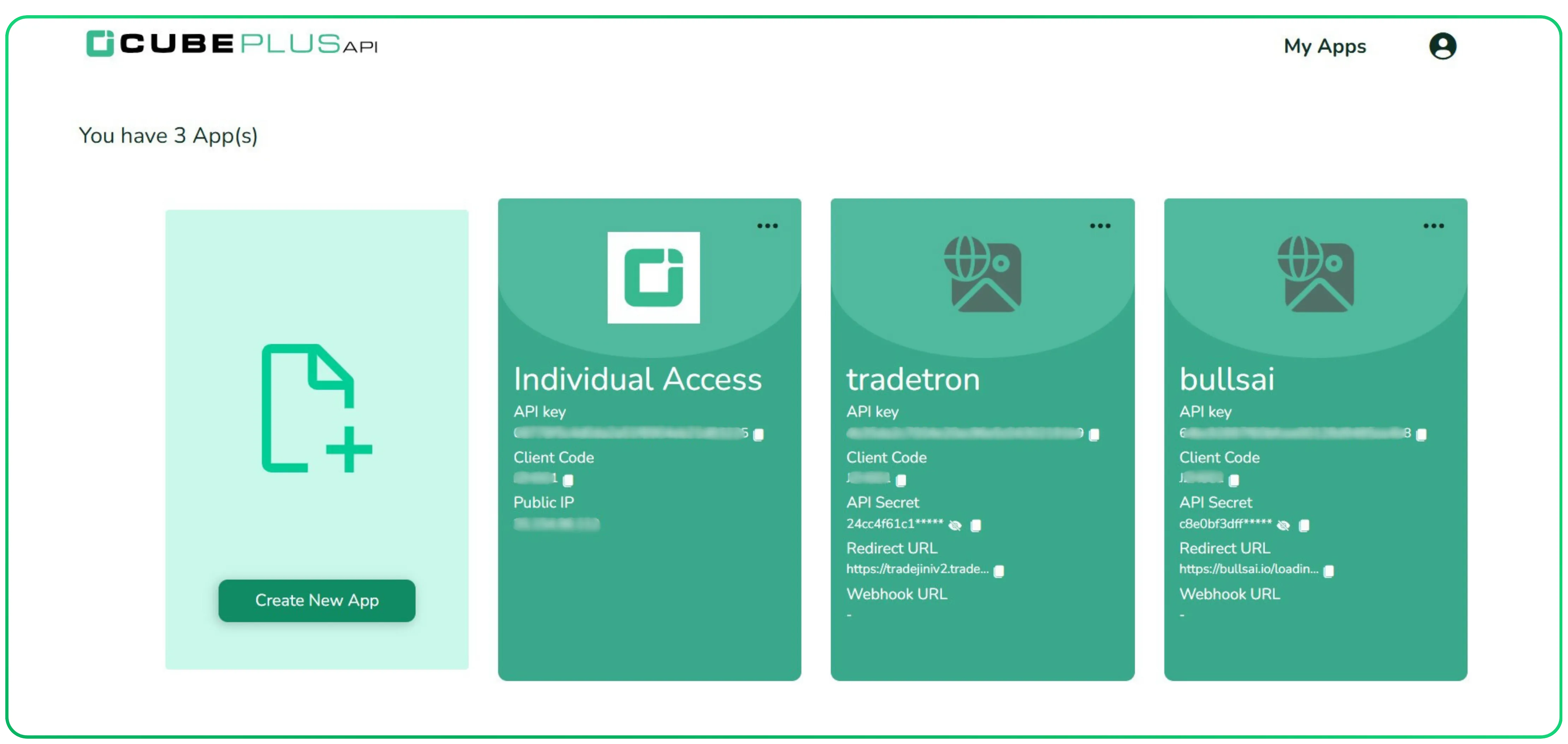
- Locate the app you want to add a static IP to
- Click the three dots (···) at the top right corner of that app card
- This reveals two options: Edit and Delete (as shown below)
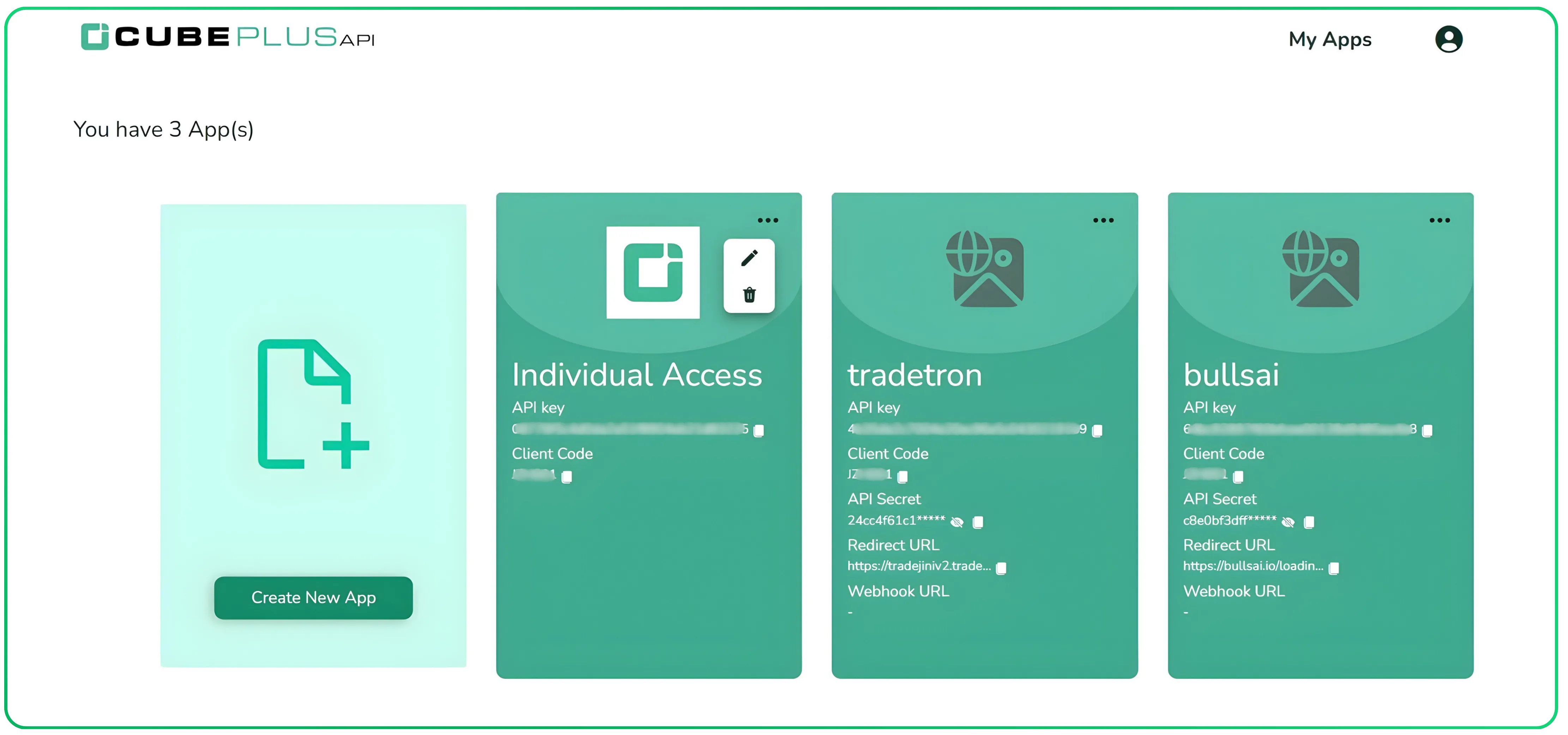
- Click Edit to open the app settings
Entering Your Static IP and Saving
The Edit App page will open. You will see a field labelled Static IP
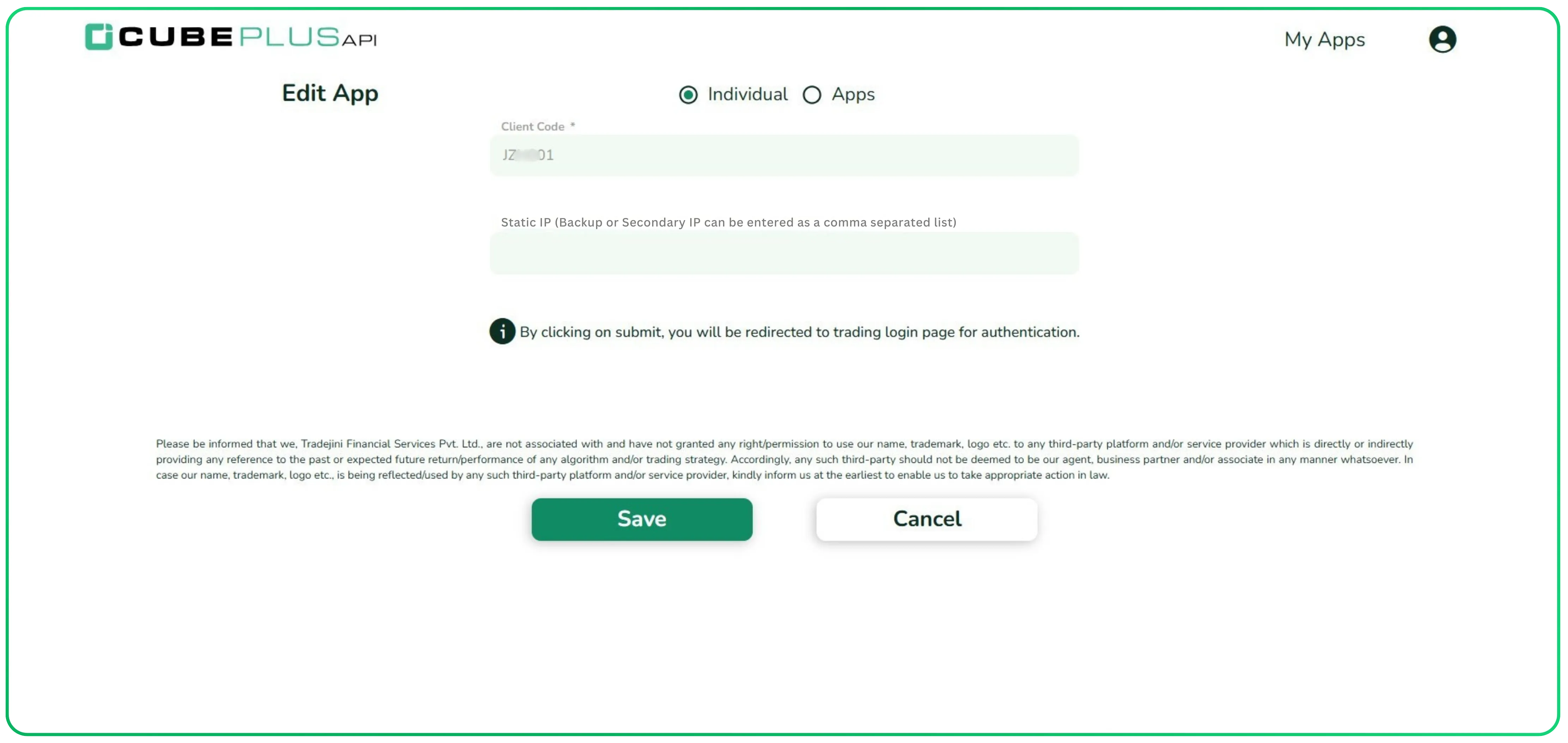
Click on the Static IP field and enter your static IP address
If you have more than one IP, enter them separated by a comma
- Single IP: 35.XXX.XX.112
- Multiple IPs: 35.XXX.XX.X02, 10.XXX.XX.X56
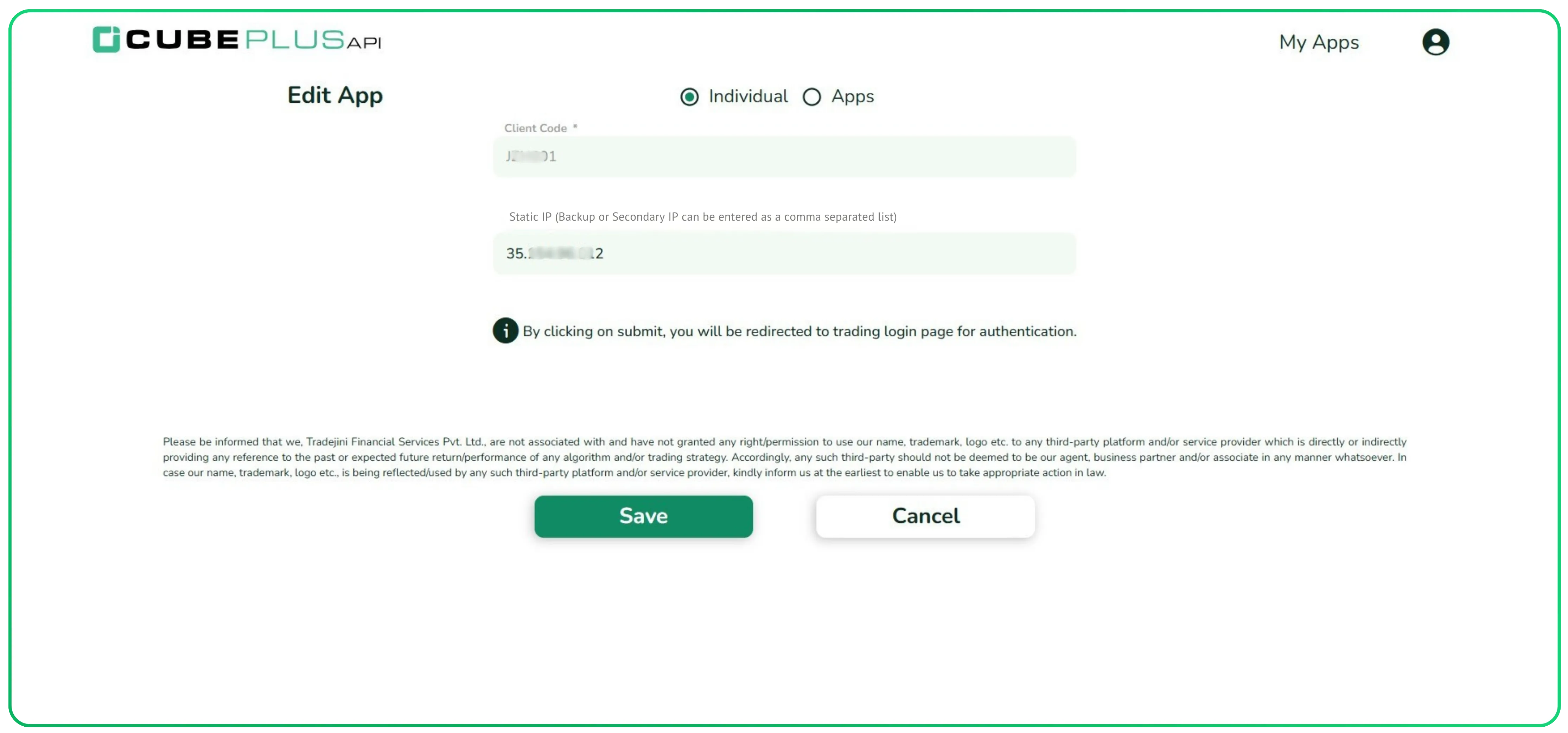
- Click Save
- your IP is registered
Once saved, the app card on the dashboard will now display the registered Static IP, confirming the update was successful.
Creating a New App
If you are creating a brand new API app, you do not need to follow the edit flow above. The static IP can be registered directly during app creation.
When you log in with no existing apps, you will see the option to create one.
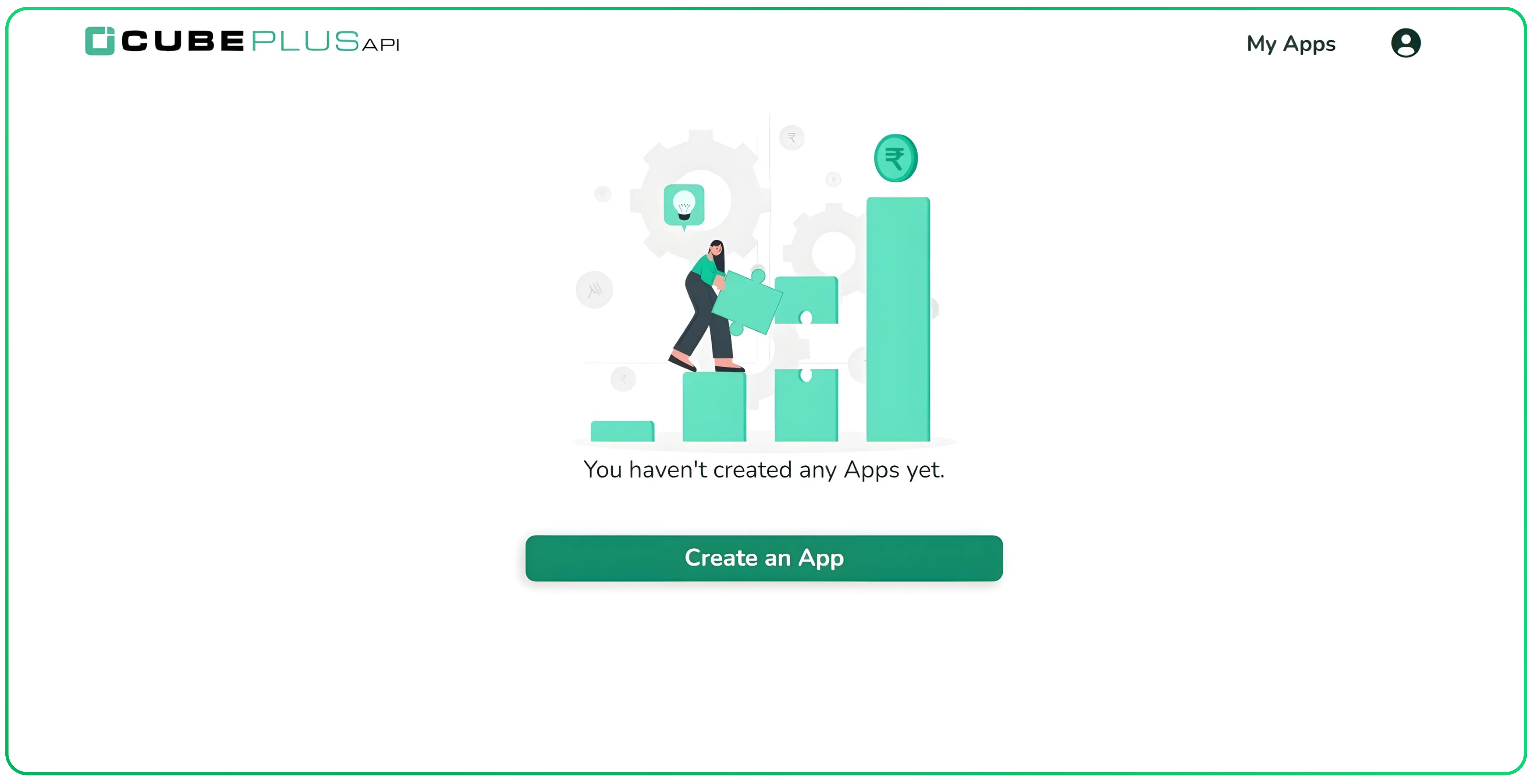
- Click Create an App
- The Create App form will open, fill in your Client Code and enter your static IP in the Static IP field.
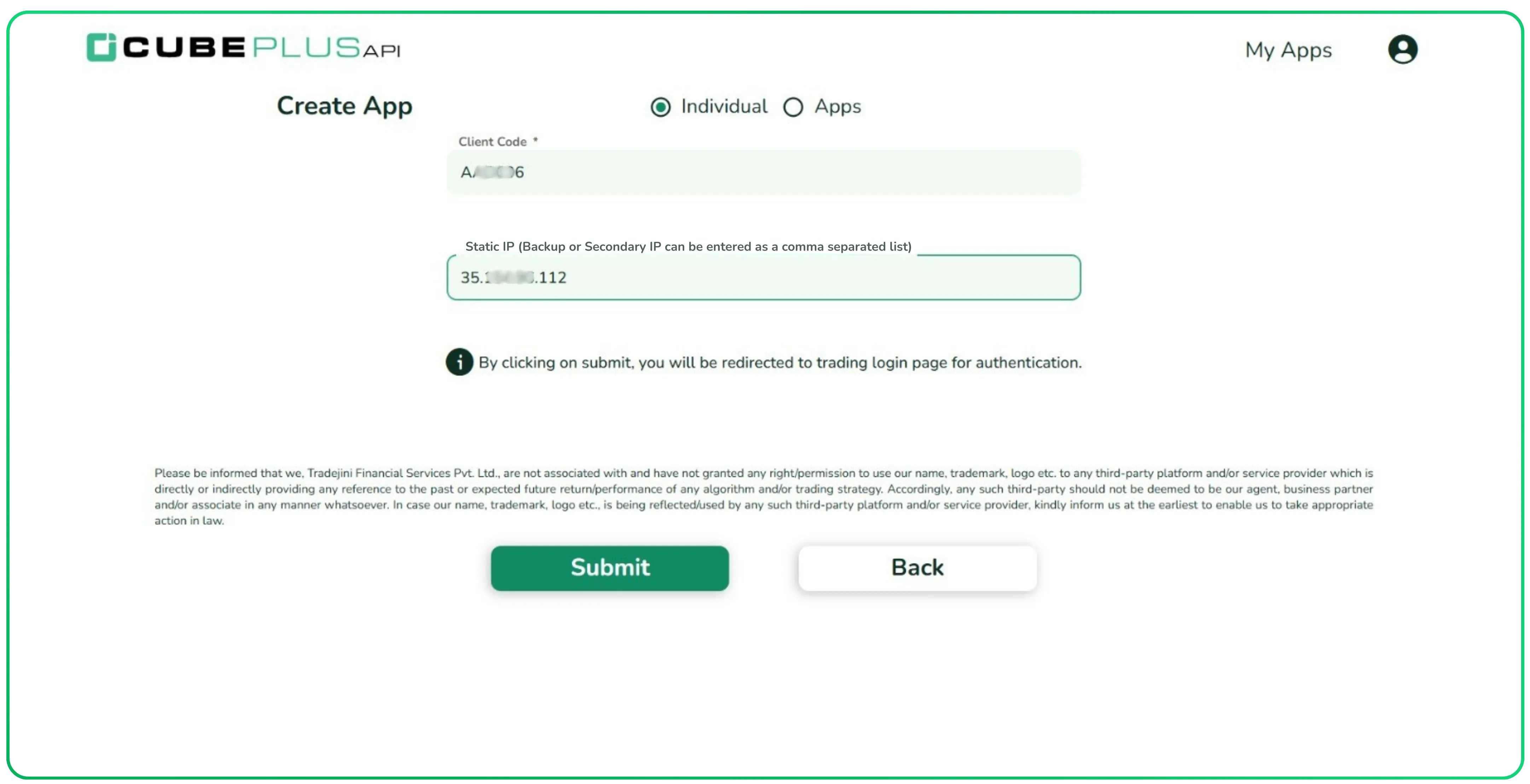
- Click Submit
- your app is created and the static IP is registered from the moment the app is created
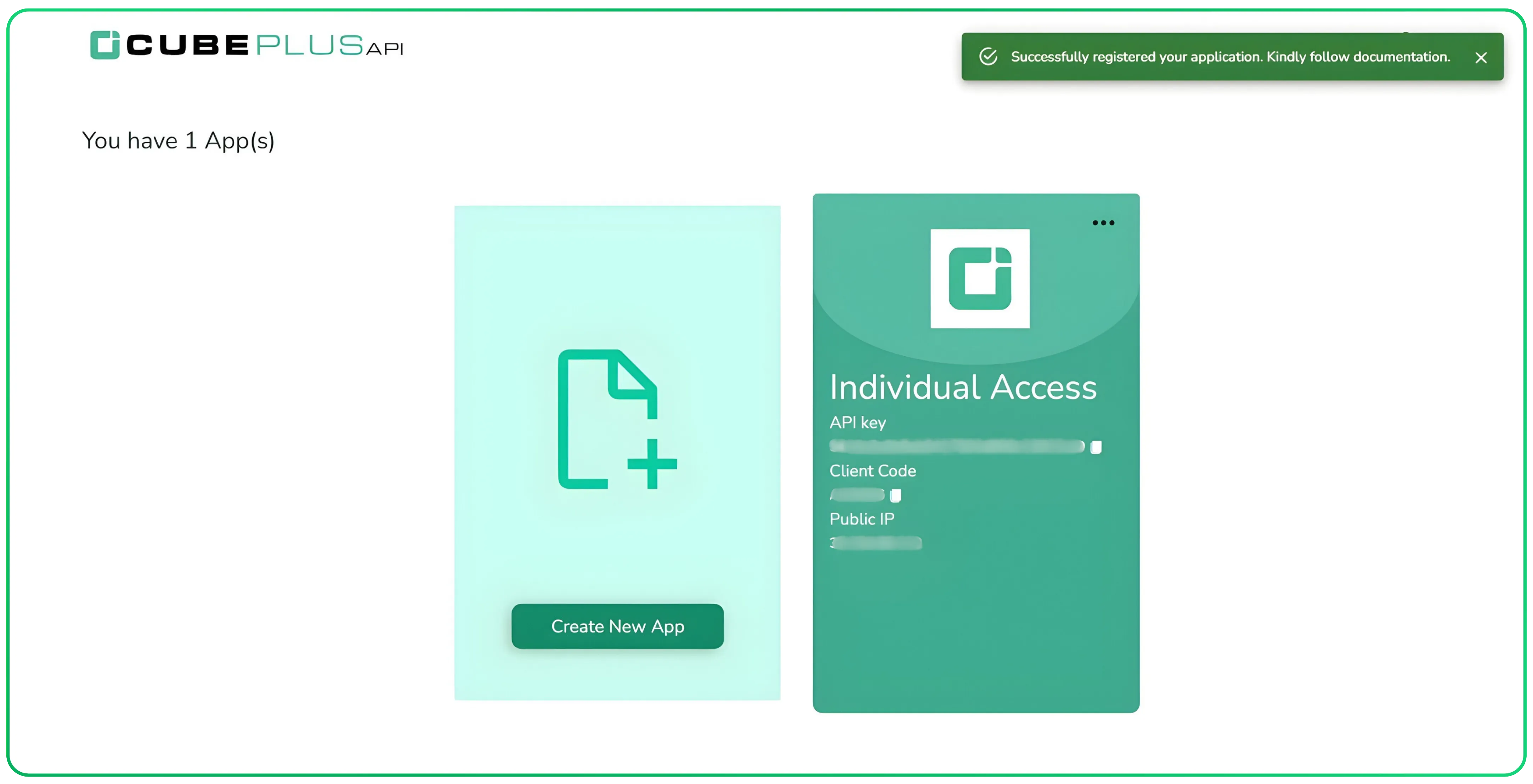
The dashboard will confirm the app was successfully registered with a success message, and the app card will display the registered static IP.
What IP Address Should You Use
You need a static IP address, one that does not change each time you connect to the internet. A standard home broadband connection typically provides a dynamic IP, which changes periodically and will not work for this requirement.
Here are the most common ways to get a static IP:
Request a static IP from your ISP. Most internet service providers offer static IPs as an optional add-on. Contact your ISP and ask them to assign one to your connection.
Use a cloud server. Cloud instances on AWS, GCP, or Azure come with a fixed public IP by default. If your algo or script already runs on a cloud server, you can use that server's IP directly.
Use a VPS (Virtual Private Server). A VPS from any hosting provider gives you a fixed public IP at a low monthly cost. You can run your trading scripts from there.
A Few Things to Keep in Mind
- All API order requests must originate from your registered static IP after 1st April 2026.
- You can register one primary IP and one backup IP per app for redundancy.
- If your IP needs to be updated, you can do so from the Developer Portal. IP updates are subject to a frequency limit, so plan ahead and avoid unnecessary changes.
For more details, explore our Static IP Support Guide.
Disclaimer: The information provided in our blogs is for informational purposes only and should not be construed as financial, investment, or trading advice. Trading and investing in the securities market carries risk. Always conduct your own research and consult with a qualified financial advisor before making any investment decisions. Past performance is not indicative of future results. Copyrighted and original content for your trading and investing needs.
© 2026 — Tradejini. All Rights Reserved.

%252FCubePlus_Shield_Part%25203%2520Blog%2520Thumbnail.webp%3Falt%3Dmedia%26token%3Da5581624-5761-476f-8451-40c157b54840&w=3840&q=75)
%252FShield%2520on%2520Cubeplus%2520part2.webp%3Falt%3Dmedia%26token%3D252a5b48-a580-4e8d-b939-c82d4696eaef&w=3840&q=75)