Tracking your investments should feel effortless, and the latest update to the CubePlus mobile app makes the My Holdings section far more flexible. You can now sort your holdings the way you want, decide which columns appear on screen, rearrange their order, and even freeze the fields that matter most to you. Here is a walk through of everything the update brings and how to use it.
Getting to your holdings
Open the CubePlus mobile app and go to the Portfolio section, then tap on My Holdings. Every holding in your account appears here in a single view. If you hold a large number of scrips, the search bar at the top lets you look up any particular holding quickly instead of scrolling through the entire list.
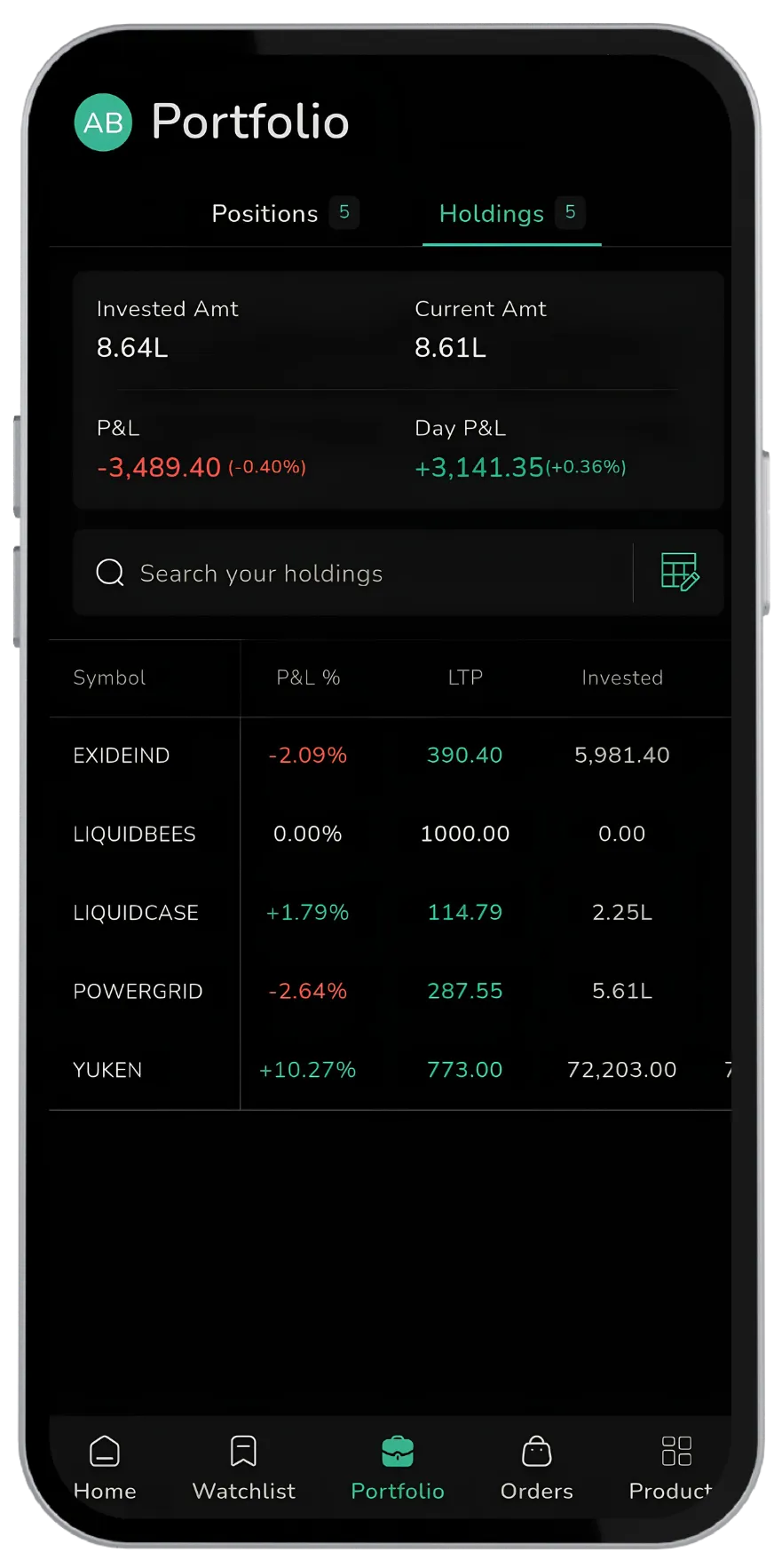
Sorting by any column
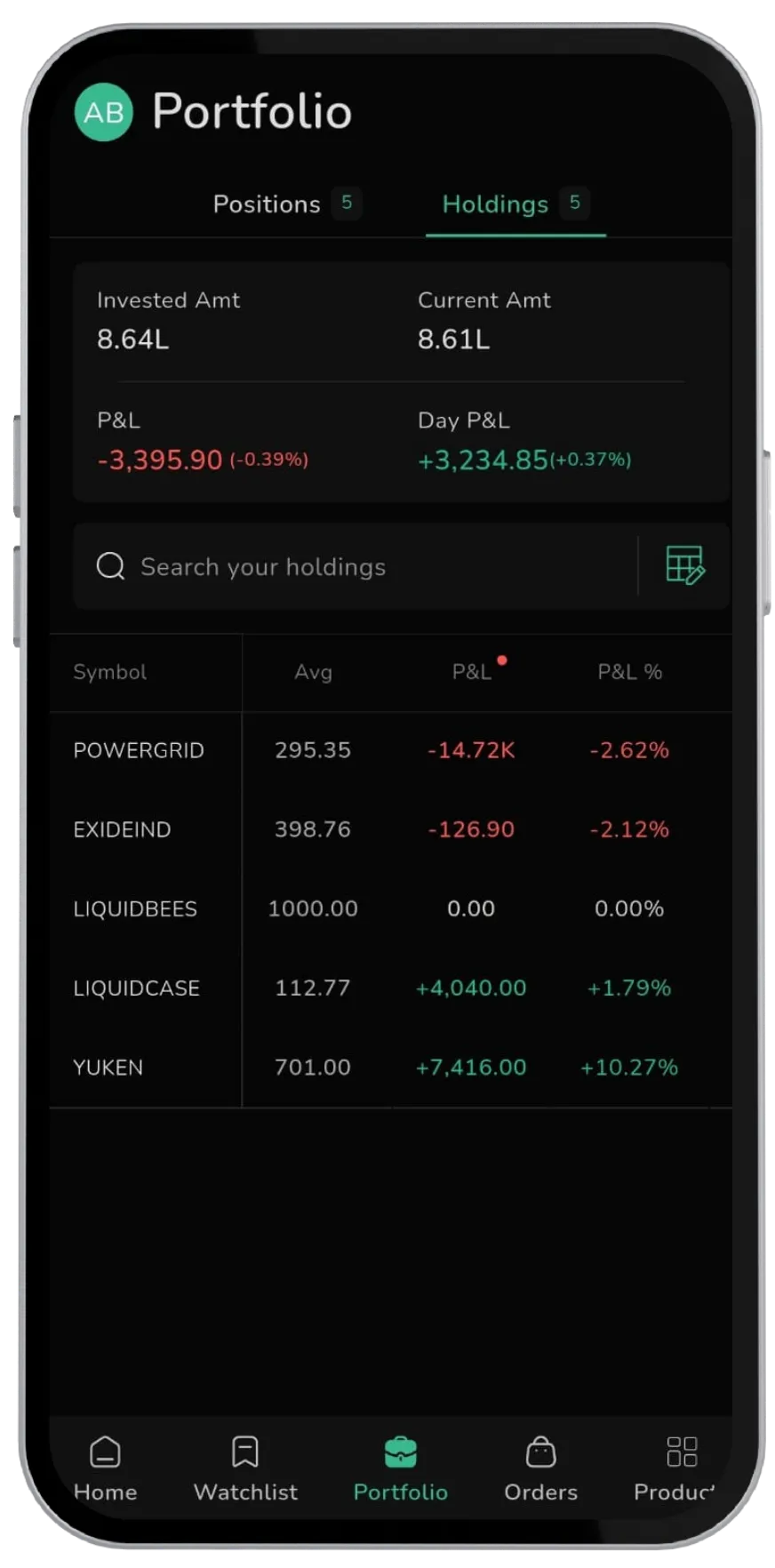
Each column in the holdings table now works as a sorting control. Tap on any sub heading and the list rearranges itself around that column. In the example below, tapping on P&L reorders the scrips from lowest to highest. Tap the same heading once more and the order flips, showing you highest to lowest. This makes it easy to spot your best and worst performers, or to arrange holdings by quantity, value, or any other field, in a single tap.
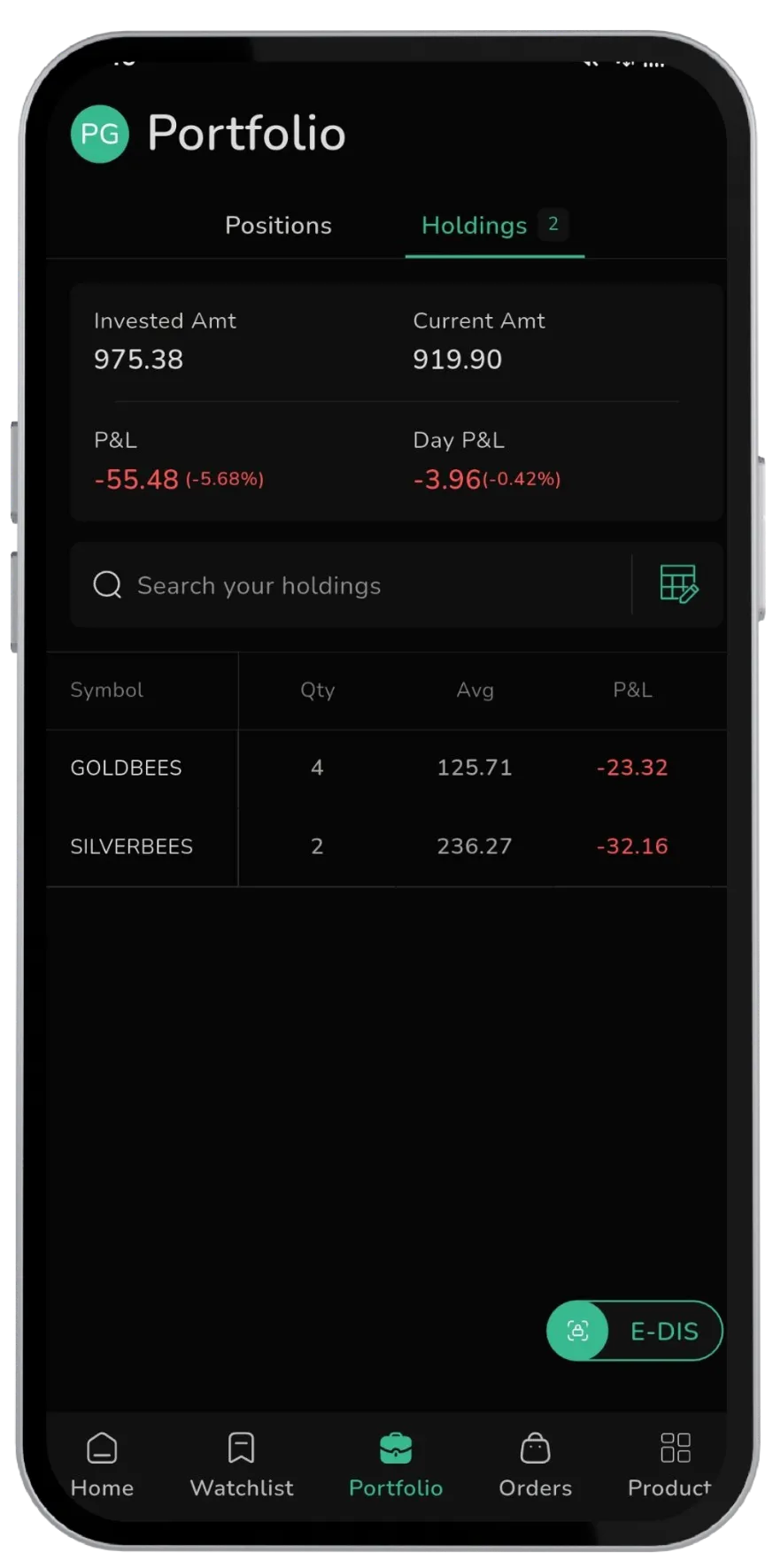
Customising which columns you see
Next to the search bar you will find a customisation symbol. Tapping on it opens the controls that let you shape the table to your preference.
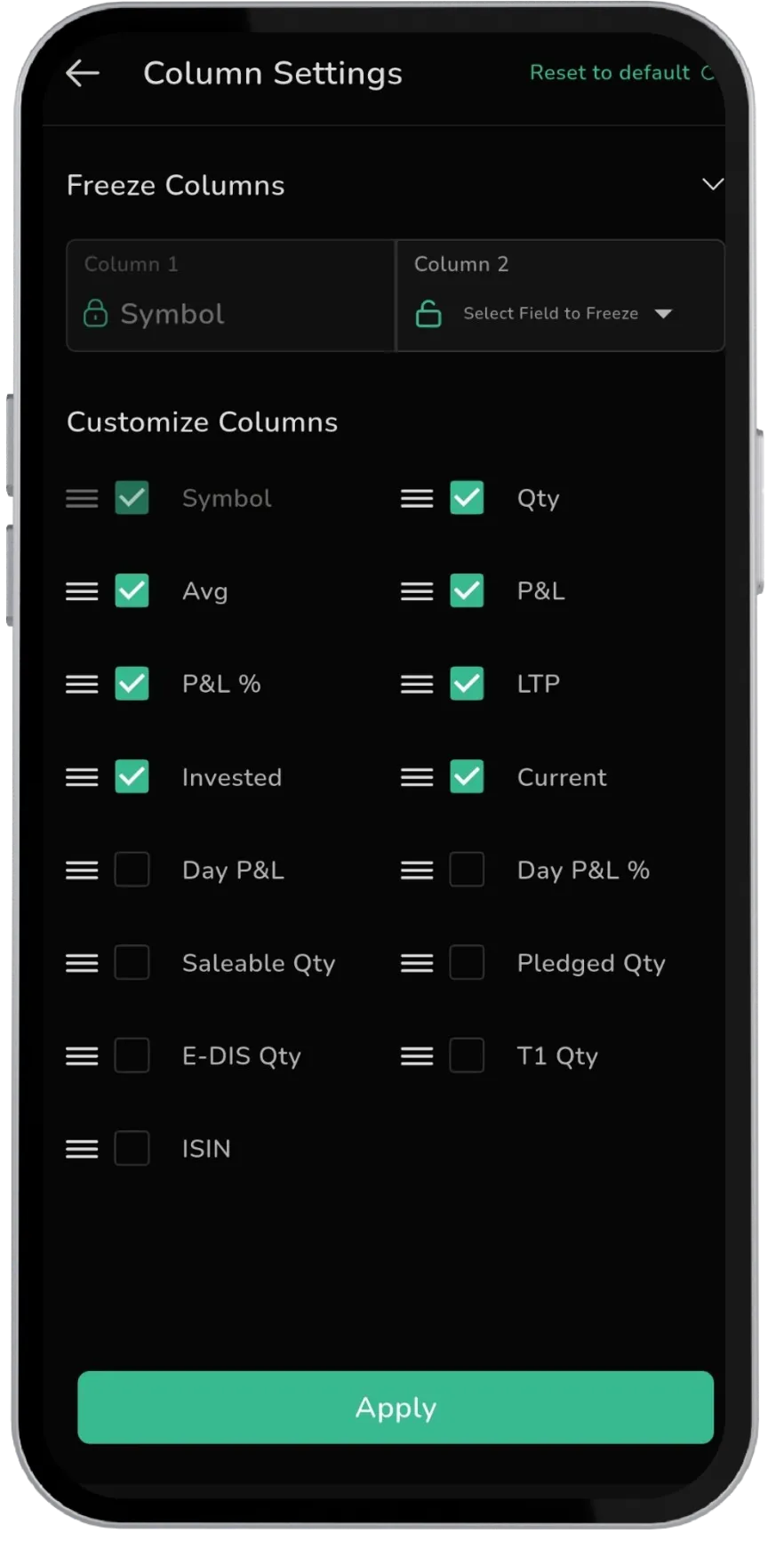
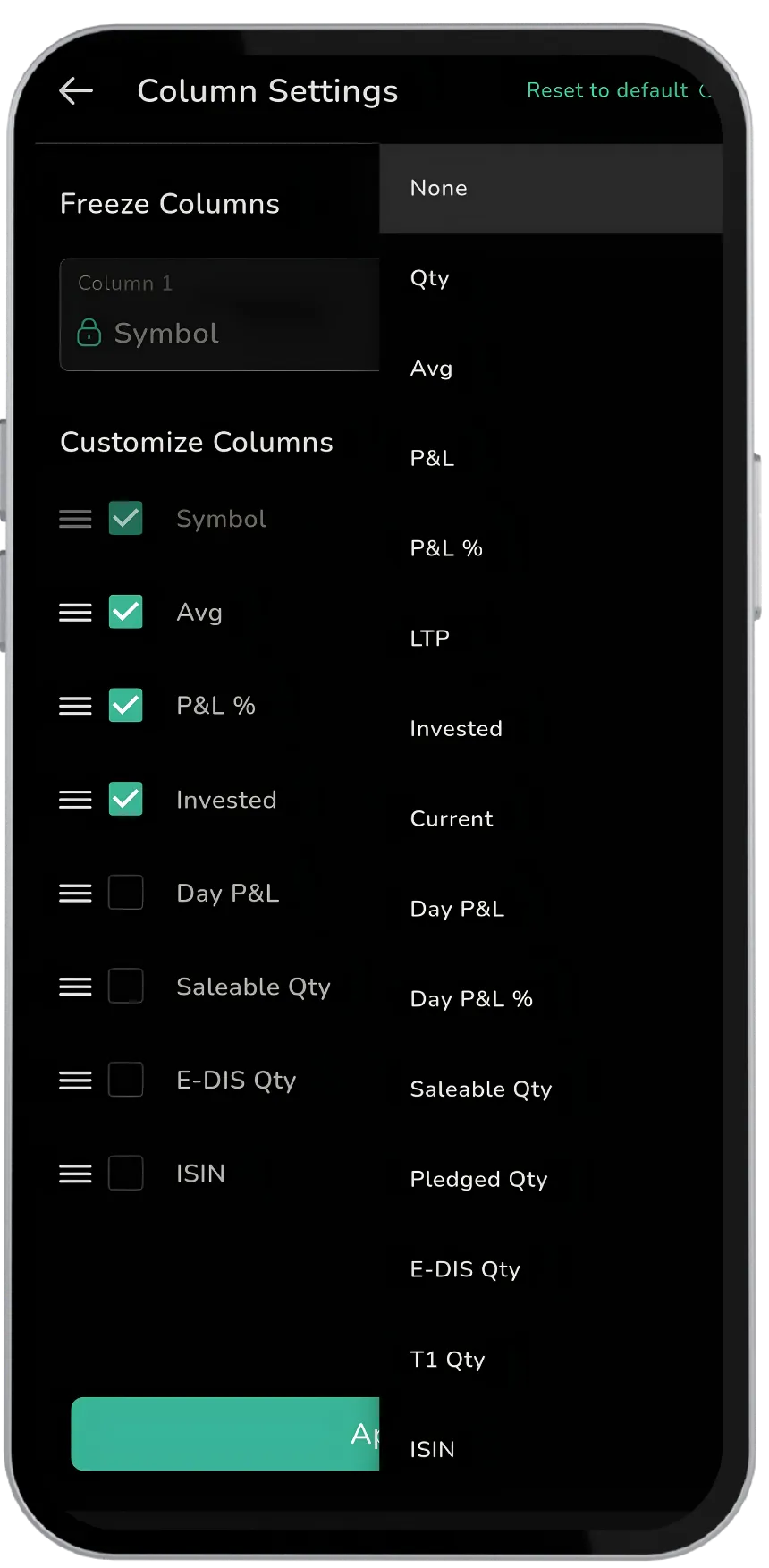
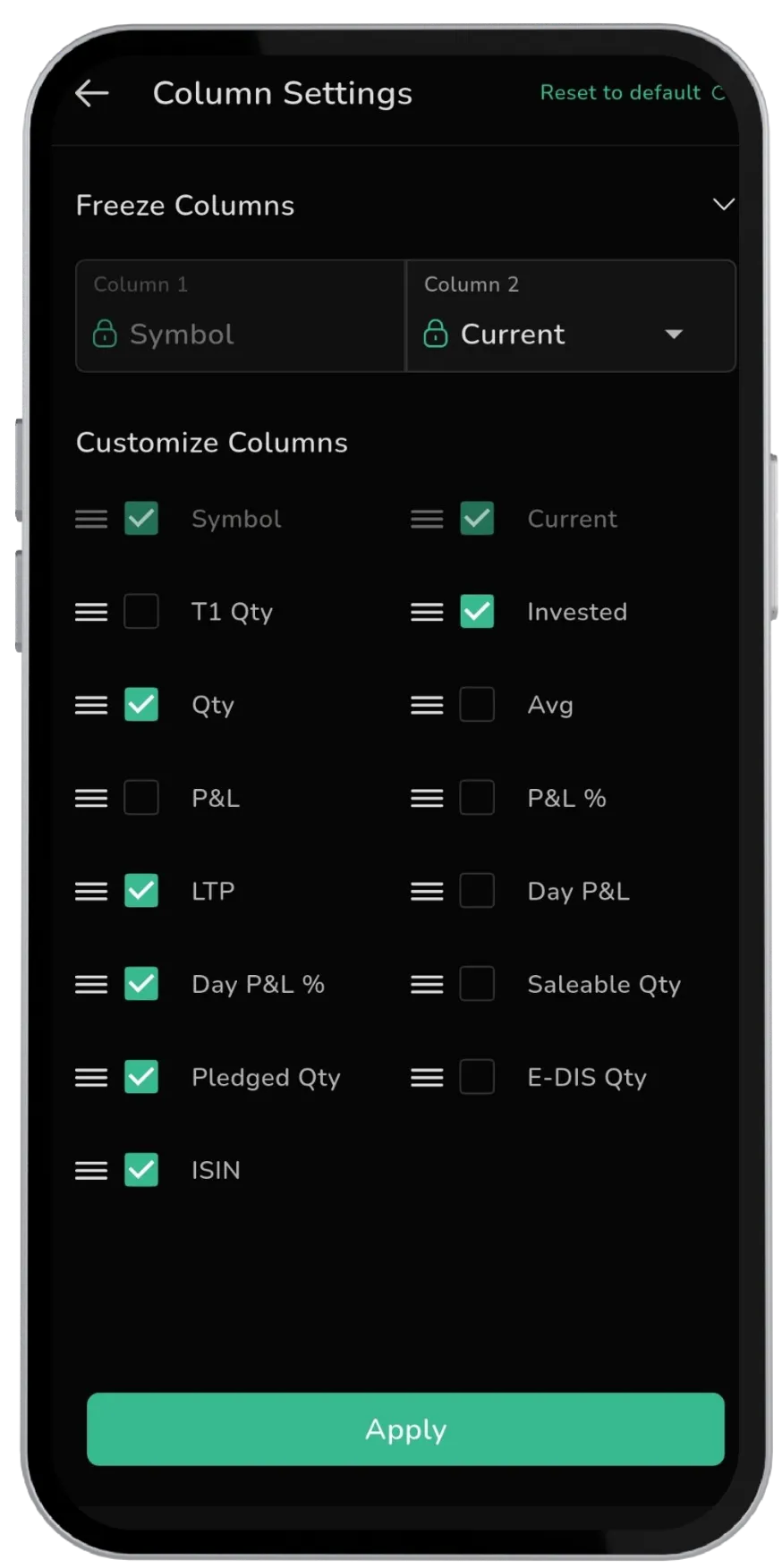
The customisation page gives you full control over the layout. You decide which fields stay visible and which ones are hidden, so the table shows only what you care about. Each item also has three dashes beside it. Press and hold these dashes to drag an item up or down the list. This lets you set the order in which your columns appear, placing the most important field first and arranging the rest to follow. To manage the fields you want to keep locked in place, tap on the group named Column 2.
Freezing the fields that matter
Within this section you can choose the fields you want to freeze. Freezing keeps a column pinned in place as you move across the table. You can freeze a maximum of two fields at a time, which is usually enough to keep your key reference points always in view.
Once you have chosen your frozen fields and decided what should be visible, tap on Apply to save your layout.
Your personalised holdings view
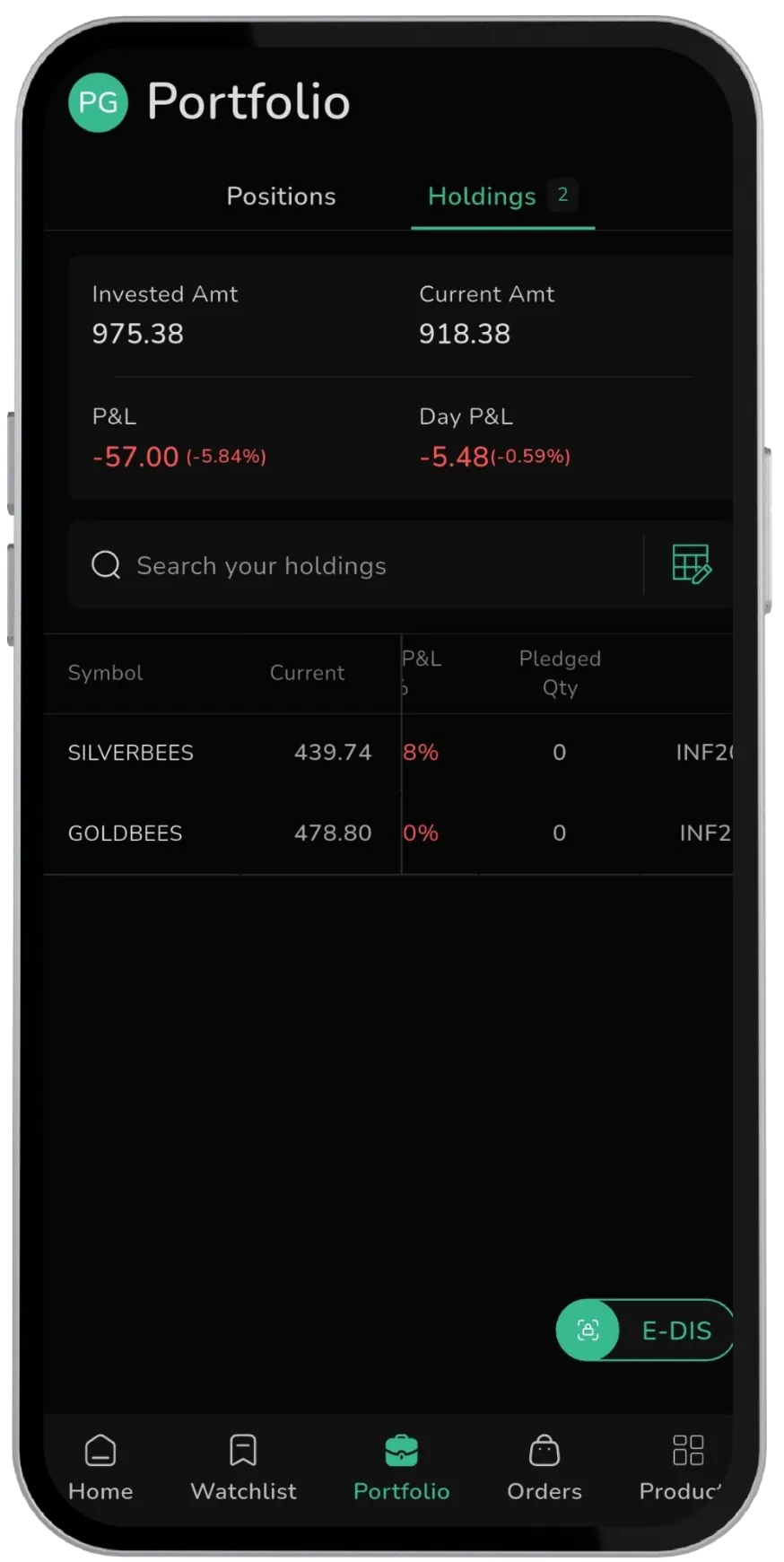
Your My Holdings section now reflects exactly how you want to work. The two frozen fields stay locked on the left of the screen while the remaining columns can be viewed by scrolling to the right. Your key information stays anchored no matter how far across the table you move.
Why this matters
Every investor looks at their portfolio differently. Some want profit and loss front and centre, others care most about quantity or current value. This update to My Holdings puts that choice entirely in your hands. Sort by any column, keep only the fields you need, arrange them in the order that suits you, and lock the essentials in place. The result is a holdings view built around the way you actually track your investments.
Disclaimer: The information provided in our blogs is for informational purposes only and should not be construed as financial, investment, or trading advice. Trading and investing in the securities market carries risk. Always conduct your own research and consult with a qualified financial advisor before making any investment decisions. Past performance is not indicative of future results. Copyrighted and original content for your trading and investing needs.
© 2026 — Tradejini. All Rights Reserved.