GTT stands for Good Till Triggered. CubePlus GTT orders allow you to set a trigger price on Equity and F&O instruments, and the system automatically places the order on the exchange when that price is reached, without you having to watch the market.
This is useful when you have identified a price level for a trade but do not want to sit in front of the screen waiting for the stock to reach it. GTT orders are one of the most effective automated order placement tools available on the Cubeplus trading platform, especially for positional traders who plan trades in advance.
How to Place GTT Orders on Cubeplus
There are two ways to create a GTT order on Cubeplus: from the order pad or directly from the chart.
From the Order Pad
To place a Single GTT order, search for the stock in your watchlist, for example EXIDEIND on NSE, and click Buy.
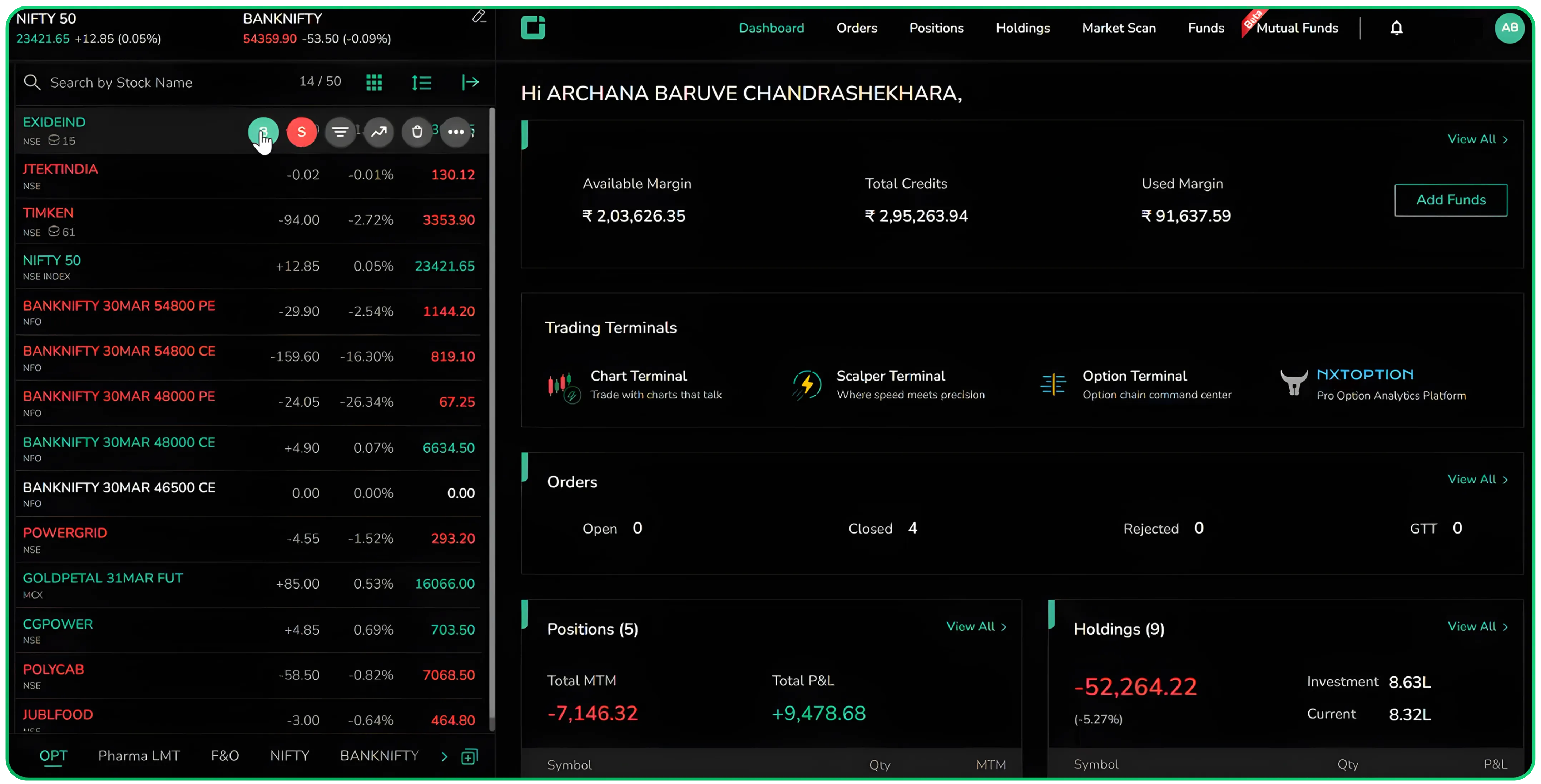
The order pad opens. Click Create GTT at the top right corner.
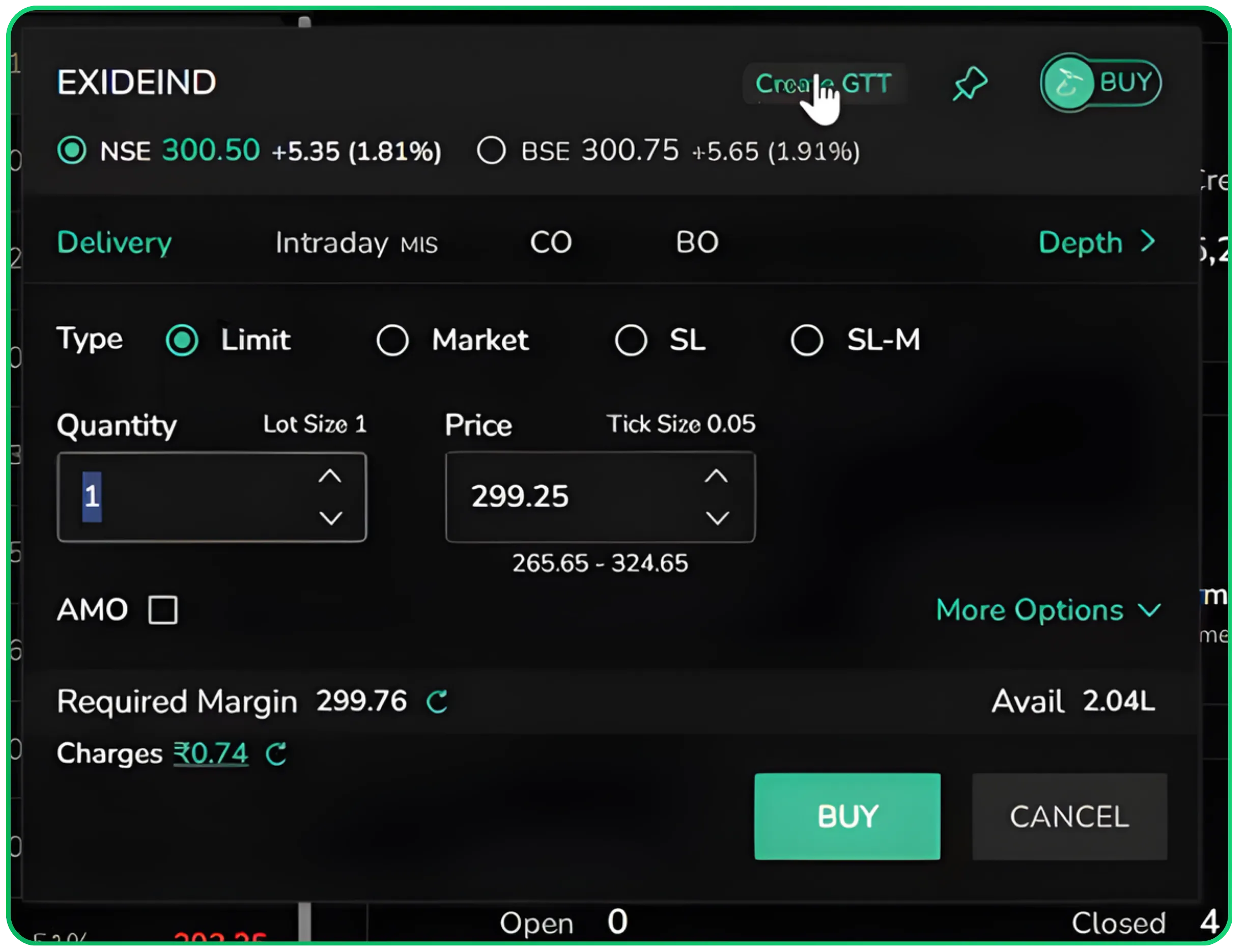
You will see two options: Single and OCO. Select Single, enter the Trigger Price, Quantity, and Limit Price, and click Create GTT.
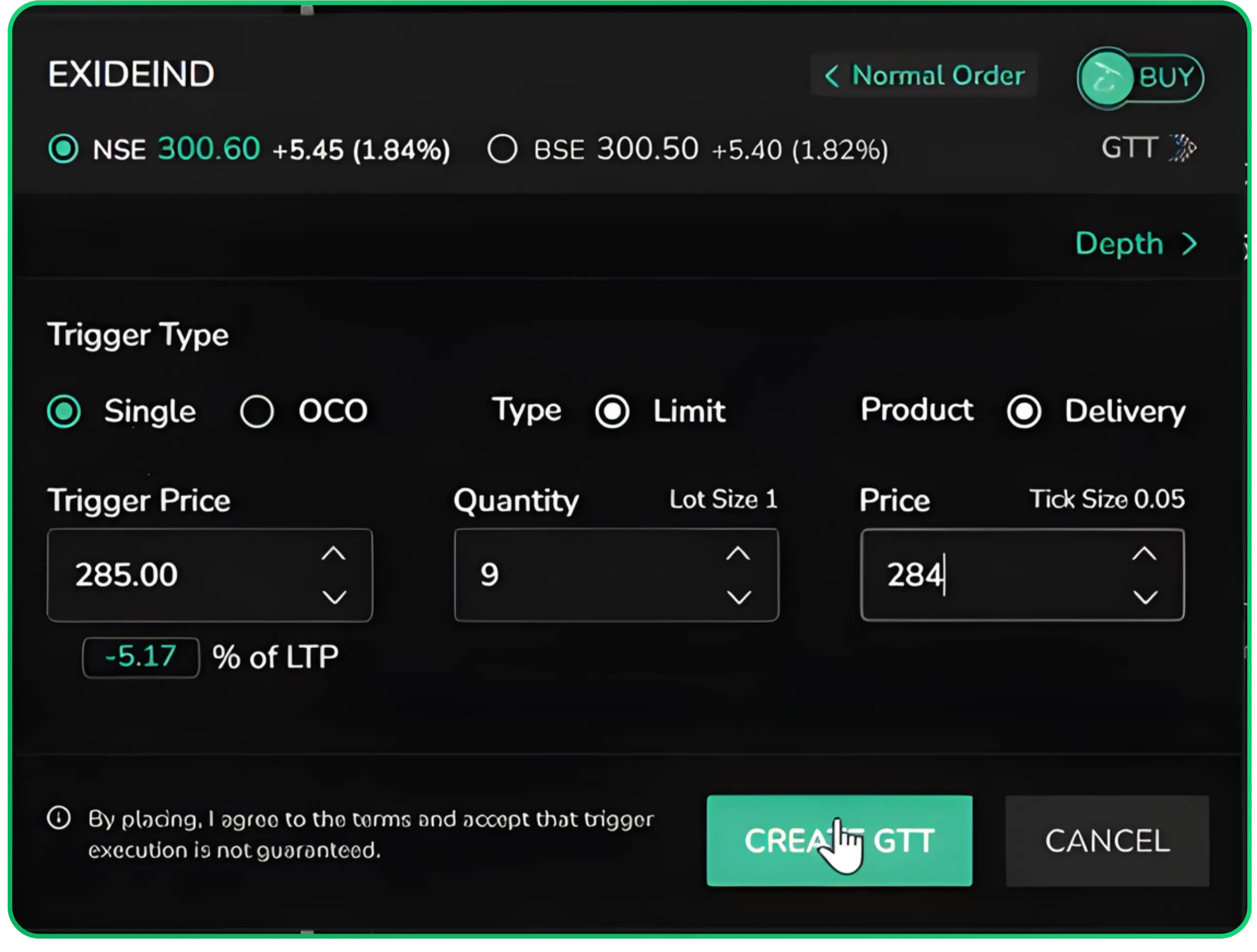
The order is now active and will be sent to the exchange when the stock reaches your trigger price.
Example: EXIDEIND buy GTT placed with trigger price 285.00, quantity 9, limit price 284.00. The current LTP was 300.60, meaning the order will trigger only if the stock falls to 285.
CubePlus GTT Order Types: Single and OCO
When you click Create GTT, you will see two order types: Single and OCO (One Cancels the Other).
Single GTT
A Single GTT order on Cubeplus is used when you want to enter a trade at a specific price. You set one trigger price and a limit price, and the system places the order when the market reaches that level. There is no stop loss or target attached. It works on both equity stocks and F&O contracts on NSE and BSE.
OCO Order on Cubeplus (One Cancels the Other)
The OCO order on Cubeplus is used when you already hold a position and want to manage both risk and profit simultaneously. It is one of the most practical tools for GTT stop loss and target management, as it ensures only one of the two orders ever executes. The OCO order lets you set a stop loss and a target at the same time.
- If the target price is hit, the stop loss order gets cancelled automatically.
- If the stop loss price is hit, the target order gets cancelled automatically.
Only one of the two will ever execute.
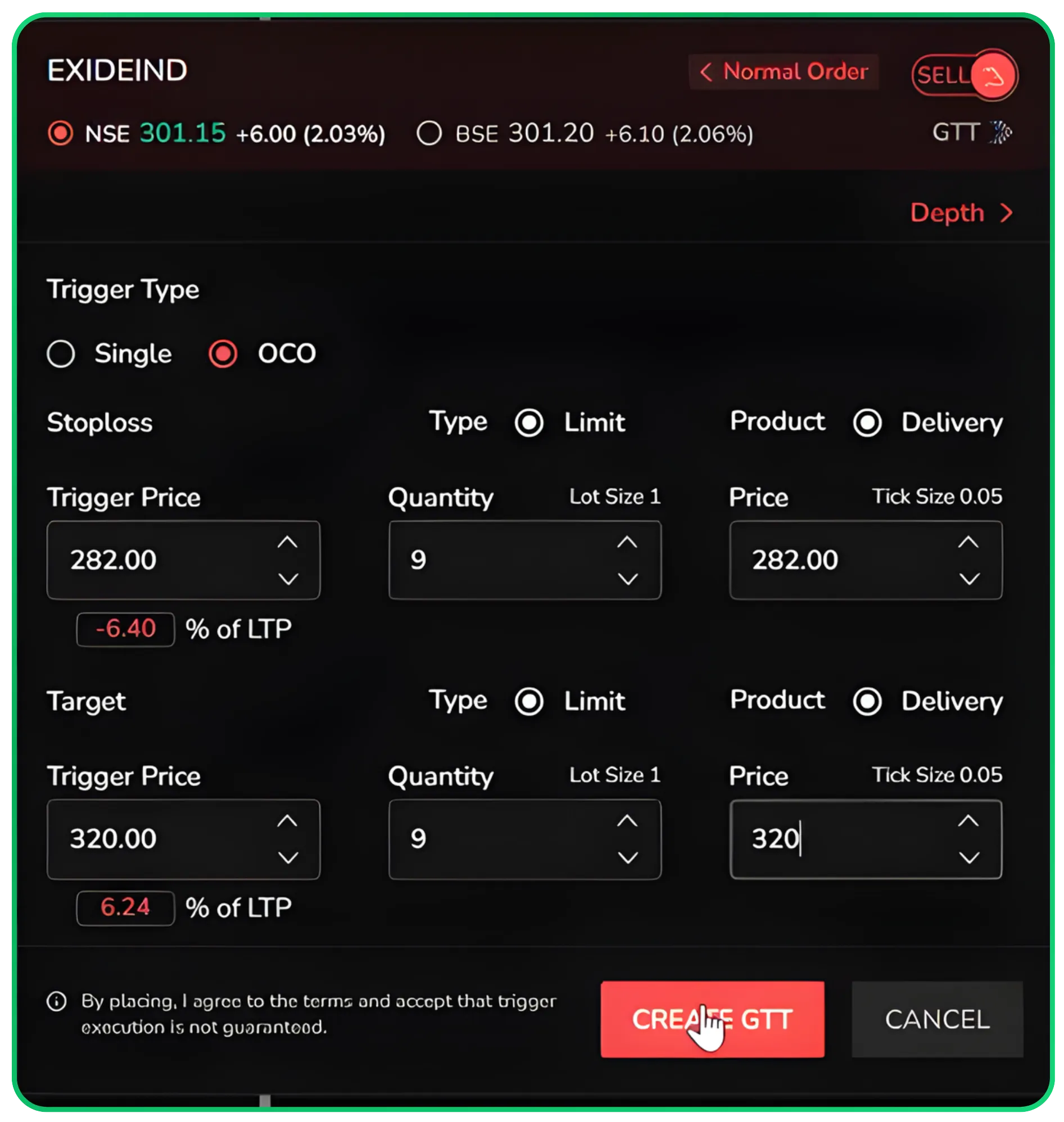
Example: EXIDEIND sell OCO placed with stop loss trigger at 282.00 and target trigger at 320.00, quantity 9 each. The LTP at the time of placing was 301.
How to Place an OCO Order
To place an OCO order, click Sell on the stock you hold and open the order pad.
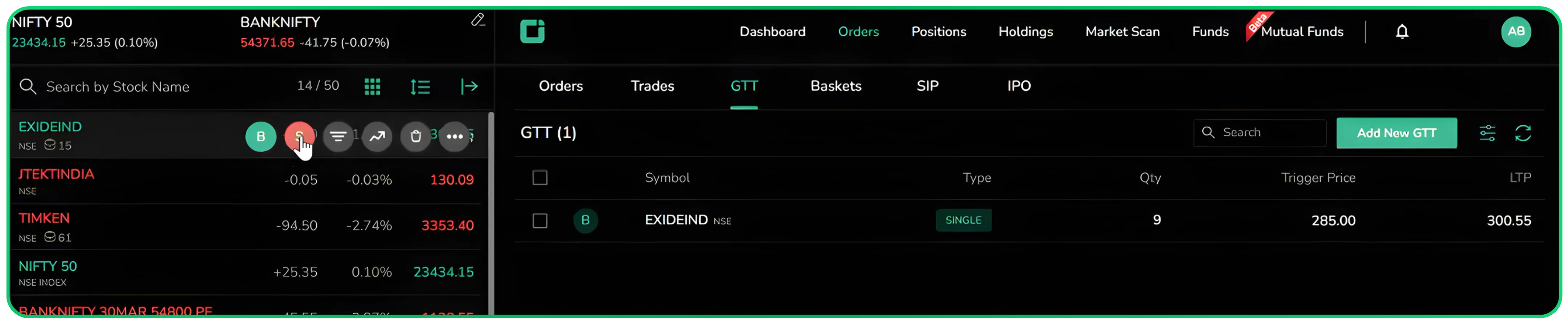
From there, click Create GTT and switch the Trigger Type from Single to OCO.
You will now see two fields: Stop Loss and Target. Enter the trigger price, quantity, and limit price for each. Once both are filled, click Create GTT.
GTT Dashboard on Cubeplus
All your active GTT orders are visible under Orders > GTT. The dashboard shows each order with the following details:
- Symbol and exchange
- Order type: Single or OCO
- Quantity
- Trigger price (or both stop loss and target prices for OCO)
- Last Traded Price (LTP)
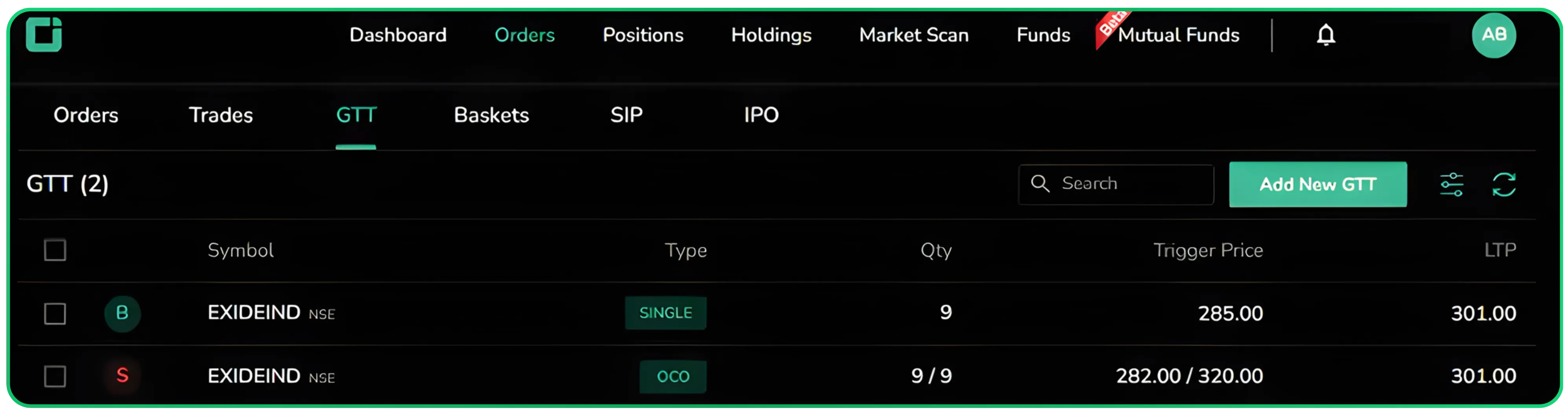
For an OCO order, the trigger price column shows both values, for example 282.00 / 320.00, representing stop loss and target respectively.
If there are no active GTT orders, the dashboard displays a prompt to Add New GTT.
The GTT dashboard on Cubeplus is the central place for all GTT order management, giving you a full view of your active triggers at any time.
Viewing Open GTT Orders on the Chart
When you open a stock chart, all your active GTT orders for that stock are automatically plotted as horizontal lines on the chart. You do not need to place them again from the chart for them to appear.
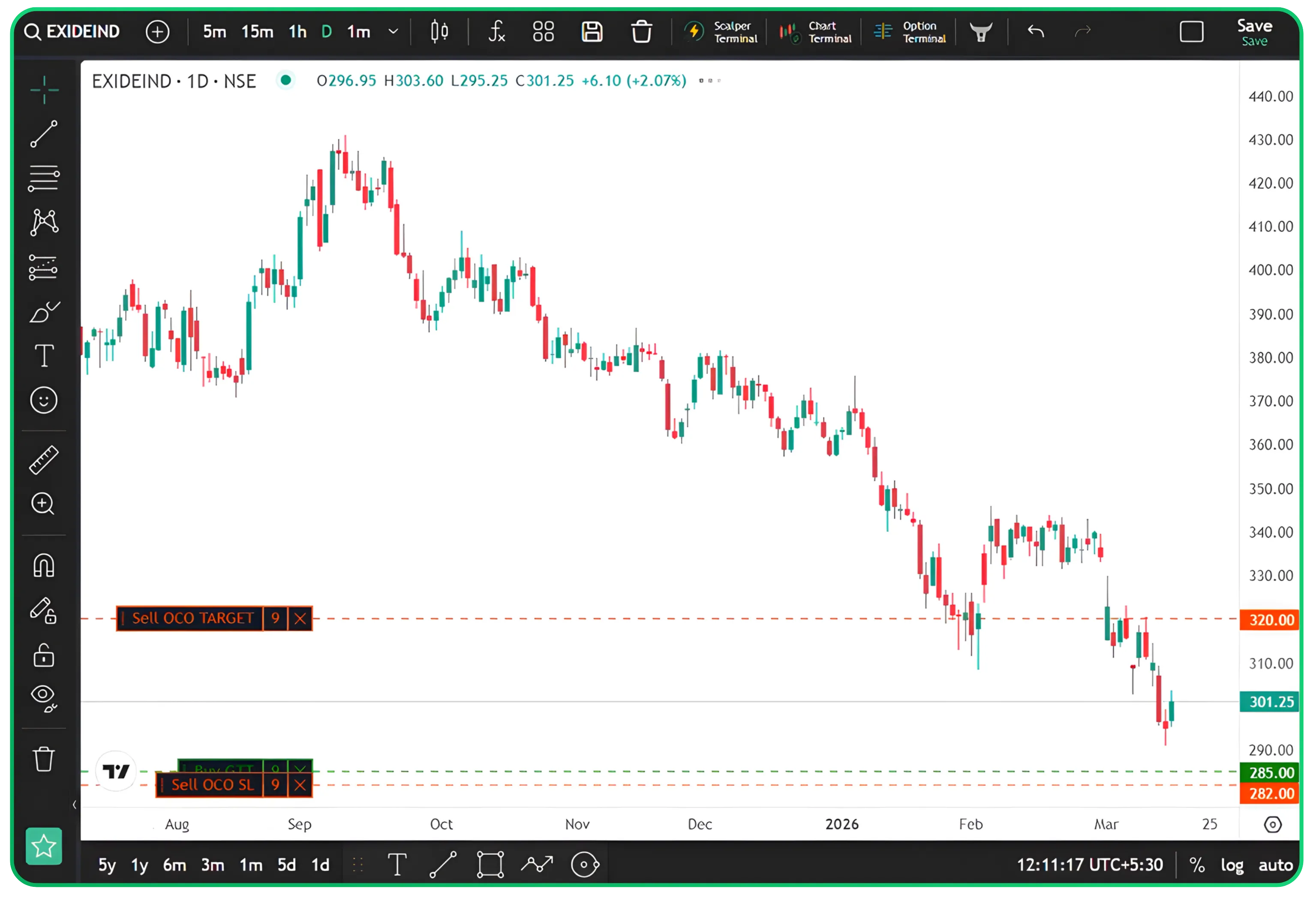
For example, if you have already placed a Buy GTT at 285.00, a Sell OCO Stop Loss at 282.00, and a Sell OCO Target at 320.00 from the order pad, all three lines will show up on the chart with their respective labels: Buy GTT, Sell OCO SL, and Sell OCO TARGET.
This gives a clear visual reference of your orders relative to price action.
All GTT order lines placed from the chart are reflected on the GTT dashboard as well and vice versa.
Also read: How to Set Up and Manage Your Watchlists on CubePlus
Cubeplus Chart GTT: Placing Orders Directly from the Chart
Cubeplus also lets you place GTT orders directly from the chart, which is useful when you are doing technical analysis and want to mark a price level visually. This is one of the more convenient automated order placement features on the Cubeplus trading platform, as it maps your order directly to a price level on the chart.
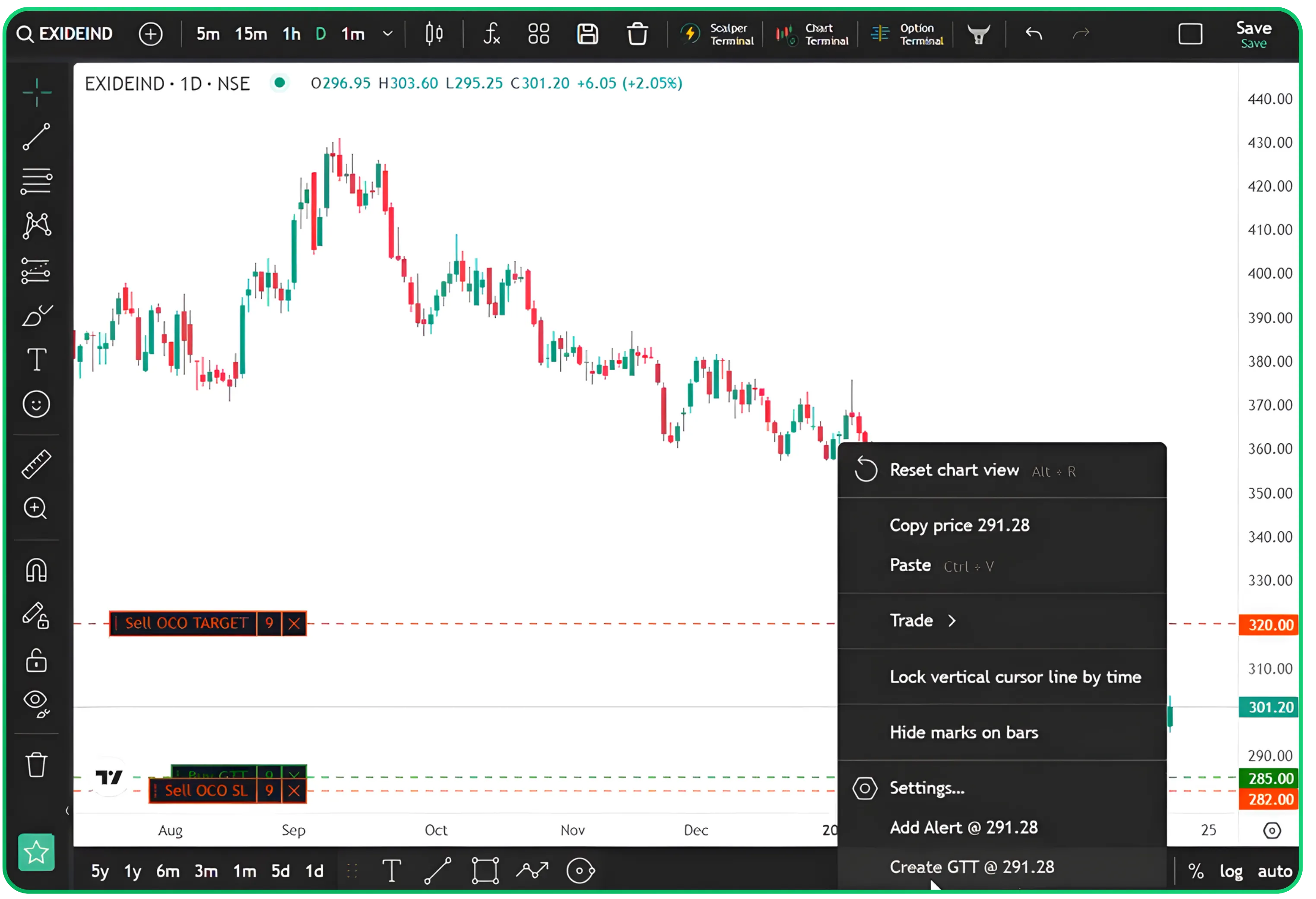
To place a GTT order directly from the chart, open the stock chart and right-click on the price level you want to target. From the context menu, select Create GTT at the price shown, for example, Create GTT @ 291.28. The order is immediately plotted as a horizontal line on the chart, labelled as Buy GTT, Sell OCO TARGET, or Sell OCO SL depending on the order type you placed.
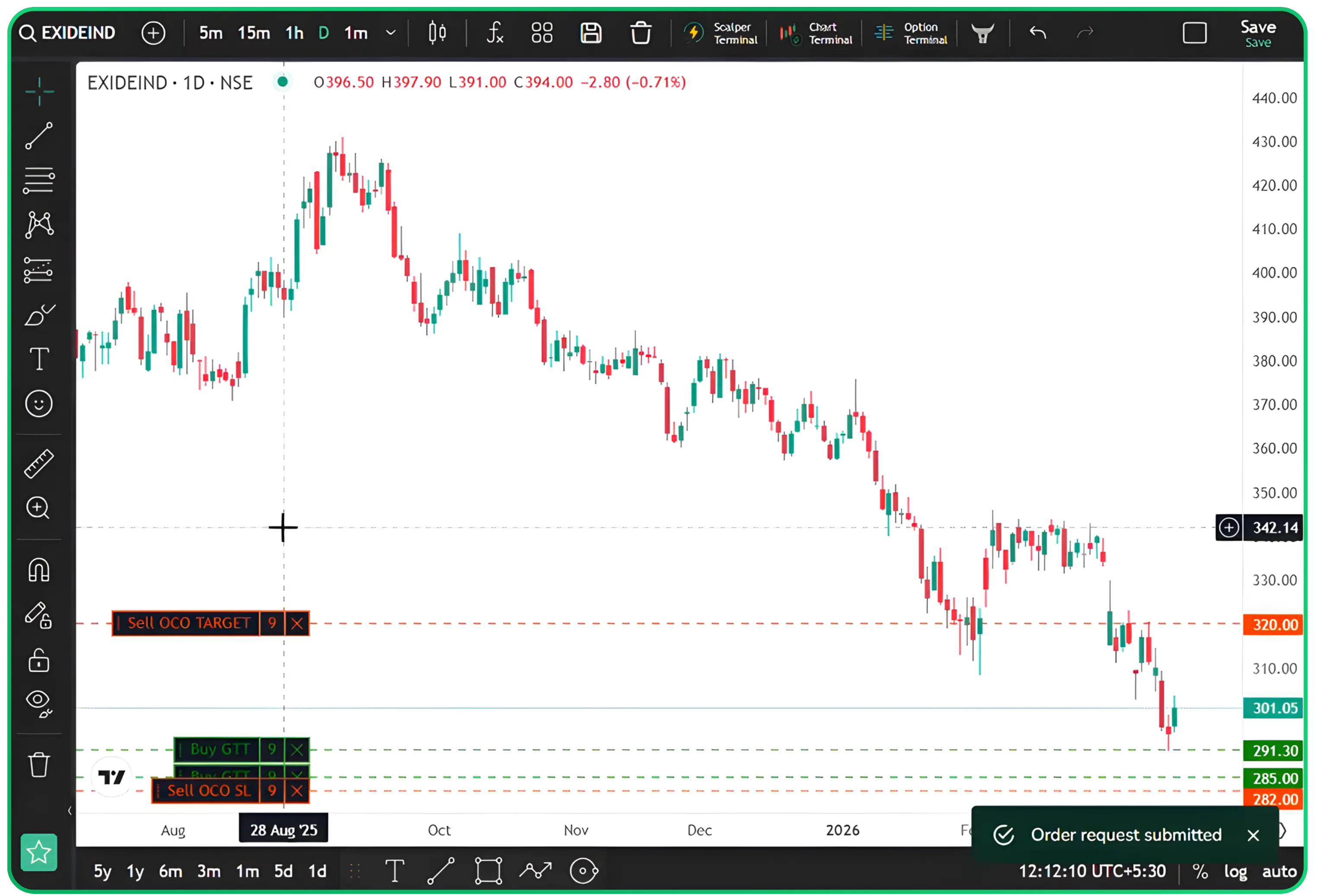
To delete a chart-based GTT order, hover over the order line and click the Delete GTT Order button that appears.
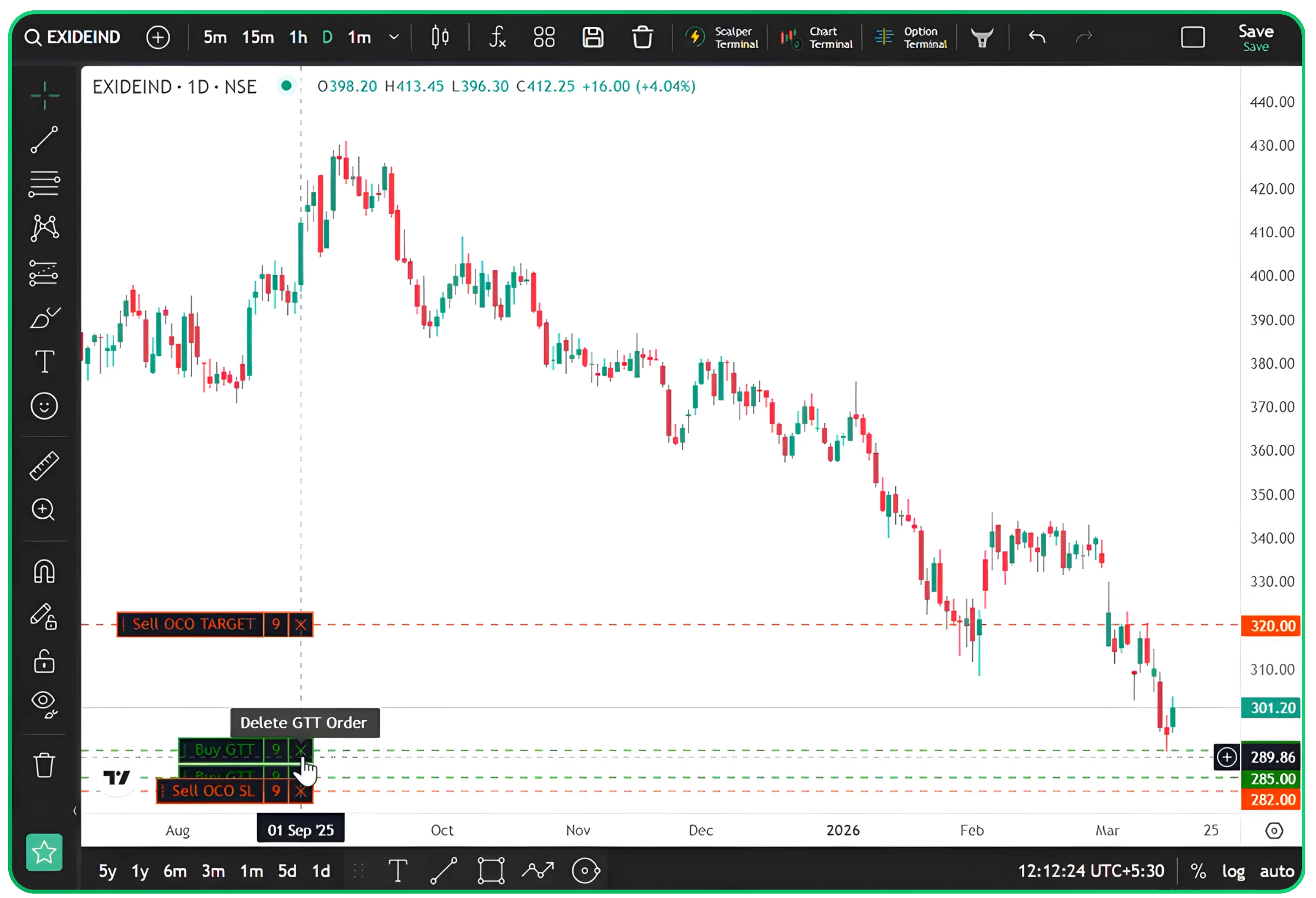
All GTT order lines placed from the chart are reflected on the GTT dashboard as well and vice versa.
GTT Order Management on Cubeplus
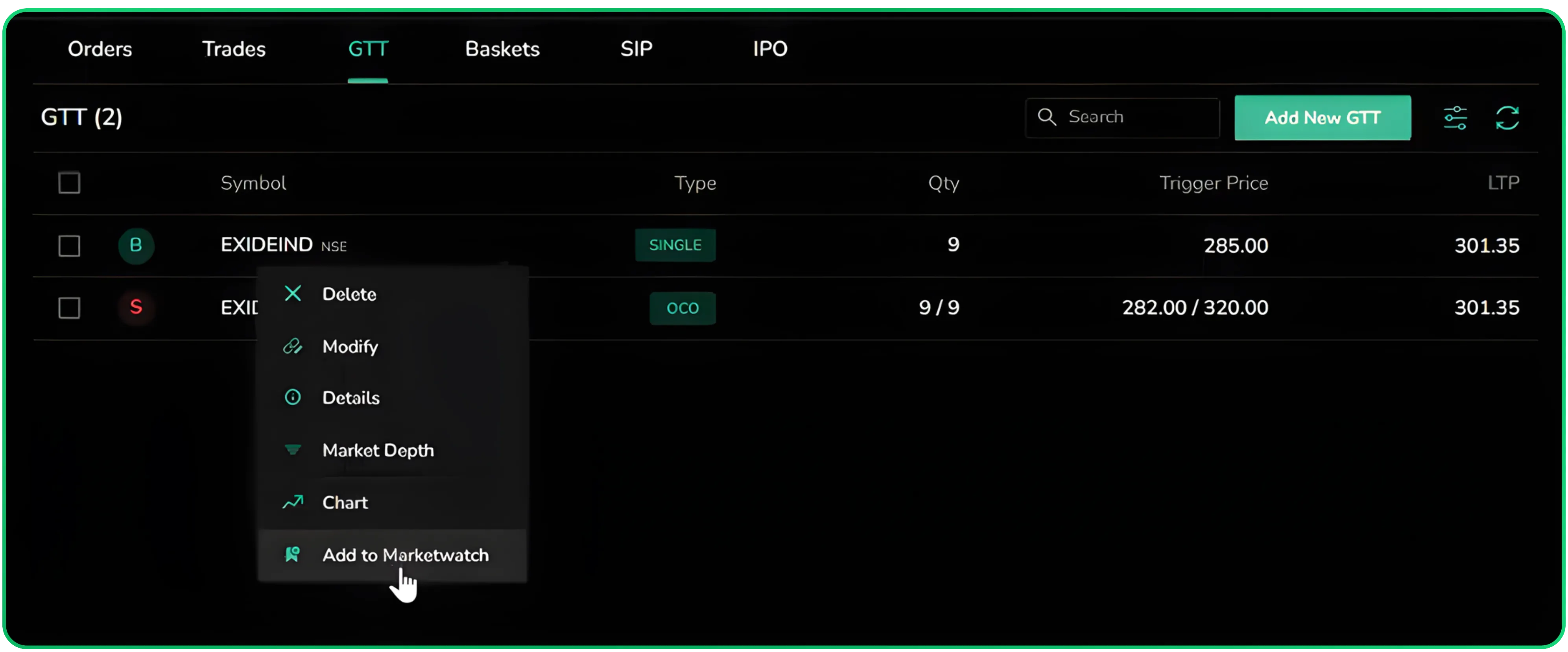
- Modify: Edit the trigger price, quantity, or limit price.
- Delete: Remove the GTT order.
- Details: View the full order details.
- Market Depth: Check the bid and ask levels for the stock.
- Chart: Open the stock chart.
- Add to Marketwatch: Add the stock to your watchlist.
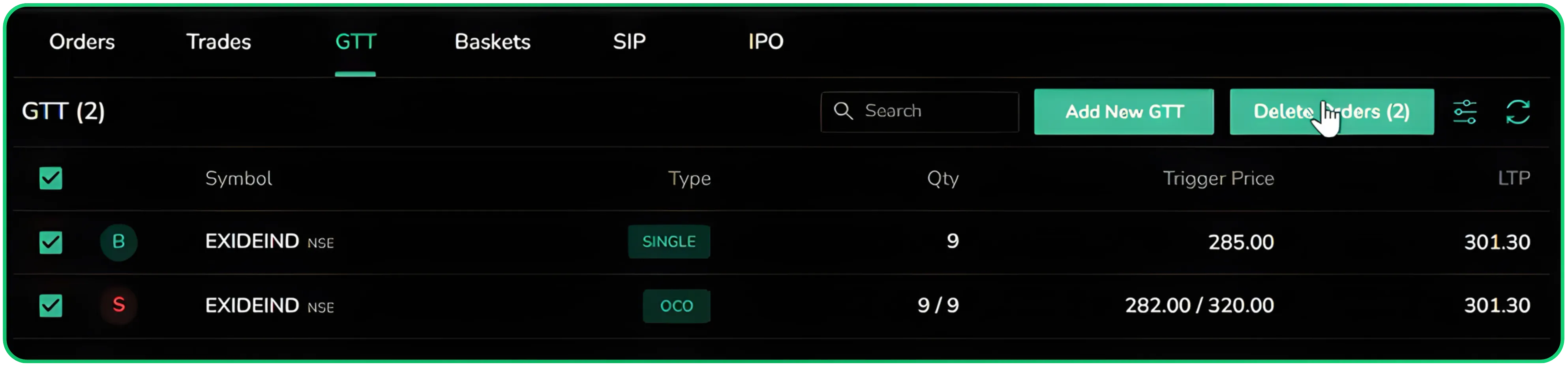
To delete multiple orders at once, select the orders using the checkboxes and click Delete Orders from the top right of the GTT section.
Creating a New GTT from the GTT Section
You do not have to go through the watchlist every time you want to place a GTT order. Cubeplus, the trading platform by Tradejini, also allows you to create a GTT order directly from the Orders section without going through the watchlist. From Orders > GTT, click Add New GTT.
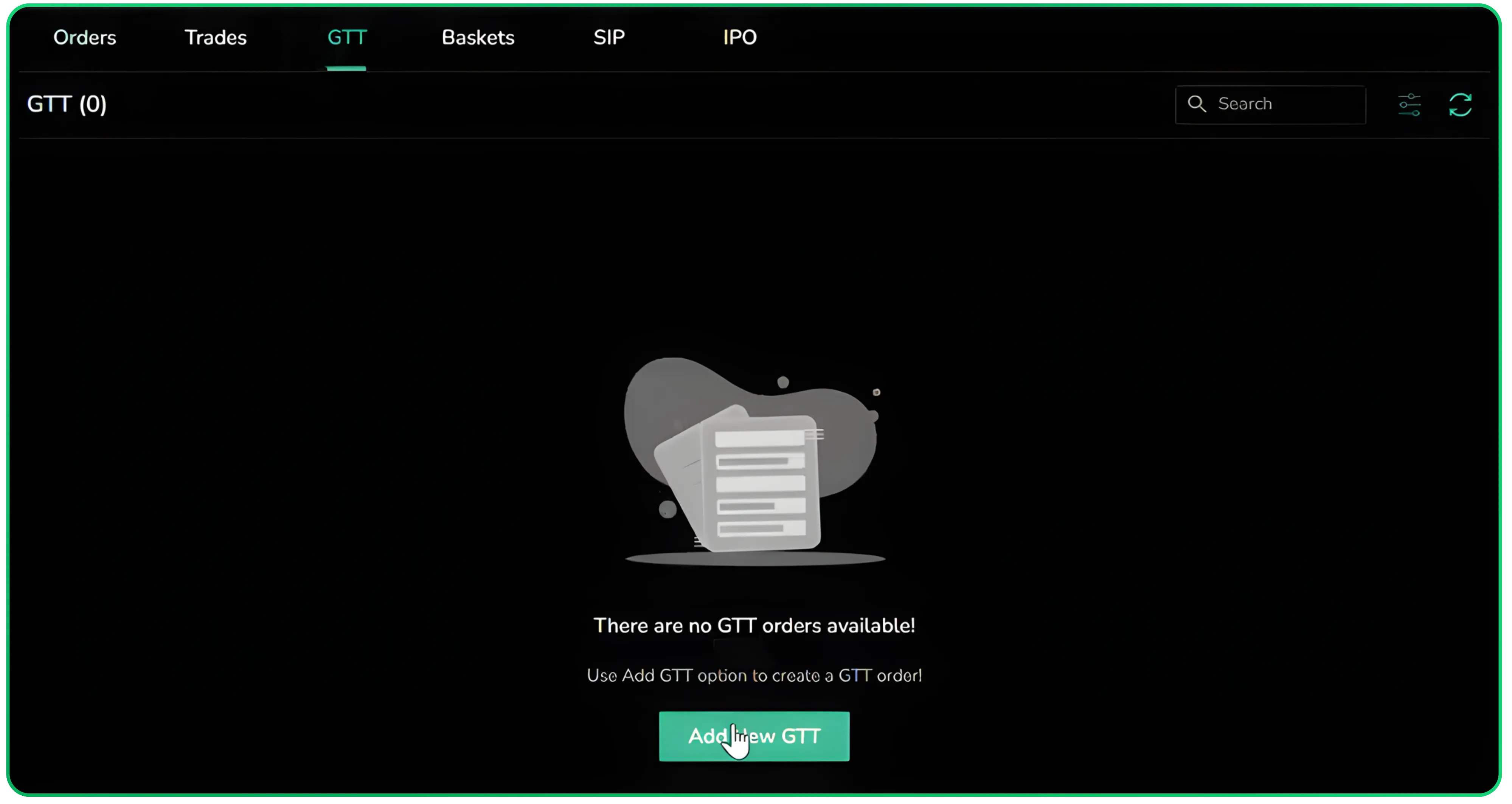
Search for the stock you want, select it, fill in the order details, and click Create GTT.
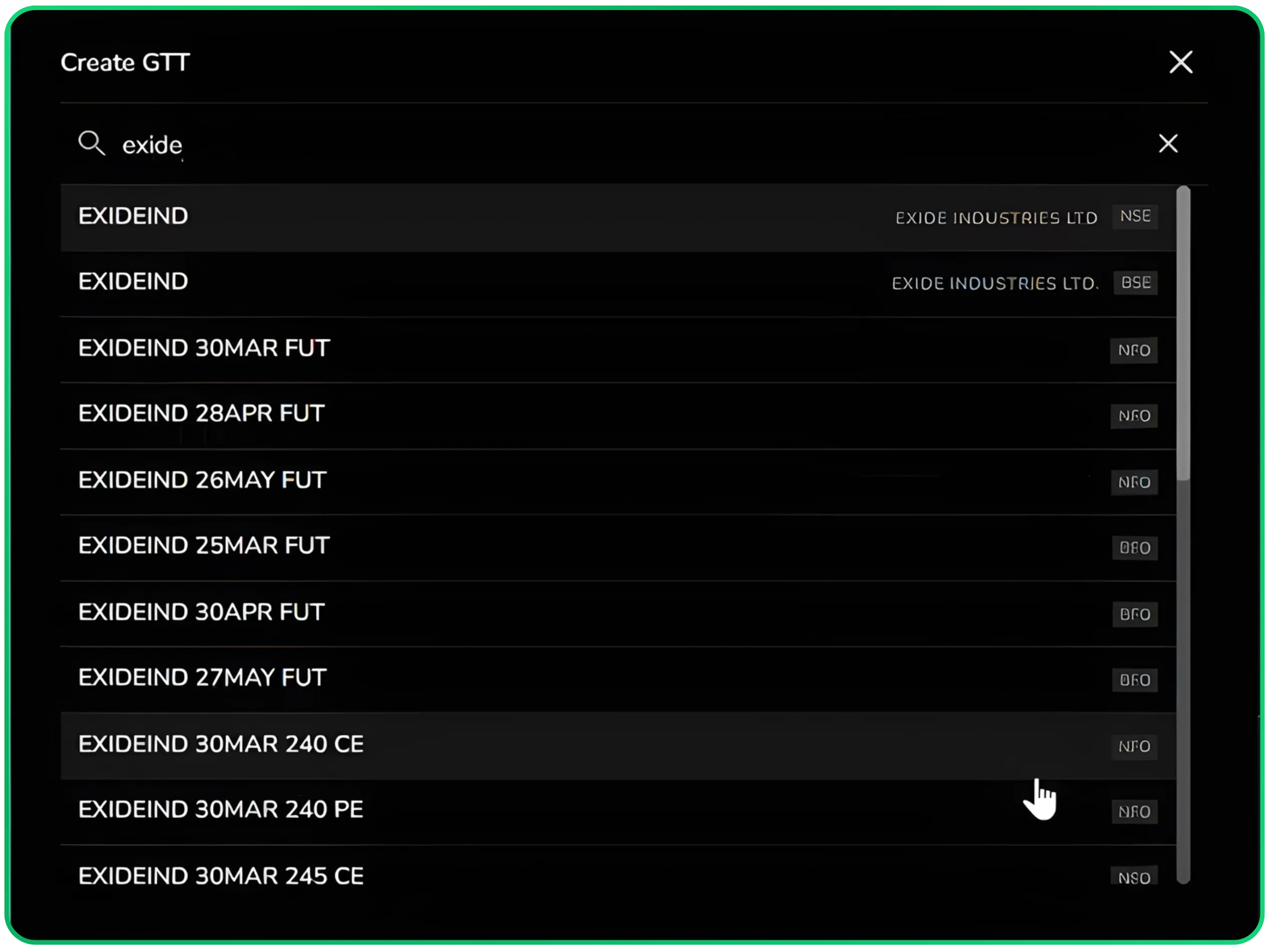
Summary
GTT orders on Cubeplus take the pressure off having to track the market every minute. The platform automates order execution based on your trigger price, making it a reliable tool for both risk management and disciplined trading without watching the screen. Once you place the order, the system monitors the price and executes the trade automatically when your conditions are met.
- Single GTT: Use for entry orders at a specific price.
- OCO GTT: Use for managing existing positions with both stop loss and target.
- Chart GTT: Use when you want to plot and visualize the order level on the chart.
- GTT Dashboard: Used to track, modify, and manage all active GTT orders in one place.
Disclaimer: The information provided in our blogs is for informational purposes only and should not be construed as financial, investment, or trading advice. Trading and investing in the securities market carries risk. Always conduct your own research and consult with a qualified financial advisor before making any investment decisions. Past performance is not indicative of future results. Copyrighted and original content for your trading and investing needs.
© 2026 — Tradejini. All Rights Reserved.

%252FCubePlus_Shield_Part%25203%2520Blog%2520Thumbnail.webp%3Falt%3Dmedia%26token%3Da5581624-5761-476f-8451-40c157b54840&w=3840&q=75)
%252FShield%2520on%2520Cubeplus%2520part2.webp%3Falt%3Dmedia%26token%3D252a5b48-a580-4e8d-b939-c82d4696eaef&w=3840&q=75)