Keeping track of the stocks that matter to you is an essential part of trading. CubePlus makes this easier through its Market Watch feature, which allows you to monitor and act on stocks from a single panel.
When you log into the CubePlus trading platform, the Market Watch is the first thing you'll notice on the left side of the dashboard. By default, it displays a pre-loaded list of stocks with their live price changes.
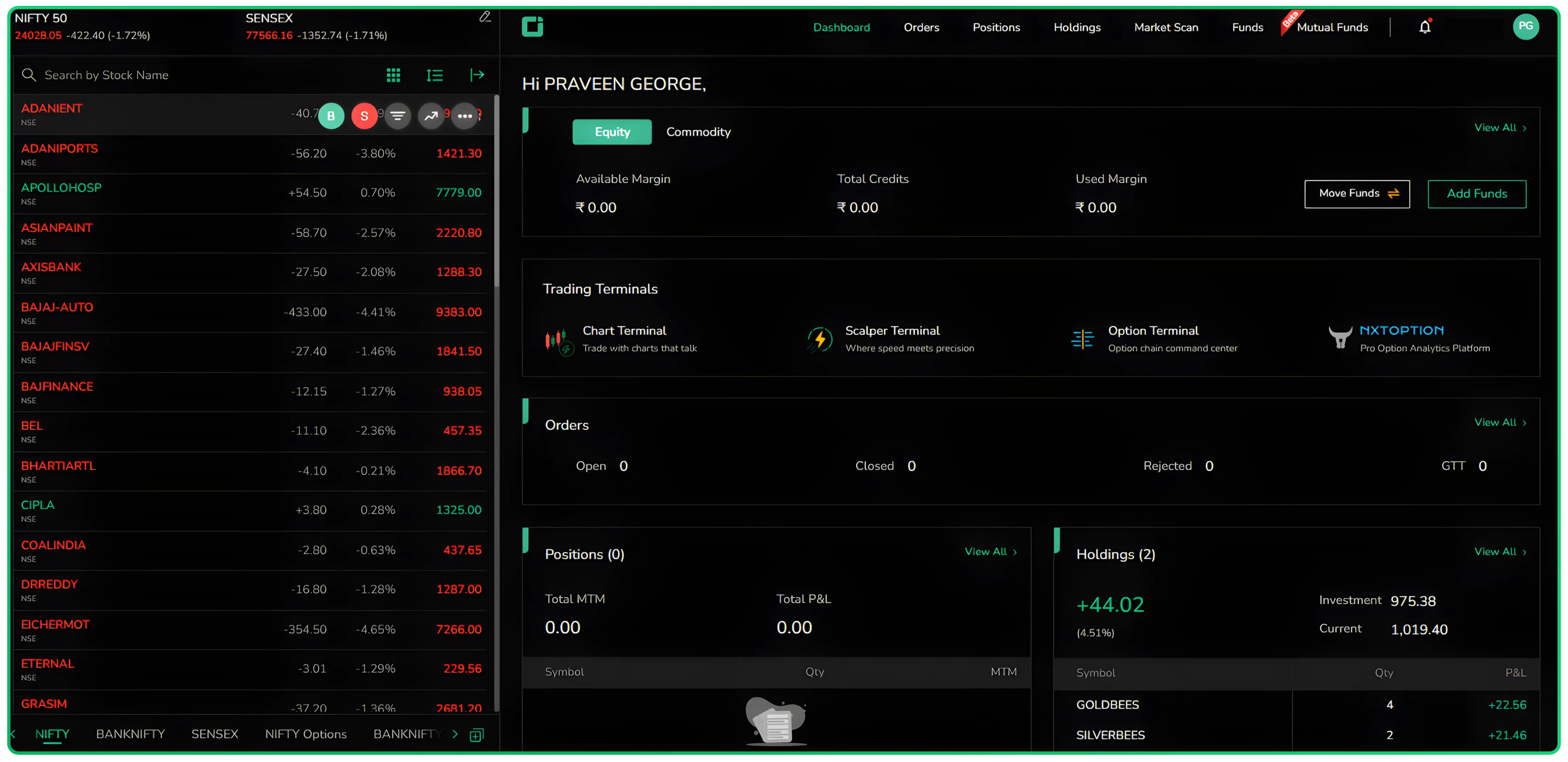
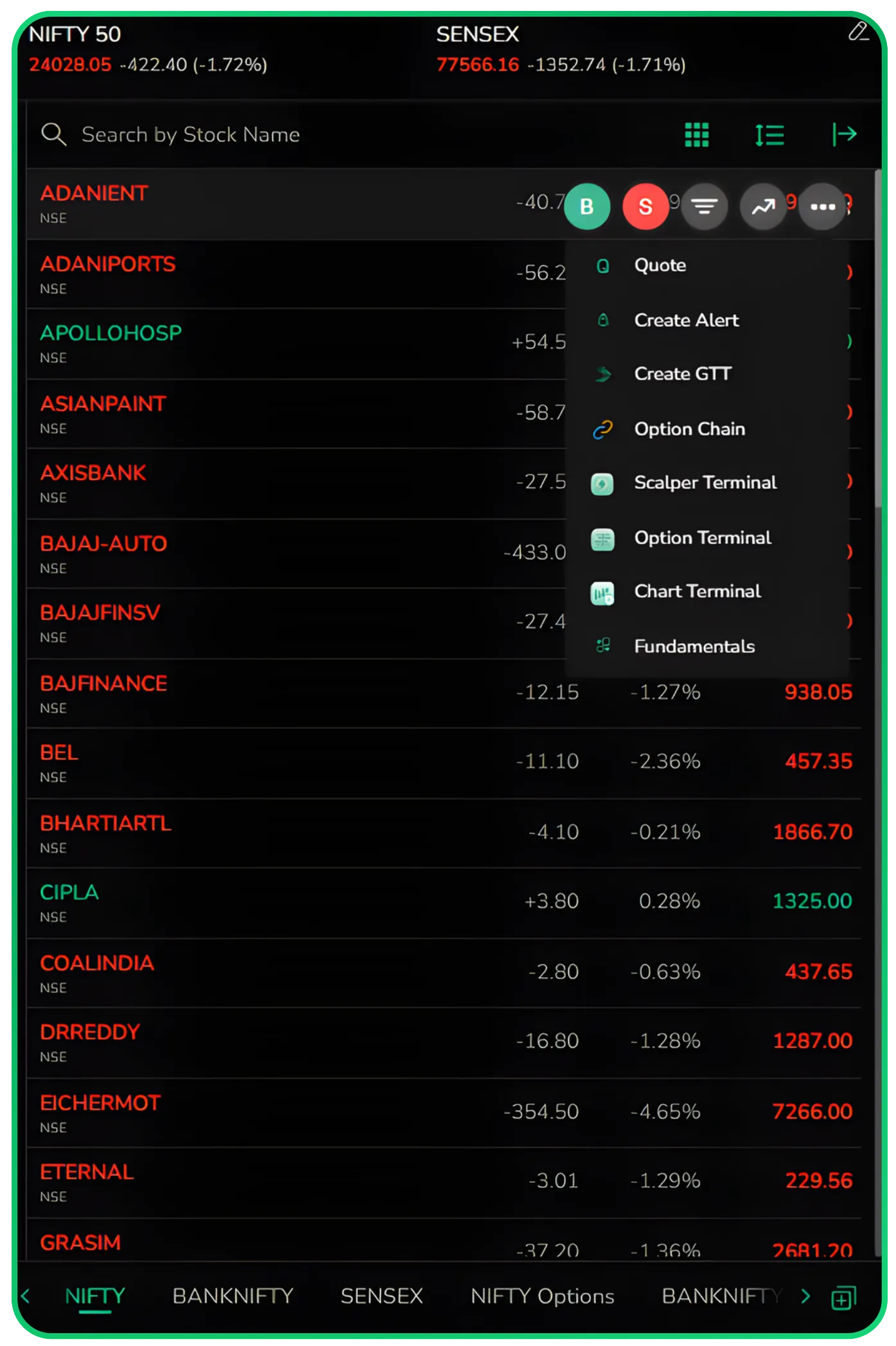
The Market Watch isn't just a price ticker. When you hover over any stock in the list, a quick-action menu appears right there. From this menu, you can Buy/Sell, view the chart, Market Depth, pull up the Quote, create an Alert, set a GTT (Good Till Triggered) order, access the Option Chain, open the Scalper Terminal, Option Terminal, or Chart Terminal, and even check the Fundamentals of that stock; all without leaving the Market Watch panel.
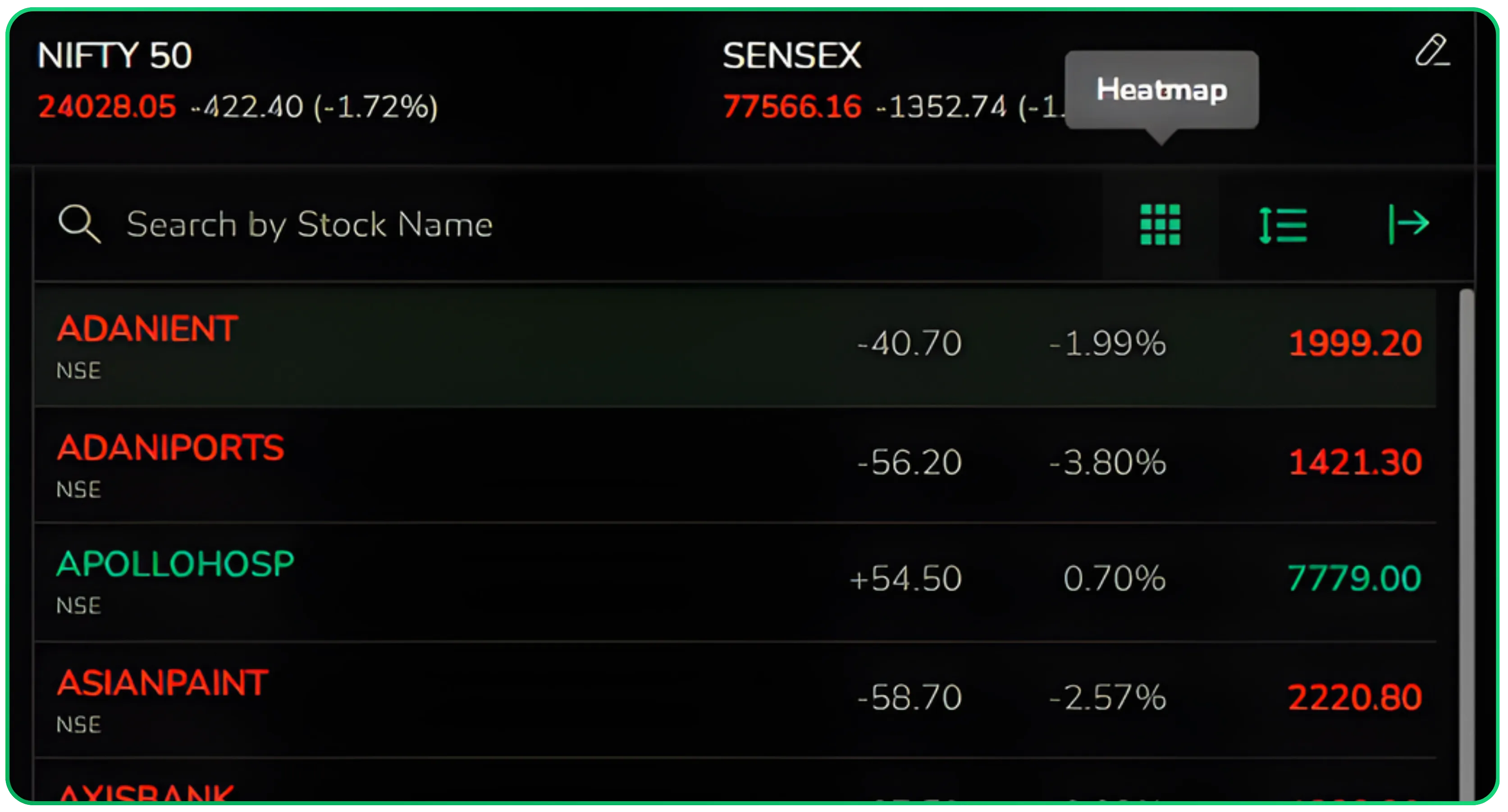
Expanded view
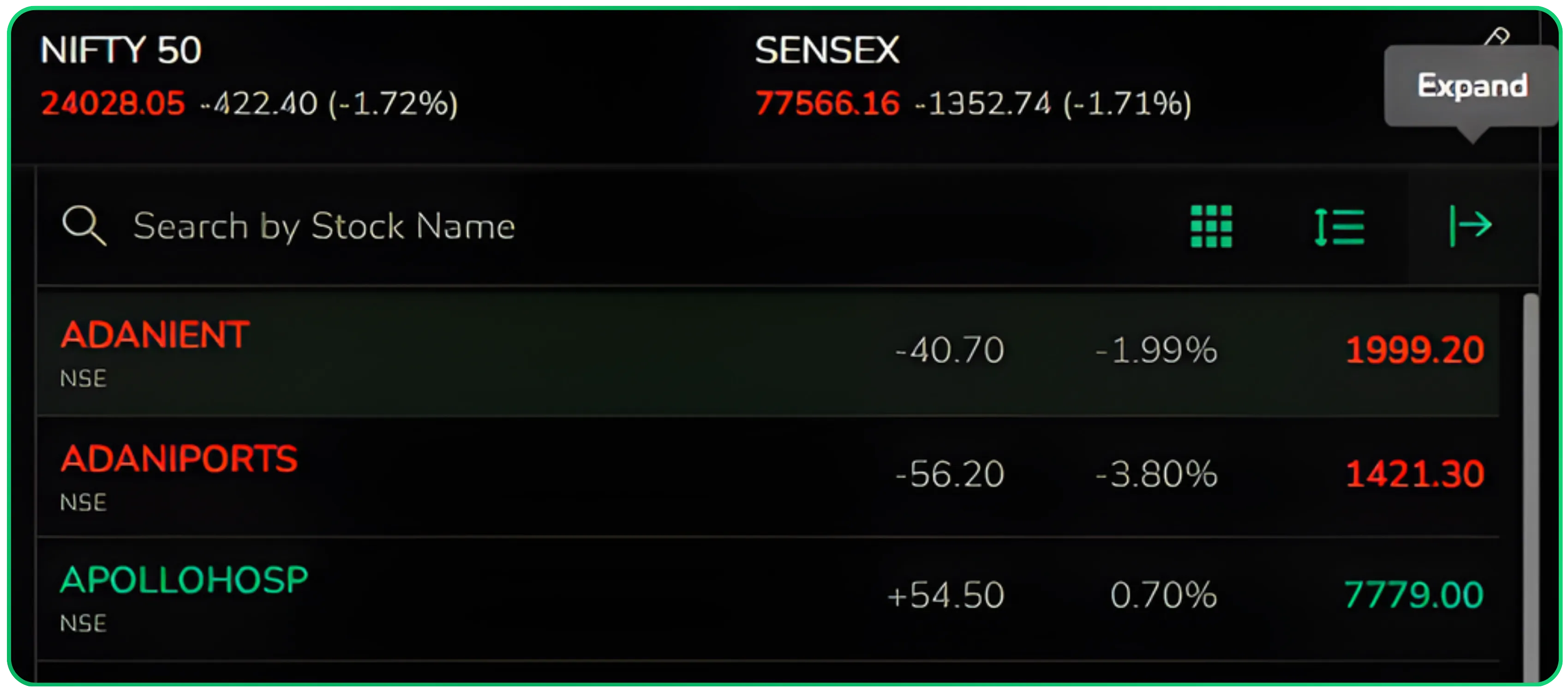
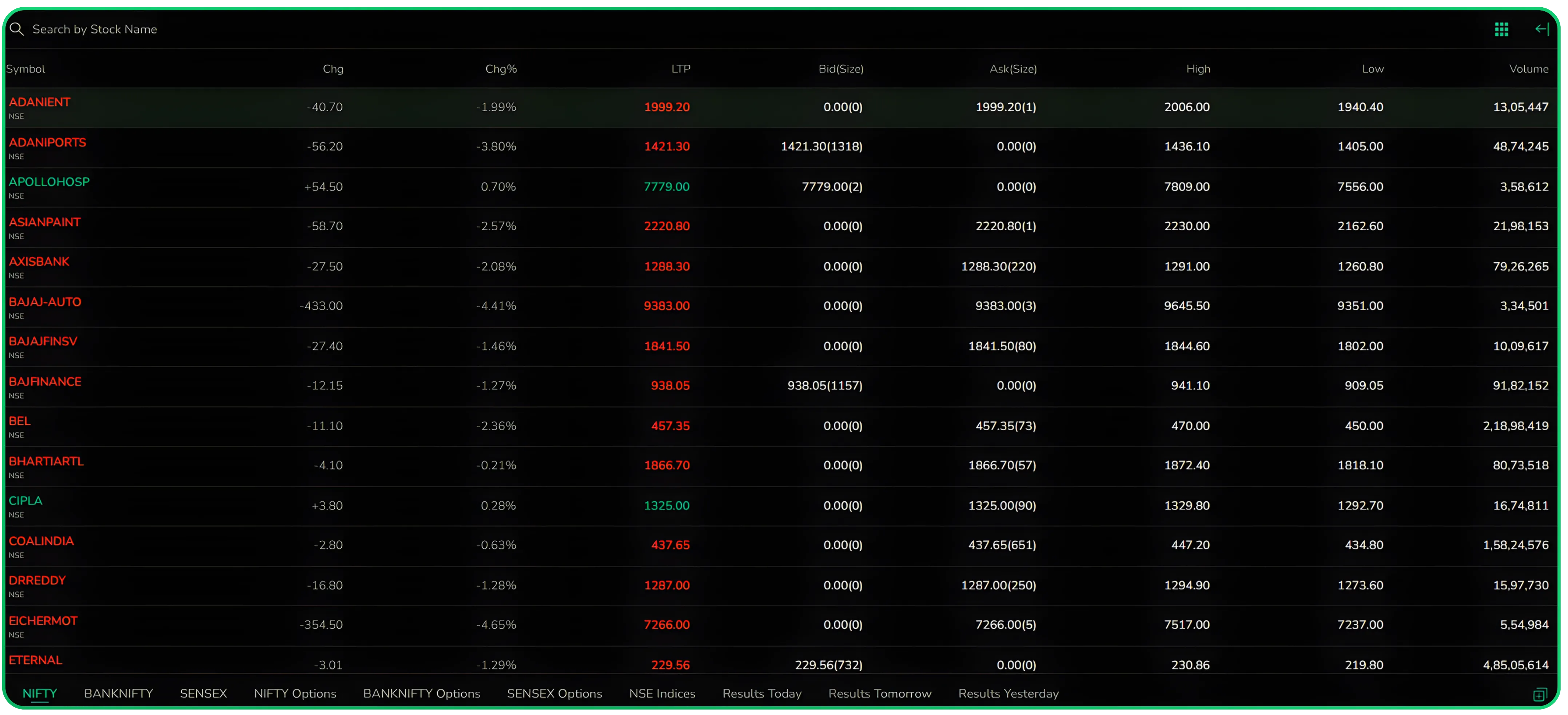
The panel also gives you a couple of view options in the top-right corner. Clicking the Expand icon opens a full-screen expanded view that shows considerably more data columns for each stock , useful when you want a broader picture of what's moving and by how much.
Heatmap view
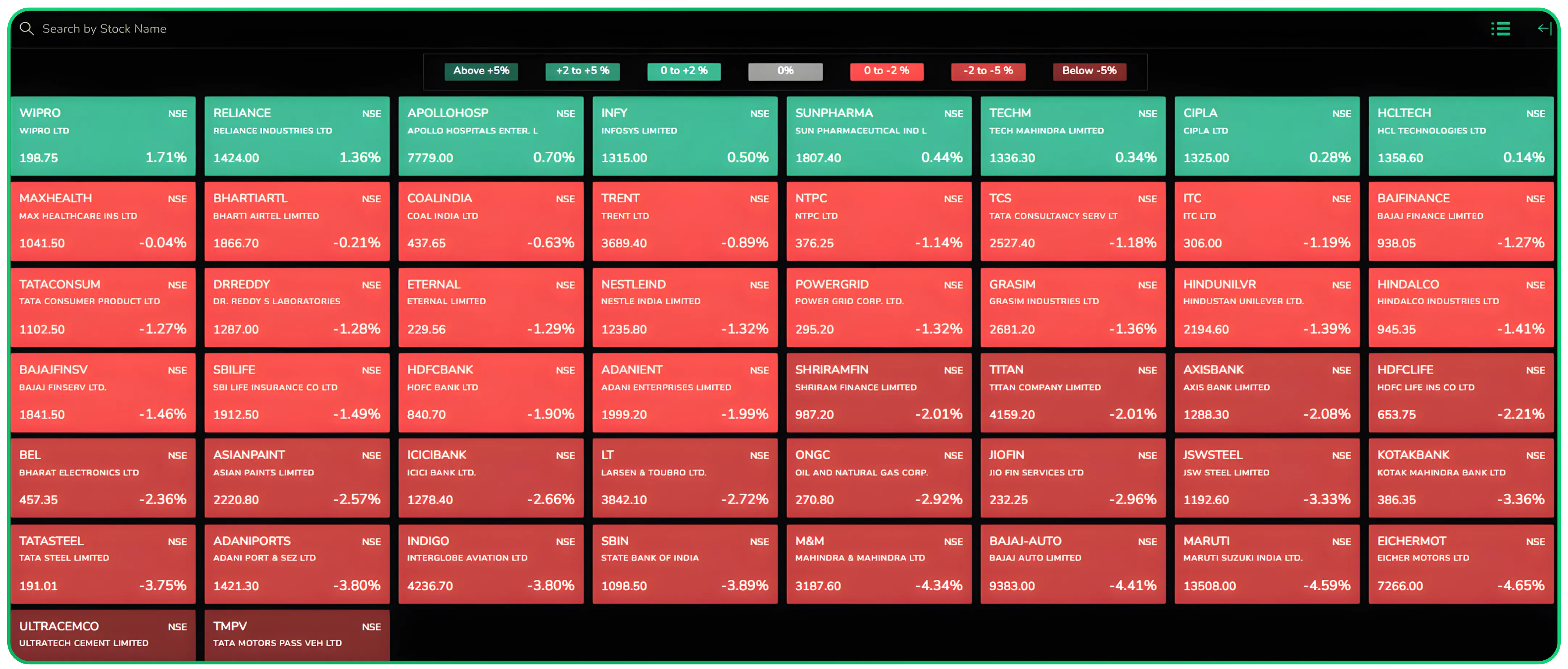
If you prefer a visual summary over raw numbers, the CubePlus Heatmap icon sits right next to the expand button and color codes your watchlist stocks in red and green based on their performance.
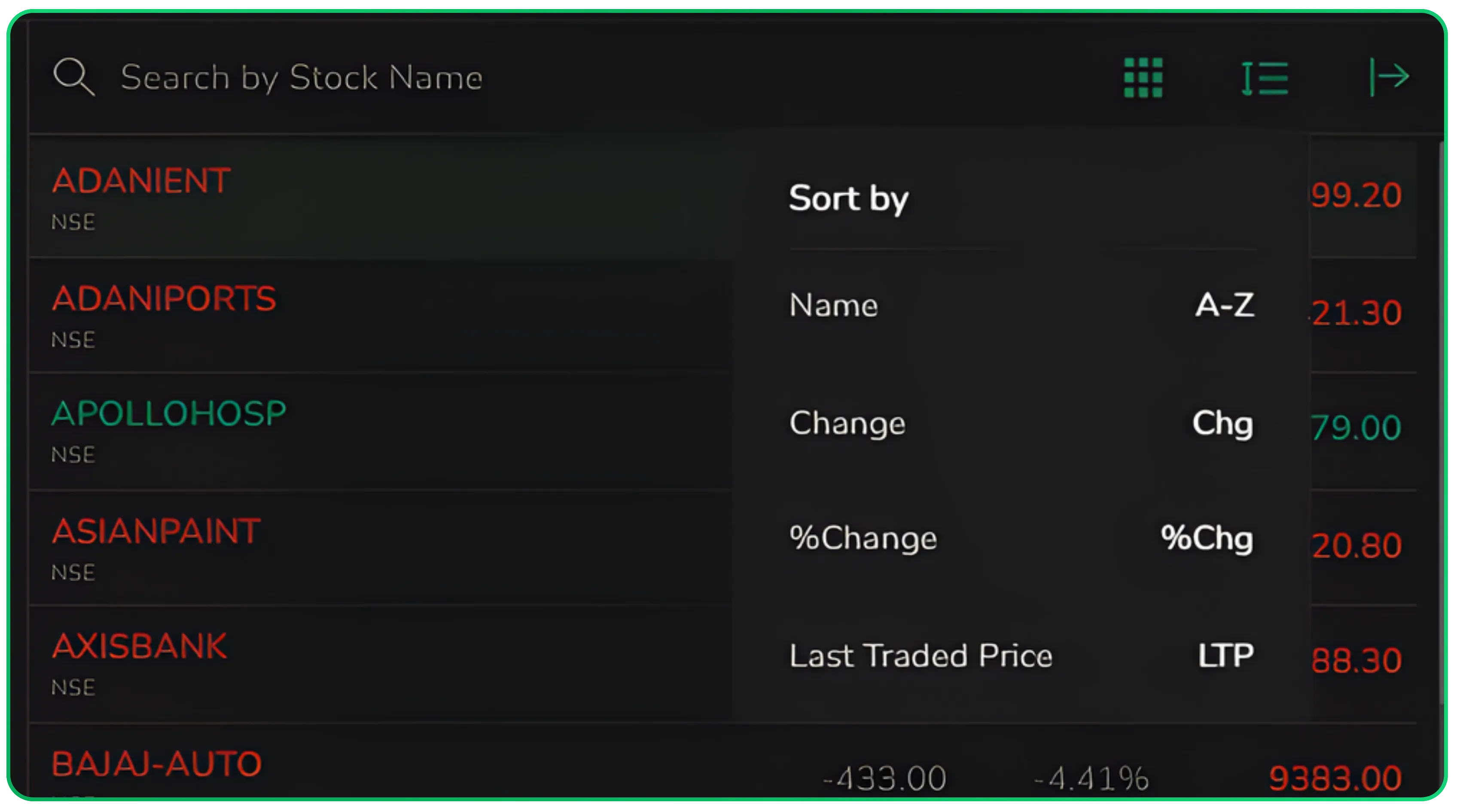
You can also sort the stocks in your Market Watch by Name, Change, Percentage Change, or Last Traded Price. The sort option sits within the same panel and helps you quickly re-order the list based on what matters to you at that moment.
If you are placing orders directly from the Market Watch, you may also want to read our Guide to Order Execution and Management on CubePlus Scalper Mode to understand how to execute and manage your trades efficiently.
Creating a New Watchlist
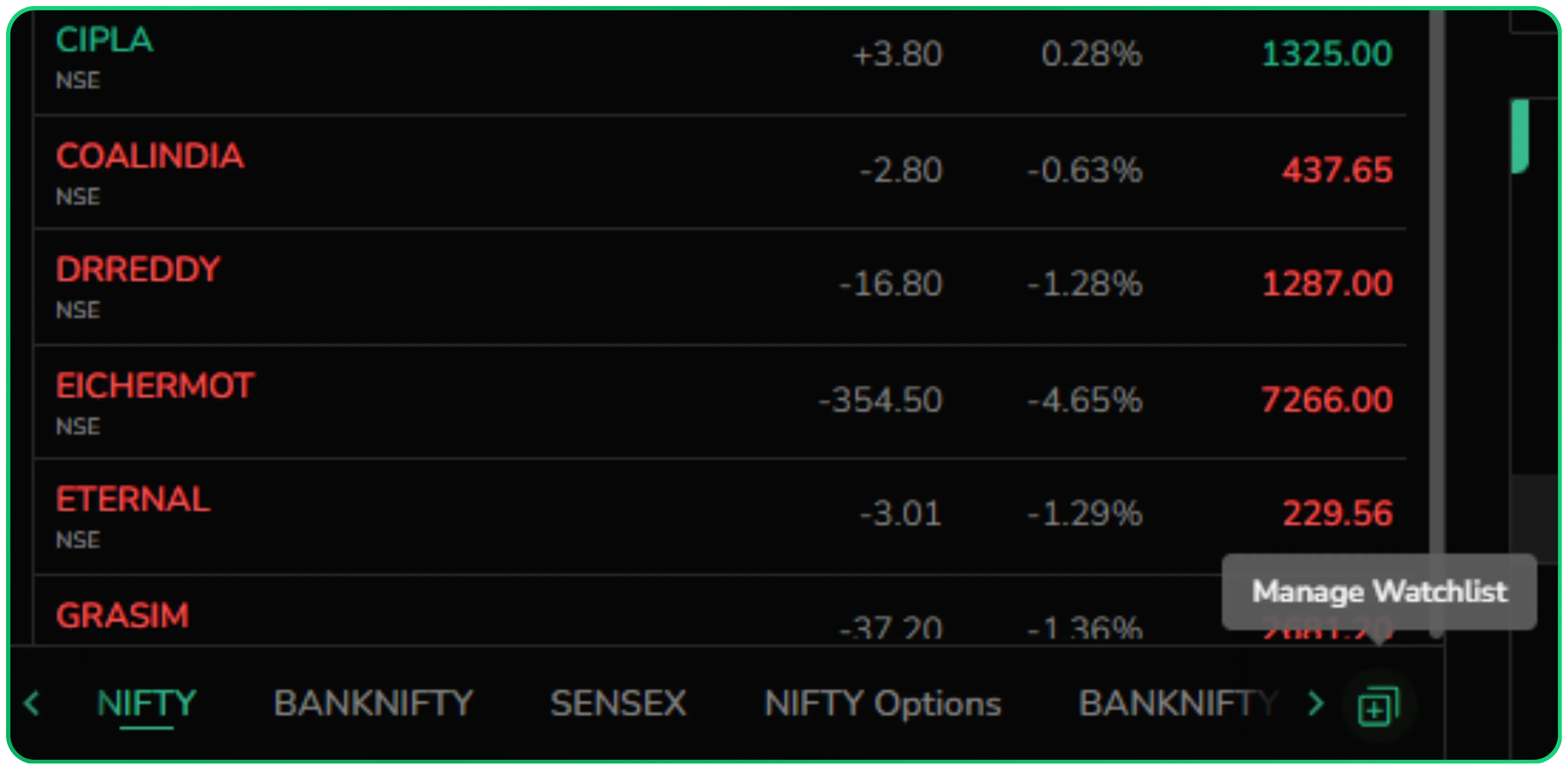
To manage your watchlists, scroll to the bottom of the Market Watch panel and click Manage Watchlist. This opens a drawer with two tabs, User Defined and Pre-Defined.
User-Defined Settings
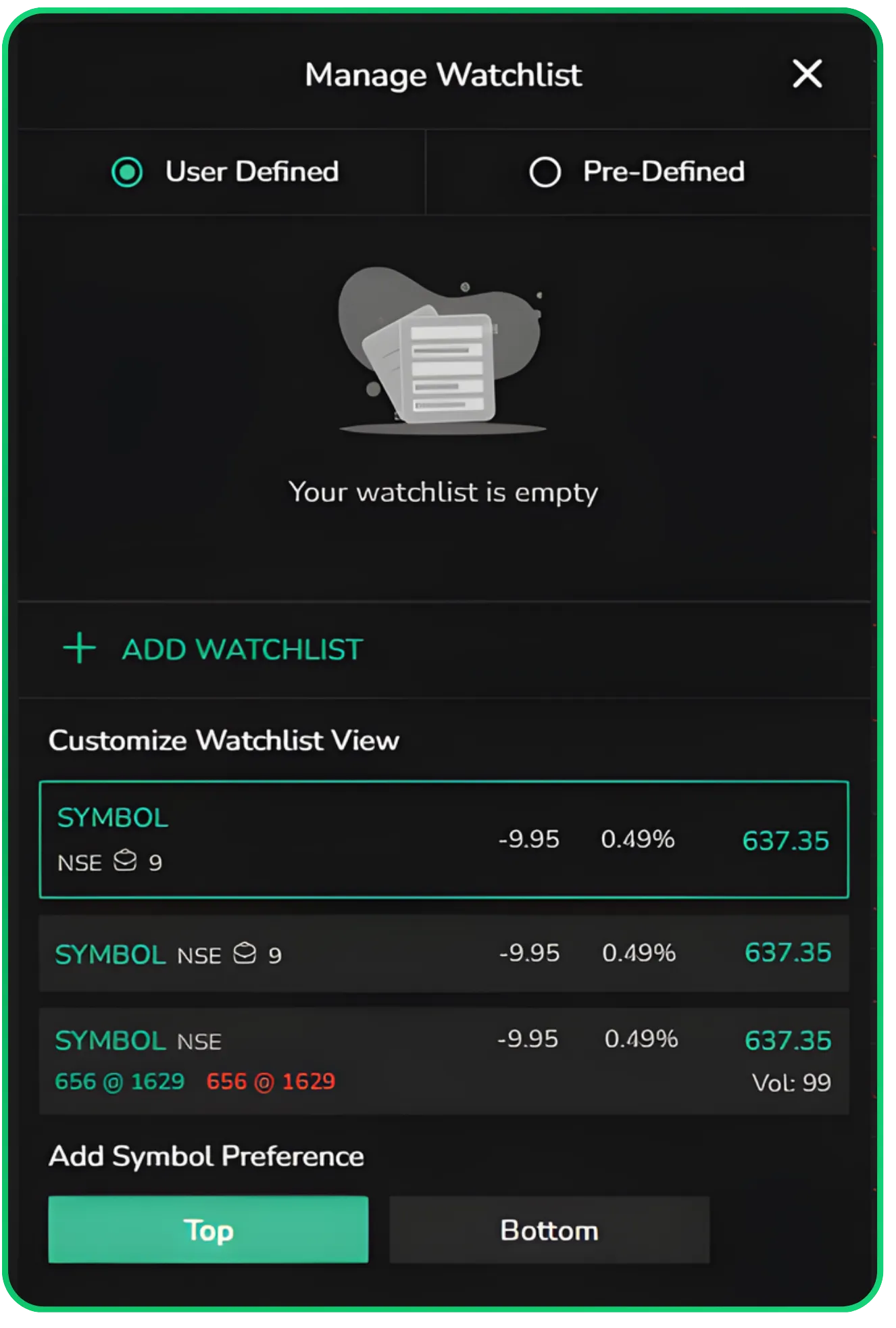
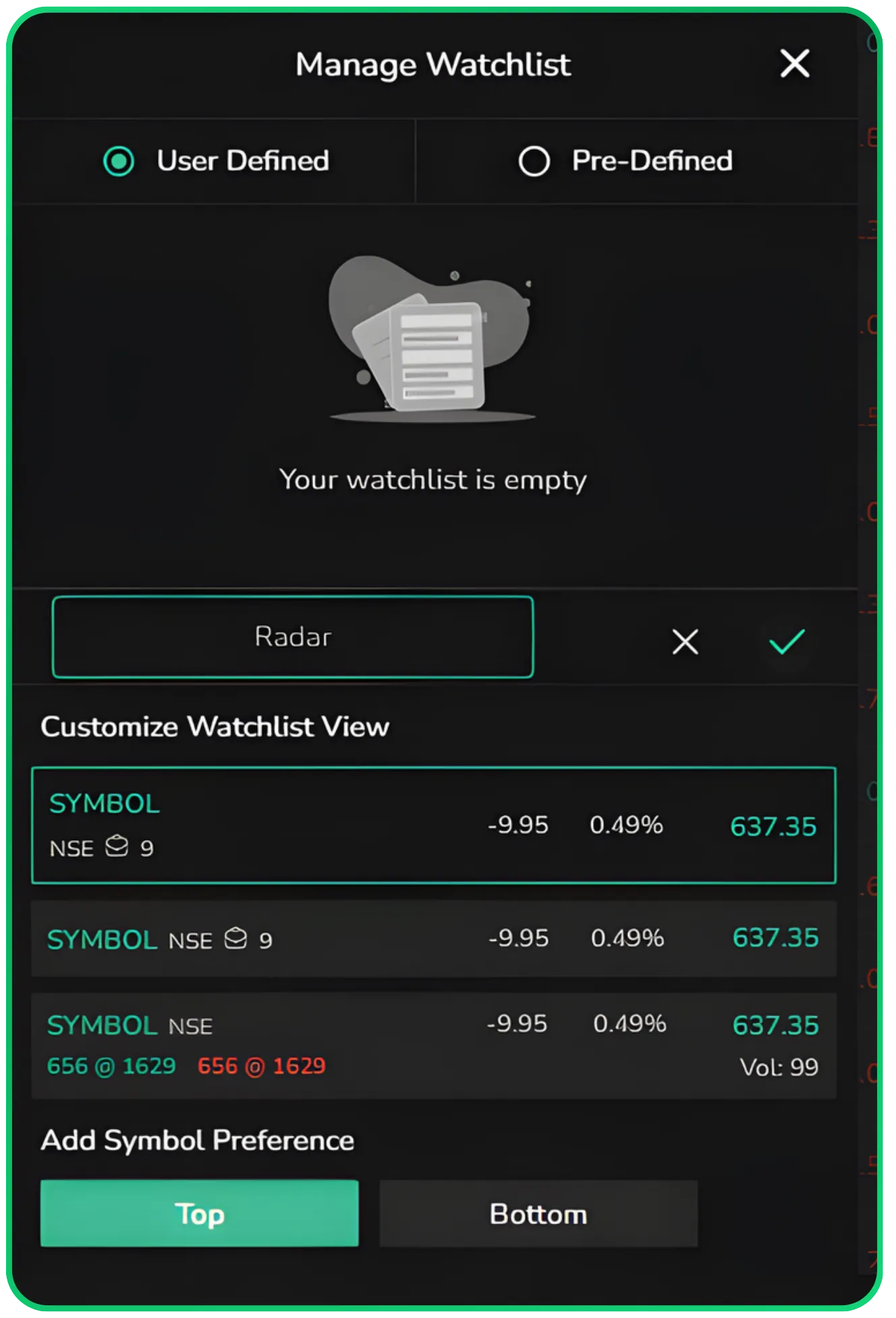
Under User Defined, you start with an empty watchlist. Click on Add Watchlist, type in a name of your choice. For example, "Radar" and confirm it. Your new watchlist is created immediately and appears as a separate tab at the bottom of the Market Watch alongside the default indices.
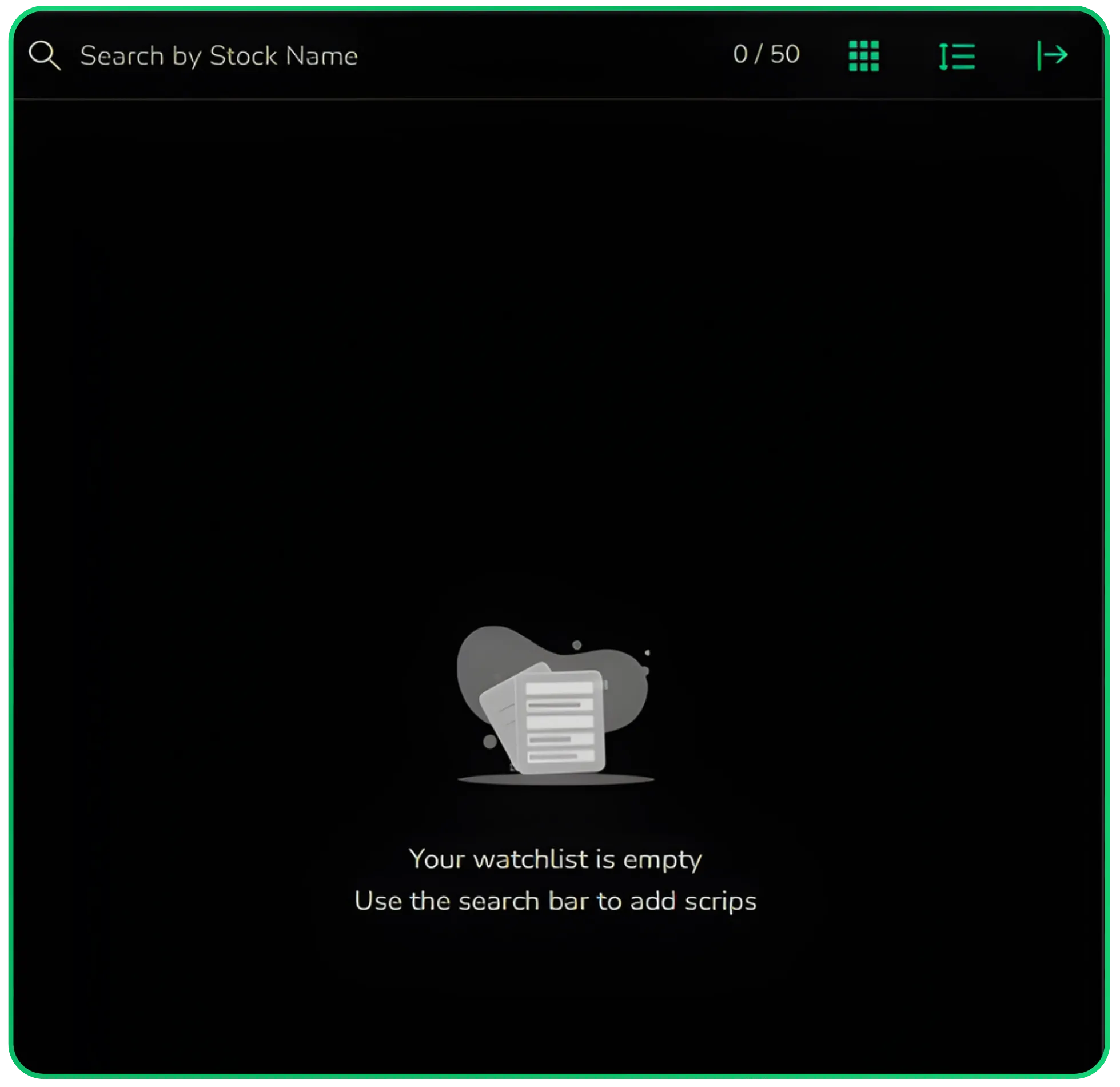
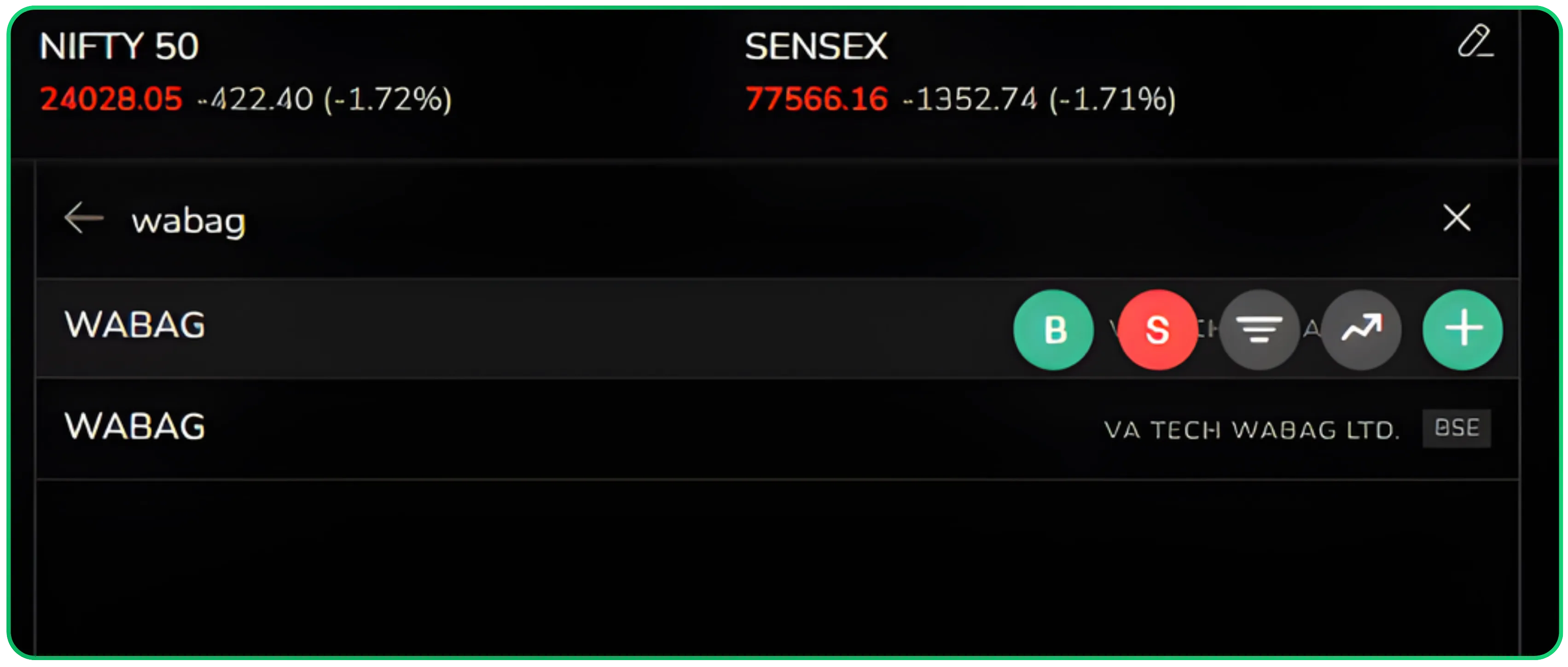
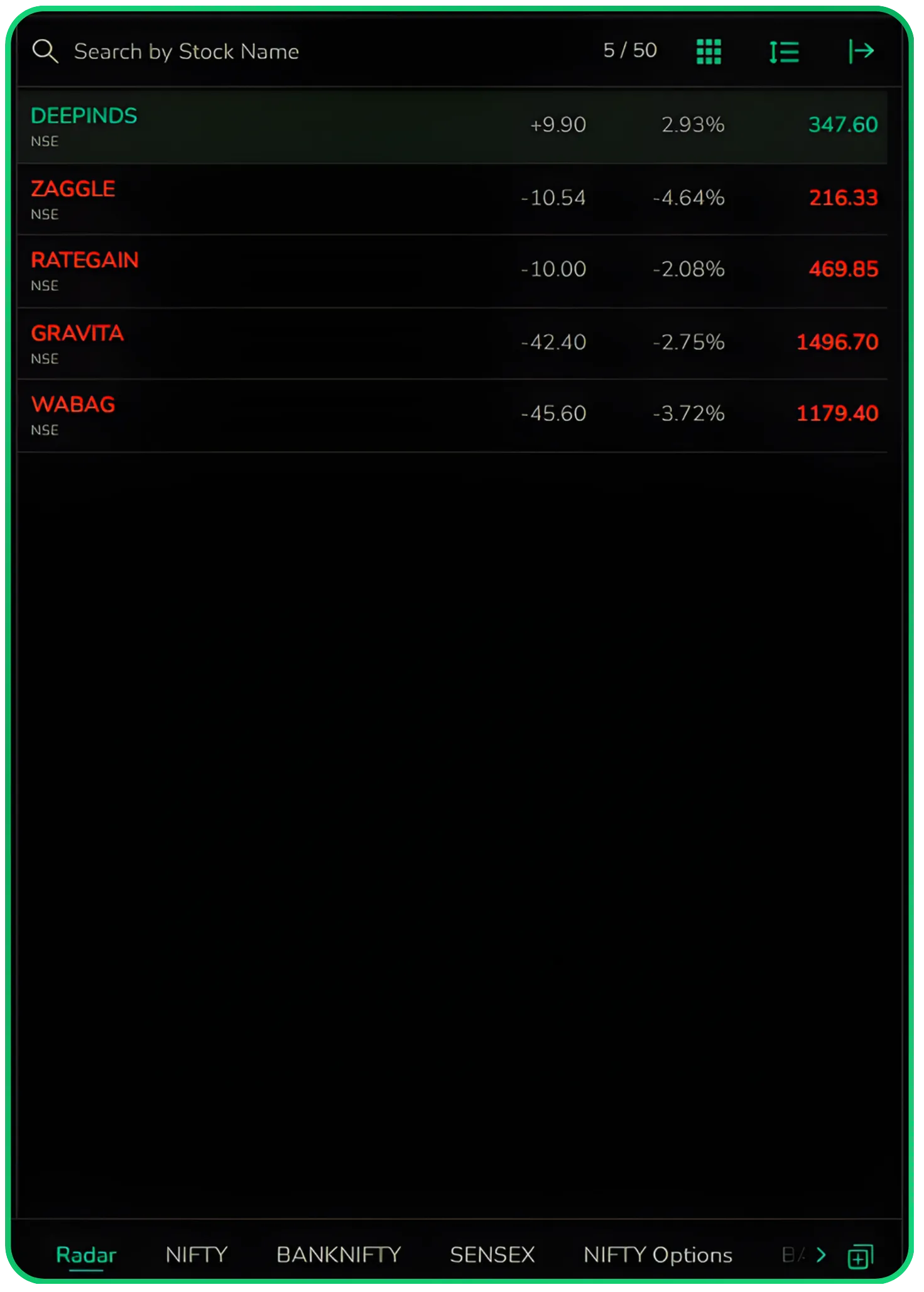
Once the watchlist is created, use the search bar at the top of the panel to find the stocks you want to add. Search by name or ticker, and when the result appears, click the + icon next to it to add it to your watchlist. Each watchlist supports up to 50 scrips, and you can create multiple watchlists to organise your stocks by theme, sector, or any other logic you prefer.
Importing Stocks into Your Watchlist
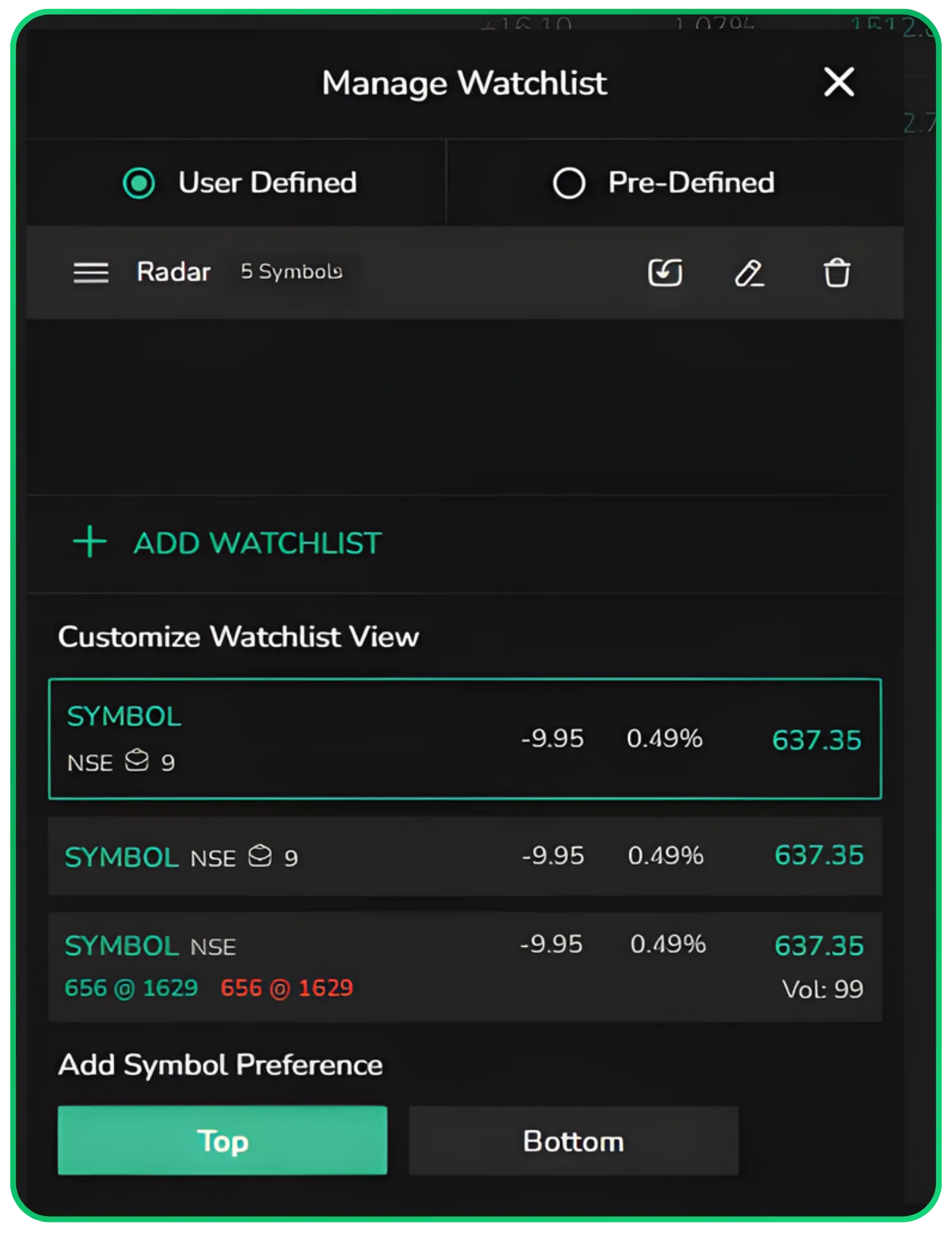
There's also an Import option within the Manage Watchlist panel that makes it faster to populate your watchlist. Once your watchlist is created, you'll see a small folder icon next to the edit and delete icons against your watchlist name. Clicking it opens an Import screen specifically for that watchlist.
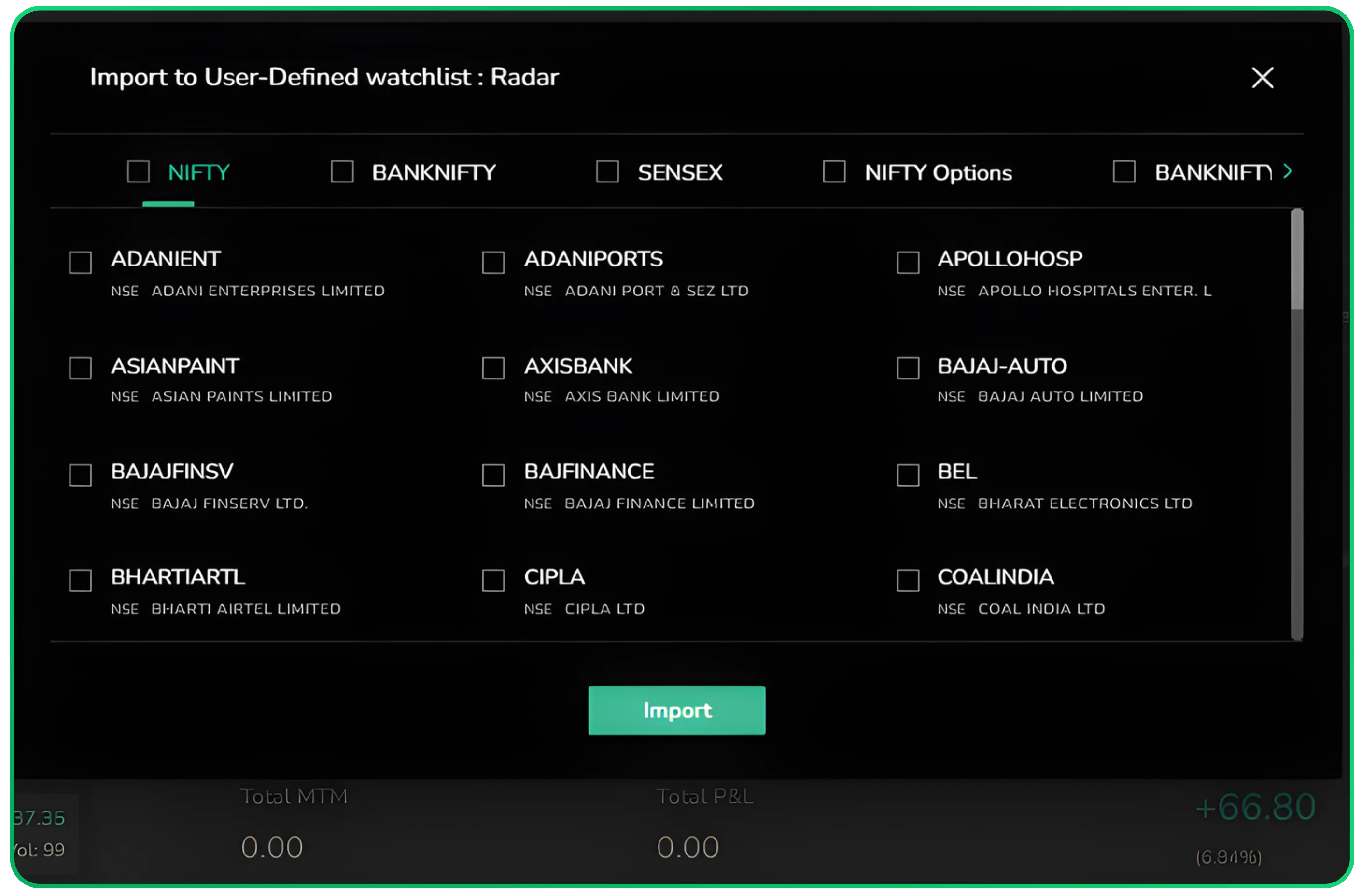
The Import screen lists all the major indices as tabs, NIFTY, BANKNIFTY, SENSEX, NIFTY Options, and more. You select the index you want to browse, and it shows you all the constituent stocks.
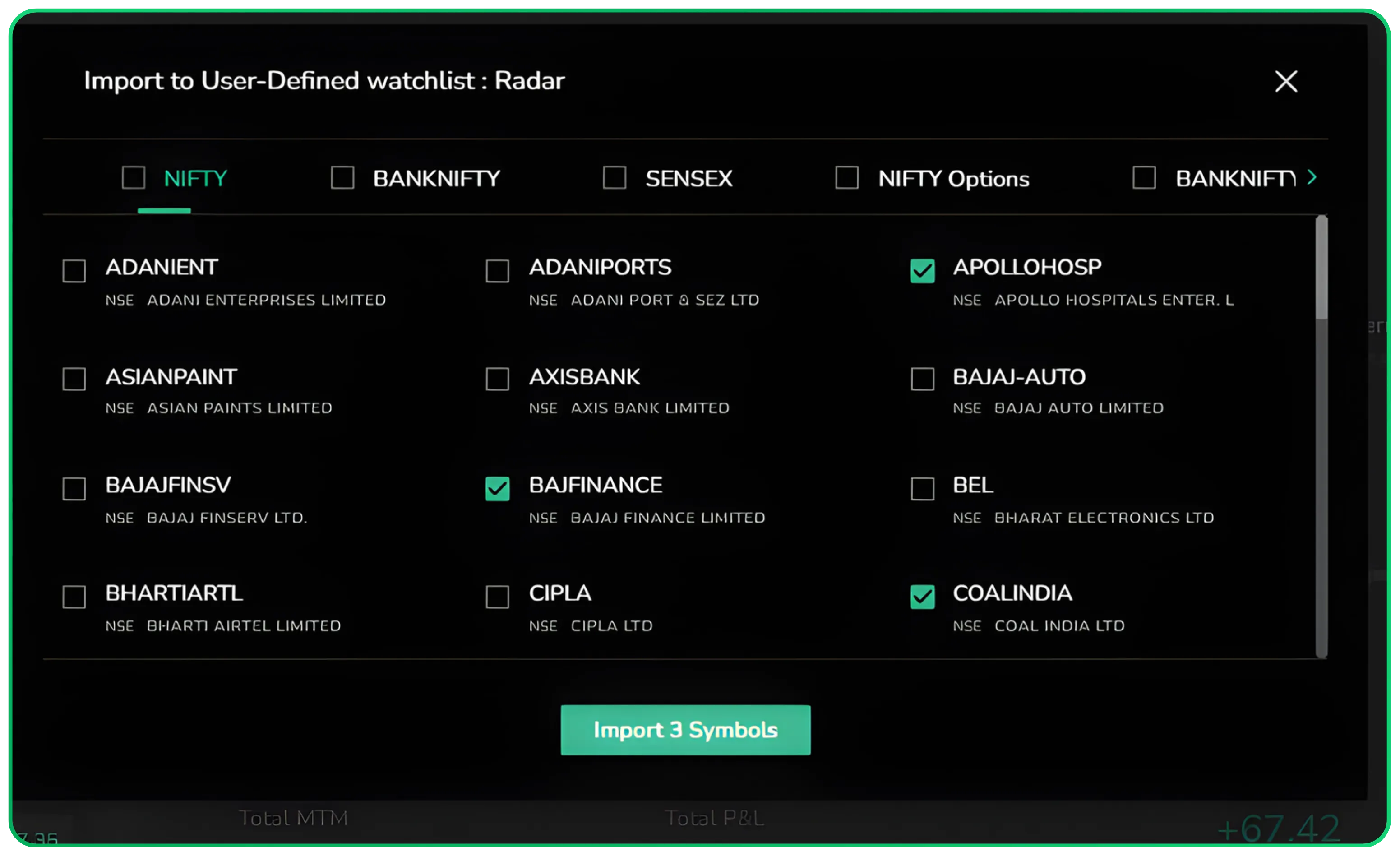
From there, simply check the stocks you want to bring into your watchlist. As you select, the Import button at the bottom updates to reflect the count, for instance, "Import 3 Symbols" so you know exactly how many you're adding before confirming. Once you click Import, those stocks are added directly to your watchlist alongside anything you have already added manually.
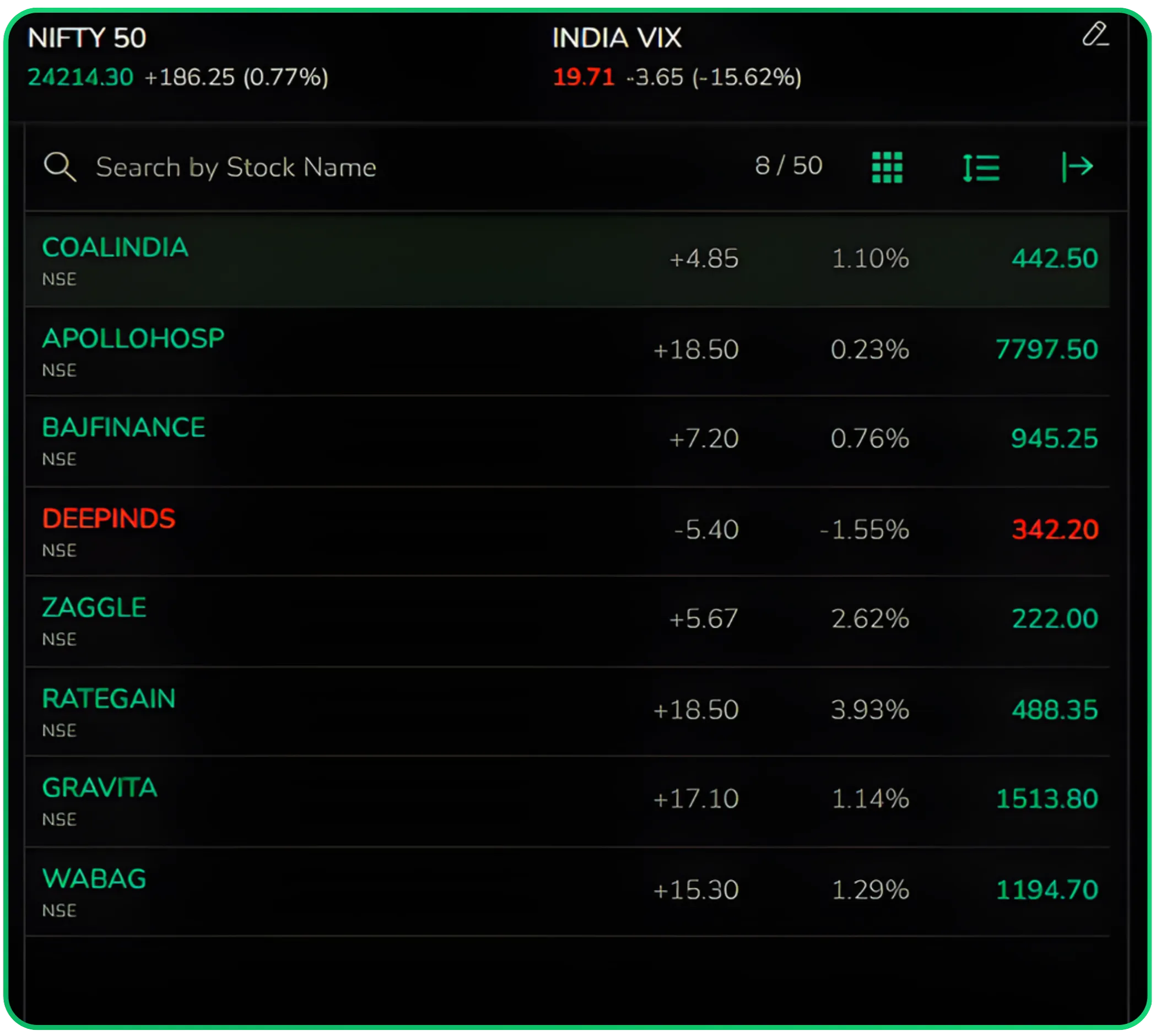
This is useful when you want to track a specific set of stocks from a known index without having to search for each one individually.
Pre-Defined Settings
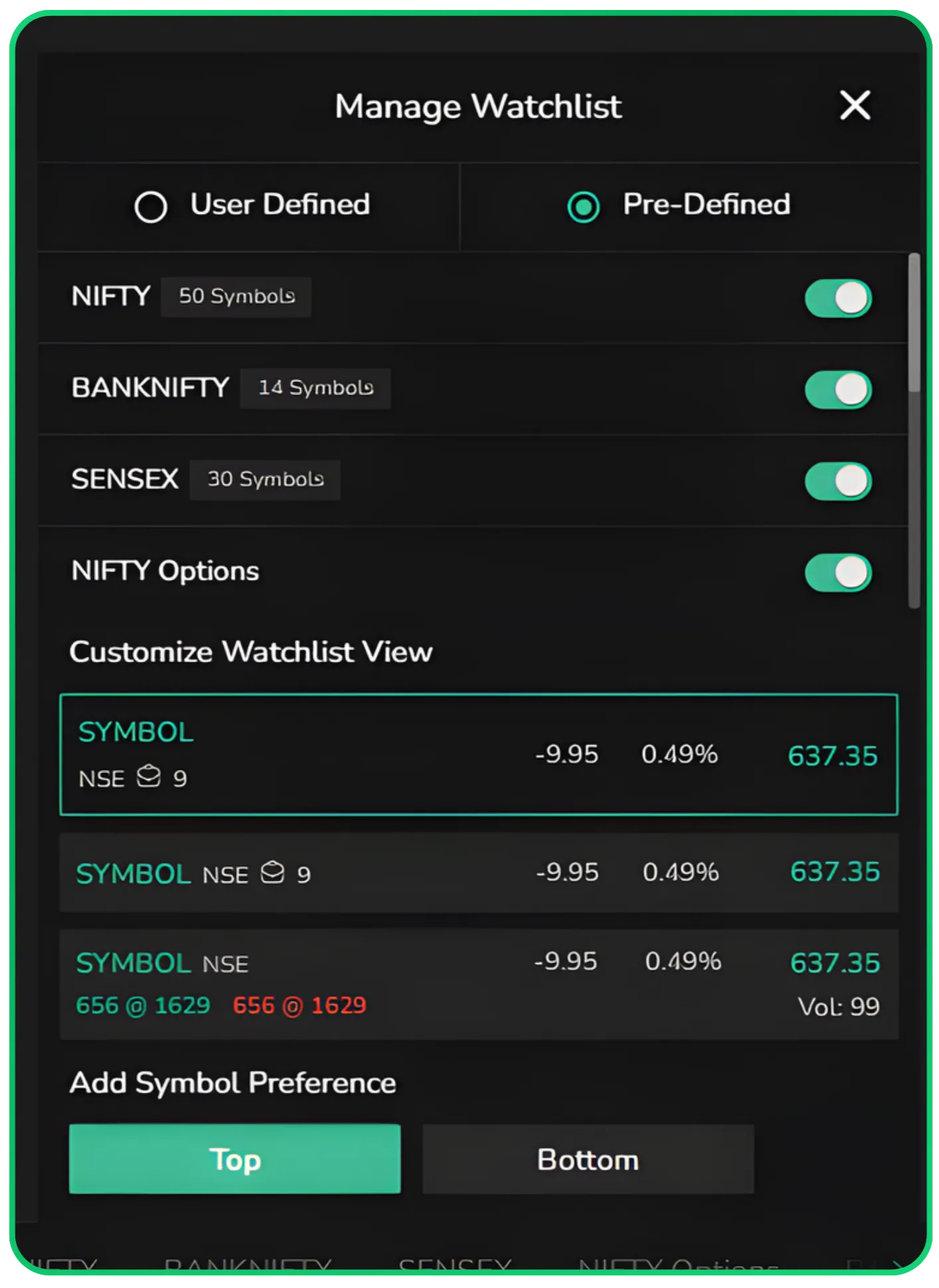
Under the Pre-Defined tab, CubePlus provides ready-made watchlists for NIFTY 50, BANKNIFTY, SENSEX, and NIFTY Options. Each of these is pre-populated with the relevant constituent stocks and can be toggled on or off. These automatically appear as tabs at the bottom of the Market Watch automatically, so you don't need to build them manually.
The Manage Watchlist panel also lets you customize how each stock is displayed within the watchlist. You can choose between three display formats, just the symbol, the symbol with exchange and a few data points, or a more detailed view that includes volume and price levels. There's also an Add Symbol Preference option where you can set whether newly added stocks go to the top or the bottom of the list.
The entire CubePlus Market Watch setup is designed to give traders in India a single panel that handles live stock price monitoring, watchlist management, and direct trade execution without switching between screens.
Start your smart investing on CubePlus and take control of your financial goals.
Disclaimer: The information provided in our blogs is for informational purposes only and should not be construed as financial, investment, or trading advice. Trading and investing in the securities market carries risk. Always conduct your own research and consult with a qualified financial advisor before making any investment decisions. Past performance is not indicative of future results. Copyrighted and original content for your trading and investing needs.
© 2026 — Tradejini. All Rights Reserved.

%252FCubePlus_Shield_Part%25203%2520Blog%2520Thumbnail.webp%3Falt%3Dmedia%26token%3Da5581624-5761-476f-8451-40c157b54840&w=3840&q=75)
%252FShield%2520on%2520Cubeplus%2520part2.webp%3Falt%3Dmedia%26token%3D252a5b48-a580-4e8d-b939-c82d4696eaef&w=3840&q=75)