The Scalper Terminal is a specialized interface within the NxtOption platform designed for traders that provides a panoramic view of the market. It displays the underlying asset, its corresponding call options, and its put options on a single screen. Coupled with one-key keyboard shortcuts for placing and managing orders, it is the ultimate tool for traders who demand speed, control, and a comprehensive market overview.
For a detailed walkthrough on how to use the NxtOption Scalper Terminal, check out the video below :
Navigating to the Scalper Terminal
Getting started with the Scalper Terminal is straightforward:
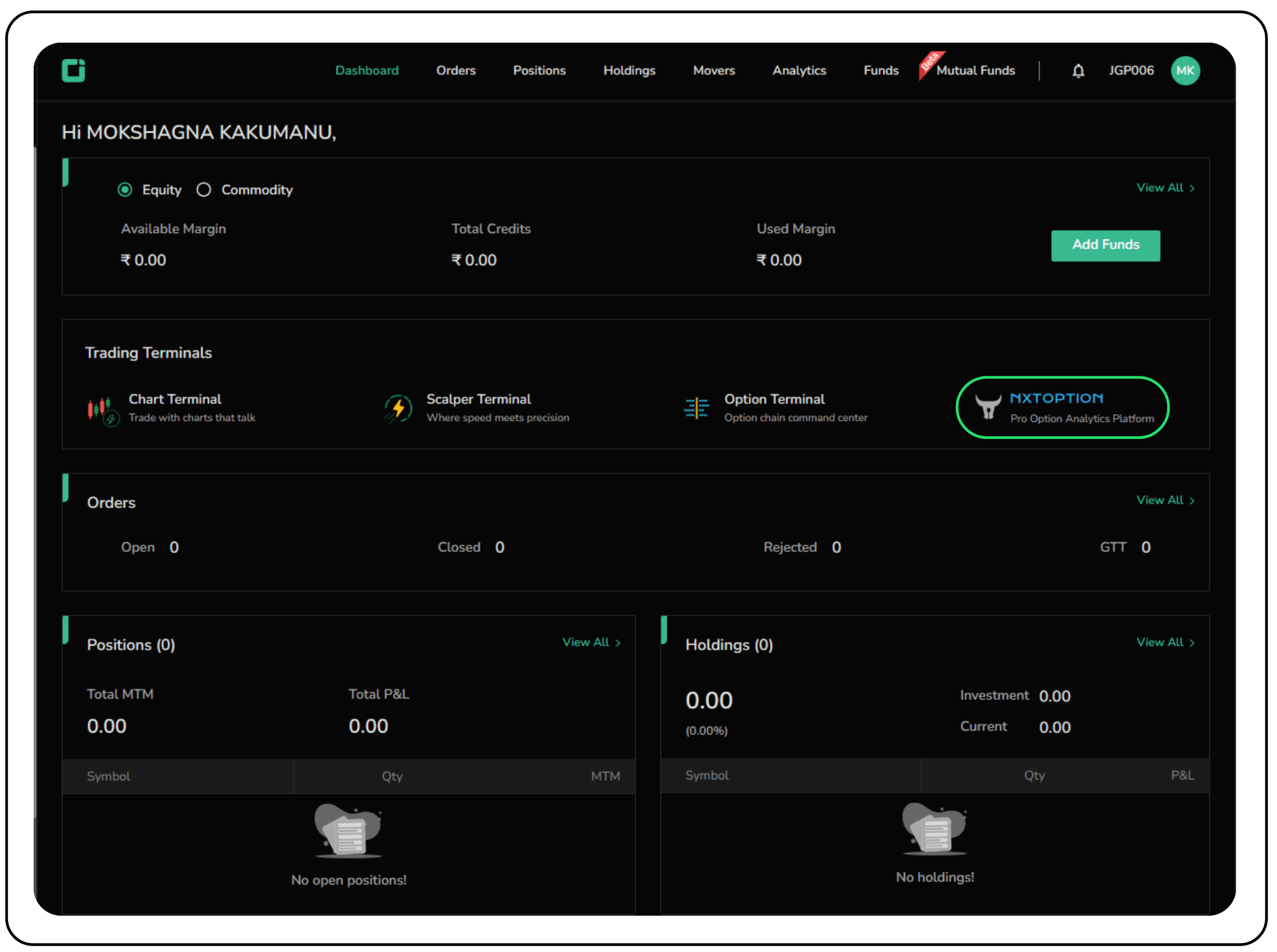
- Log in to your Tradejini CubePlus dashboard.
- Under 'Trading Terminals', click on the 'NxtOption' platform to launch it.
- Navigate to the 'Option Chain' tab.
- In the top right corner of the screen, click the 'Scalper Terminal' button.
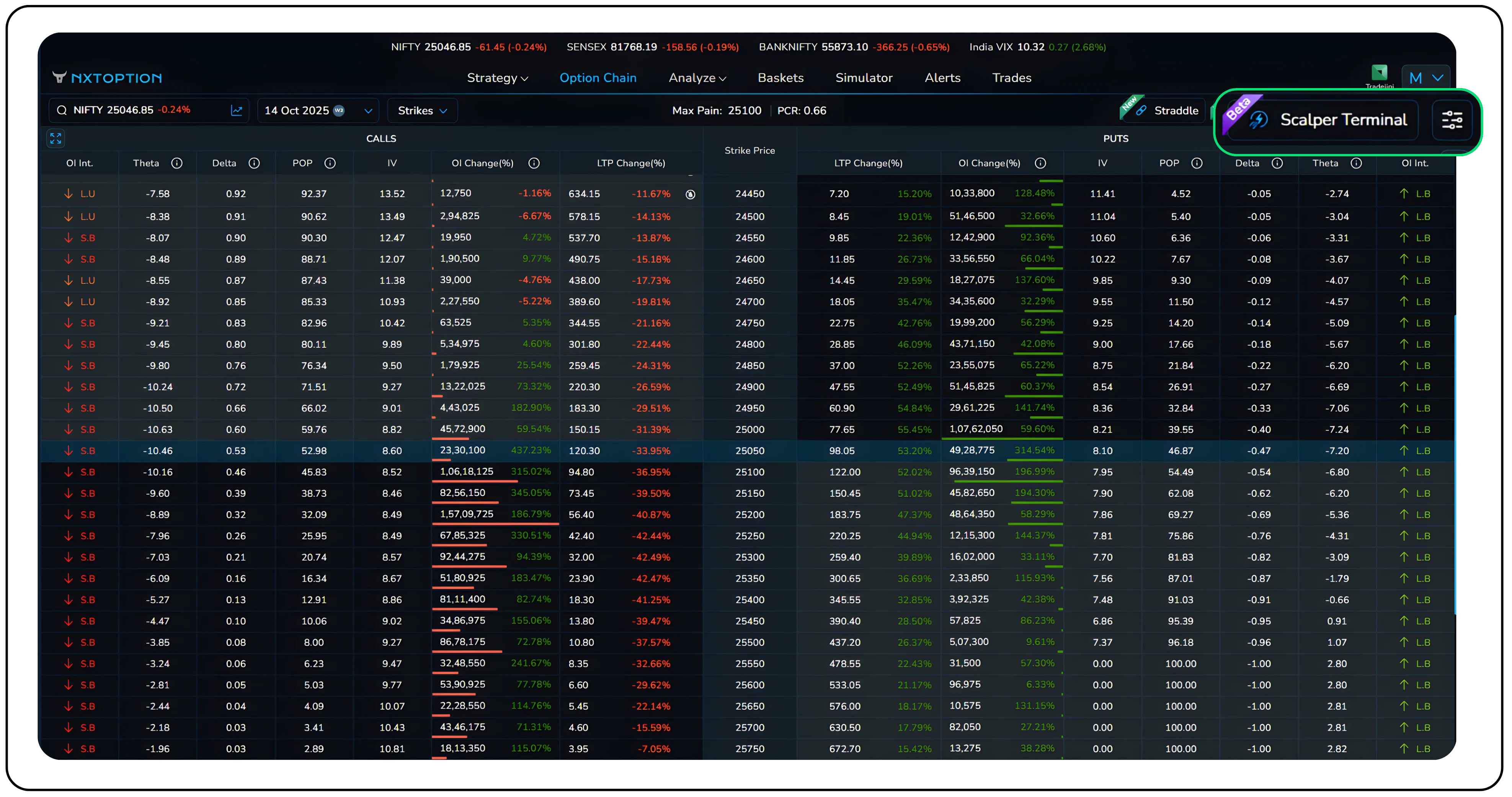
- You will be instantly directed to the dedicated scalping interface.
Key features of the Scalper Terminal
1. The Tri-Chart dashboard
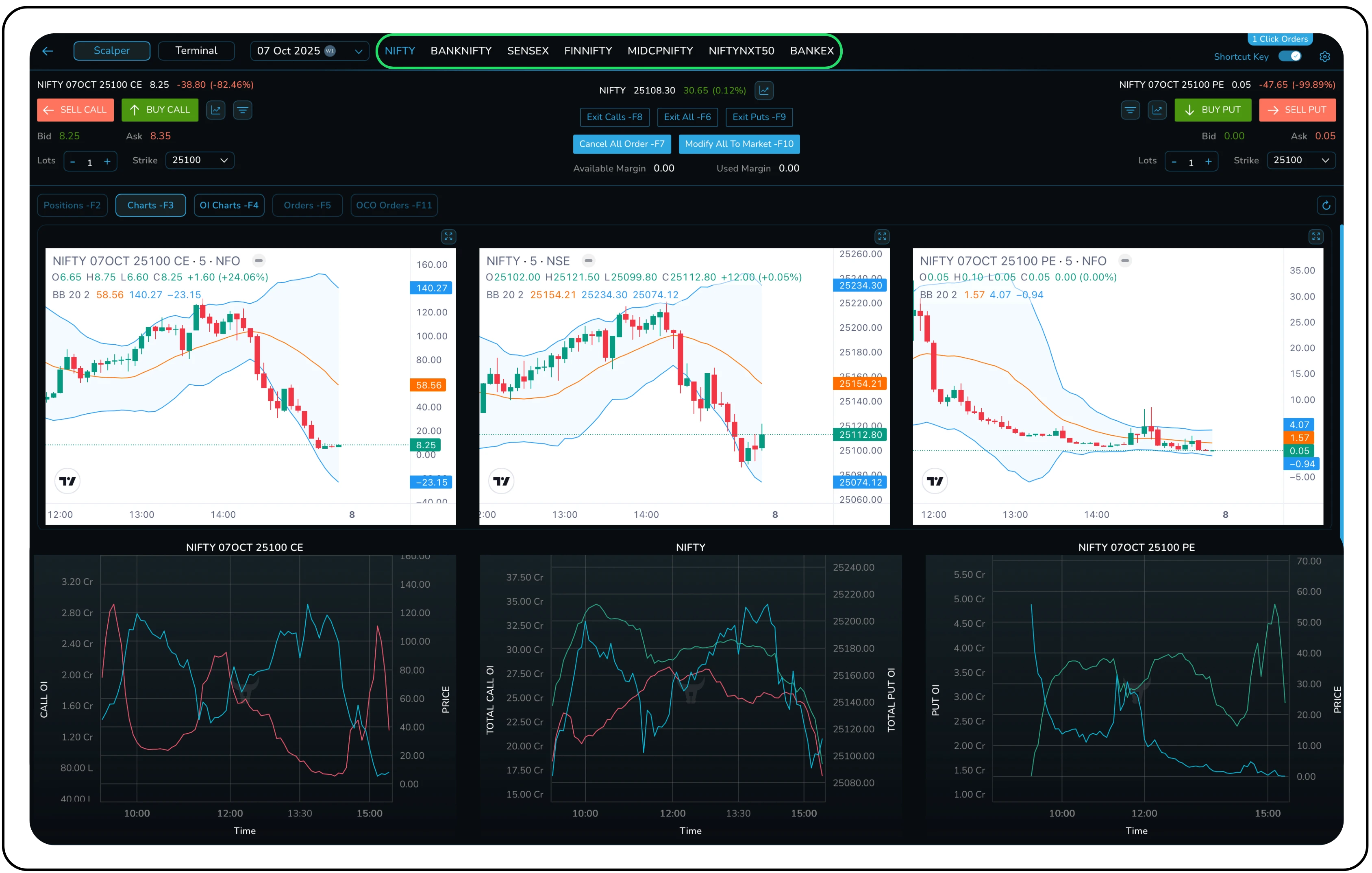
The core of the terminal is its unique three-chart layout.
- Left Chart: Displays the chart of the selected Call Option.
- Center Chart: Shows the price movement of the Underlying Asset (e.g., NIFTY, BANKNIFTY).
- Right Chart: Displays the chart of the selected Put Option.
This consolidated view allows you to simultaneously monitor the underlying and its related options, making it easier to spot correlations and execute trades with perfect timing.
2. One-Key trading: The game changer
This is where the Scalper Terminal truly shines. By activating the 'Shortcut Key' toggle, you can execute complex trades using simple keyboard commands, eliminating the need for mouse clicks.

| Action | Shortcut |
|---|---|
| Order Placement | |
| Buy Call | Up Arrow |
| Sell Call | Left Arrow |
| Buy Put | Down Arrow |
| Sell Put | Right Arrow |
| Position Management | |
| Exit All Positions | F6 |
| Exit All Call Positions | F8 |
| Exit All Put Positions | F9 |
| Cancel All Open Orders | F7 |
| Modify All Open Orders to Market | F10 |
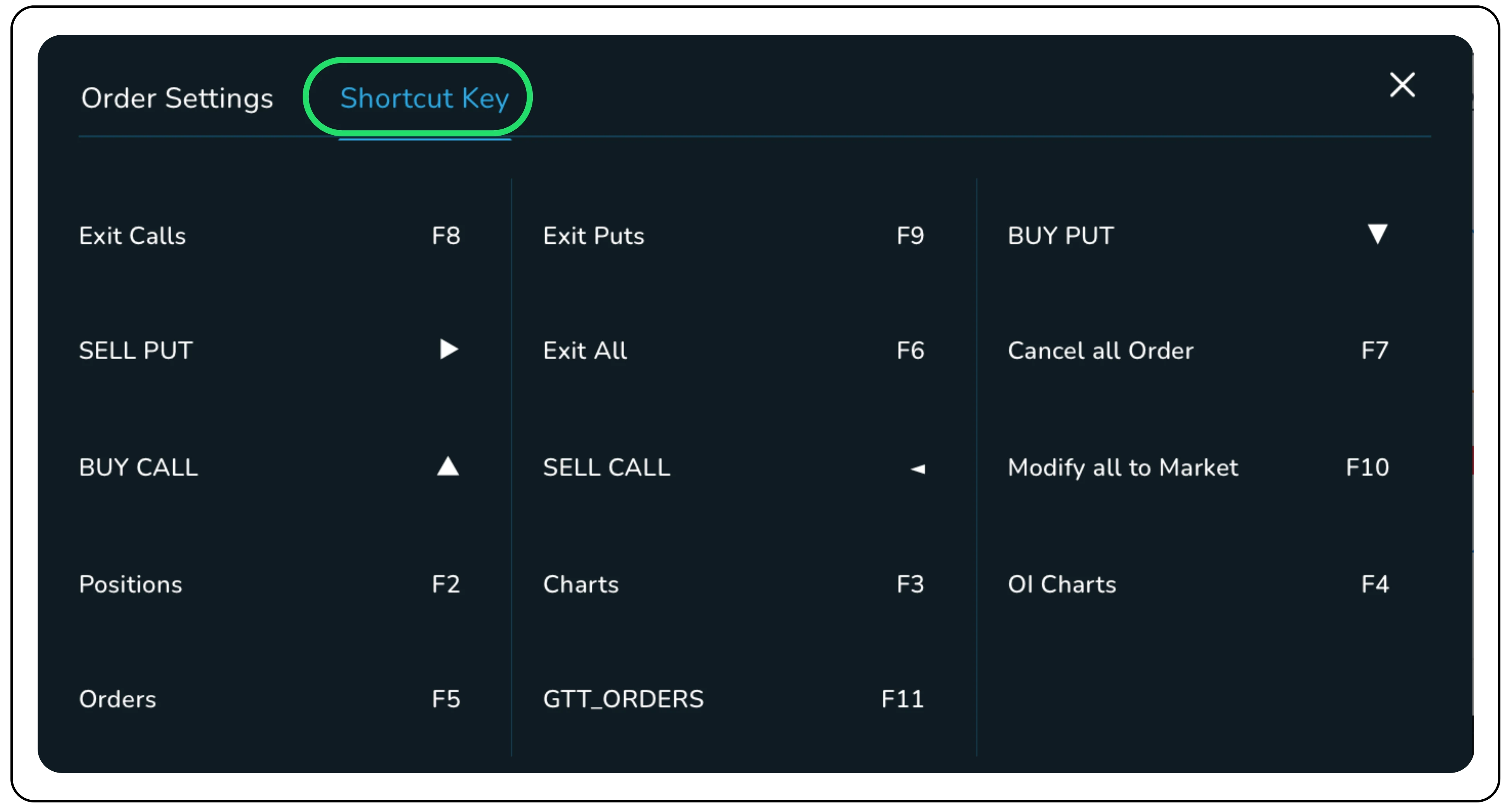
This system is designed for unparalleled speed, allowing you to enter and exit positions in the blink of an eye.
3. Fully customisable trading parameters
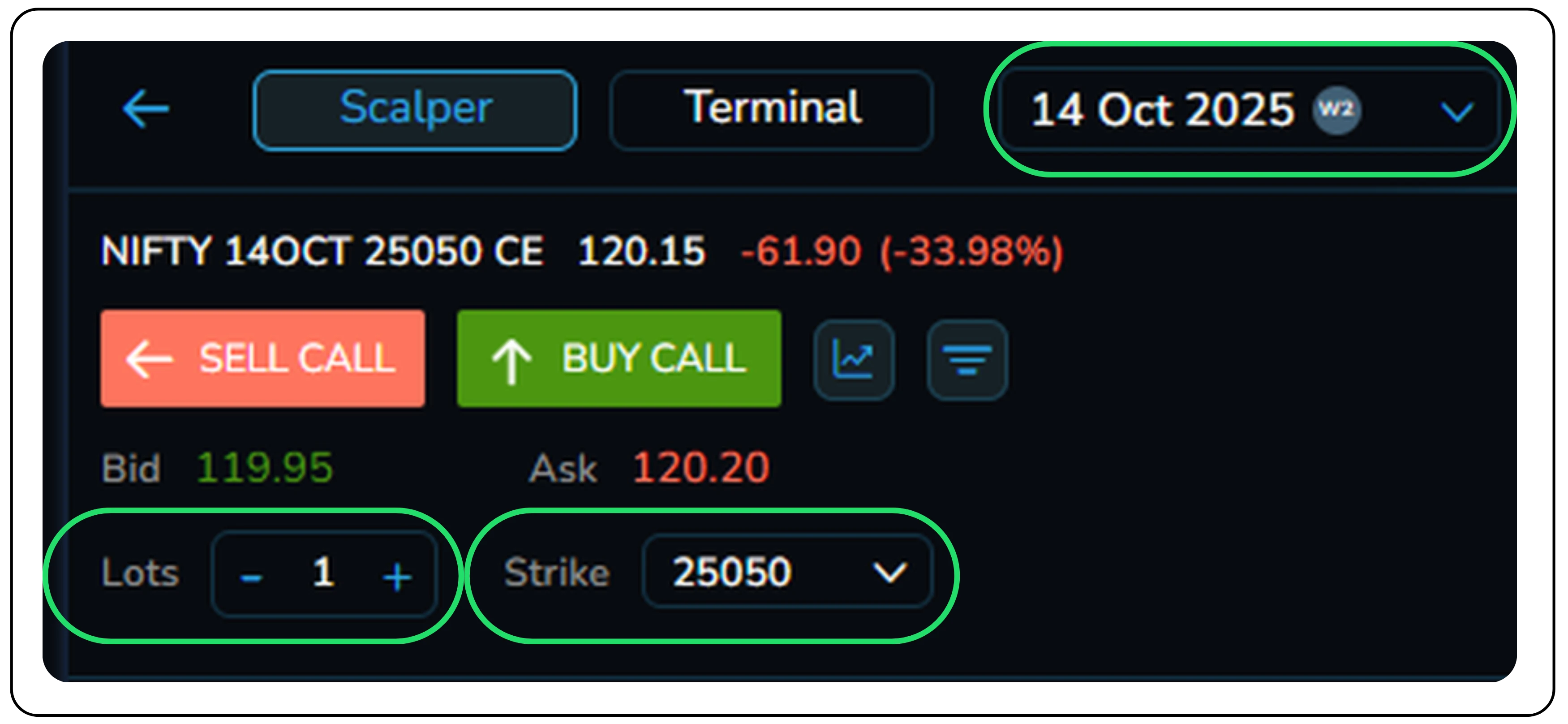
The Scalper terminal offers complete control over your trading parameters, which can be adjusted independently for both Calls and Puts.
- Expiry Date: Easily switch between weekly and monthly expiries.
- Strike Price: Select your desired strike from a dropdown menu.
- Lot Size: Increase or decrease the number of lots with a single click.
4. Integrated OI charts for deeper analysis
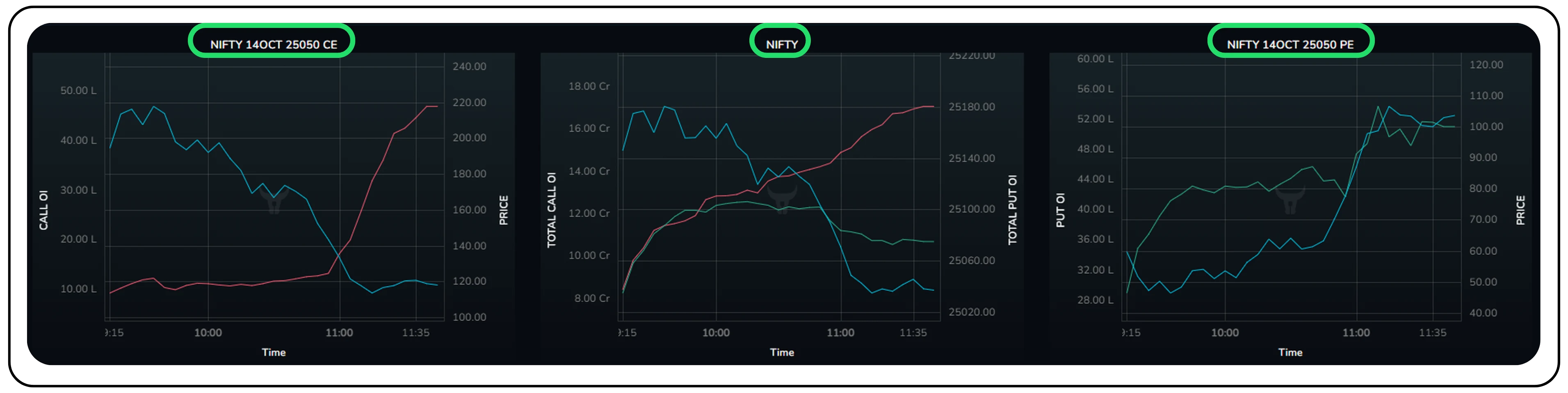
Below the main price charts, the terminal features three additional charts dedicated to Open Interest (OI). These charts visualize the OI for the Call, the Put, and the total OI for the underlying. These charts help you gauge market sentiment and identify key support and resistance levels based on OI data.
5. Advanced charting and position management
The terminal is more than just an execution tool.
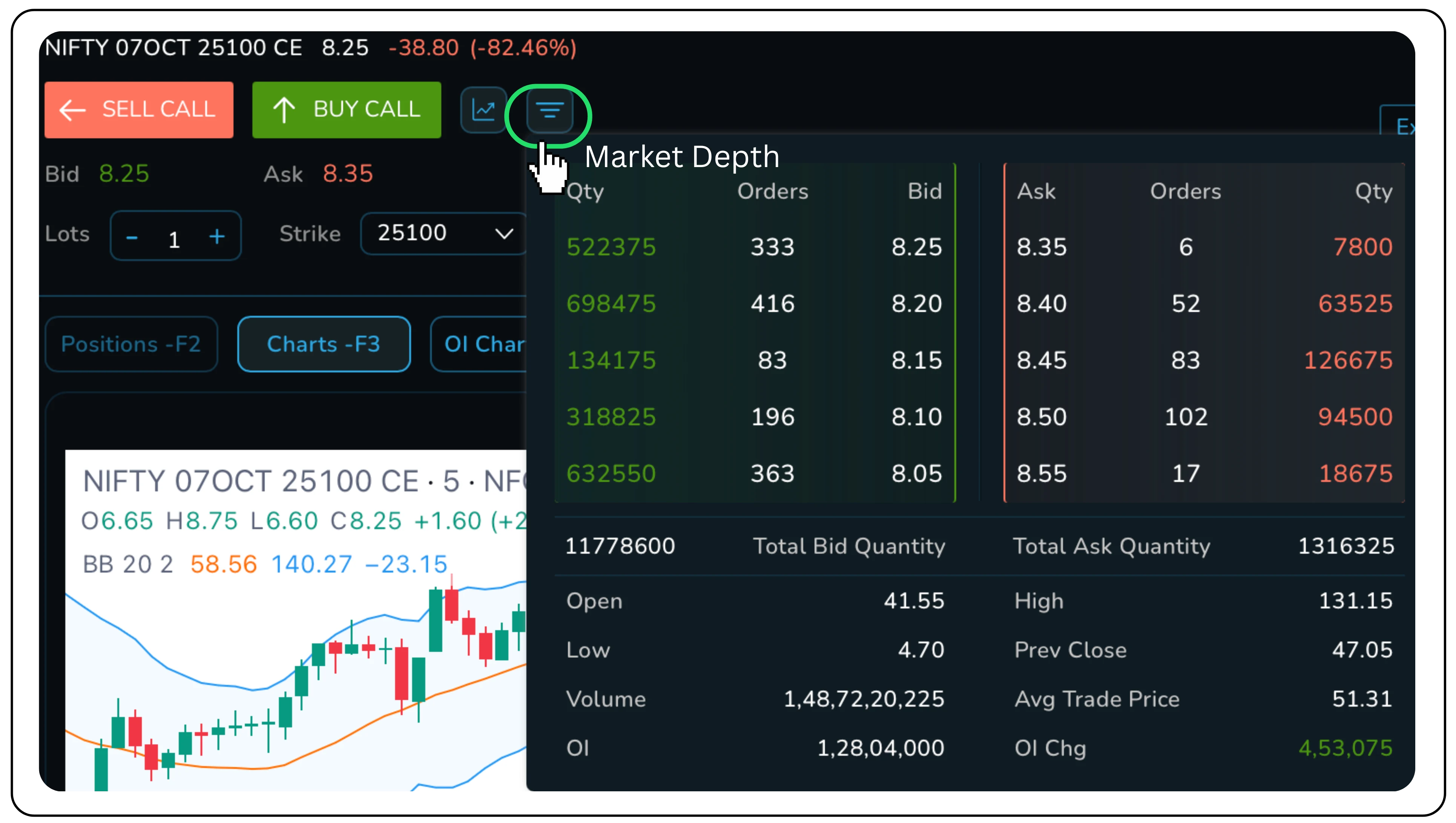
- Market Depth: Click the market depth icon to instantly view the top 5 bid and ask prices and quantities.
- Persistent Indicators: Open a detailed chart, apply your favorite technical indicators (like Bollinger Bands), and save the layout. Your indicators will automatically appear on the terminal charts every time you log in.
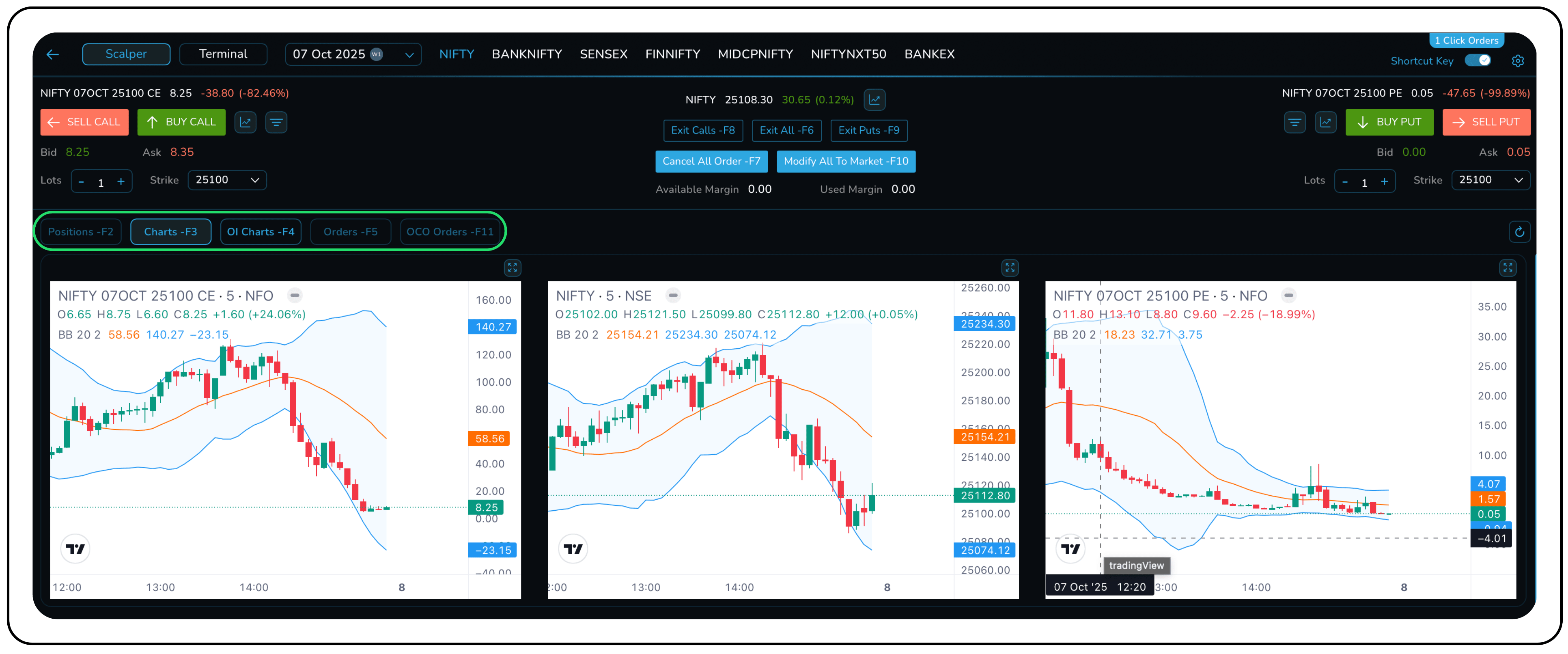
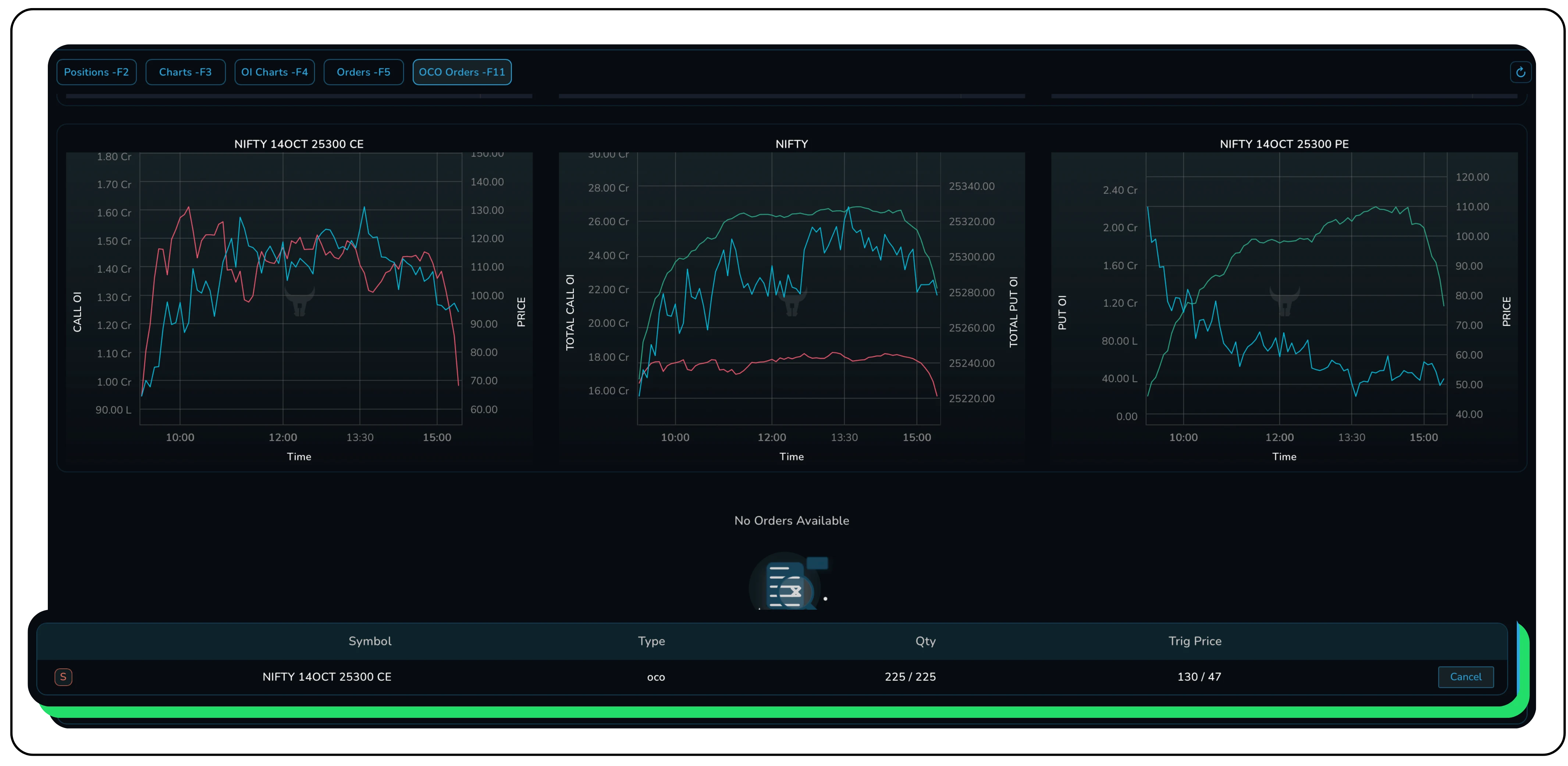
- In-Terminal Management: View your open positions, executed orders, and pending OCO (One-Cancels-the-Other) orders directly within the terminal using dedicated tabs. There's no need to switch screens to manage your portfolio.
- To establish a trigger and stop loss for any trade leg, just
- click the '+' icon located beneath the target and stop loss fields. This action will enable your OCO order.

6. Pre-configure your trading preferences
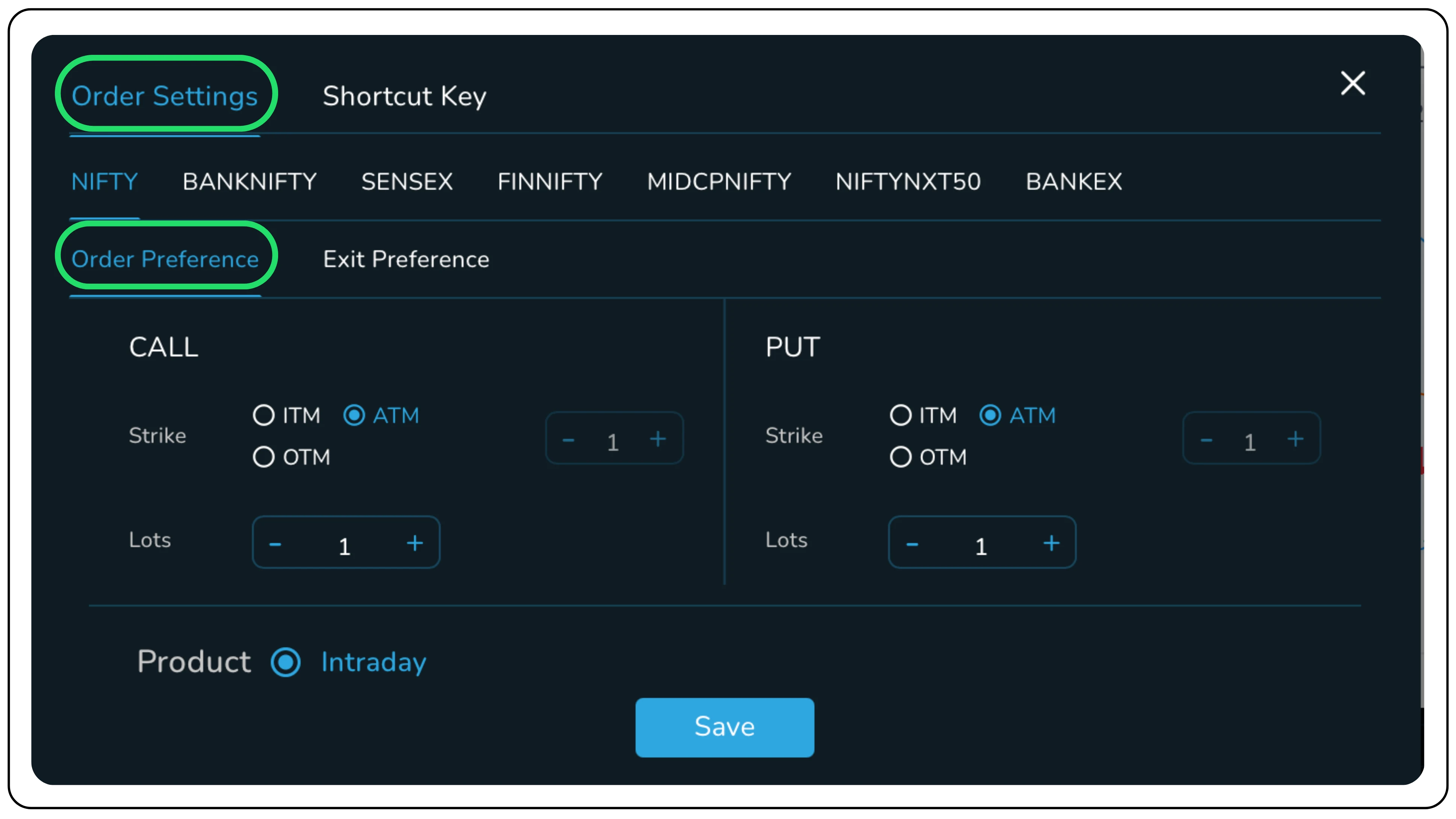
Click the settings icon to open the Order Settings window. Here, you can set your default preferences to further speed up your trading.
- Order Preference: Automatically set the terminal to load At-the-Money (ATM), In-the-Money (ITM), or Out-of-the-Money (OTM) strikes by default.
- Exit Preference: Pre-define your default Target Price (%) and Stop Loss (SL) Trigger Price (%) from the average entry price for automated OCO order placement.
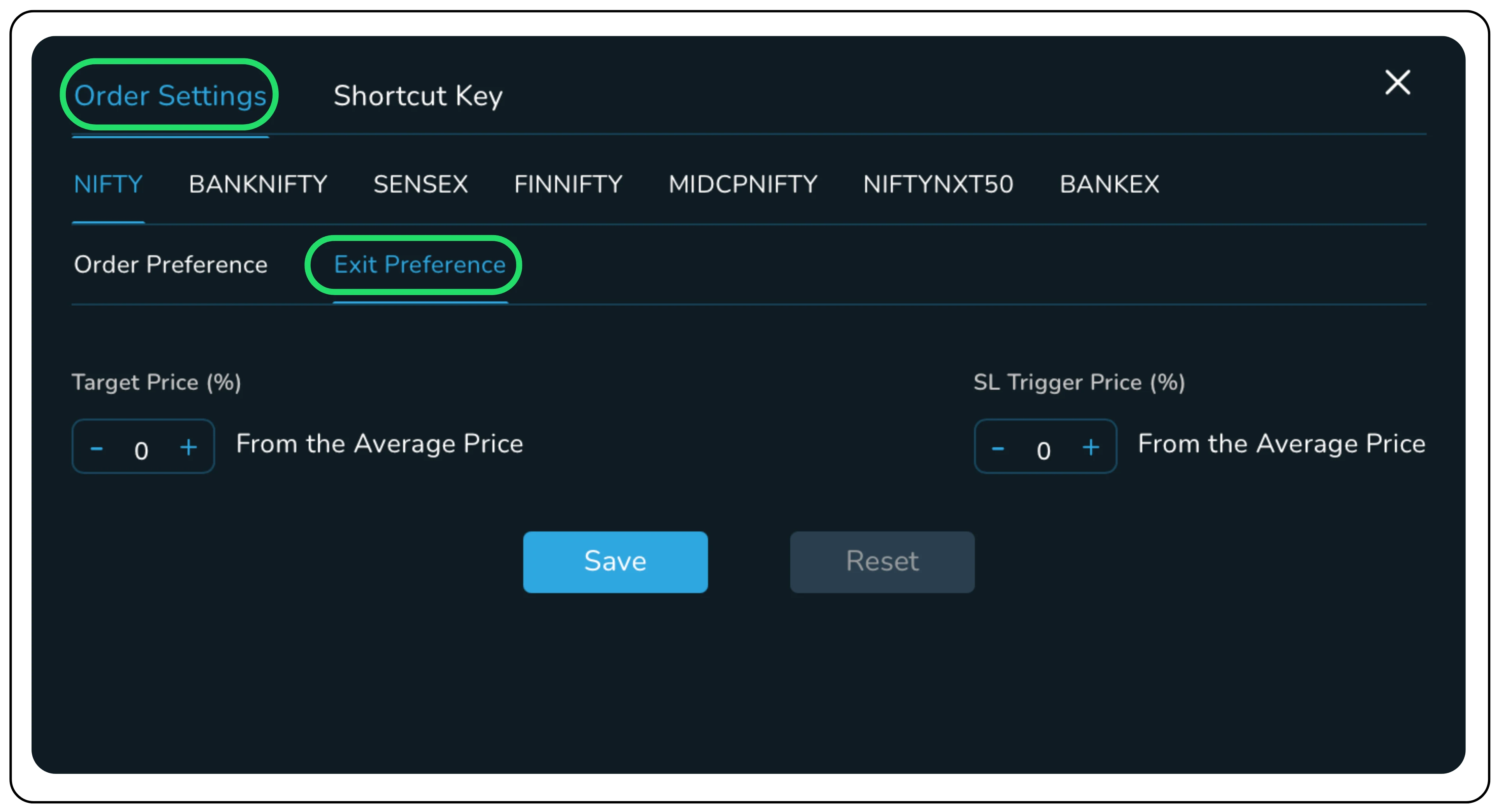
Example: How Exit Preference Works (for Index Options)
Let’s say you actively trade BANKNIFTY options and want your Target (%) and Stop Loss Trigger (%) to be set automatically every time you take a position.
- Go to Order Settings → Exit Preference.
Under BANKNIFTY, set:
- Target Price (%): +20%
- SL Trigger Price (%): –10%
Click Save.
Now, whenever you enter a new trade — for example:
You buy BANKNIFTY 49000 CE at ₹200,
The system will automatically place an OCO (One Cancels Other) order with:
- Target Price: ₹240 (20% above entry)
- Stop Loss Trigger Price: ₹180 (10% below entry)
So if BANKNIFTY rises and the option hits ₹240, your profit is booked and the stop loss order is cancelled automatically.
If the price falls and hits ₹180, your stop loss gets triggered and the target order is cancelled.
You don’t have to manually calculate or punch exit orders every time your profit and risk levels are predefined, giving you faster, more disciplined execution especially during volatile option moves.
The NxtOption Scalper Terminal is a meticulously crafted tool that addresses the specific needs of options scalpers. By combining a comprehensive multi-chart view, lightning-fast keyboard execution, and integrated position management, it empowers you to act on market movements with unmatched speed and precision.
Stop letting cumbersome interfaces dictate your trading performance. Log in to your Tradejini account, explore the Scalper Terminal, and experience the future of high-frequency options trading today.
Disclaimer: The information provided in our blogs is for informational purposes only and should not be construed as financial, investment, or trading advice. Trading and investing in the securities market carries risk. Always conduct your own research and consult with a qualified financial advisor before making any investment decisions. Past performance is not indicative of future results. Copyrighted and original content for your trading and investing needs.
© 2025 — Tradejini. All Rights Reserved.