The Scalper Terminal in the CubePlus trading platform by Tradejini is designed to bring chart analysis, order execution and position monitoring into a single screen. For traders active in intraday scalping in India, scalper mode trading on CubePlus eliminates the need to jump across windows during fast market conditions.
The Scalper Mode Dashboard
The screen is divided into two main sections. The right side displays the chart interface, while the left side contains the trading controls, open positions, and the Scalper Mode panel. This layout keeps the trading controls close to the chart so that orders can be placed quickly while monitoring price movement.
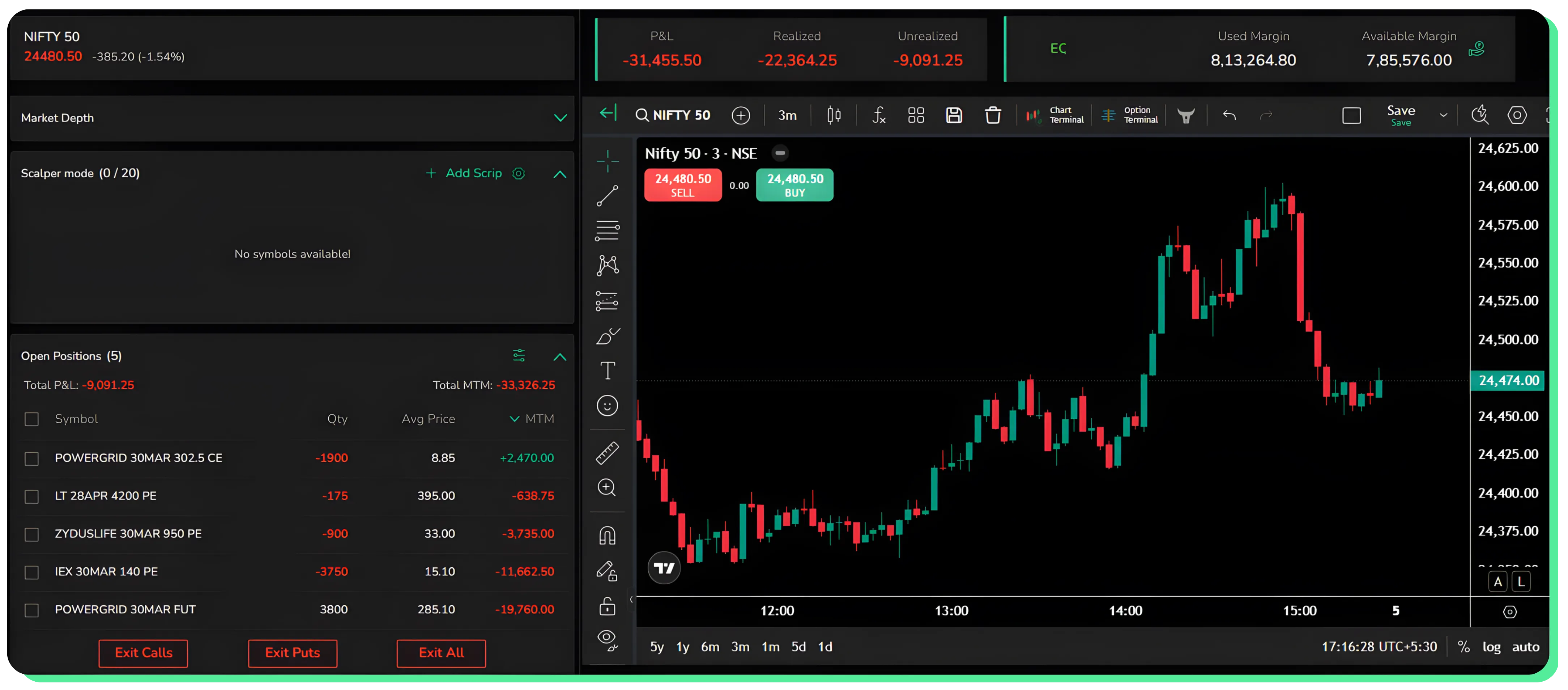
When the Scalper Terminal is opened for the first time, the Scalper Mode section will not contain any instruments. This is where traders add the contracts they want to trade. To begin, click Add Scrip.
Adding Instruments
This opens the instrument selection window where contracts can be searched and filtered. The platform allows you to select between Futures and Options, choose the required strike price, and select the expiry. Filters are also available to narrow down the list by segment, product type, or specific contracts.
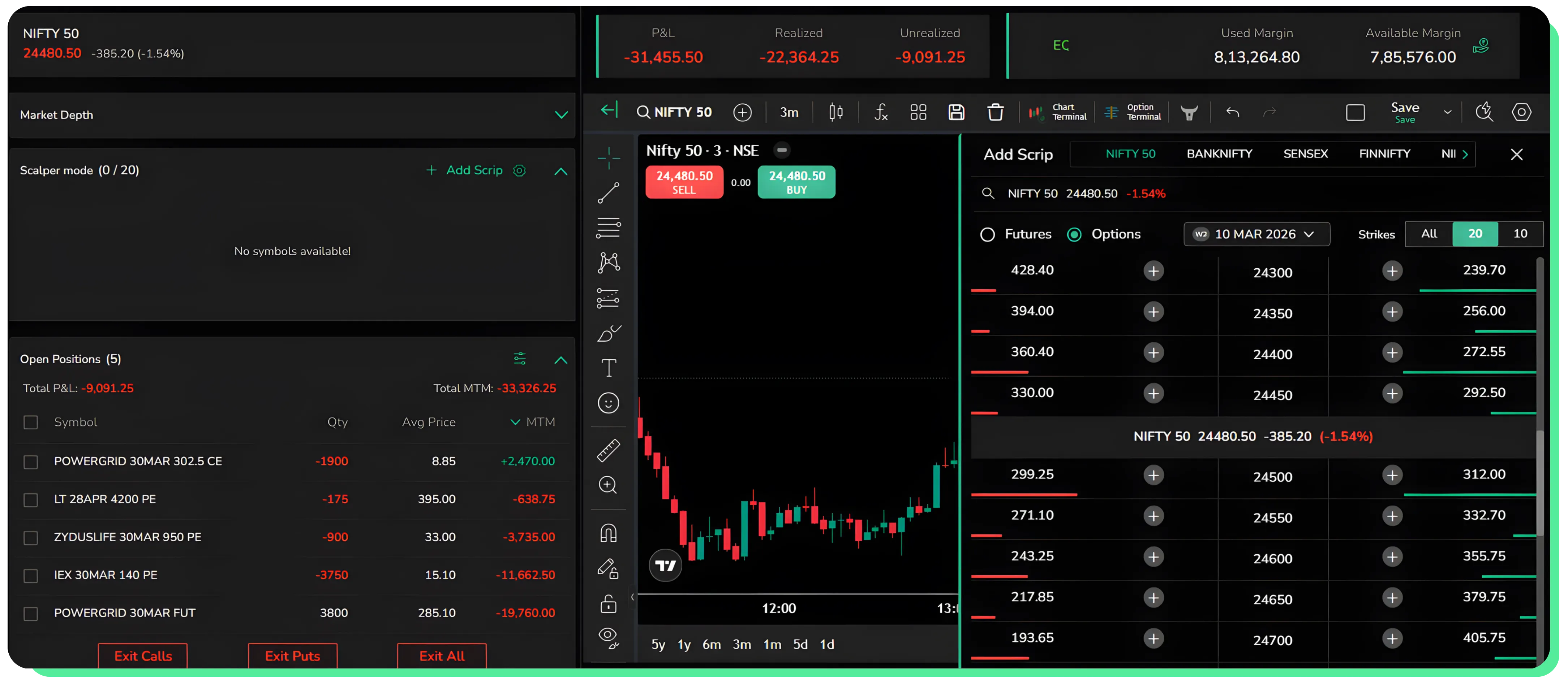
Once the required contracts are selected, they appear inside the Scalper Mode panel. Each instrument is displayed with the lot size selector, the live price, and quick execution buttons for Buy (B) and Sell (S).
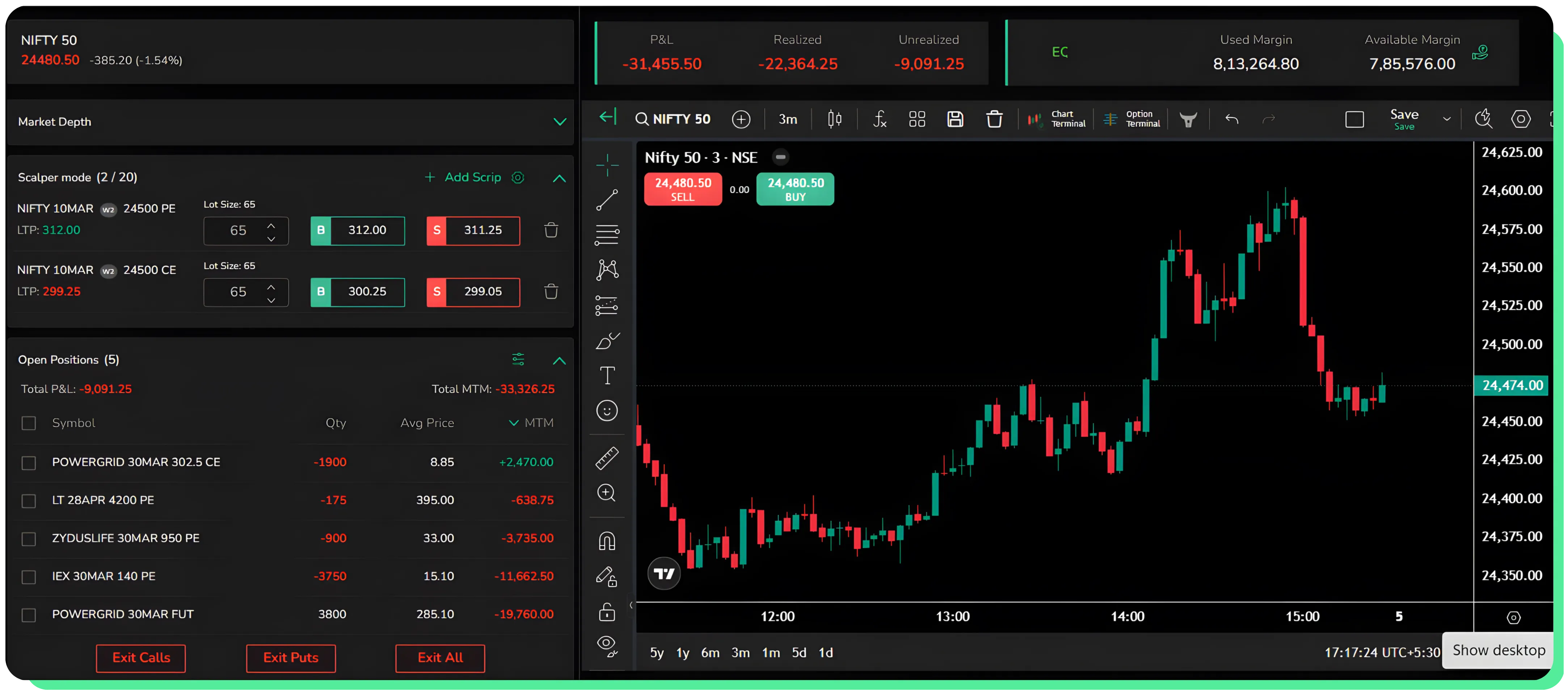
These buttons are designed for fast order placement. Instead of opening a traditional order window, the trade can be executed directly from the Scalper Mode panel using the predefined lot size. Multiple instruments can be added to the panel, allowing traders to monitor and trade several contracts from the same interface.
The lower section of the left panel displays the Open Positions window. This area shows the currently active positions along with quantity, average price, and real-time MTM. From here, traders can also close positions using quick exit buttons such as Exit Calls, Exit Puts, or Exit All.
Predefining settings before order execution
CubePlus also allows certain execution settings to be defined in advance. These can be accessed from the Settings icon within the Scalper Terminal.
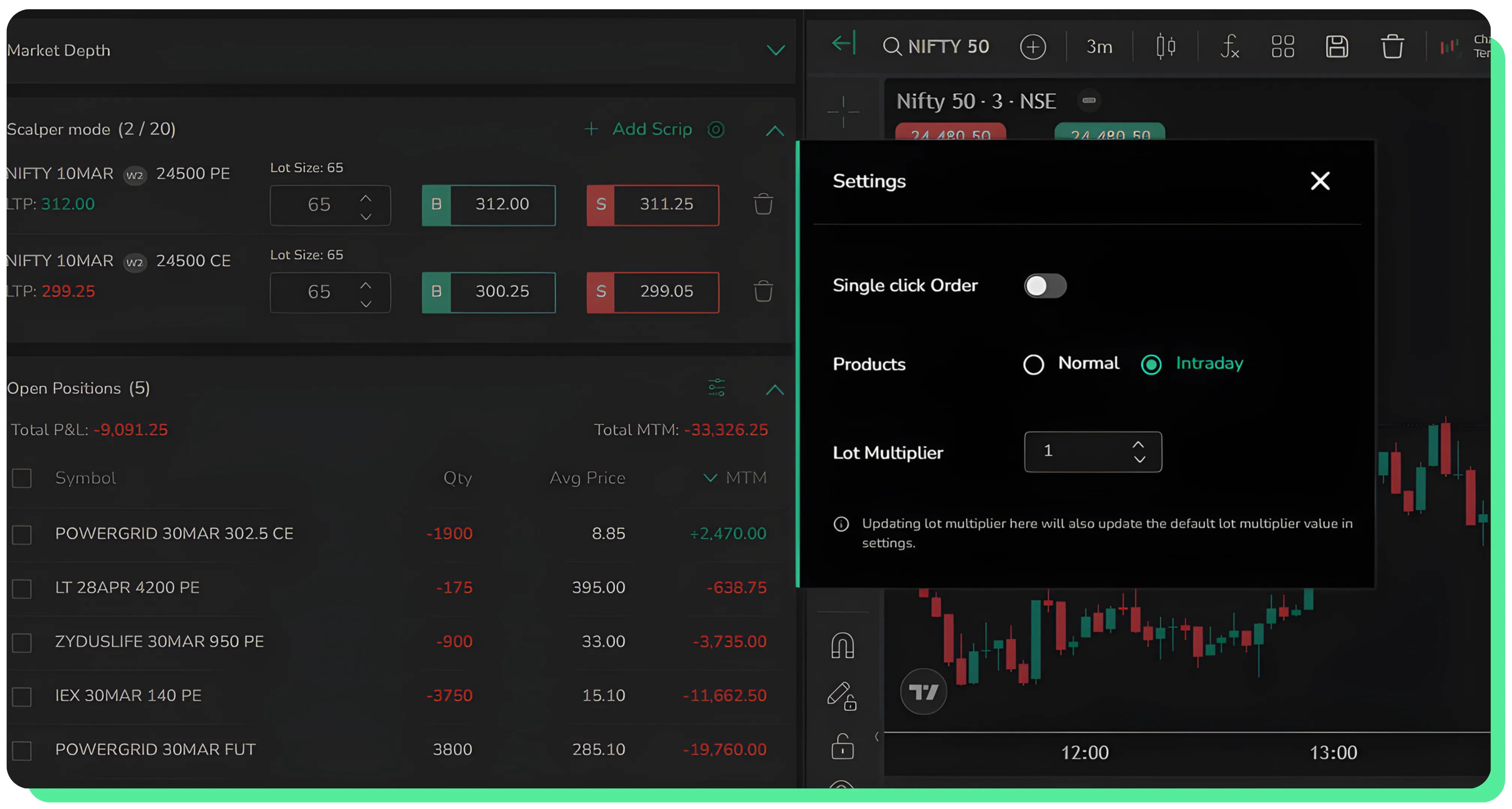
Inside the settings panel, traders can enable Single Click Order. When this option is turned on, orders are executed immediately when the Buy or Sell button is pressed, without requiring additional confirmation.
If you want to pair your Scalper Mode setups with smarter entry triggers, this is the next step: How to Use CubePlus Alerts to Trade with Precision
Product Filters
The settings panel also allows the default Product type to be selected. Traders can choose between Normal or Intraday so that every order placed from the Scalper Terminal follows the selected product automatically.
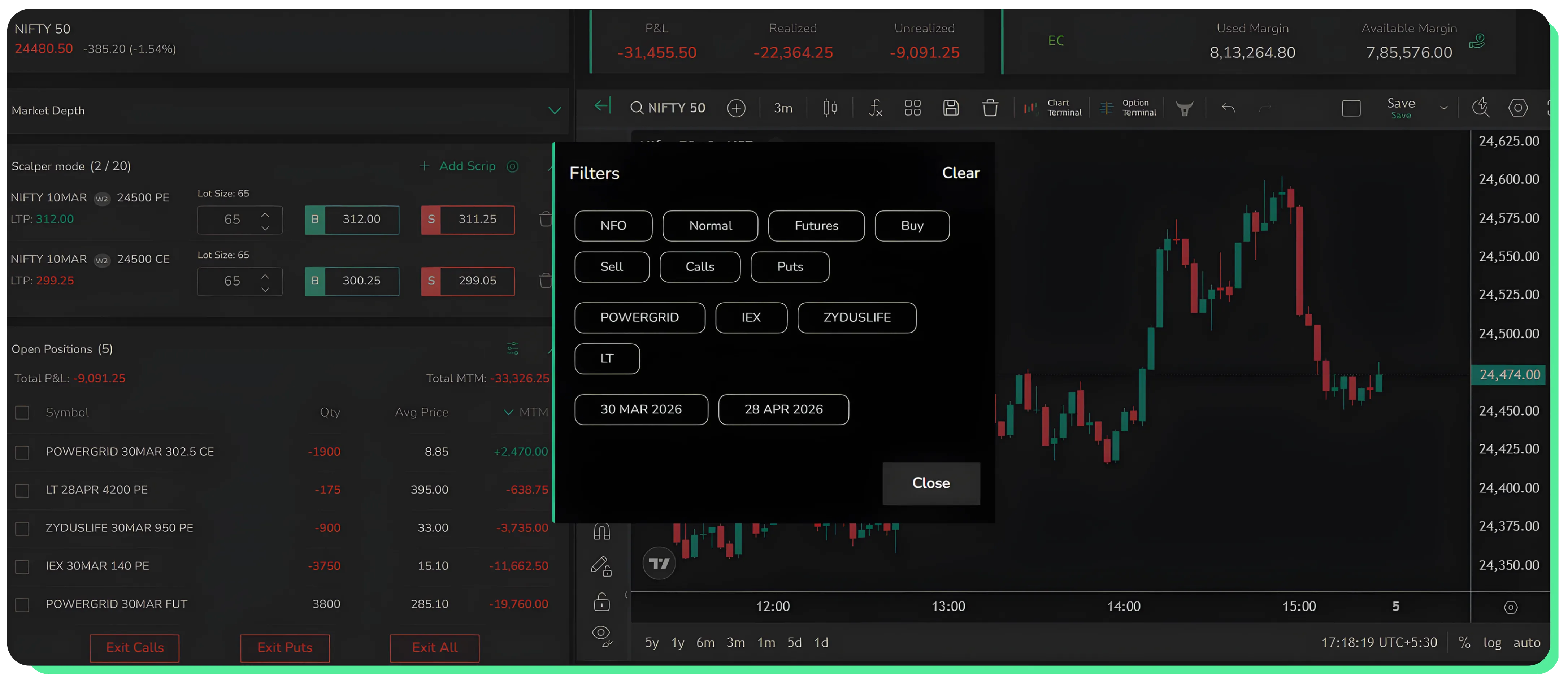
Another configurable parameter is the Lot Multiplier. This allows traders to increase the order size relative to the base lot size of the instrument. By adjusting this value, traders can quickly scale their position size without manually changing the lot quantity each time.
Once instruments are added and the preferred settings are configured, the Scalper Terminal becomes ready for trade execution, allowing traders to monitor charts, execute orders, and manage positions from the same interface.
If you want to get the most out of Scalper Mode, setting up CubePlus the right way is where it starts: Customizing Your Trading Experience with CubePlus Settings
Managing Stop Loss, Trailing SL and Target in Scalper Mode
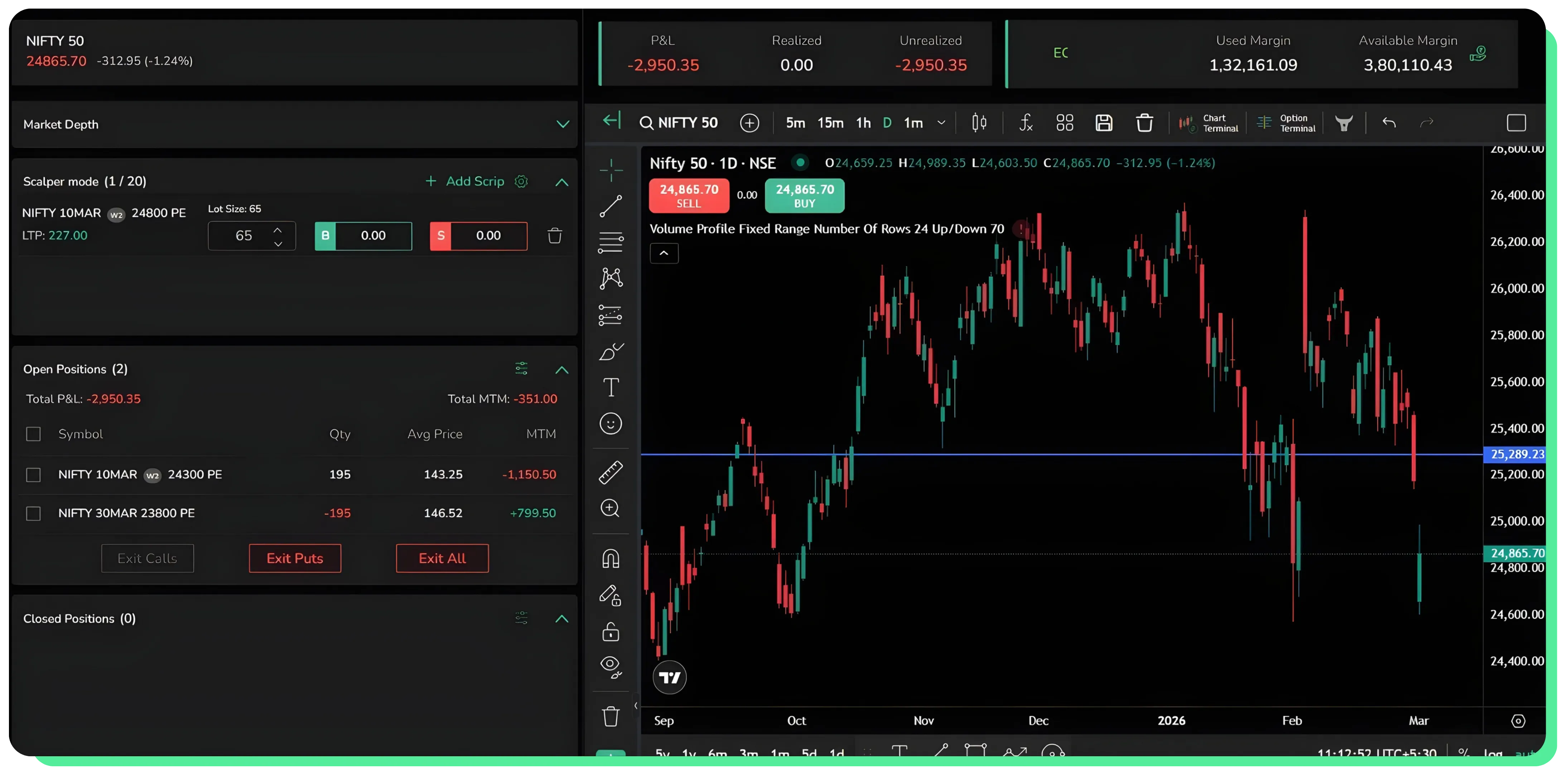
When you enter a trade in Scalper Mode, you initiate the position using the Buy or Sell button next to the selected contract. The order is placed instantly based on the lot size configured. At this stage, the system records the position under Open Positions, but exit parameters are not yet defined.
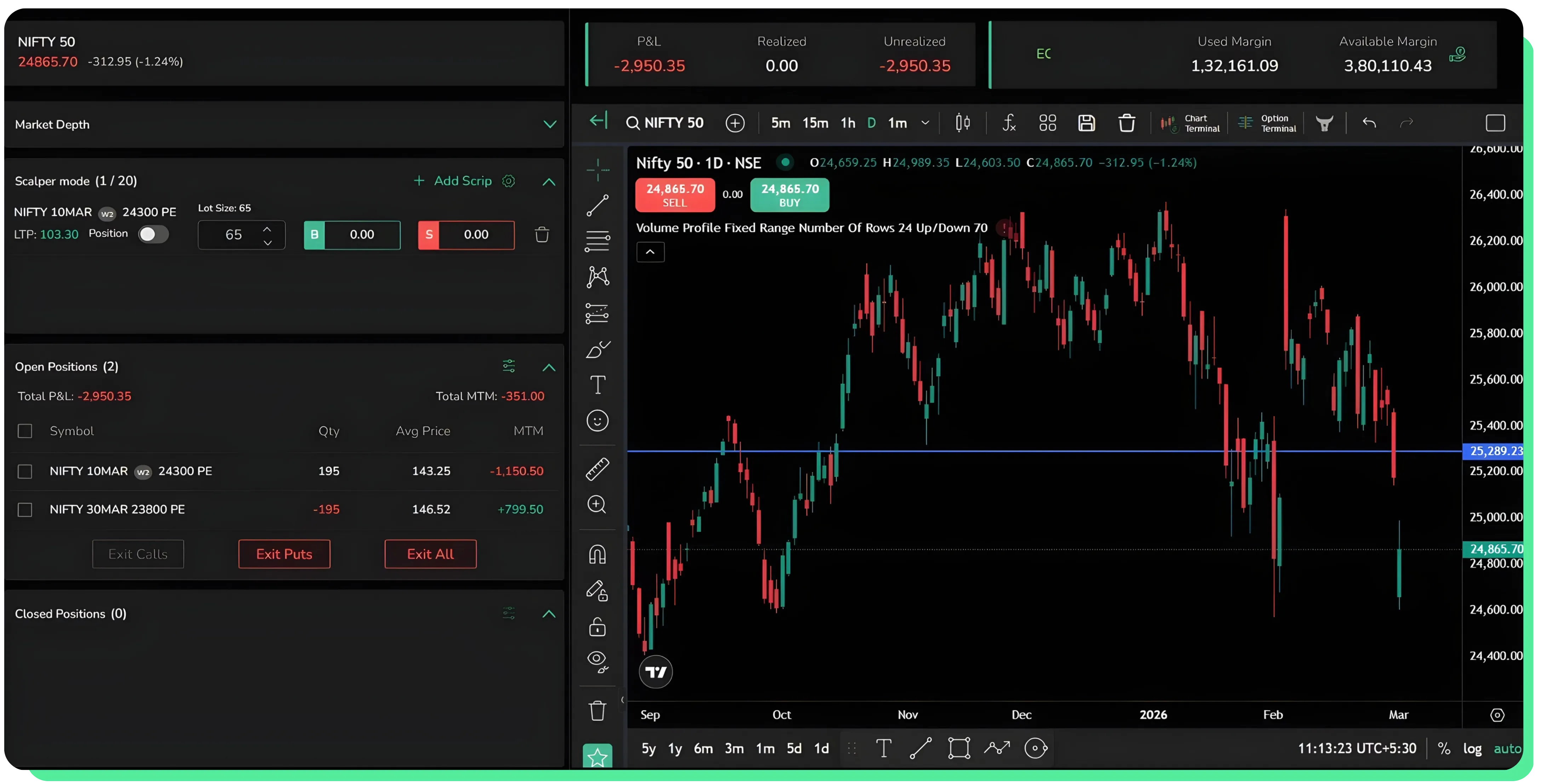
After the order is executed, the Position toggle becomes active beside the selected contract in Scalper Mode. This is the control that enables exit configuration. Until this toggle is switched on, stop loss, trailing stop loss, and target inputs remain hidden.
Once you activate the Position toggle, an expanded panel appears directly below the contract. This panel contains all exit-related settings.
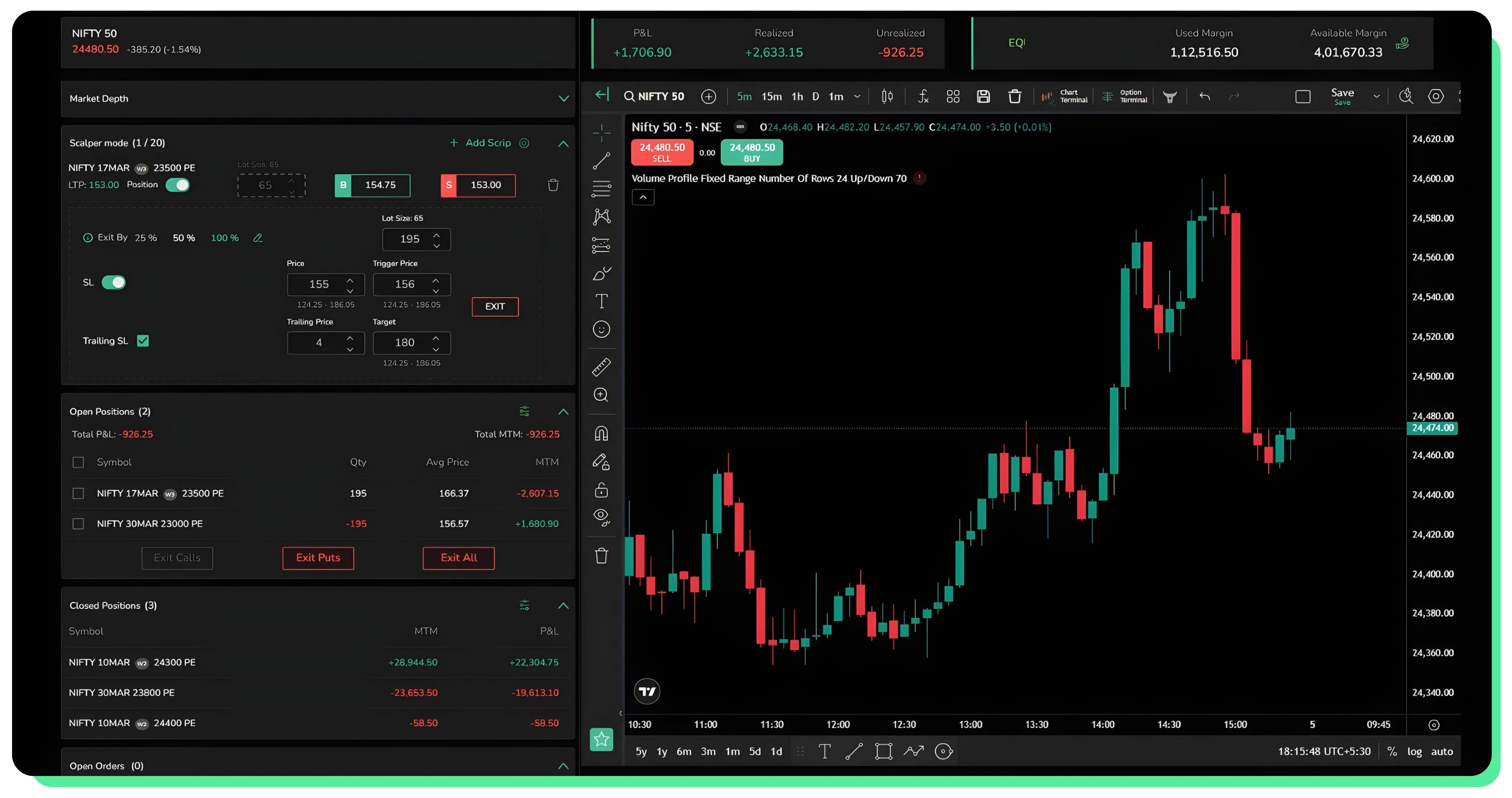
Once a position is active, enabling the Position toggle expands the control panel for that contract inside Scalper Mode. This section allows traders to manage exits directly from the same interface.
At the top of this panel, the Exit By section determines how much of the position should be closed when an exit condition is triggered. Traders can choose predefined percentages such as 25%, 50%, or 100%, depending on how much of the position they want to exit. The quantity can also be adjusted manually through the Lot Size field, which in this example shows 195. This flexibility allows traders to partially exit positions while keeping the remaining quantity active.
Below this, the Stop Loss (SL) option can be enabled to define a protective exit level. When the SL toggle is turned on, two fields become available: Price and Trigger Price.
The Trigger Price determines when the stop order becomes active in the market, while the Price represents the level at which the exit order will be placed once the trigger is hit.
For example, in the image, the Trigger Price is set at ₹156 and the Price is set at ₹155. This means that once the option’s last traded price reaches ₹156, the system activates the stop order and attempts to exit the position at ₹155. Using separate trigger and execution prices helps prevent accidental order activation due to small price fluctuations.
The panel also provides the option to enable Trailing SL. When this is activated, a Trailing Price field appears. In the image, the trailing value is set to 4. This means that as the trade moves in the favourable direction, the stop loss will automatically move by ₹4 increments, helping lock in gains without requiring manual adjustments.
Next is the Target field, which allows traders to define a profit-taking level. In the example shown, the target is set at ₹180. If the option price reaches this level, the system will automatically exit the defined quantity of the position.
All these controls are accessible directly from the Scalper Mode panel, allowing traders to manage risk and exits without leaving the trading screen. The Exit button on the right side provides an additional manual option to close the position immediately if required.
Takeaway
In practical terms, the workflow is simple. Define the default setting. Enter the trade. Define stop loss, optional trailing stop loss, and target. The system then manages exits based on your configuration.
This structure ensures that risk and reward are predefined immediately after entry, which is essential in short-duration trading environments.
CubePlus Scalper Mode integrates execution and risk management into a single interface, allowing traders to control positions without switching screens or modifying orders separately.
Start your smart investing on CubePlus and take control of your financial goals.
Disclaimer: The information provided in our blogs is for informational purposes only and should not be construed as financial, investment, or trading advice. Trading and investing in the securities market carries risk. Always conduct your own research and consult with a qualified financial advisor before making any investment decisions. Past performance is not indicative of future results. Copyrighted and original content for your trading and investing needs.
© 2026 — Tradejini. All Rights Reserved.

%252FCubePlus_Shield_Part%25203%2520Blog%2520Thumbnail.webp%3Falt%3Dmedia%26token%3Da5581624-5761-476f-8451-40c157b54840&w=3840&q=75)
%252FShield%2520on%2520Cubeplus%2520part2.webp%3Falt%3Dmedia%26token%3D252a5b48-a580-4e8d-b939-c82d4696eaef&w=3840&q=75)