Before markets move, your platform setup should already be aligned with your strategy. The Settings panel in CubePlus allows you to shape the platform around your trading style. A few thoughtful adjustments here can improve clarity, protect your account, and make order execution more consistent and efficient.
Instead of making changes during live trades, you configure everything once and let the platform follow your rules.
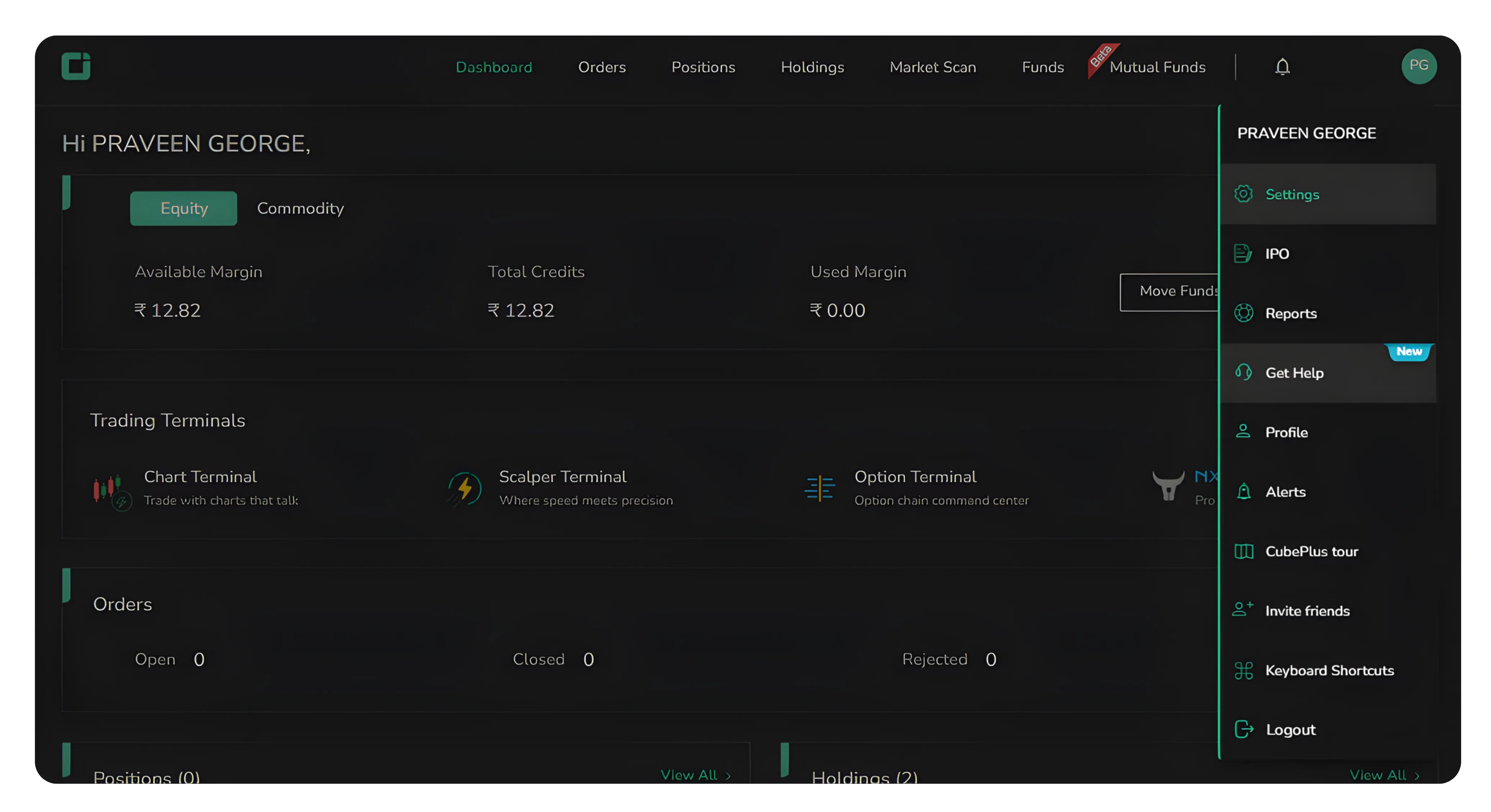
In the CubePlus app dashboard view, you can access the Settings panel by clicking the name icon at the top right corner. Once you click on your profile name, a dropdown appears with options such as Settings, Help, and Logout. Selecting Settings opens the configuration dashboard.
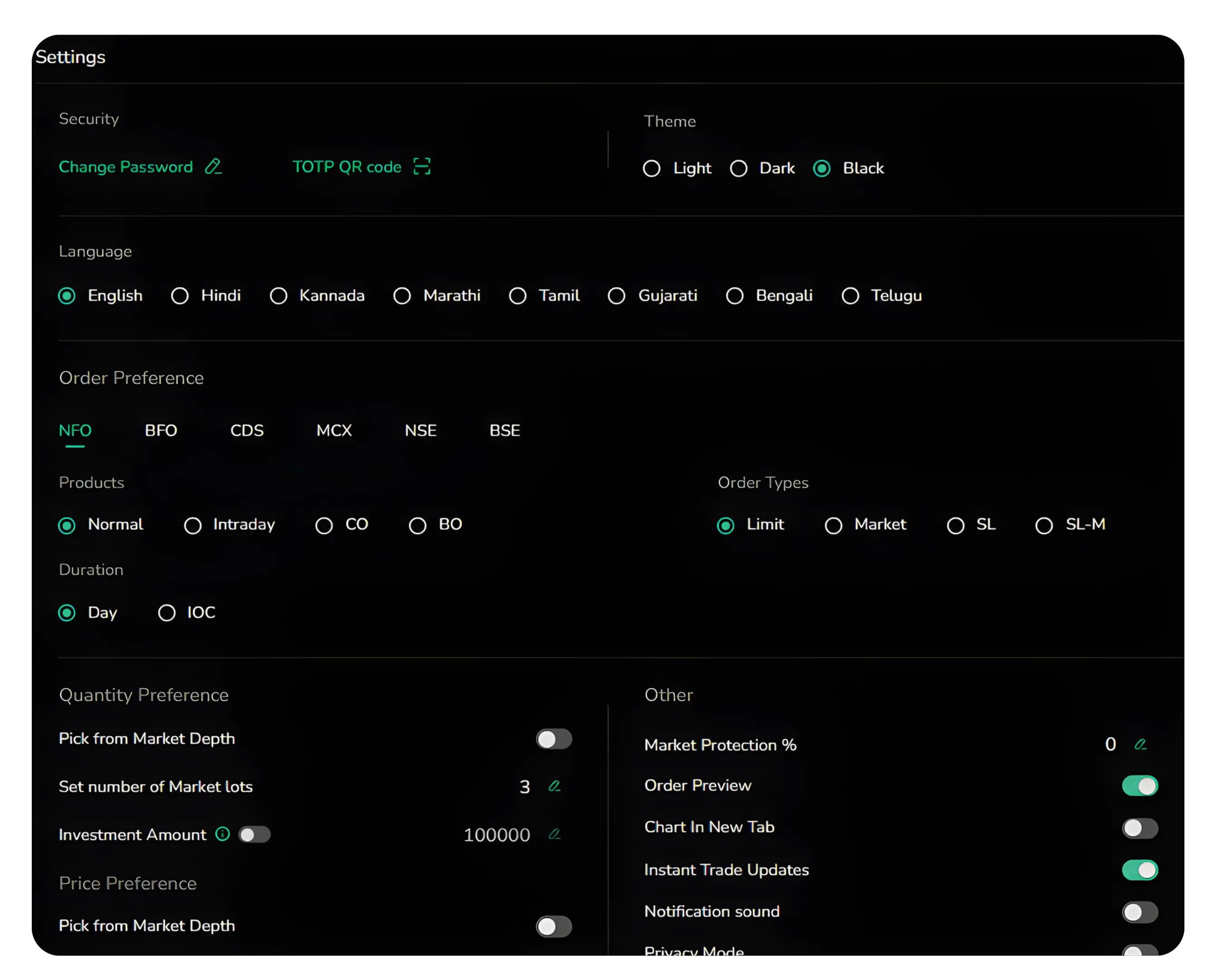
This acts as the central configuration area for your CubePlus experience. Instead of adjusting things repeatedly while trading, you set your preferences once here and the platform follows your rules.
Security, Theme and Language
When the Settings dashboard opens, the first section focuses on Security and basic interface preferences. You can see options to Change Password and manage your TOTP QR code. These are essential for account protection. Changing your password regularly and enabling TOTP adds an extra layer of security, which protects your trading capital from unauthorized access.
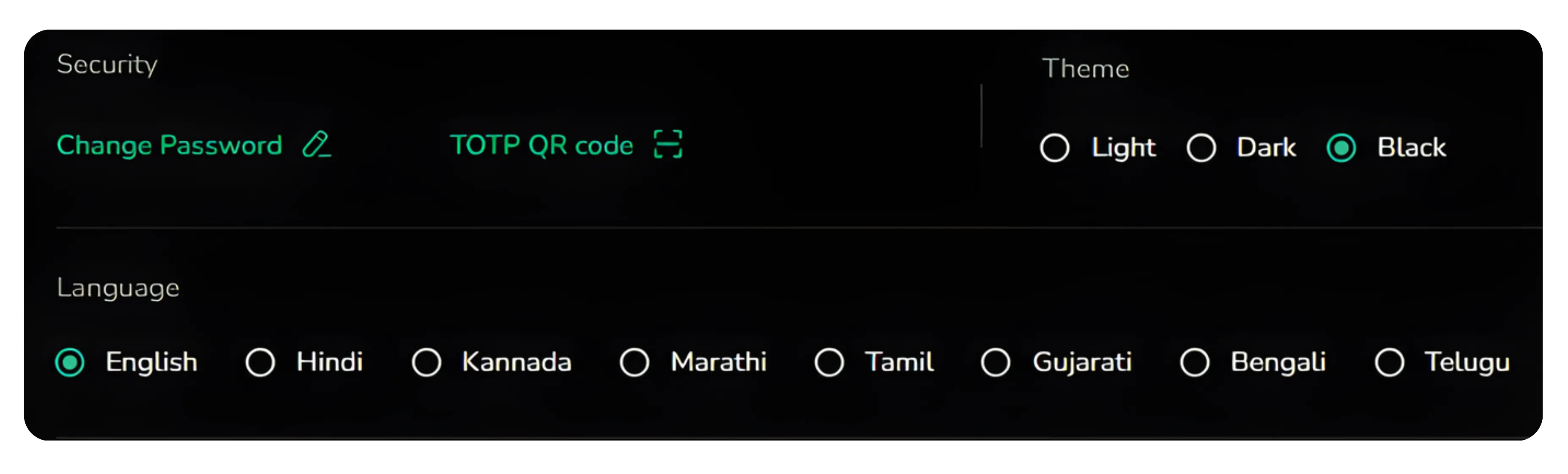
On the right side, there is a Theme selection with three options: Light, Dark, and Black. This allows you to choose how the platform looks visually. Some traders prefer darker themes because they are easier on the eyes during long trading hours. Choosing the right theme reduces strain and helps maintain focus.
Below that, there is a Language section with options such as English, Hindi, Kannada, Marathi, Tamil, Gujarati, Bengali, and Telugu. This makes the platform accessible to users from different regions. Selecting a preferred language ensures you clearly understand every label, order type, and notification. Clear understanding reduces mistakes.
Order Preference
The next section is Order Preference. This is where you define how your orders should appear by default.
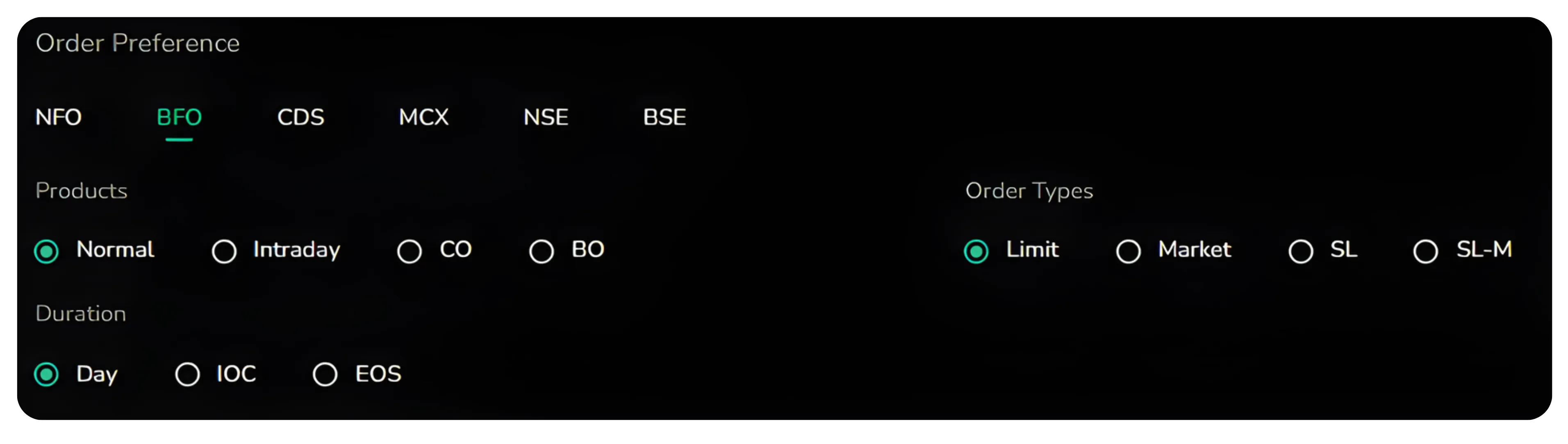
You can select the segment such as NFO, BFO, CDS, MCX, NSE, or BSE. When placing an order, the system automatically loads the correct market segment.
Under Products, you can choose between Normal, Intraday, CO, or BO. This setting decides whether your trades are delivery-based, intraday, or bracket/cover orders. Setting this in advance prevents accidental selection of the wrong product type.
You can also define the Order Type as Limit, Market, SL, or SL-M. If you regularly use limit orders, you can keep that as default so you do not have to change it every time.
You can also choose the duration, such as Day or IOC. Day means the order stays active for the trading day, while IOC cancels any unfilled portion immediately. Setting a default duration improves speed and consistency during execution.
During live markets, predefined order settings reduce manual adjustments and improve execution consistency. When markets move quickly, small delays matter. A predefined order setup keeps your execution aligned with your strategy.
Want to go beyond platform settings and strengthen your research as well? Read Using Corporate Actions, Peers, Deals, and News Effectively on CubePlus to understand how these sections can sharpen your market decisions.
Quantity Preference and Other Preferences
The next part includes Quantity Preference and Other settings.
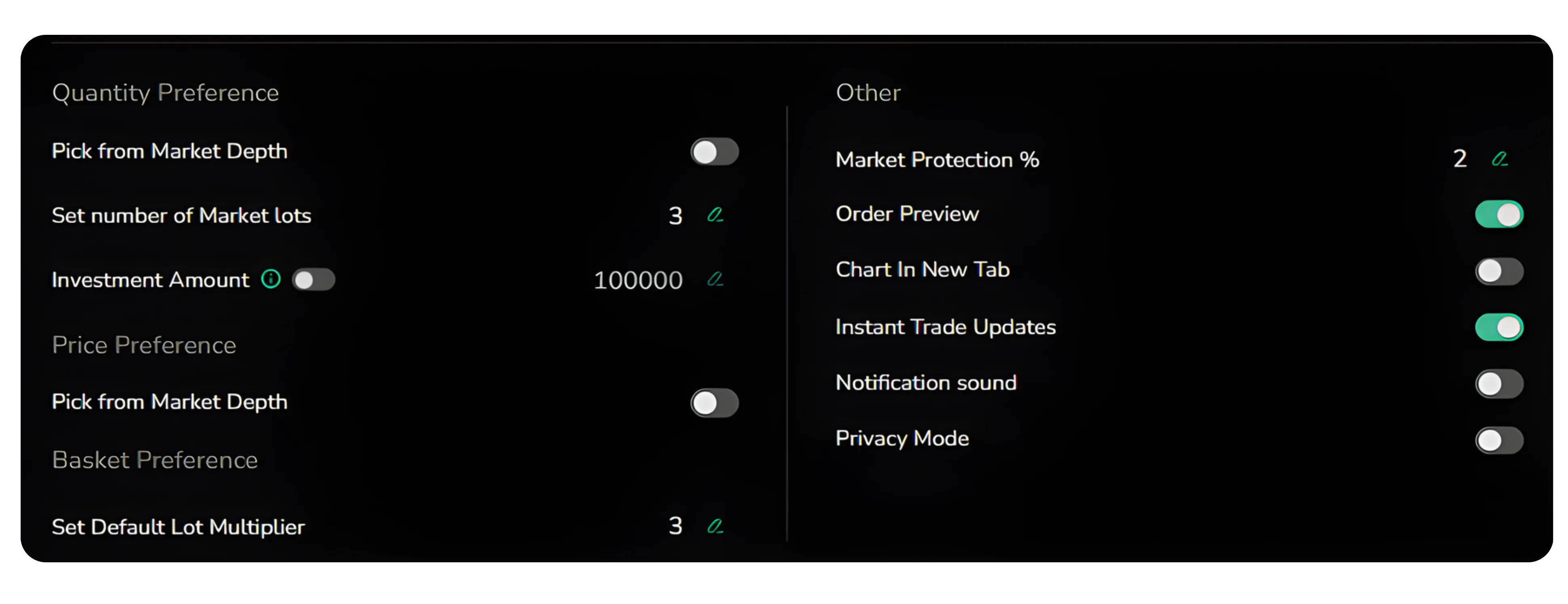
Under Quantity Preference, you can see options like Pick from Market Depth, Set number of Market lots, and Investment Amount. These controls help manage exposure. For example, setting a maximum amount helps control exposure (that you do not accidentally place an order beyond a certain value). This acts as a built-in safety check. Also, Pick from Market Depth allows you to select quantity directly from the live buy and sell order book, helping you align your order size with available market liquidity.
There is also an option to Set Default Multiplier. This is useful for traders who frequently adjust lot sizes. Instead of calculating every time, the multiplier simplifies quantity management.
In the Other section, you will find Market Protection %, Order Preview, Chart in New Tab, Instant Trade Updates, Notification Sound, and Privacy Mode.
Market Protection % allows you to define how much price variation is acceptable during market orders. This protects you from extreme slippage in volatile conditions.
Order Preview gives you a confirmation screen before placing the trade. This extra step helps catch errors in quantity or price.
Chart in New Tab allows charts to open separately, which can improve screen organization.
Instant Trade Updates ensures that execution updates are reflected immediately on the dashboard. This keeps you aware of filled, pending, or rejected orders in real time.
Notification Sound alerts you when actions occur, so you do not have to keep watching the screen continuously.
Privacy Mode
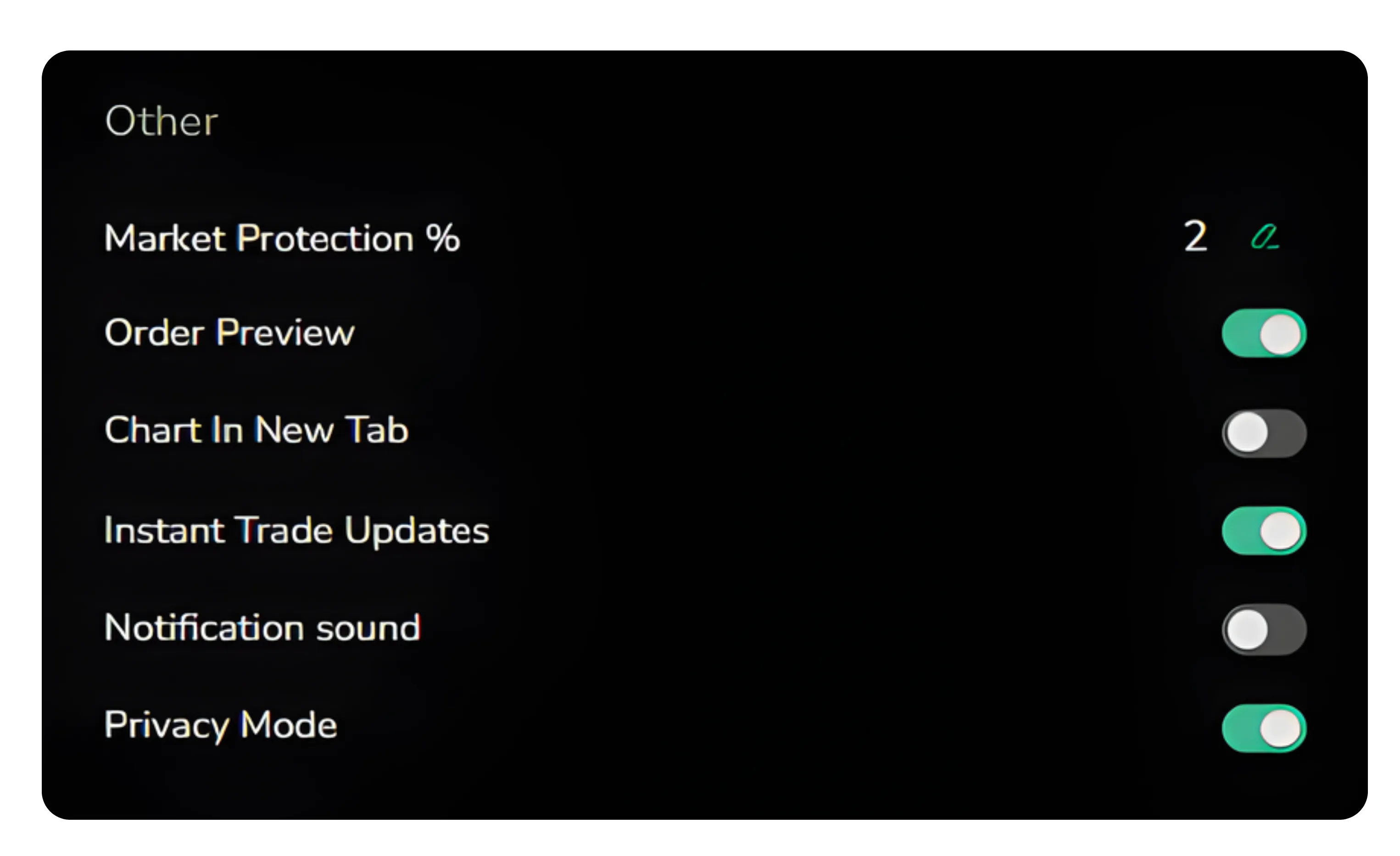
This feature is especially useful in shared environments. When enabled, the dashboard hides sensitive information such as holdings and margin details.. In the preview shown, once Privacy Mode is turned on, all holdings and margins are hidden from view.
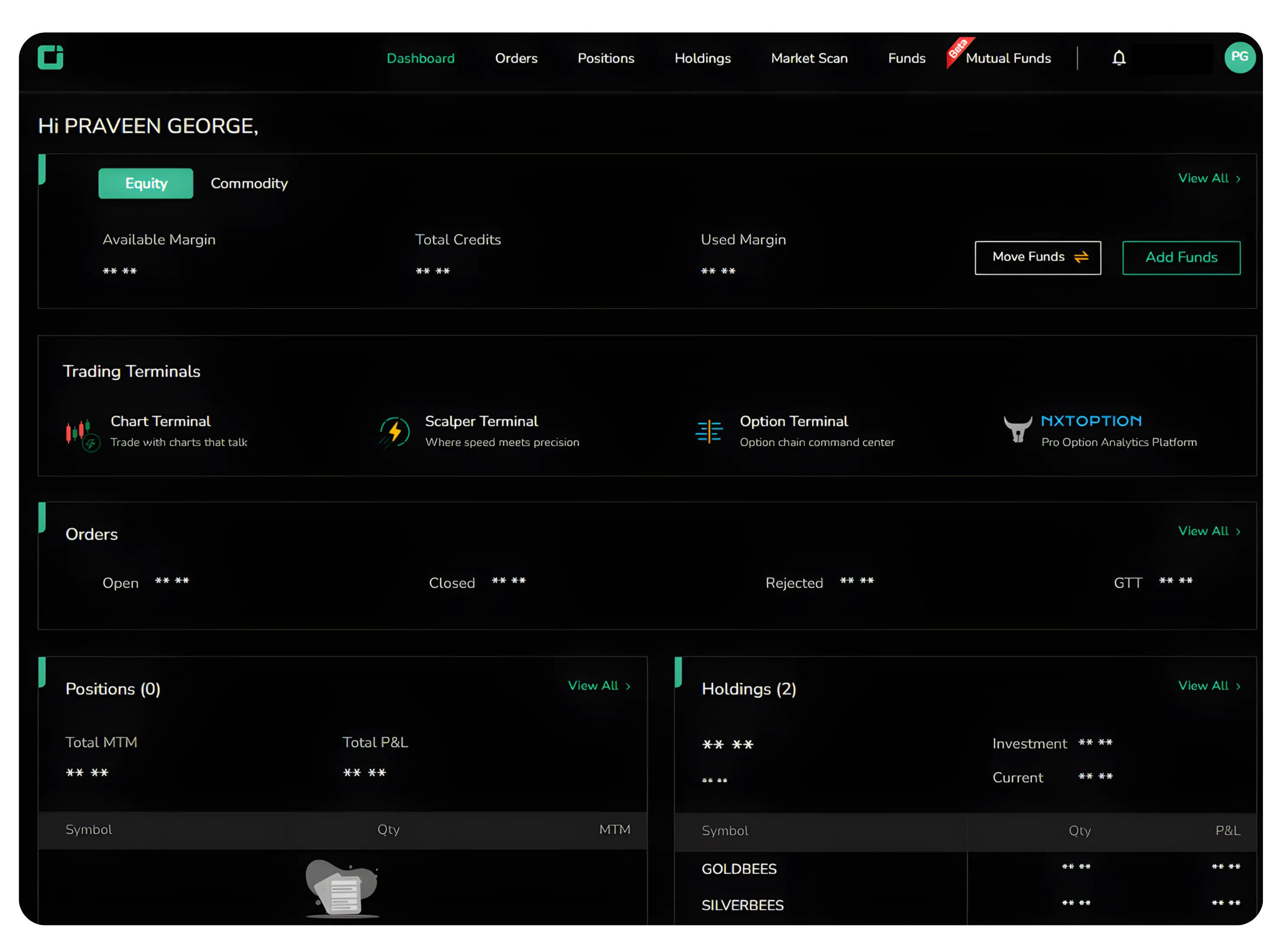
This is helpful if you are accessing CubePlus in a shared environment or around others. It protects your financial information without logging out of the system.
Final Thoughts
The Settings panel in CubePlus is not just a technical section. It is where you define how you trade, how you receive information, and how your account is protected. From language and theme to order defaults and privacy controls, each setting plays a role in improving clarity, safety, and execution speed.
Spending a few minutes configuring these options can make daily trading smoother and more disciplined. CubePlus gives you the flexibility. The Settings panel is where you take control of it.
Disclaimer: The information provided in our blogs is for informational purposes only and should not be construed as financial, investment, or trading advice. Trading and investing in the securities market carries risk. Always conduct your own research and consult with a qualified financial advisor before making any investment decisions. Past performance is not indicative of future results. Copyrighted and original content for your trading and investing needs.
© 2026 — Tradejini. All Rights Reserved.

%252FCubePlus_Shield_Part%25203%2520Blog%2520Thumbnail.webp%3Falt%3Dmedia%26token%3Da5581624-5761-476f-8451-40c157b54840&w=3840&q=75)
%252FShield%2520on%2520Cubeplus%2520part2.webp%3Falt%3Dmedia%26token%3D252a5b48-a580-4e8d-b939-c82d4696eaef&w=3840&q=75)