Missing an entry by even a few points can change the entire risk-reward of a trade. Constantly watching charts is not always practical, especially during volatile market hours. The Alerts feature in CubePlus helps you avoid that by notifying you the moment your predefined conditions are met, so you can act with precision instead of reacting late.
CubePlus offers a real-time market alert system that helps traders set price alerts, stock market alerts, and options alerts with precision.
Creating an Alert from the Watchlist
Alerts can be created directly from your watchlist or market watch. Simply click on the instrument menu and select Create Alert. This opens the alert configuration window for the selected instrument.
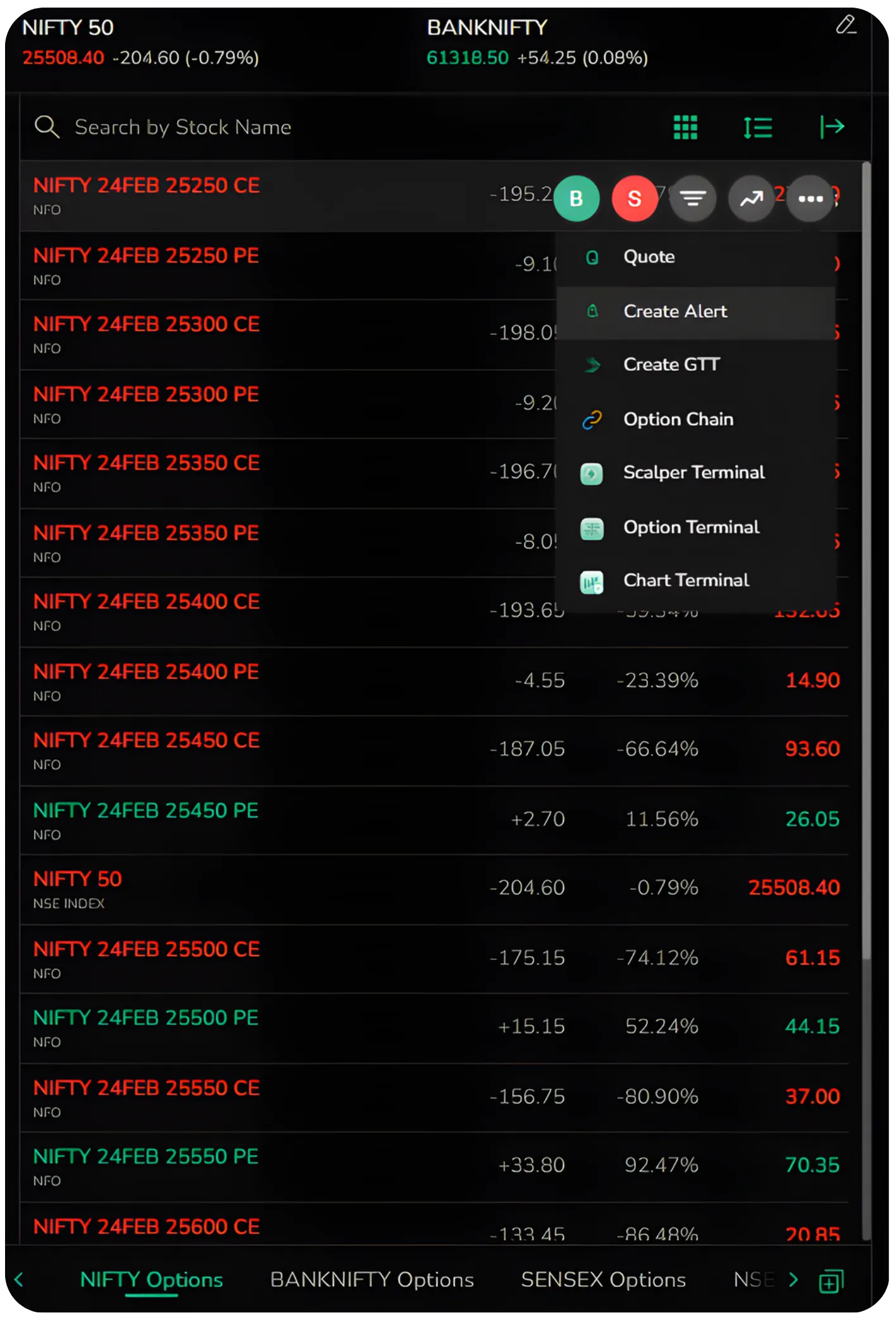
You do not need to navigate elsewhere. The feature is integrated into the trading flow, so you can set alerts instantly while scanning instruments. These market watch alerts allow you to monitor instruments without continuously tracking the screen.
Naming Your Alert
Every alert can be given a custom name. This helps when you are tracking multiple setups across instruments. Instead of remembering price levels mentally, you can label alerts clearly such as Entry Level, Breakout Watch, Support Test, or OI Spike.
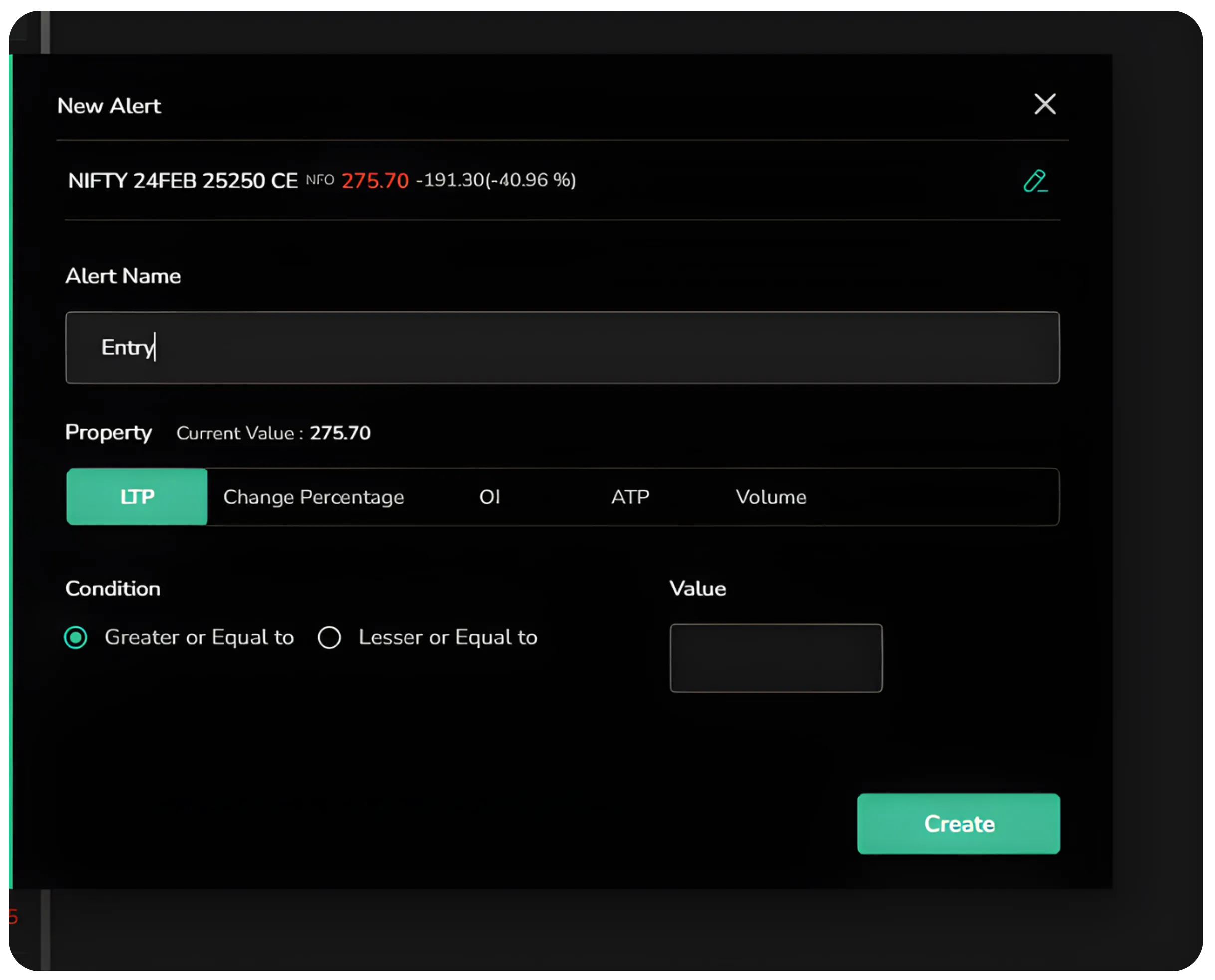
Clear naming makes alert management simple later.
Setting Alerts Based on LTP (Price Alerts)
The most common use case is price based alerts. Under Property, select LTP. You can then choose whether the condition should trigger when price is Greater or Equal to a level or Less or Equal to a level. This forms the foundation of price alerts and is commonly used in breakout alert systems.
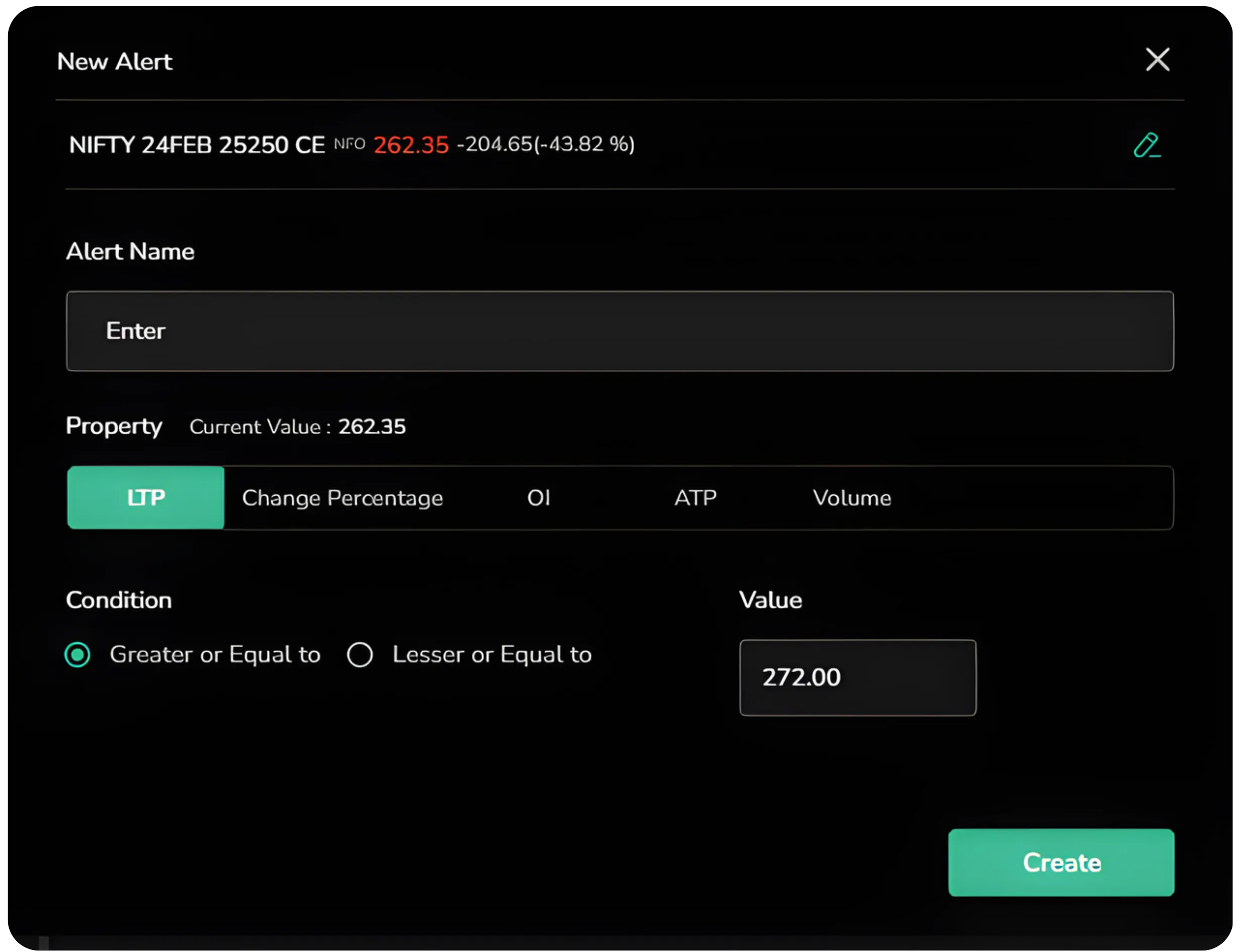
For example, if an option is trading at 262 and you want to track a breakout above 272, you can set an alert for LTP greater than or equal to 272. The system will notify you once the price reaches that level.
This works equally well for breakdown levels or stop tracking.
Setting Alerts Based on Change Percentage
Sometimes direction matters more than price. CubePlus allows you to create alerts based on percentage change.
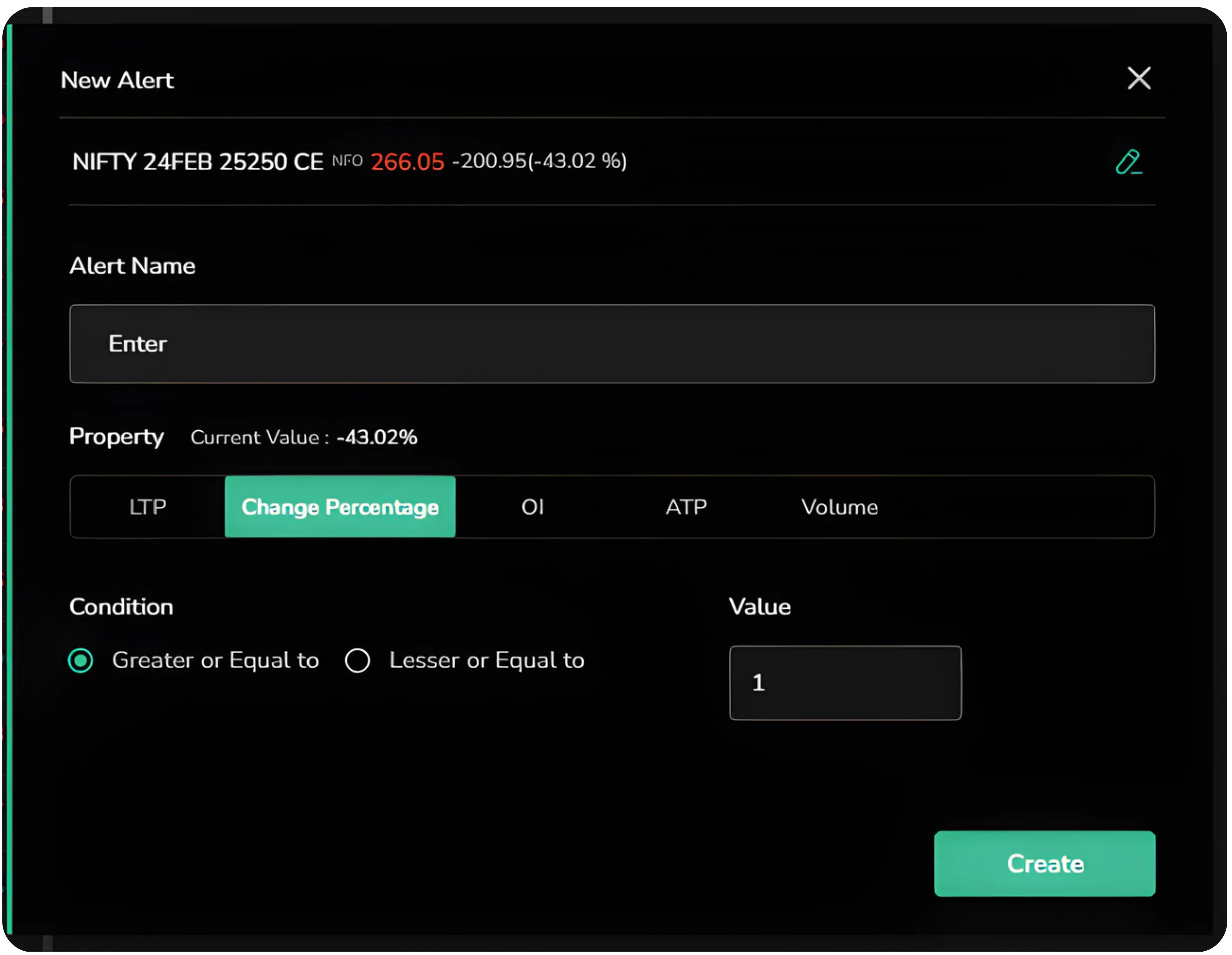
Select Change Percentage under Property. You can then define a threshold such as 1 percent or any custom level. The alert triggers when the instrument’s percentage move meets your defined condition.
This is useful for momentum traders who monitor sudden moves rather than fixed price levels.
Setting Alerts Based on Open Interest
For options traders, Open Interest can be more important than price alone. Open Interest alerts are available for derivatives instruments such as futures and options, since OI data applies only to the F&O segment.
Under Property, select OI.
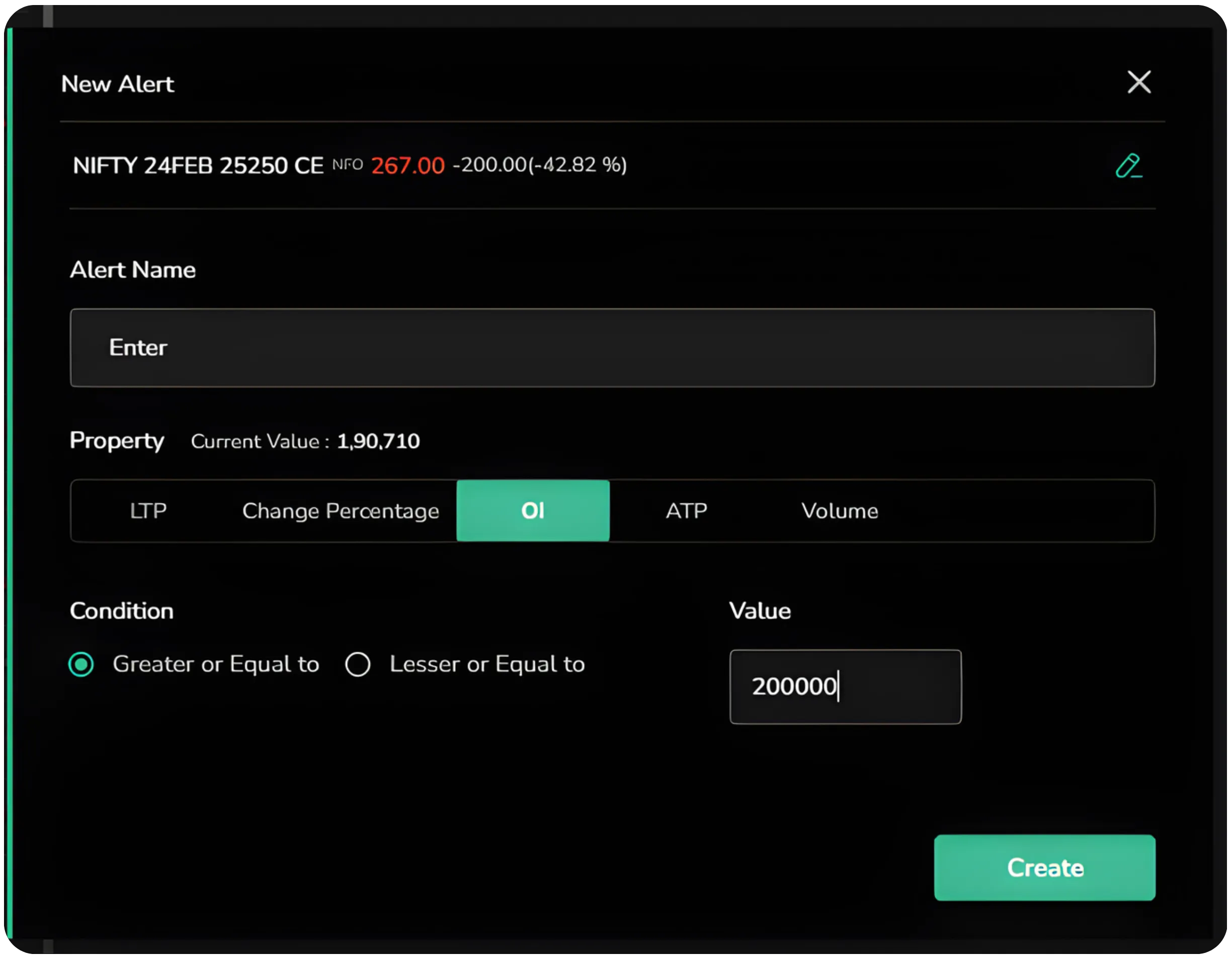
You can set alerts when OI becomes greater than or less than a specific value. For example, if you want to monitor aggressive build up at a particular strike, you can define a threshold such as 200000 contracts.
This allows you to track participation and positioning shifts without manually refreshing data.
Setting Alerts Based on ATP
ATP stands for Average Traded Price. Selecting ATP as the property allows you to define conditions based on the average traded value rather than last traded price.
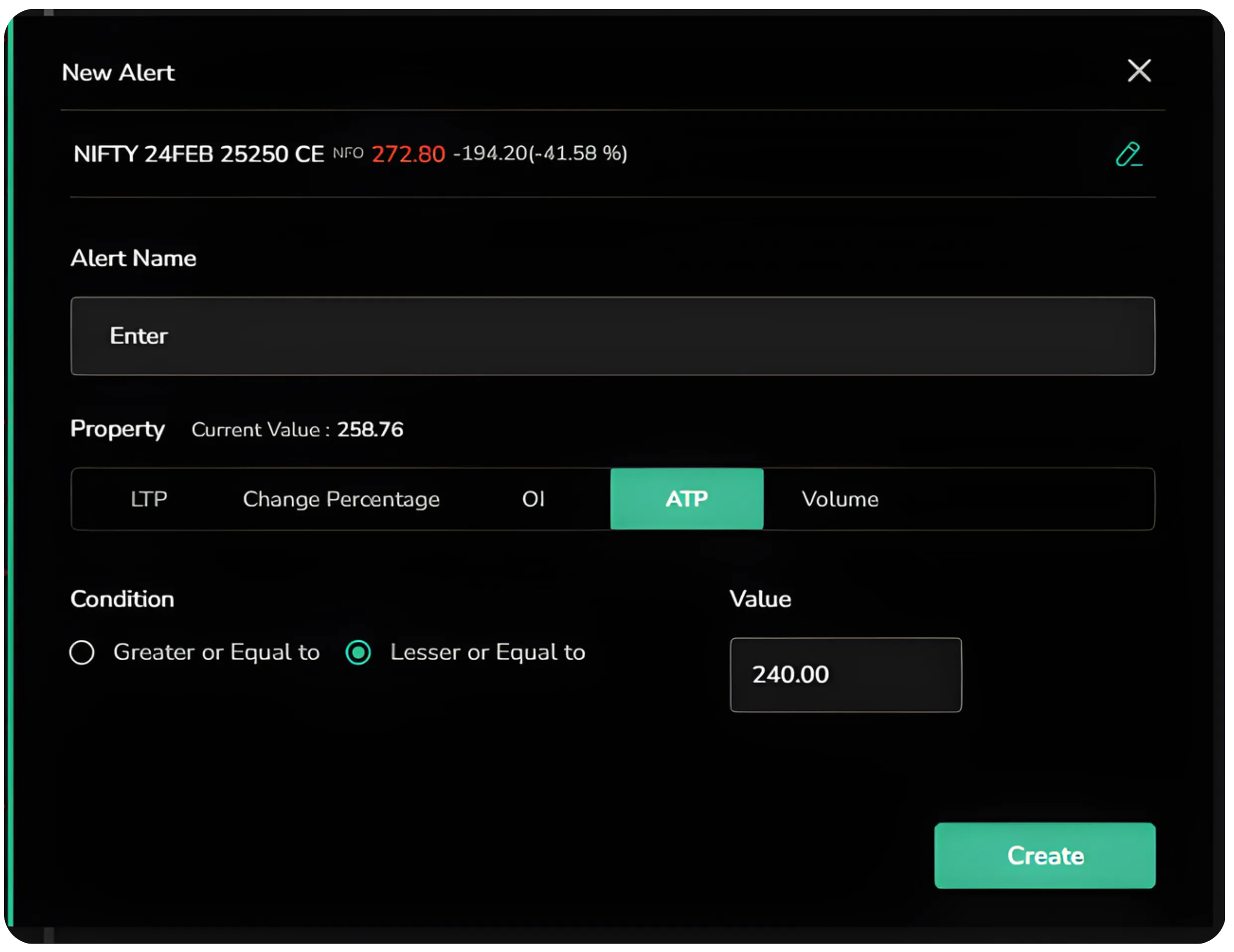
This can help in identifying value areas or confirming whether price is sustaining above or below a meaningful average.
Setting Alerts Based on Volume
Volume expansion often precedes strong moves. Under Property, choose Volume and define the trigger value. A volume breakout alert can help identify sudden participation before price moves accelerate.
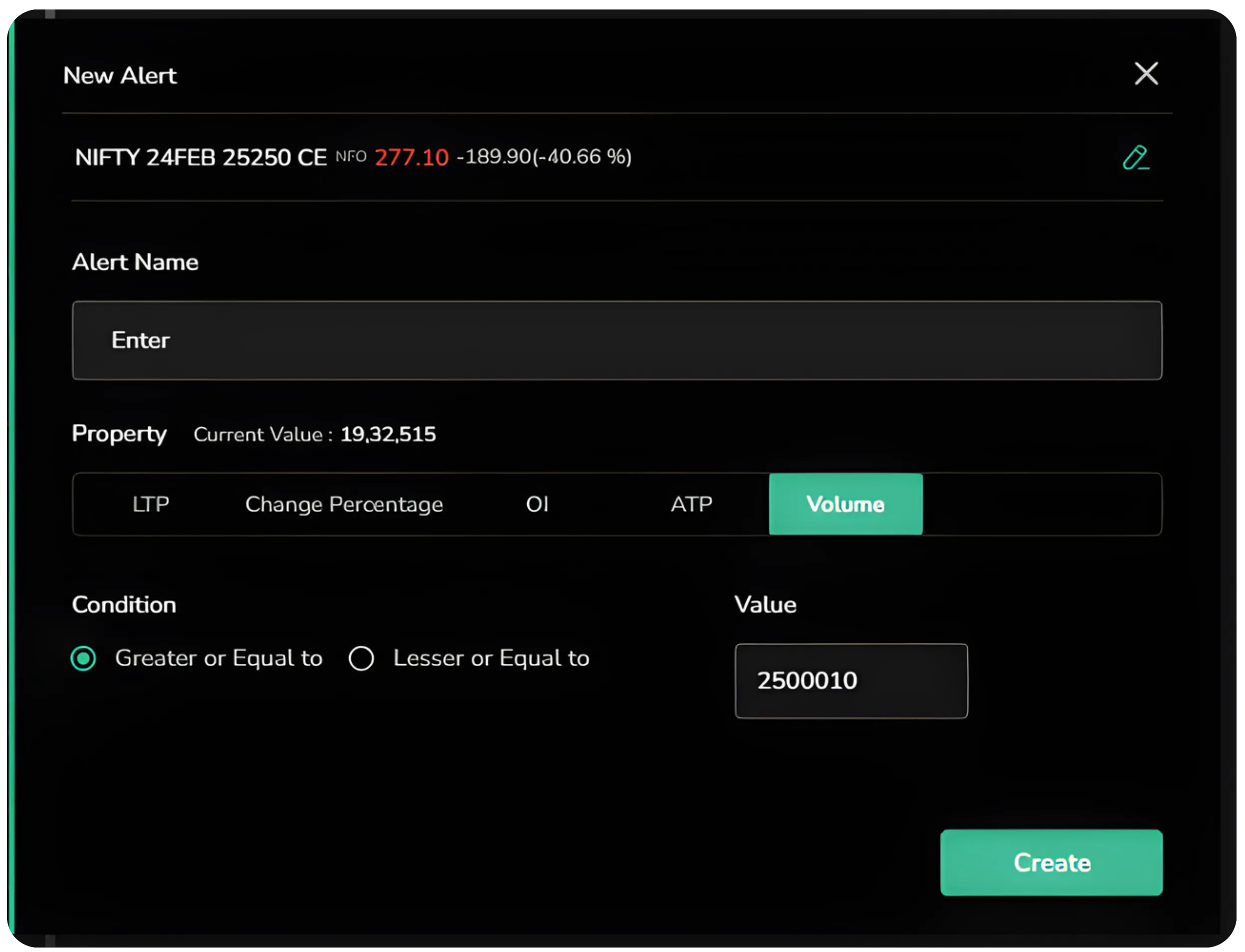
For example, you can set an alert when volume crosses 250000 units. This ensures you are notified when real activity enters the instrument.
Volume based alerts are particularly useful during breakout strategies.
Want more control over your platform? Also read Customizing Your Trading Experience with CubePlus Settings to learn how to tailor CubePlus to your trading style.
Viewing Alerts on the Chart
Price alerts are not limited to backend notifications. They can be viewed directly on the chart.
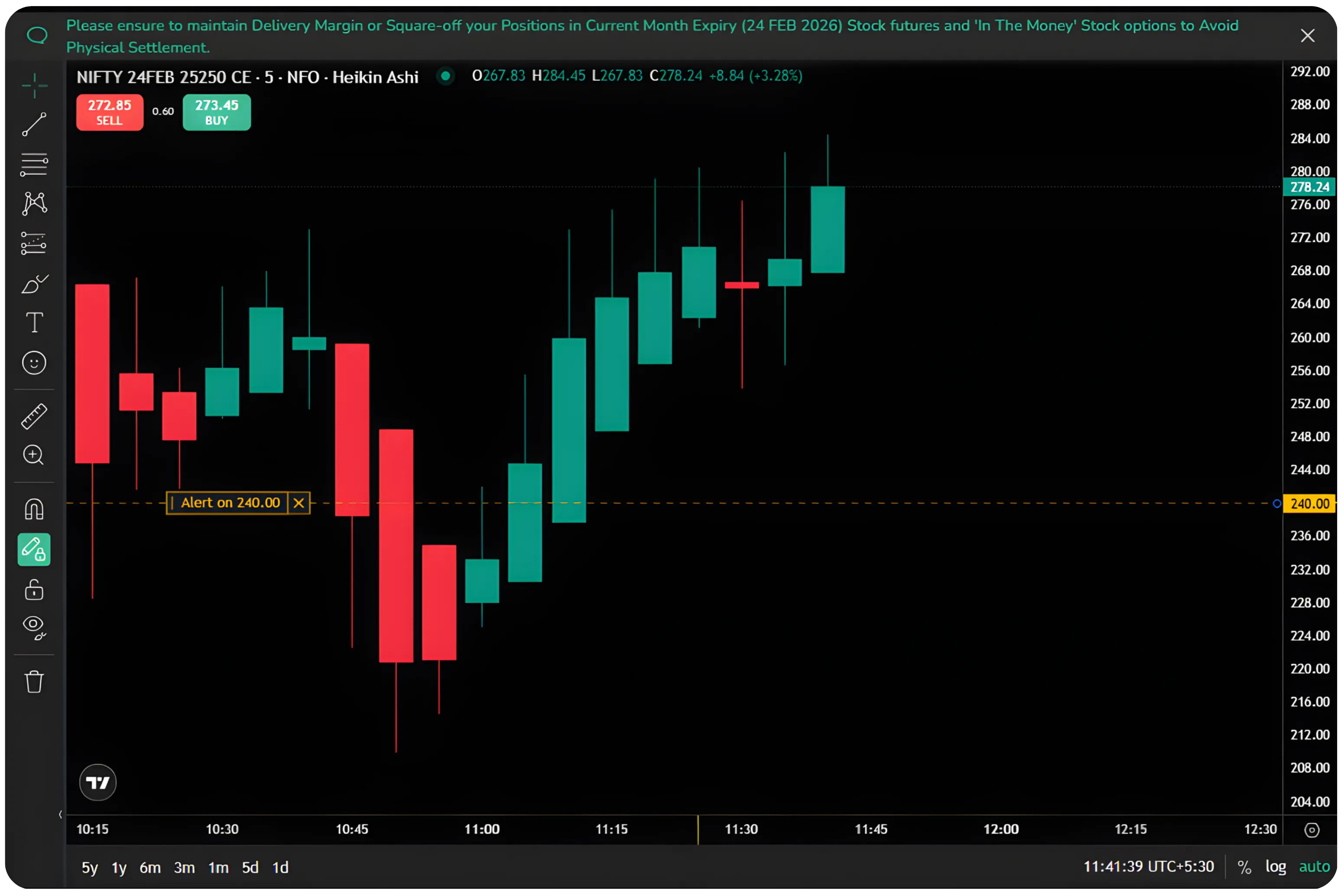
When an alert is set, it appears as a horizontal line on the chart at the defined level. This visual marker helps you see how price is approaching the trigger.
Modifying Alerts on Chart
Alerts are dynamic. You can drag the alert line on the chart to adjust the level. Once repositioned, the alert value gets updated automatically.
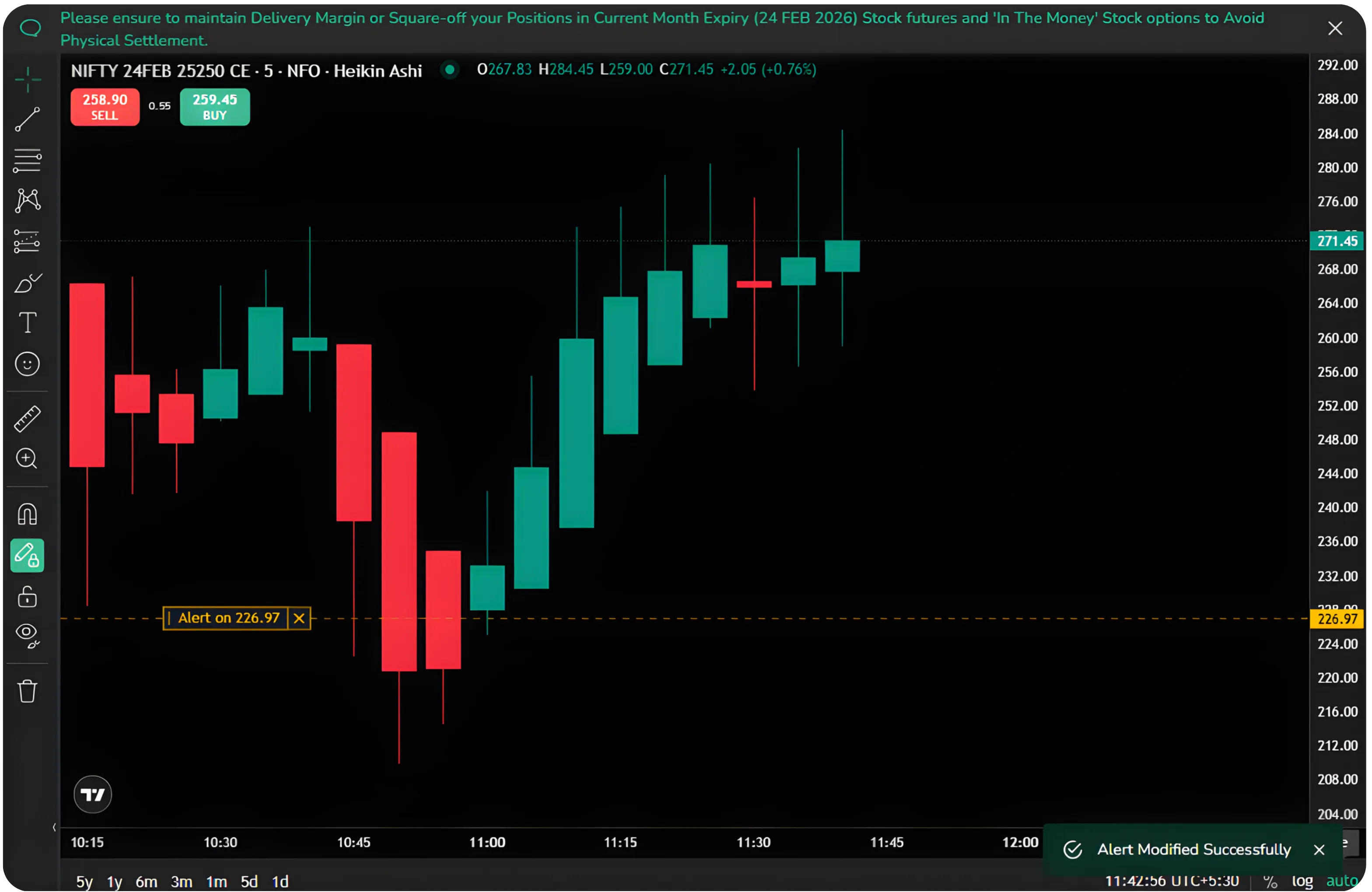
This makes refinement easy. If resistance shifts slightly or your entry level changes, you do not need to recreate the alert.
You can also right click on the chart at a desired price level and select Add Alert. The alert is set instantly at that price.
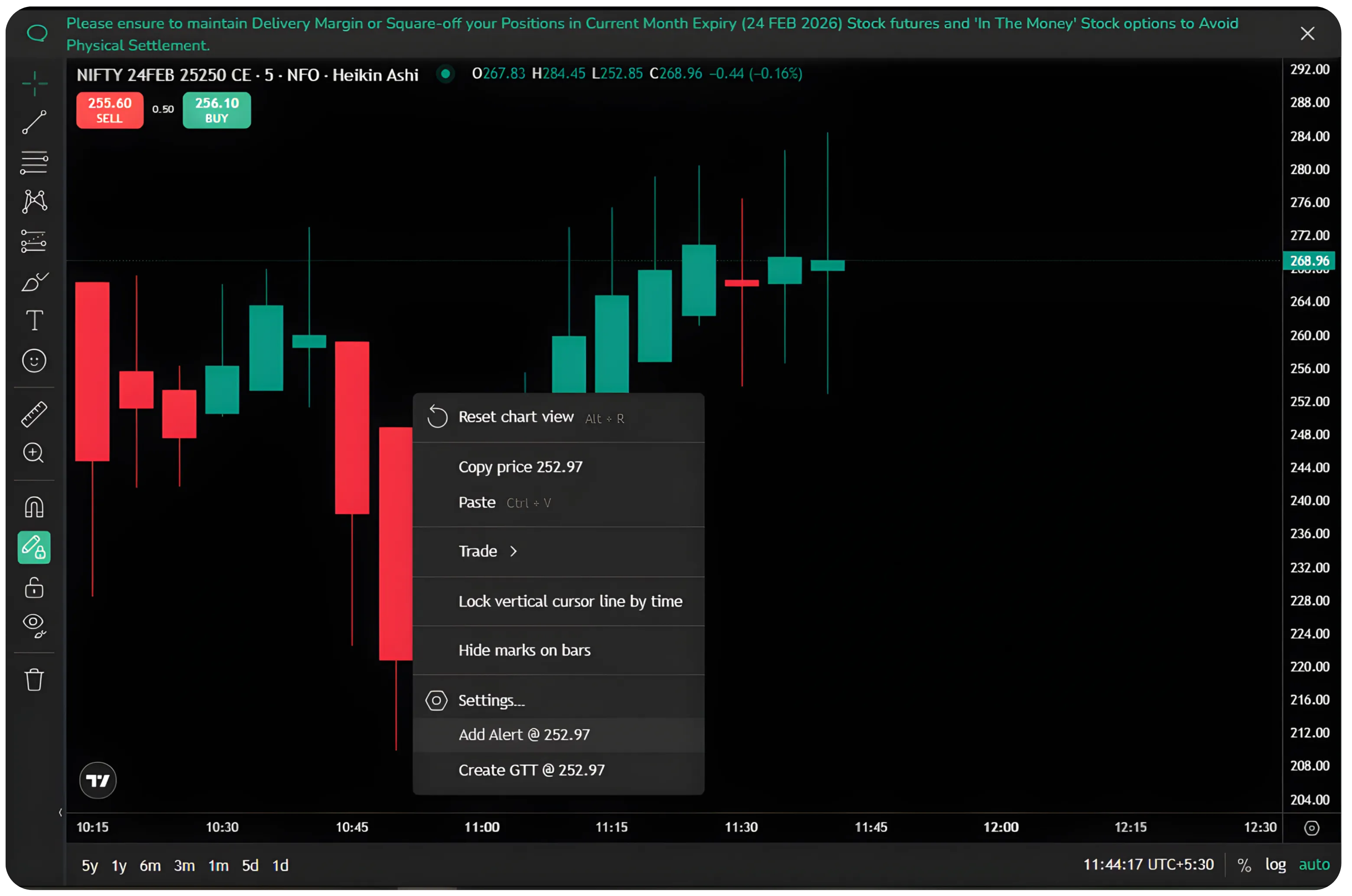
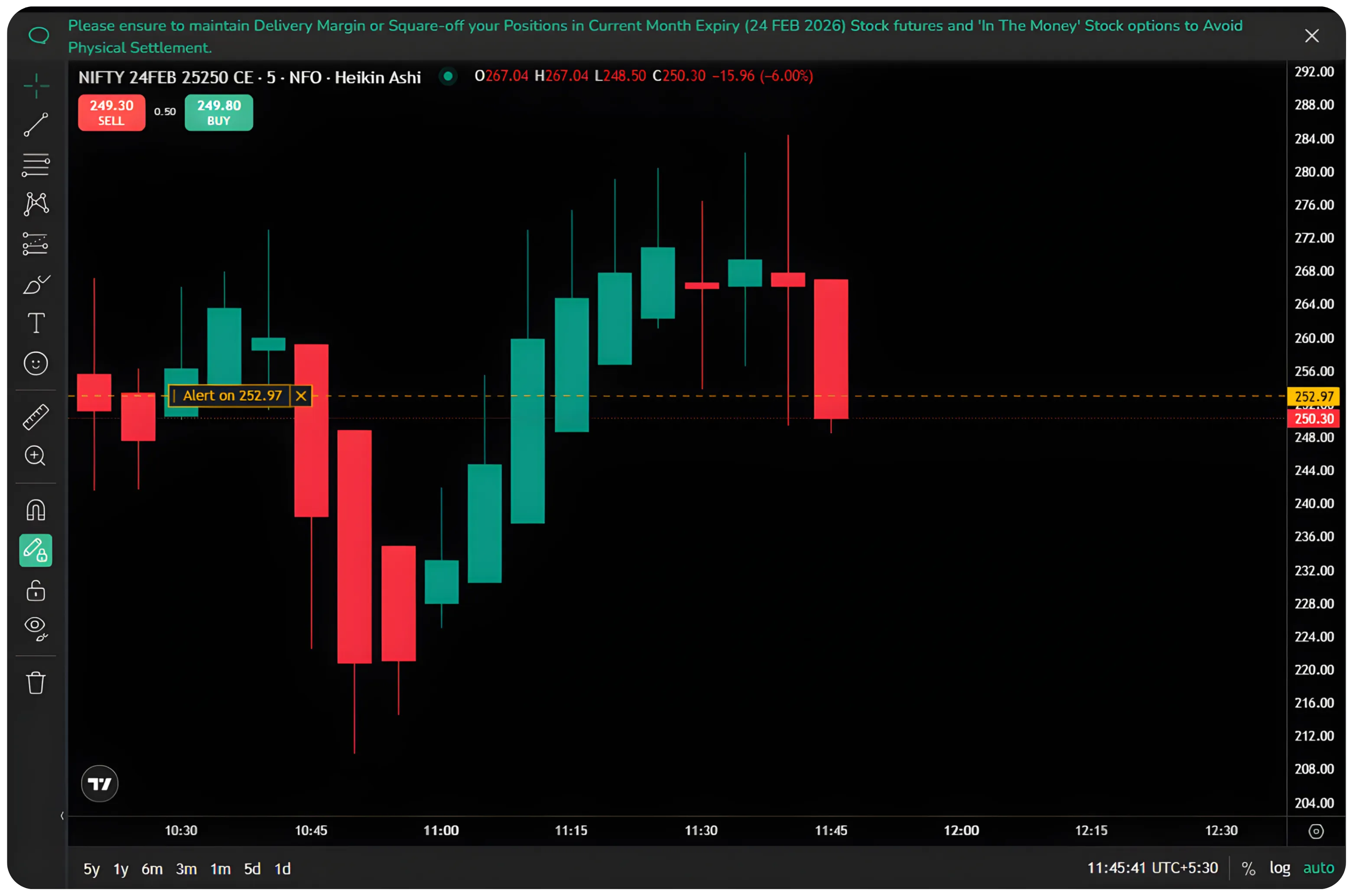
This is useful when analyzing charts and spotting levels in real time.
Accessing and Managing All Alerts
All alerts can be viewed from your profile menu by navigating to Alerts. This section displays every alert you have created.
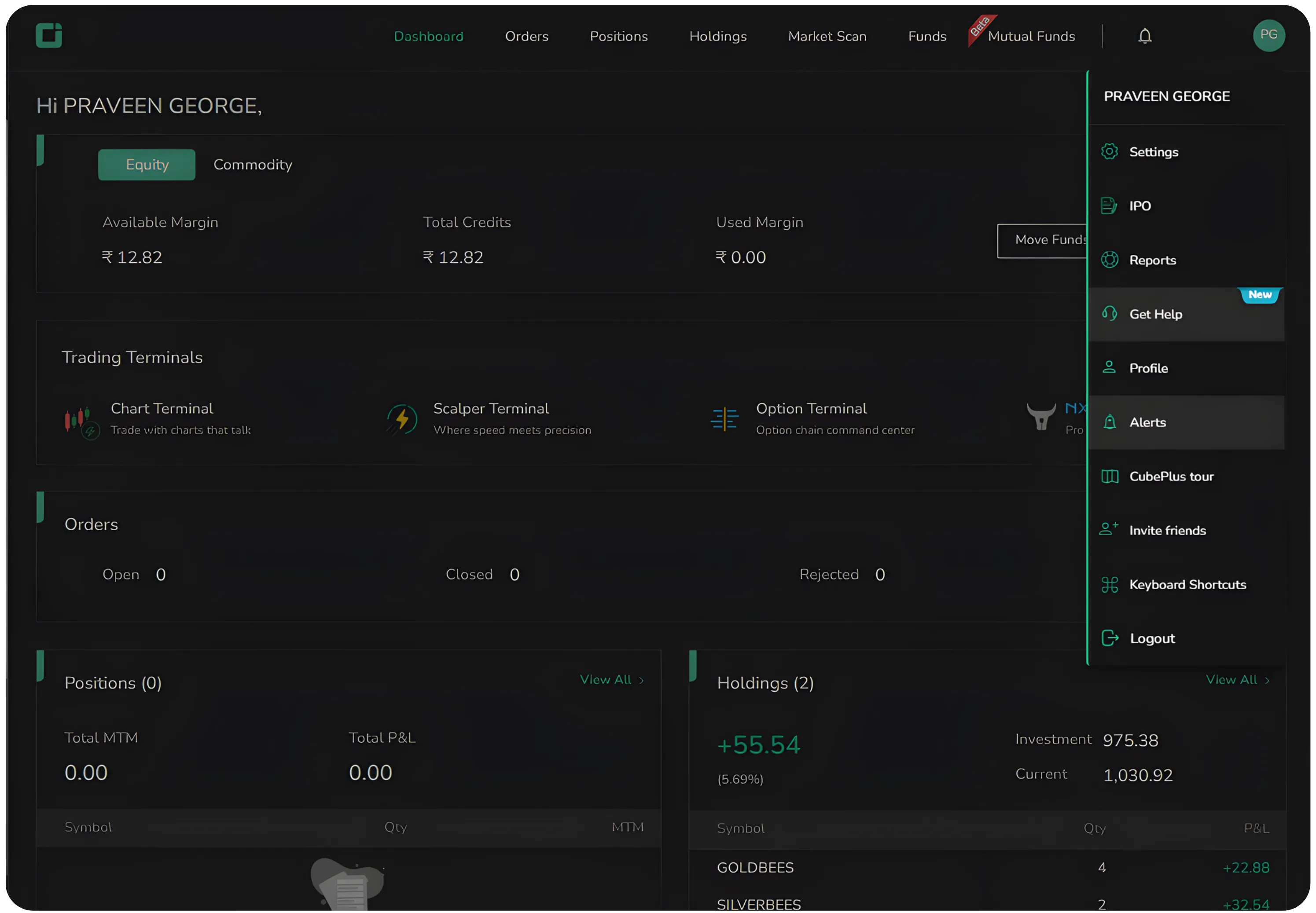
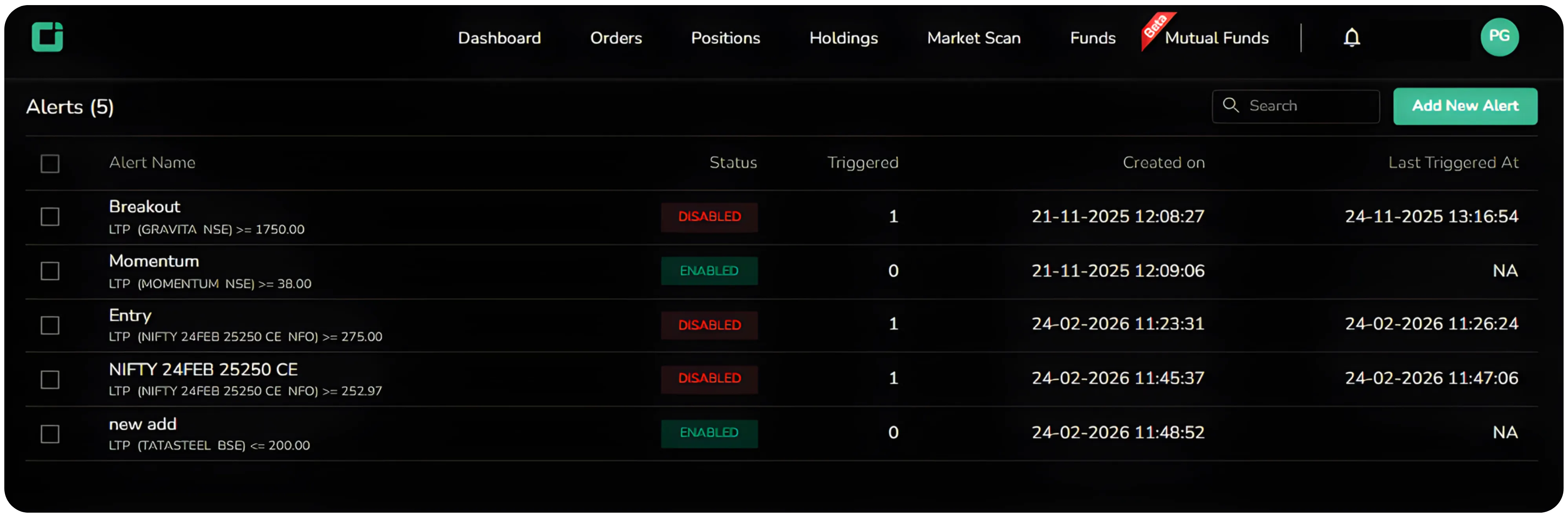
You can see the alert name, status, how many times it has triggered, and the creation details.
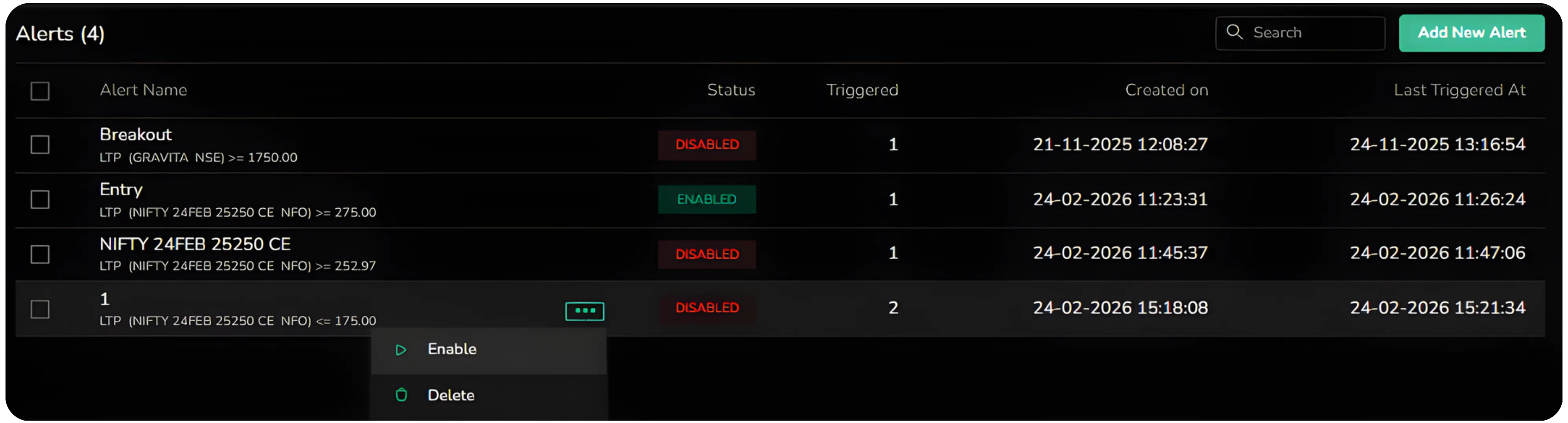
Once an alert is triggered, it is automatically disabled. If you want to track the same condition again, you need to manually enable it. You can also modify the condition and reactivate the alert under the same alert name if your level or setup has changed.
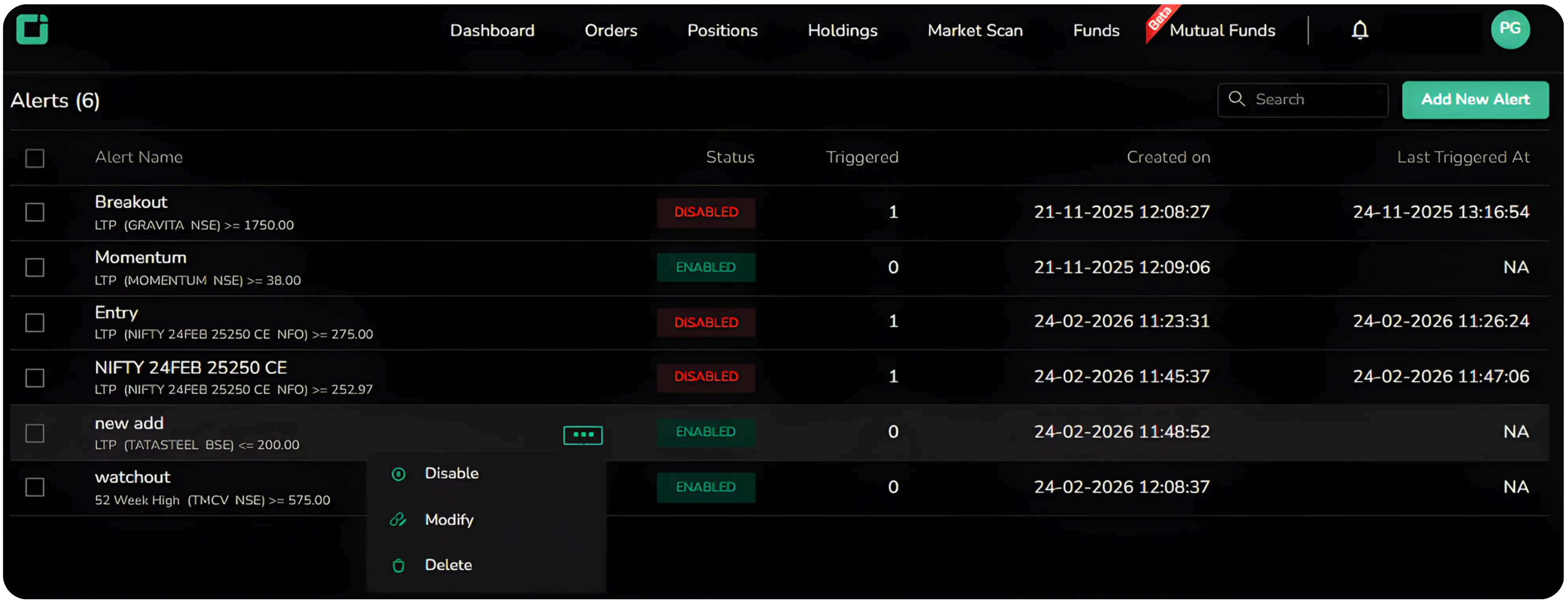
From this panel, you can disable, modify, or delete alerts. If a setup is no longer relevant, simply turn it off. If the level changes, edit it. Everything is centralized.
Also read Using Corporate Actions, Peers, Deals, and News Effectively on CubePlus to understand how to turn information into smarter trading decisions.
Adding Alerts for Any Instrument
You are not limited to instruments already in your watchlist. From the Alerts section, you can add a new alert for any instrument by searching and selecting it.
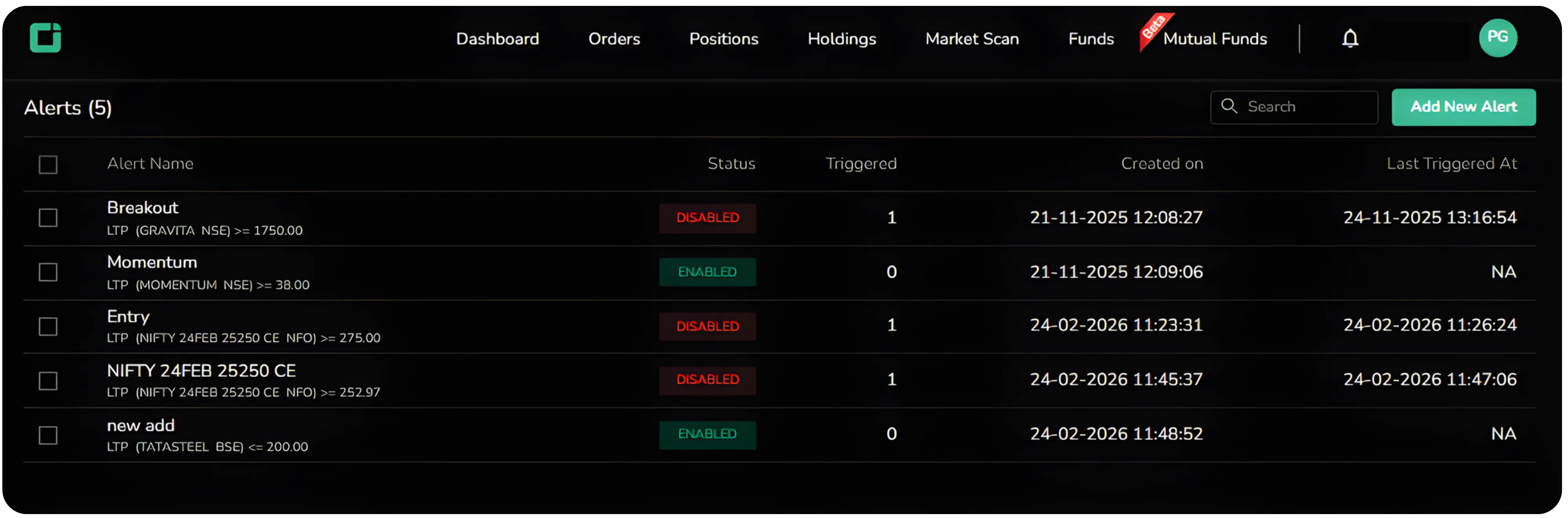
Once selected, the alert configuration window appears just like before.
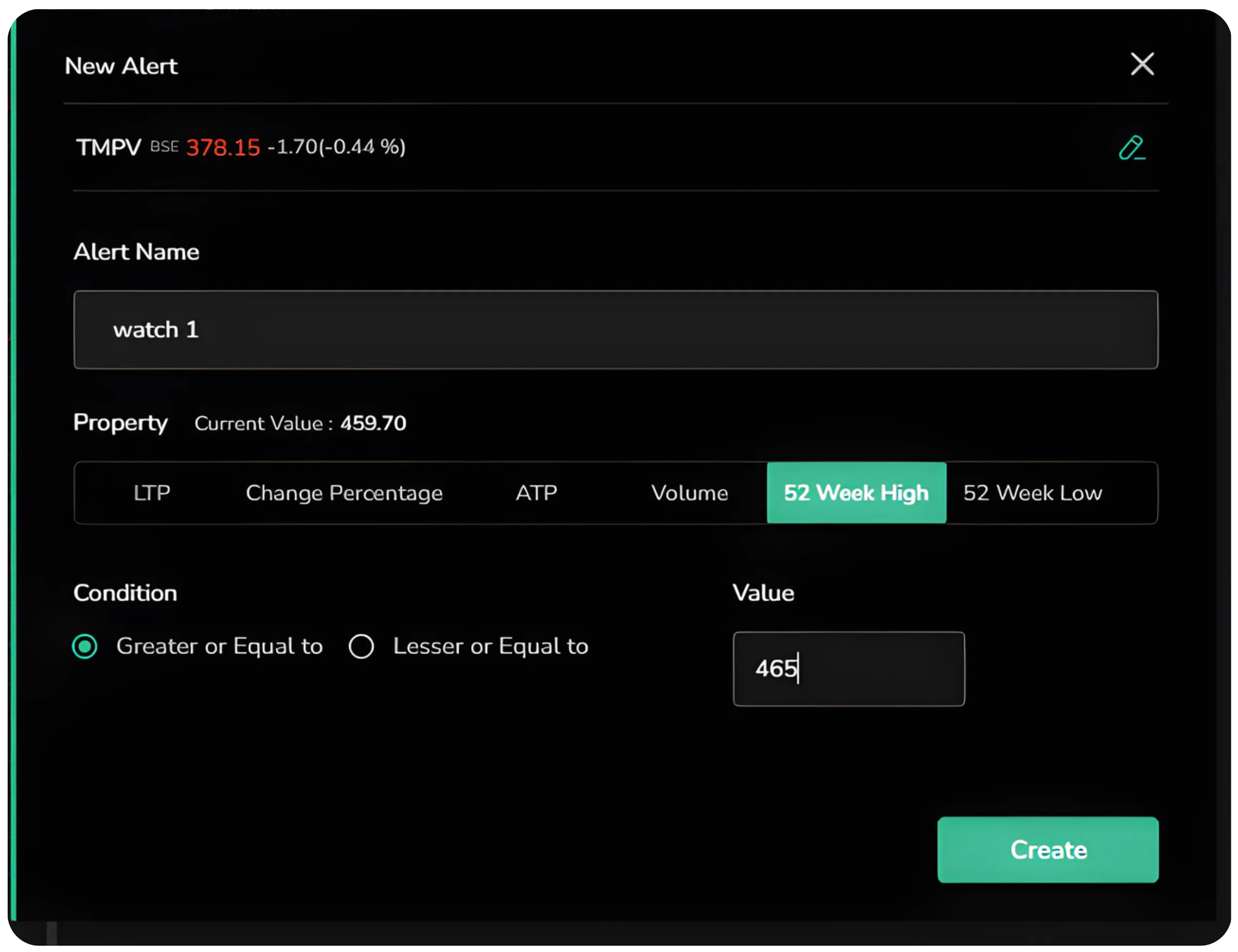
For equity cash segment stocks, you also get the option to set alerts based on 52 Week High or 52 Week Low levels. This is useful for long term breakout tracking or support zone monitoring.
Real-Time Market Alert System for Smarter Trading
Alerts are more than simple reminders. They act as execution support tools that help you trade with discipline and structure. Instead of staring at screens or chasing price movements, you define your levels in advance and let the system track the market for you. By combining price, percentage change, open interest, average traded price, volume, and 52 week reference levels in one place, CubePlus ensures you respond only when your strategy conditions are met.
Disclaimer: The information provided in our blogs is for informational purposes only and should not be construed as financial, investment, or trading advice. Trading and investing in the securities market carries risk. Always conduct your own research and consult with a qualified financial advisor before making any investment decisions. Past performance is not indicative of future results. Copyrighted and original content for your trading and investing needs.
© 2026 — Tradejini. All Rights Reserved.

%252FCubePlus_Shield_Part%25203%2520Blog%2520Thumbnail.webp%3Falt%3Dmedia%26token%3Da5581624-5761-476f-8451-40c157b54840&w=3840&q=75)
%252FShield%2520on%2520Cubeplus%2520part2.webp%3Falt%3Dmedia%26token%3D252a5b48-a580-4e8d-b939-c82d4696eaef&w=3840&q=75)