Active option selling is not a set-and-forget activity. As markets move, strikes that once made sense can drift away from the underlying price, risk comfort, or premium objectives. For traders engaged in active trading, rolling positions is a core part of risk management, not a reaction to price noise.
Recognising this need, NxtOption’s Adjust button is designed to help traders roll positions efficiently, safely, and with full clarity.
This article explains how the Adjust feature can be used to roll a short ATM put to a higher strike when the market moves upward.
The Trading Context
Consider a simple and common scenario.
You have sold an ATM put as part of a short put strategy.
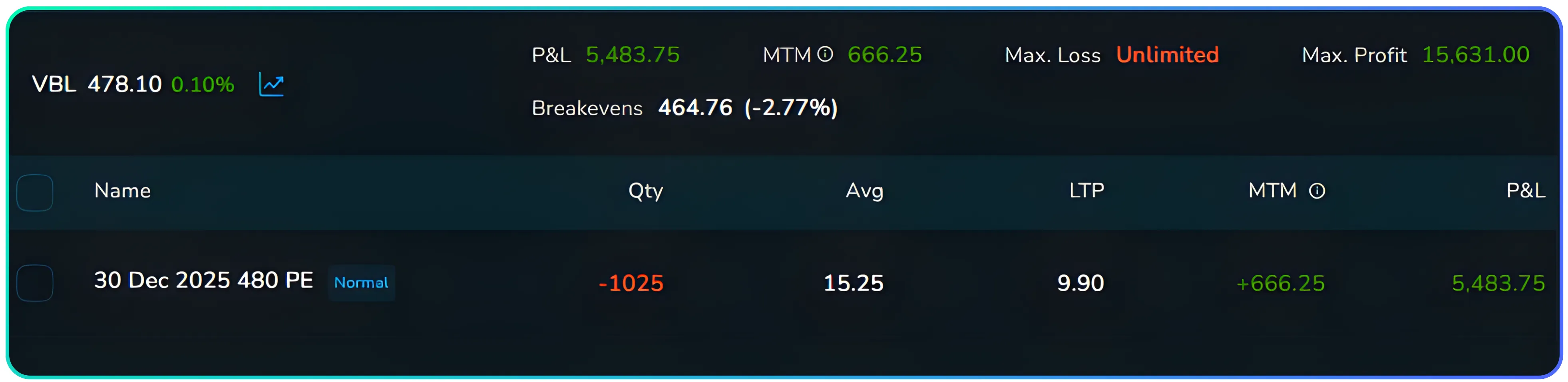
The underlying price moves higher.
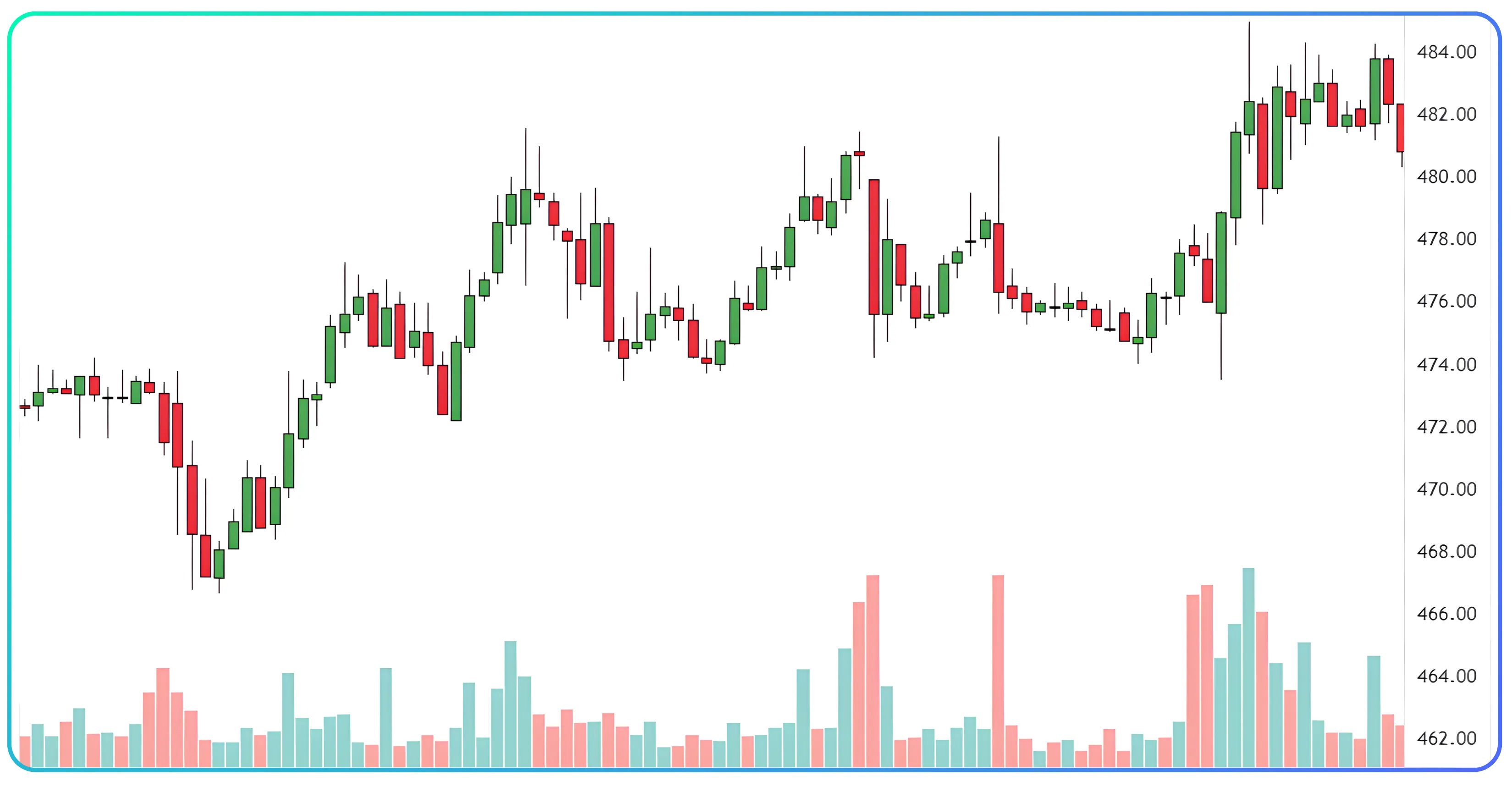
The put option decays and risk reduces.
To stay aligned with the new price level, you decide to exit the existing short put and sell a higher strike put to collect fresh premium. This setup is common among option sellers who prefer defined risk and consistent premium collection.
How the Adjust Button Simplifies Rolling
Traditionally, rolling a position involves multiple manual steps: closing one position, opening another, switching screens, and rechecking margins. This increases the chance of execution errors.
In NxtOption, the Adjust button simplifies position adjustment by consolidating the exit and re-entry into a single, structured workflow.
Related read: Understanding OI breakdown in trading using NxtOption can help you assess positioning and strike strength before rolling or adjusting option positions.
Checking Your Open Positions in NXTOption
Regularly reviewing positions from the Trades section is essential for active trading and effective risk management.

Before making any adjustment, you need a clear view of your existing positions. In NxtOption, this starts from the Trades section.
Click on Trades in the top navigation bar and switch to the Positions tab. This screen shows all your live positions at a glance, including the instrument, quantity, average price, LTP, MTM, total P&L, and margin usage. From here, you can quickly identify the short option you want to manage or roll.
This is also where the Adjust button becomes relevant, since every adjustment begins by selecting an active position from this screen.
Step-by-Step: Rolling a Short Put Using Adjust
This step-by-step process shows how option rolling is executed in NxtOption using a structured rolling strategy.
1. Select the Existing Position
From the Trades → Positions screen, select the short put you want to adjust, for example, a 480 PE.
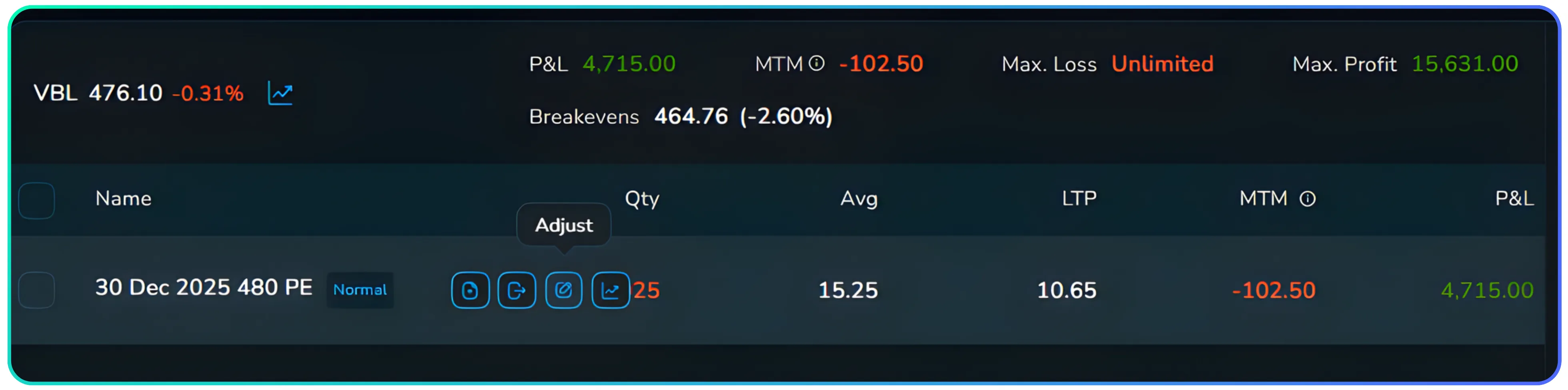
2. Click Adjust
Clicking Adjust opens a dedicated adjustment window that clearly separates:
- The exit of the existing position.
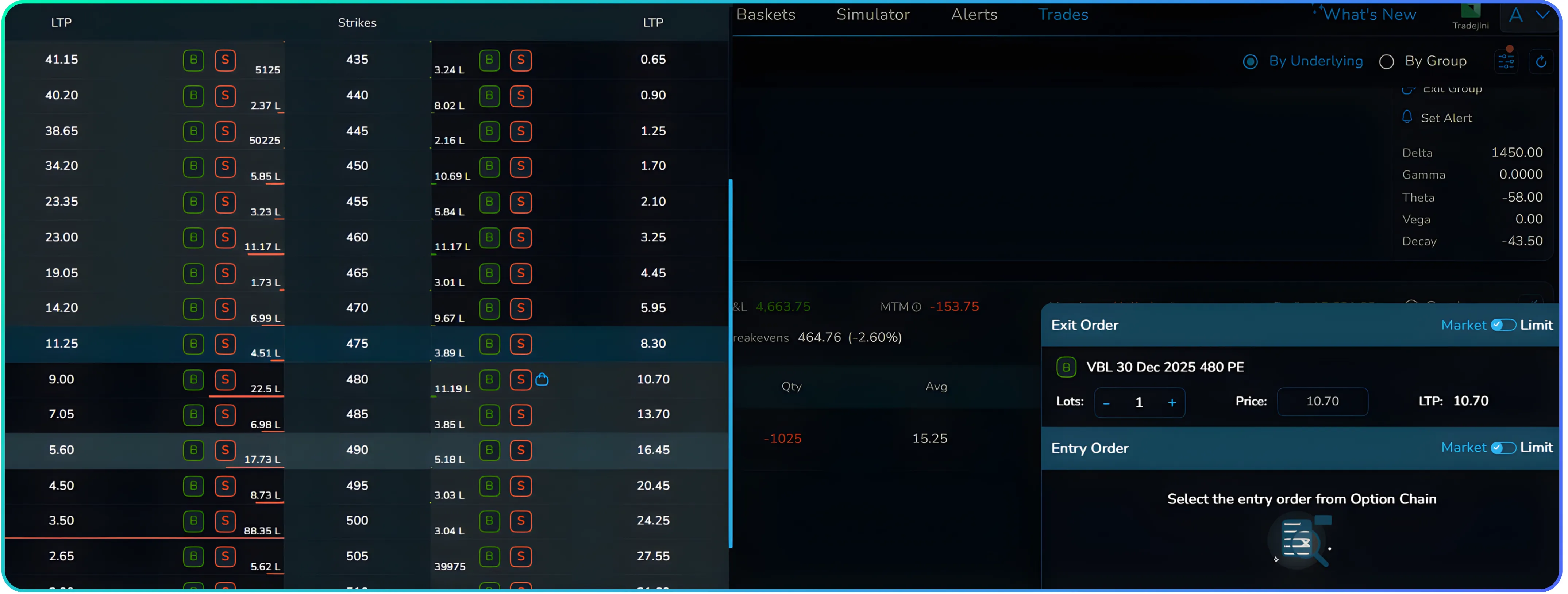
- And the entry of the new position.
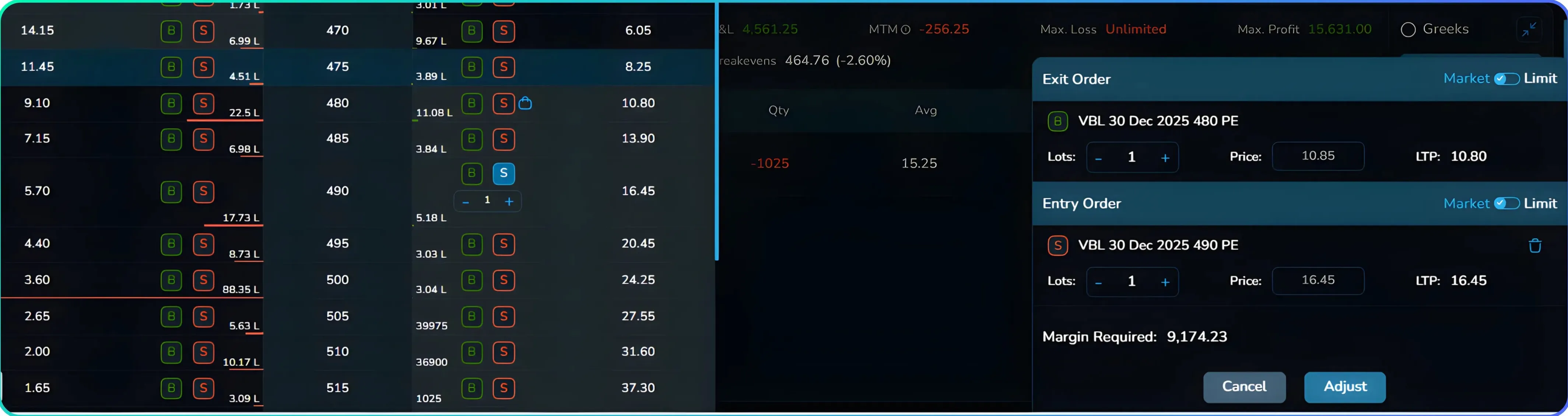
Now, click on the Adjust button to begin modifying the selected position.
Intelligent Handling of the Existing Position
This is one of the strongest aspects of the Adjust feature.
Since your original position is a short put, NxtOption automatically structures the correct exit (Buy) as part of the position adjustment. This BUY order represents the exit of your earlier position. You do not need to manually change the order side.
The platform ensures the exit leg is correctly structured, reducing the risk of operational mistakes.
Also read: How traders use straddle charts in NxtOption with VWAP to gauge intraday sentiment and volatility shifts.
Choosing the New Strike — Your Decision
Once the exit is defined, you are prompted to select a new strike from the Option Chain, completing the strike rolling and put adjustment process.
Based on your market view, you may choose a higher strike put, for example, a 490 PE. The strike selection remains fully under your control, allowing you to fine-tune delta exposure, premium intake, and risk positioning.
After selection, the new entry appears as a SELL order within the same adjustment window.
Clear View of Margin and Impact
Before execution, the Adjust window clearly displays net margin requirements, any additional margin needed, and the impact of the roll on your overall position.
This allows you to evaluate the adjustment calmly and confidently before placing the order.
Why This Matters
For professional and serious retail traders, the Adjust button offers more than convenience.
It enforces correct exit-entry sequencing, reduces side-selection and execution errors, prevents overlapping or unintended positions, and encourages structured, rule-based position management.
Rolling becomes a deliberate adjustment, not a rushed reaction.
In Summary
The Adjust button automatically converts the existing short option into a BUY exit order. You then select the new strike you wish to sell based on current market conditions. Both legs are presented together with full margin visibility.
This makes rolling a short put position clean, controlled, and professional.
The Adjust feature in NxtOption is built for traders who manage risk actively and prefer precision over complexity.
Explore NxtOption to manage, adjust, and analyse option positions with clarity, precision, and control.
Disclaimer: The information provided in our blogs is for informational purposes only and should not be construed as financial, investment, or trading advice. Trading and investing in the securities market carries risk. Always conduct your own research and consult with a qualified financial advisor before making any investment decisions. Past performance is not indicative of future results. Copyrighted and original content for your trading and investing needs.
© 2025 — Tradejini. All Rights Reserved.