How to Apply for an IPO on CubePlus web by Tradejini: A Step-by-Step Guide
Applying for an Initial Public Offering (IPO) is an exciting way to invest in a company as it goes public. The CubePlus platform by Tradejini offers a straightforward process to participate in new IPOs. This guide will walk you through every step, from finding an open IPO to submitting and managing your application.
Step 1: Navigate to the IPO Section
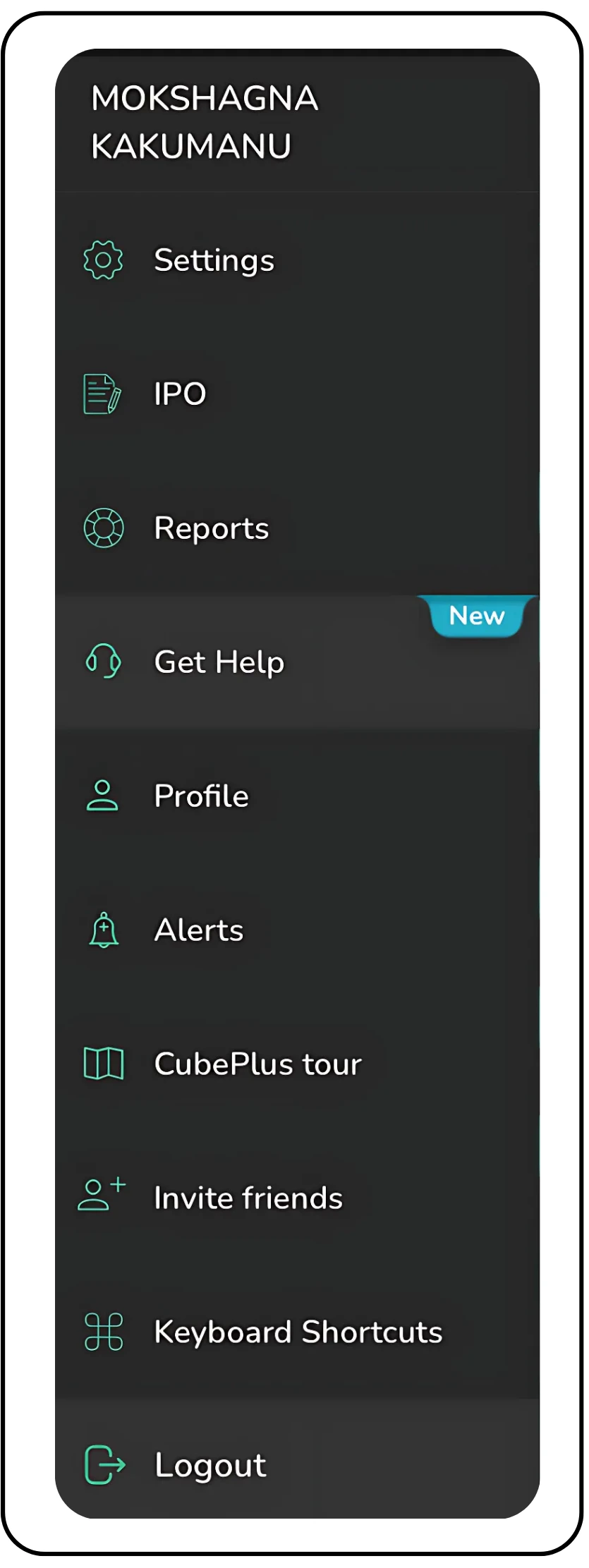
Start by logging into your CubePlus online account.
- From the main dashboard, locate your profile icon in the top-right corner of the screen.
- Click on your profile icon to open the main menu.
- Select ‘IPO’ from the list of options.
- Alternatively, you can navigate to IPO through the Orders tab also.
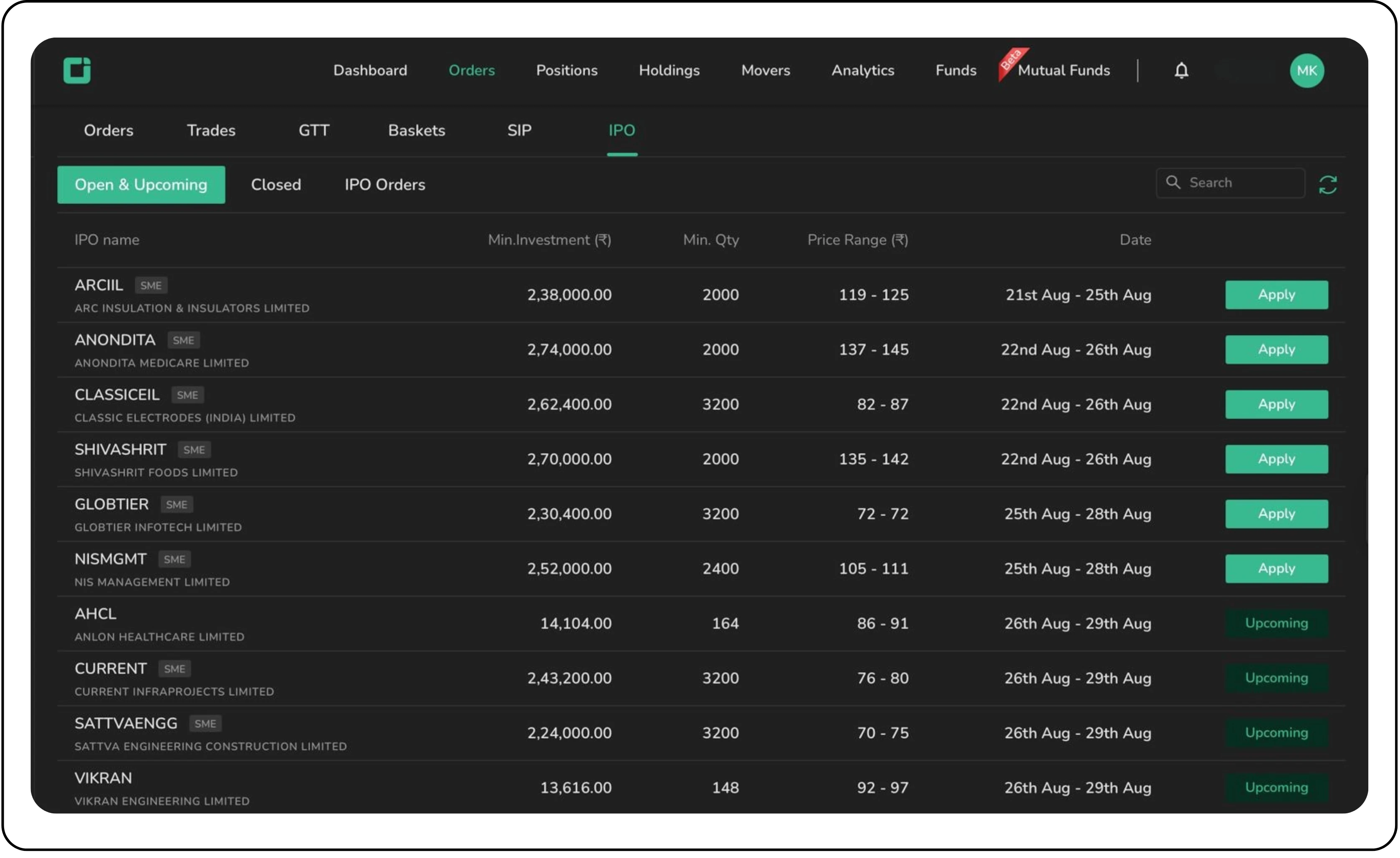
Step 2: Explore the IPO Dashboard
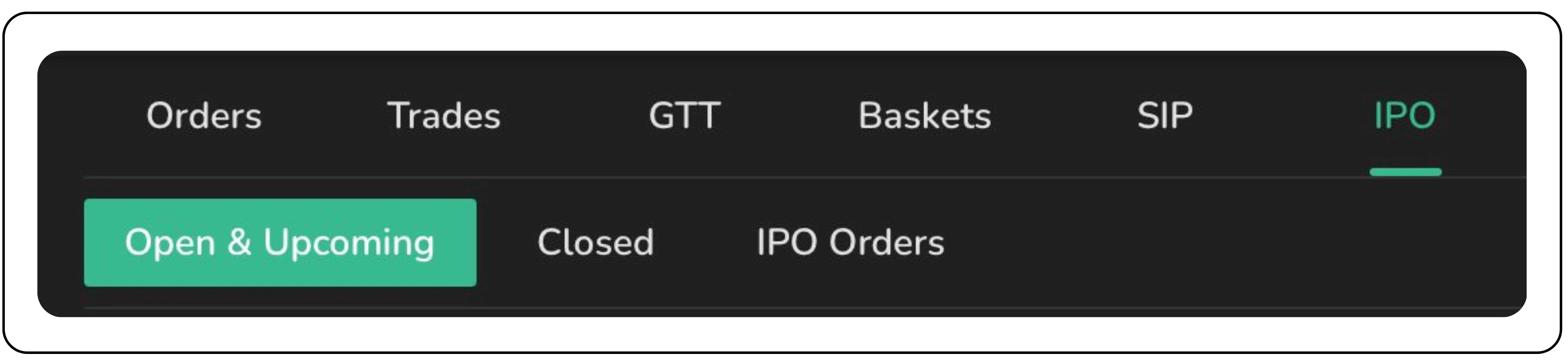
You will land on the IPO page, which is organized into three main tabs:
- Open & Upcoming: This is the default tab, showing IPOs that are currently open for subscription and those that will be opening soon.
- Closed: This tab lists IPOs that have already closed for subscription.
- IPO Orders: Here, you can track the status of all the IPO applications you have submitted.
Also Read: The CubePlus Guide to Mutual Fund Investing
Step 3: Select an IPO and Begin Your Application
In the ‘Open & Upcoming’ tab, browse the list of available IPOs.
- Each listing provides key information like the minimum investment, minimum quantity (lot size), price range, and the offer dates.
- You can hover over an IPO to see a detailed timeline, including the Offer Start/End dates, Allotment date, and Listing date.
- Once you have chosen an IPO, click the green ‘Apply’ button on the right.
Example: Applying for the ‘VKRAMSOLR’ IPO.
Step 4: Fill Out the IPO Application Form
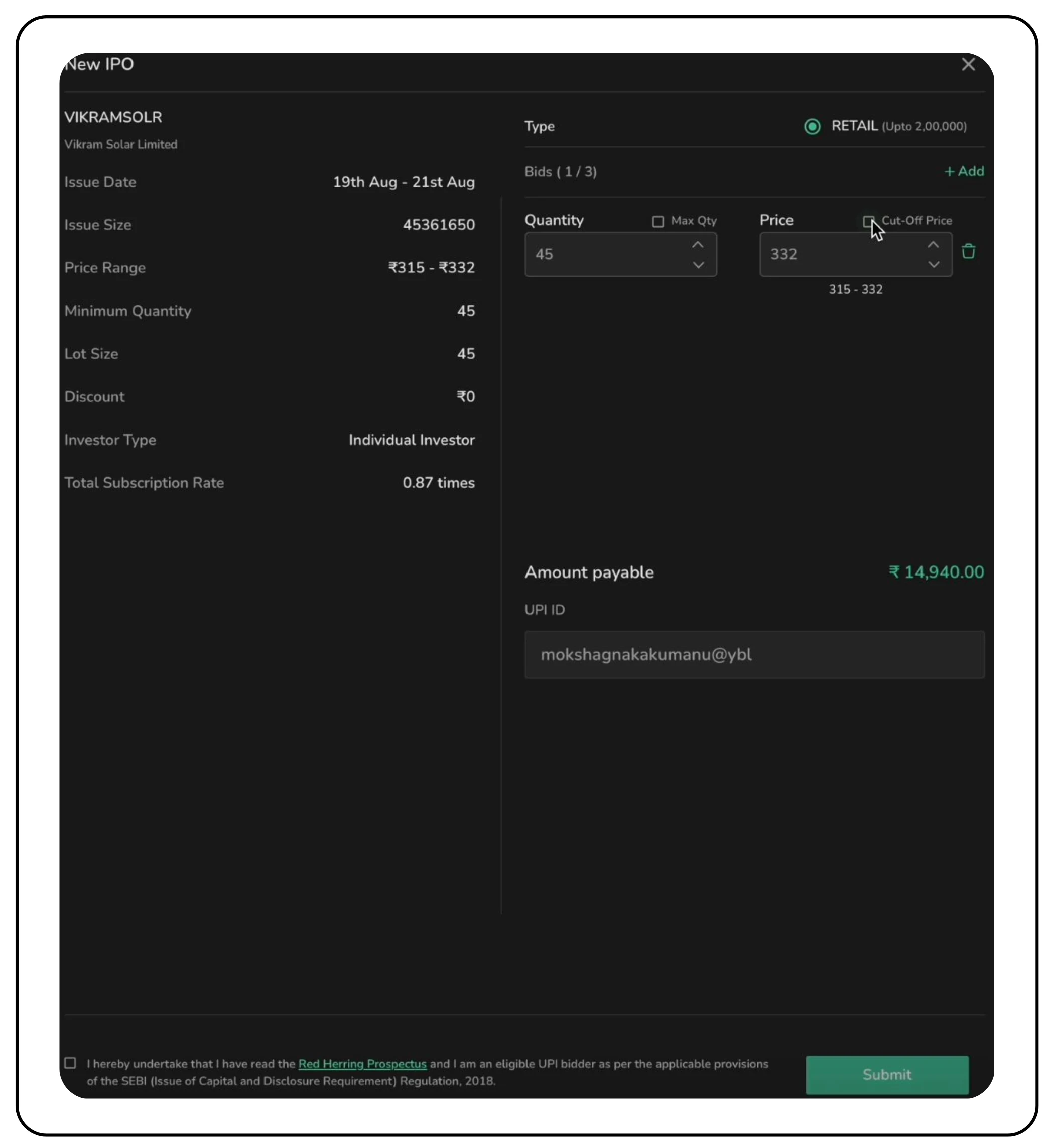
A ‘New IPO’ window will pop up with all the details you need to fill in.
- Quantity (Lots): IPO shares are applied for in ‘lots.’ The form will show the minimum quantity for one lot. You can apply for multiple lots by using the up/down arrows or typing the number of lots you wish to apply for. The ‘Amount payable’ will update automatically.
- Price: For retail investors, it is highly recommended to check the ‘Cut-off Price’ box. This ensures your bid is placed at the final issue price determined by the company, maximizing your chances of allotment. When checked, the price will automatically be set to the highest end of the price band.
- UPI ID: Fill in your UPI ID that is linked to your bank account.
- Accept Terms: Read the declaration and check the box at the bottom to confirm that you have read the Red Herring Prospectus (RHP) and are an eligible bidder.
Step 5: Submit the Application and Await Confirmation
- After filling out all the details and verifying them, click the green ‘Submit’ button.
- A confirmation box will appear asking to confirm your application. Click ‘Yes’.
- A success notification will appear at the bottom-right of your screen, confirming that your application has been submitted successfully.
Step 6: Authorize the UPI Mandate (Crucial Step!)
This is the most important part of the process. Your application is not complete until you approve the payment mandate.
- After submitting the application on CubePlus, you’ll receive a notification from your UPI app (like Bhim, Google Pay, PhonePe, Paytm, etc.).
- Open your UPI app and approve the mandate request. This will block the application amount in your bank account. The amount will be debited only if shares are allotted; otherwise, it will be unblocked after the allotment date.
How to Manage Your IPO Application
You can check the status of your application or make changes before the IPO window closes.
- Navigate back to the IPO section and click on the ‘IPO Orders’ tab.
- Here you will see a list of all your submitted applications. The status will initially show as ‘PENDING’ and will change to ‘SUBMITTED’ or ‘ACCEPTED’ after you approve the UPI mandate.
To modify, cancel, or view details:
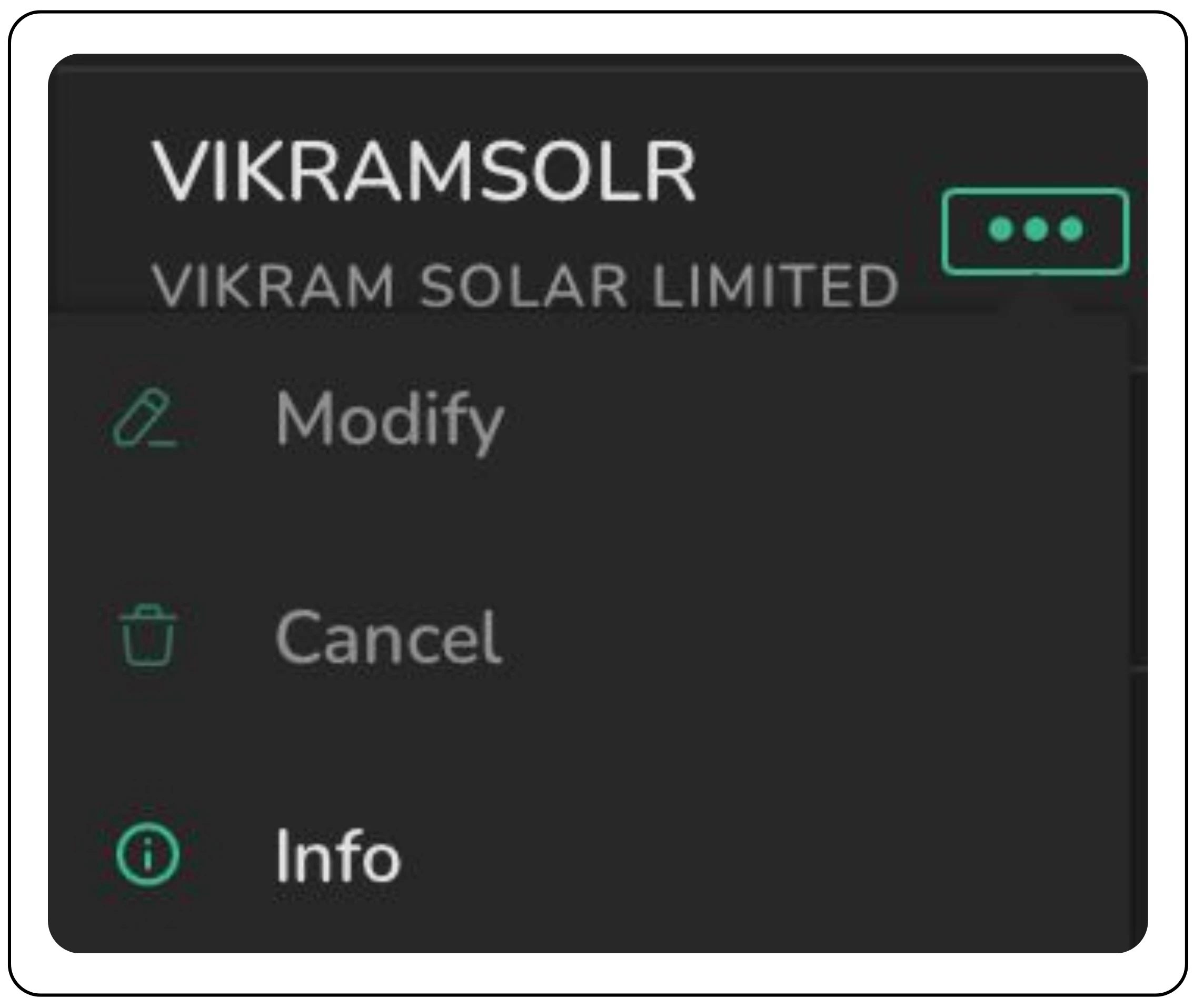
- Click the three dots next to the IPO you want to manage.
- You will see three options: Modify, Cancel, and Info.
- Info: Shows a detailed summary of your application, including your UPI ID, payment status, and bid details.
- Modify: Allows you to change your bid details (like quantity or price) and resubmit.
- Cancel: Lets you withdraw your application entirely. A confirmation prompt will appear before the cancellation is finalized.
You have successfully applied for the IPO through CubePlus web! Now, all you need to do is wait for the allotment results.
If you haven’t opened your CubePlus account yet, click the link below to get the step-by-step guide on : How to Open Tradejini CubePlus Account

%252FCubePlus_Shield_Part%25203%2520Blog%2520Thumbnail.webp%3Falt%3Dmedia%26token%3Da5581624-5761-476f-8451-40c157b54840&w=3840&q=75)
%252FShield%2520on%2520Cubeplus%2520part2.webp%3Falt%3Dmedia%26token%3D252a5b48-a580-4e8d-b939-c82d4696eaef&w=3840&q=75)