If you’ve ever placed several limit orders at different price levels only to see the market drift away, you know how frustrating it is to modify each one manually. It slows you down, disrupts your flow, and takes attention away from the decisions that truly matter.
Bulk Modify on CubePlus provides a clear and efficient solution to that challenge. Instead of hopping between order tickets, you get one clean window where you can adjust everything together; price, trigger price, even switching an entire batch to market if you need immediate execution. It’s quick, tidy, and built for situations where you want to react without losing time.
Let’s walk through how it works using a simple SILVERBEES example.
Setting up multiple trades with Bulk Modify
In this example, three delivery buy orders for SILVERBEES are placed at 160, 163, and 162. All of them appear in the Order Book under Open Orders.
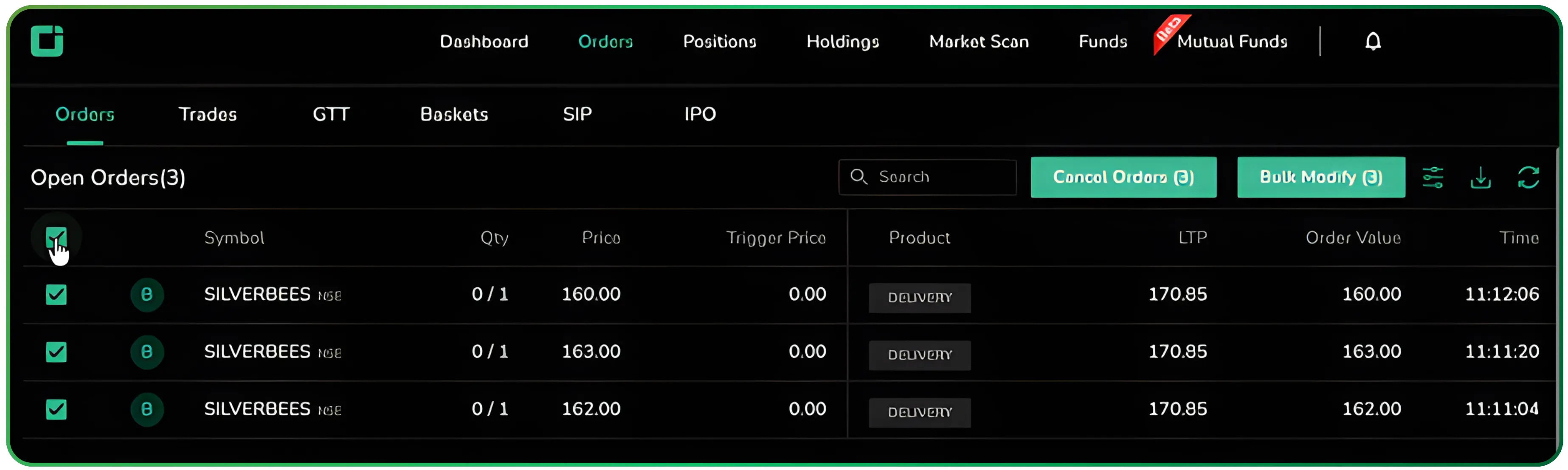
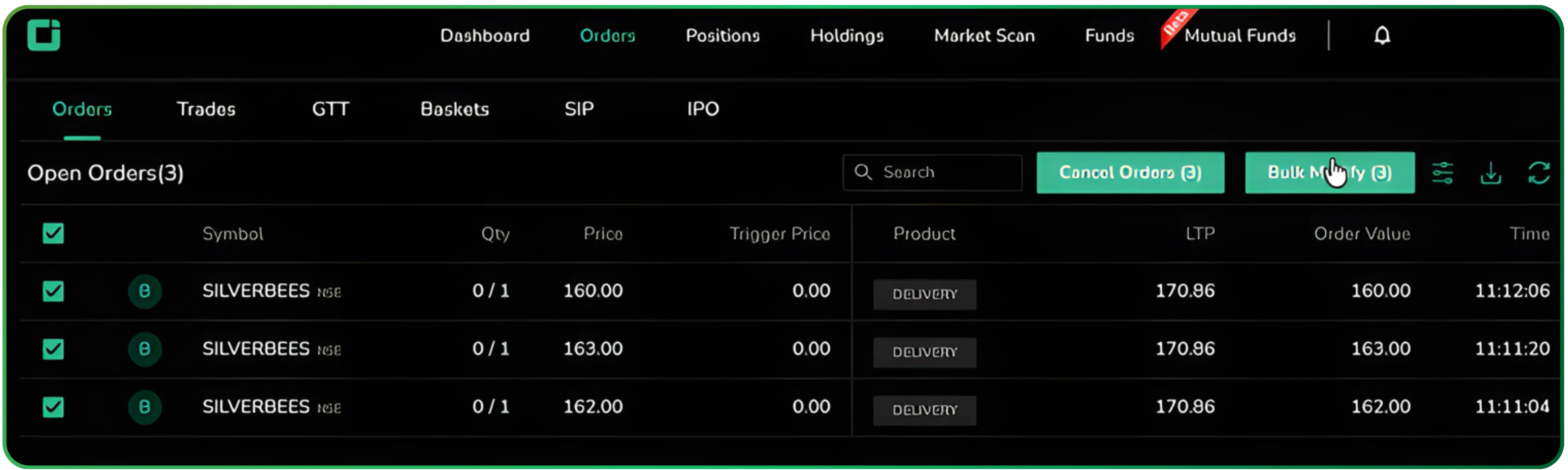
It’s a familiar setup for many traders managing multiple orders of the same symbol; a price ladder designed to catch dips. But if the market starts moving and you need to adjust your levels, editing each order one by one quickly becomes inefficient. Instead, you simply select all three and click Bulk Modify, assembling them into a single window where you can update everything at once.
Opening the Bulk Modify panel for trade management
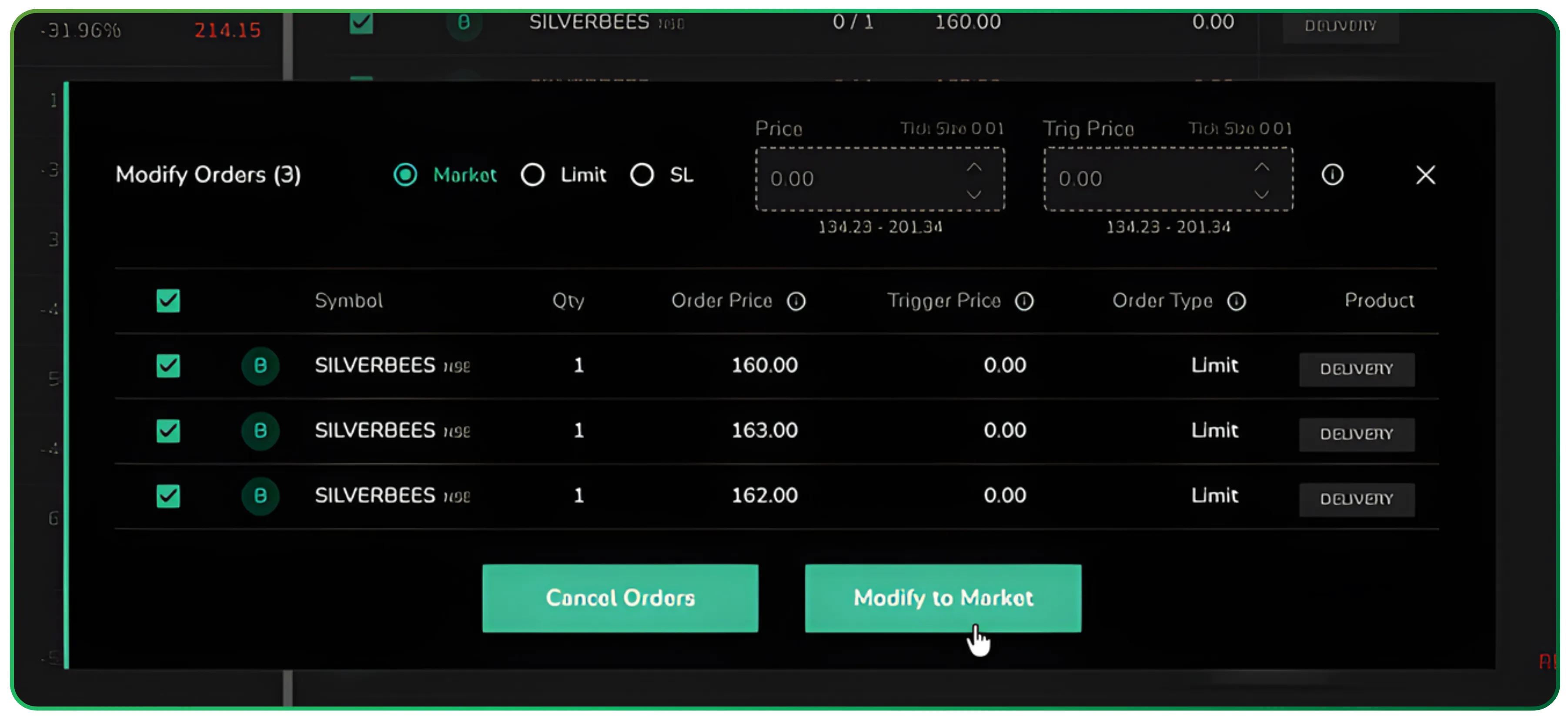
Once you click on Bulk Modify, CubePlus brings up a single, consolidated window for all the orders you’ve selected. Everything you normally adjust on an individual order limit price, stop-loss, trigger price, or even switching the order type to market, is now available in one place and the selected orders appear with checkboxes.
The layout is straightforward. You choose the order type at the top, enter your revised limit or trigger values below, and review the list of selected orders at the bottom. In this case, all three SILVERBEES orders are updated together with the new price and levels.
A single click on Modify submits the instructions, and CubePlus processes the updates immediately.
If you want to take your order management even further, check out our walkthrough on How to Use Bracket Orders Effectively on CubePlus.
Cancelling multiple trades using bulk actions
Sometimes the trading plan changes entirely, and it becomes necessary to clear a batch of pending orders. This is why the Cancel Orders option is placed directly alongside Bulk Modify. Select the orders you no longer want, tap Cancel Orders, and the platform removes them all in one go.
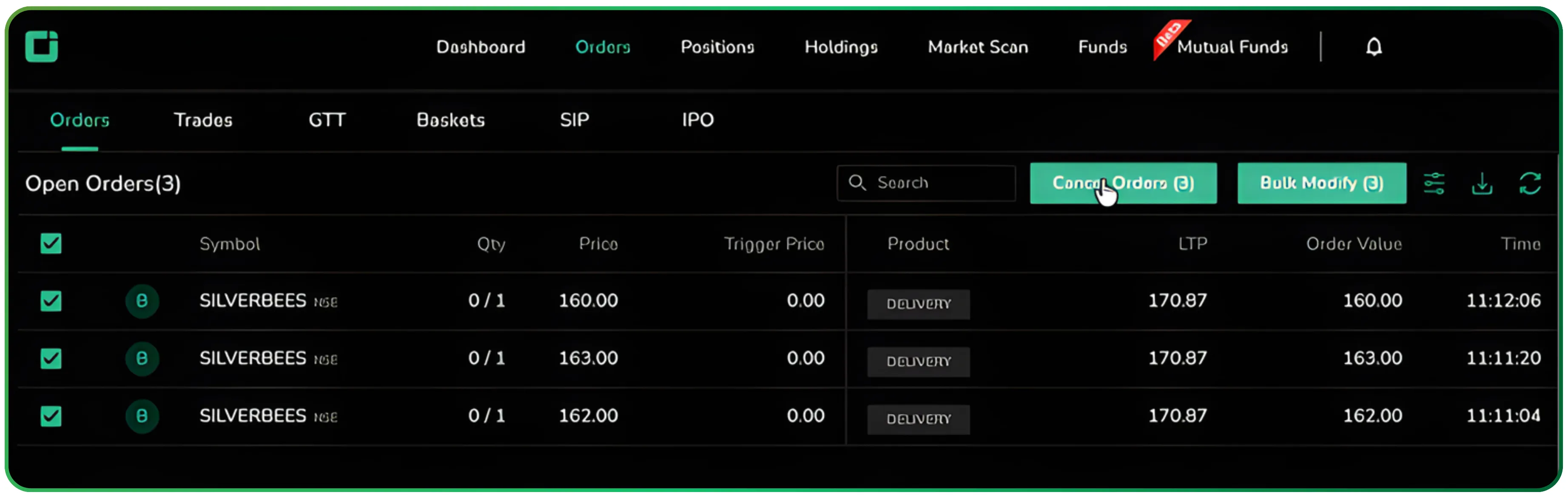
No repetitive steps, no extra confirmations; just a quick, clean exit from positions you don’t wish to pursue.
Placing SL and limit orders in bulk
Bulk Modify isn’t only about adjusting prices. While your SILVERBEES orders are still open, you can also use the same panel to convert them into stop-loss orders or update them as limit orders in one shot.
If a stop-loss needs to be applied, select the open SILVERBEES orders, open the Bulk Modify window, and switch the order type to SL. Enter the trigger and limit price once, and CubePlus applies those values across every selected order, allowing traders to set, verify, and update SL parameters efficiently. It keeps your stop-loss levels consistent without the hassle of editing each order individually.
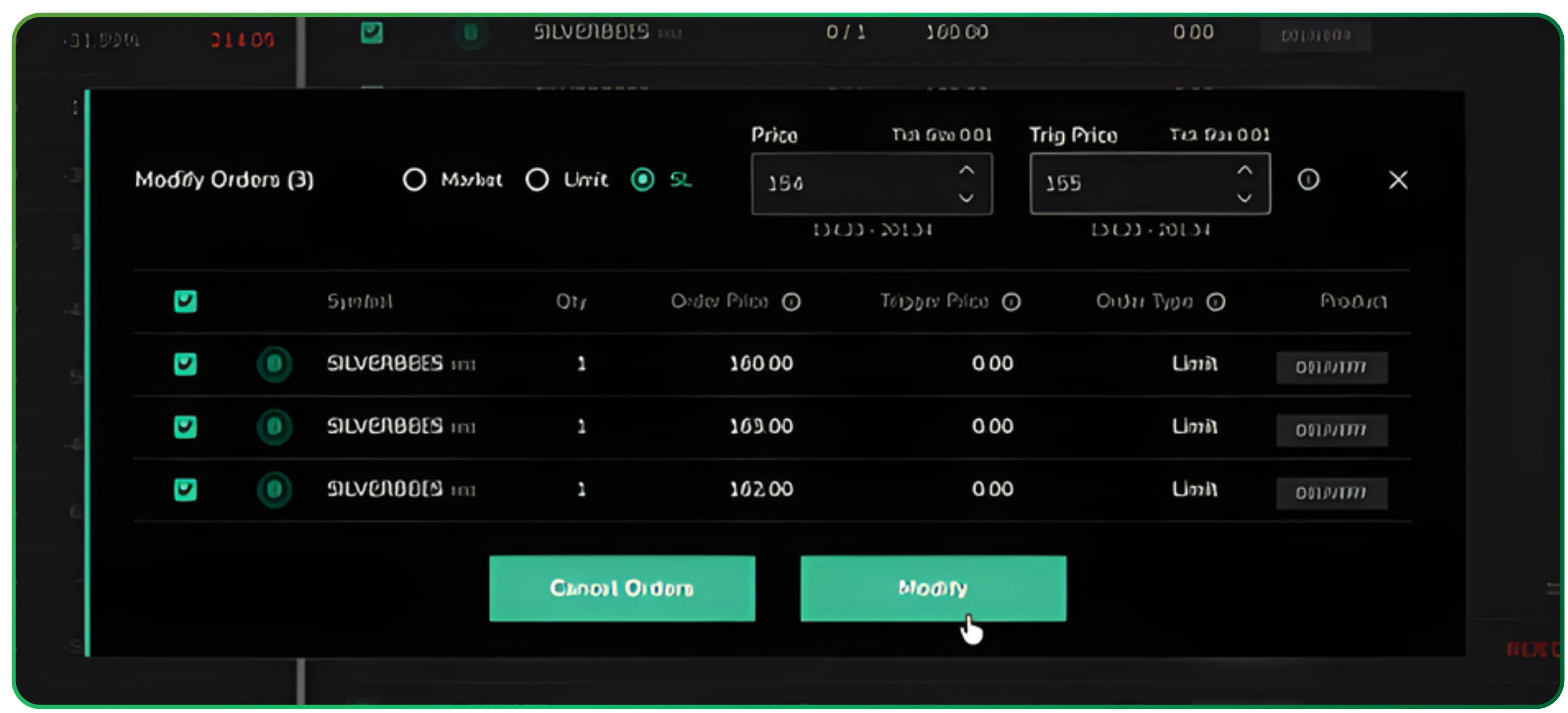
The same idea works for limit orders. If you're refining your entry strategy or tightening your price levels, choose Limit in the Bulk Modify panel, set the updated price, and the platform pushes the change to all selected SILVERBEES orders together.
It allows you to keep all open orders aligned with the market, without the need for constant manual adjustments.
If you’d like to deepen your market analysis, don’t miss our guide on using Active by Volume and Active by Value for smarter trading decisions.
Switching the batch to Market
Sometimes the exact price stops mattering and all you want is immediate execution. Bulk Modify makes that shift effortless. Select your open orders, choose Market at the top of the panel, and the action button switches to Modify to Market.
With a single tap, every selected limit order is converted into a market order and sent for instant execution. It’s quick, direct, and especially useful when the market moves faster than your original plan.
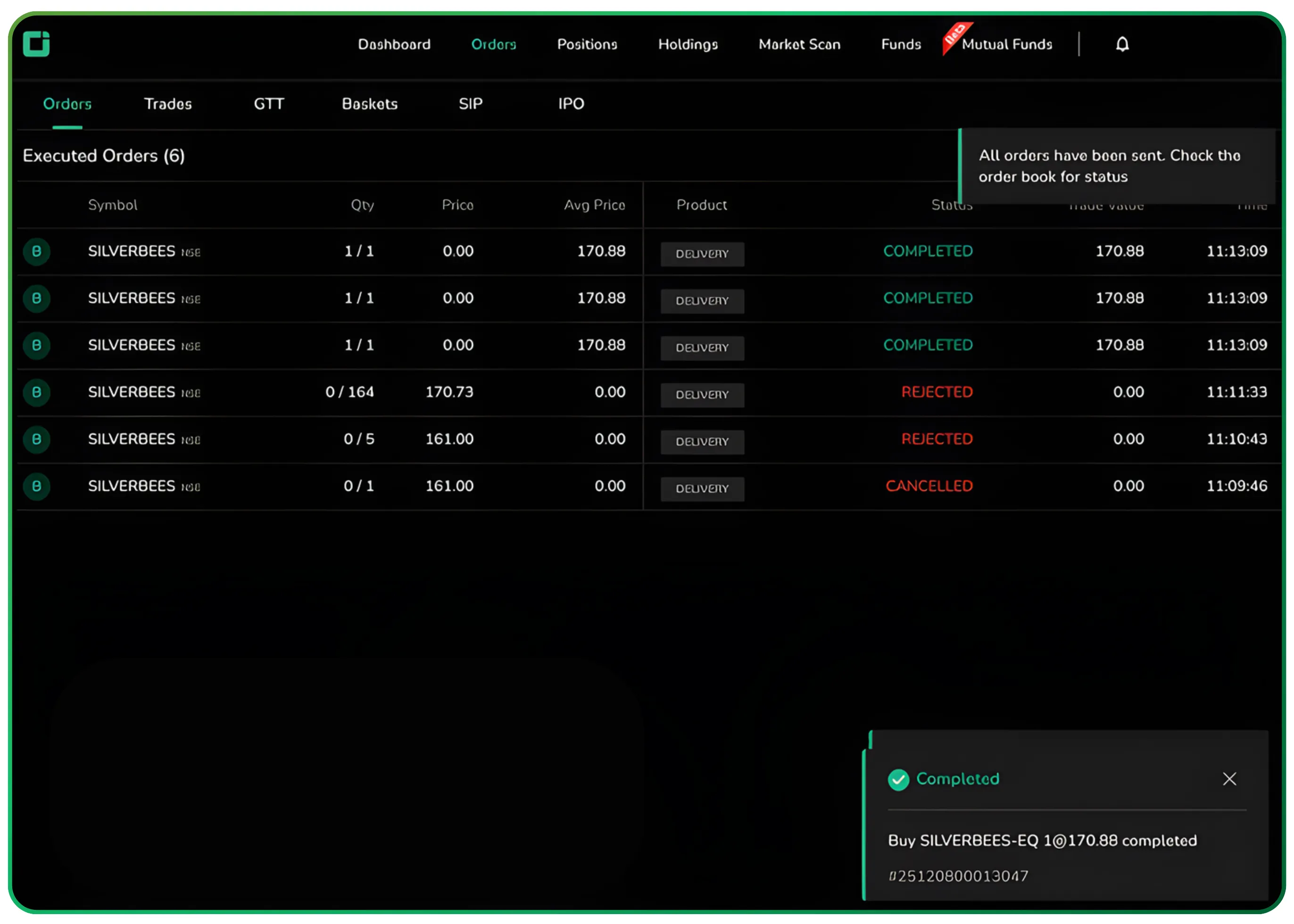
This confirms that the bulk market action was successful. All selected SILVERBEES orders were executed immediately, with the fills visible in the Executed Orders section along with the completion alert on the screen.
Watching the updated orders and executions
Once you modify or cancel a group of orders, CubePlus updates everything instantly. The changes reflect right away in your Order Book and Trade Book, so you can see the new status without digging around.
In the SILVERBEES example, the filled quantities appear neatly in your Positions, giving you a clear snapshot of what was actually executed.
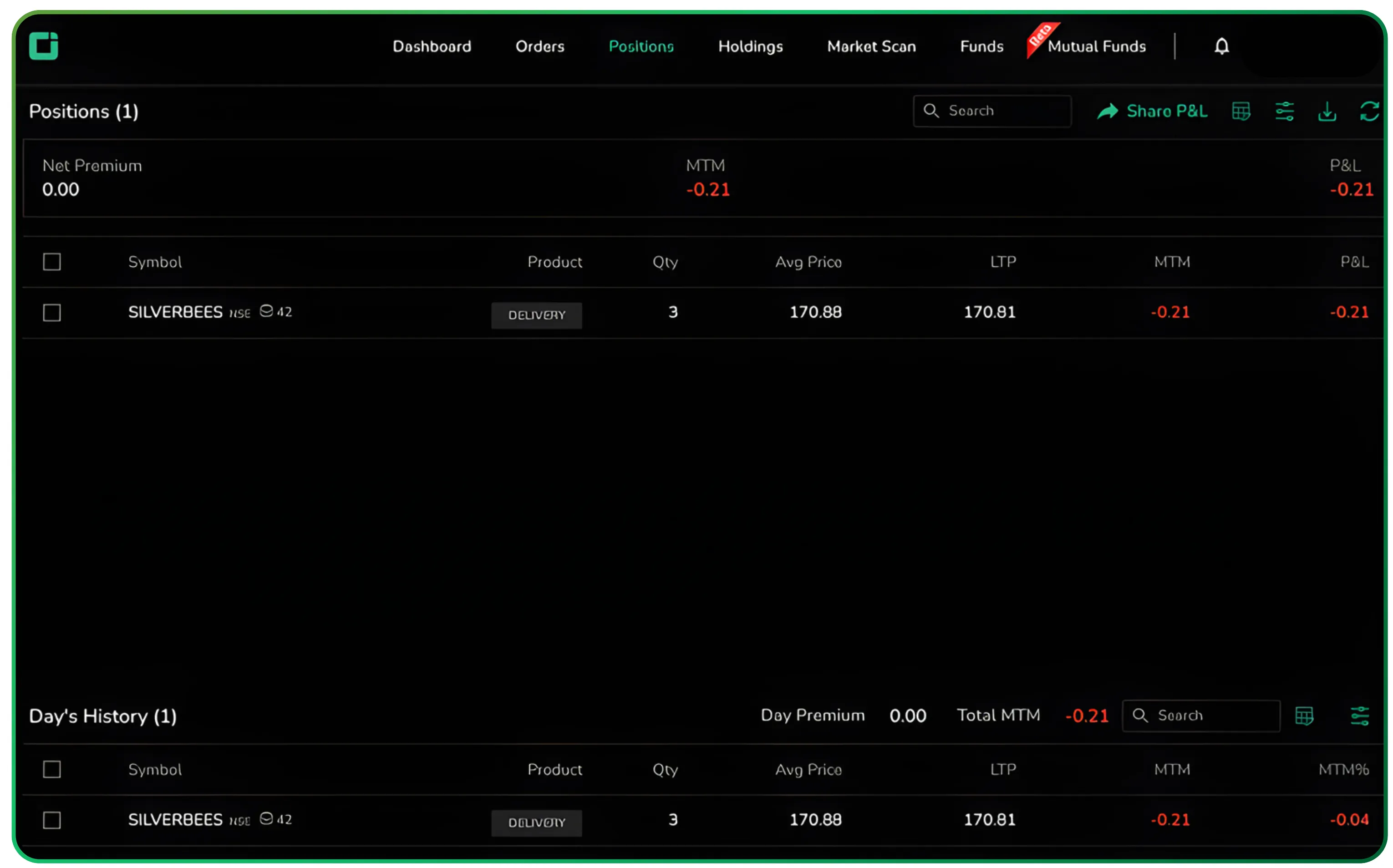
You also get on-screen submission alerts, which removes any doubt about whether your request was processed. It keeps the flow smooth and reassures you that the system caught your action the moment you made it.
Why Bulk Modify improves trade management and workflow
Traders often overlook how much time and attention gets drained by small, repetitive actions like editing orders one by one. Bulk Modify removes that drag completely. It gives you:
- A quicker way to react when prices move
- Fewer clicks and fewer chances to make mistakes
- Uniform changes across all legs of a structured strategy
- A smoother workflow when you’re laddering or averaging
- More headspace to focus on the trade instead of the mechanics
In fast markets, this flexibility saves valuable time and reduces the manual tasks that slow traders down.
Final word
Bulk Modify on CubePlus isn’t the kind of feature that demands attention, but it’s one that quickly transforms the way you manage orders. Whether you’re fine-tuning a ladder of SILVERBEES entries or adjusting several option orders at the same time, it keeps the process quick, consistent, and far easier to control.
It’s a small addition with a big impact; the sort of tool that makes your trading feel lighter and more deliberate.
Start using CubePlus today and see how much smoother your order management can be.
Disclaimer: The information provided in our blogs is for informational purposes only and should not be construed as financial, investment, or trading advice. Trading and investing in the securities market carries risk. Always conduct your own research and consult with a qualified financial advisor before making any investment decisions. Past performance is not indicative of future results. Copyrighted and original content for your trading and investing needs.
© 2025 — Tradejini. All Rights Reserved.

%252FCubePlus_Shield_Part%25203%2520Blog%2520Thumbnail.webp%3Falt%3Dmedia%26token%3Da5581624-5761-476f-8451-40c157b54840&w=3840&q=75)
%252FShield%2520on%2520Cubeplus%2520part2.webp%3Falt%3Dmedia%26token%3D252a5b48-a580-4e8d-b939-c82d4696eaef&w=3840&q=75)