This guide walks you through the process of setting up an algo trading environment, authenticating with the CubePlus API, and successfully placing a trading order using Python.
First, download Python on your system, and preferably use VS Code. Make sure to download all the files that are mentioned in the document and place them in the environment where your Python works.
The file path should be perfect for a smooth process.
Step 1: Download the Python SDK from the Developer Portal
- Open your browser and search for “Tradejini CubePlus API doc”.
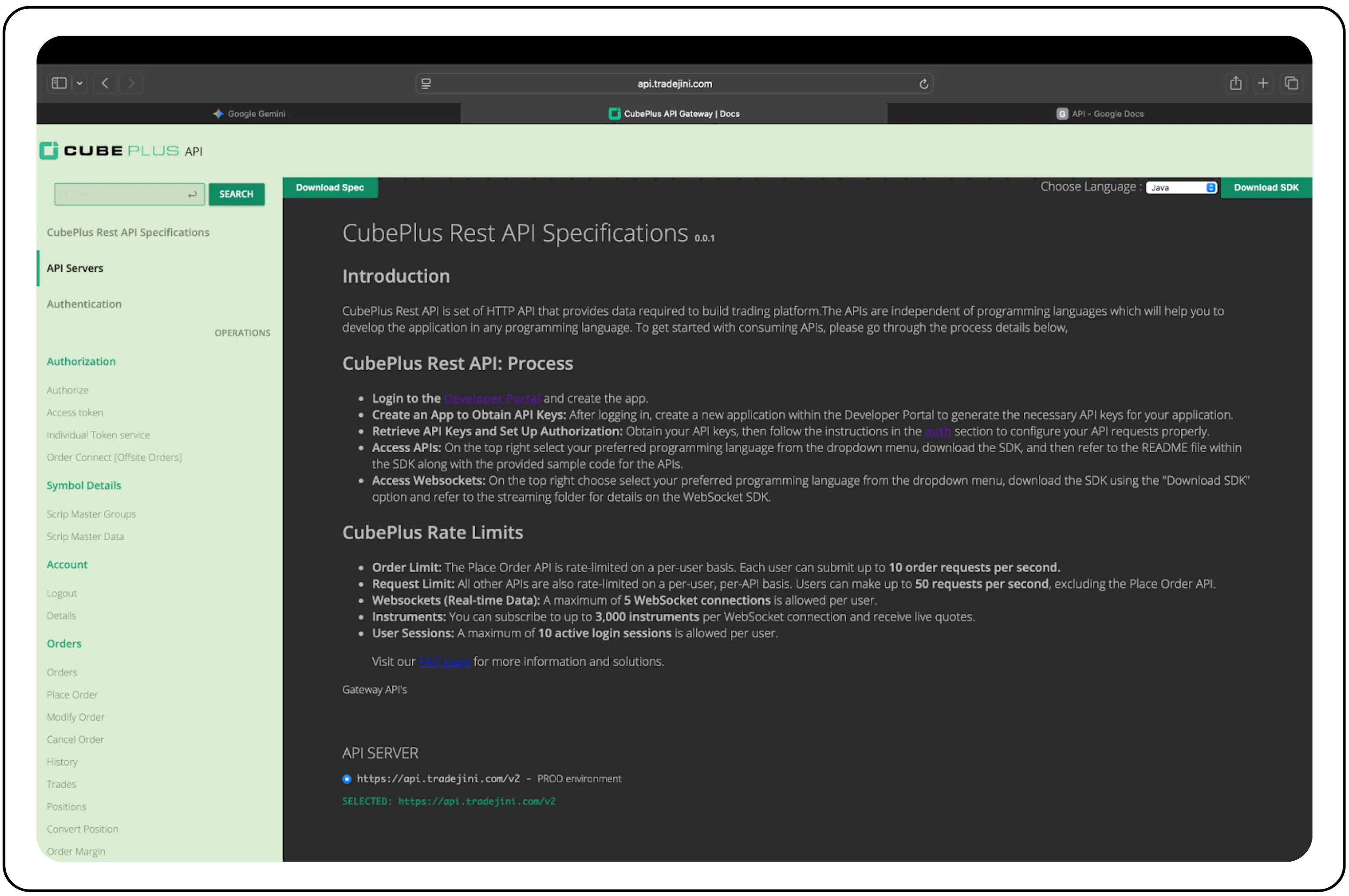
- At the top right corner of the page, open the dropdown menu, select Python, and click Download SDK.

- This saves a python-sdk package on your system.
- Login to the Developer Portal and login using CubePlus credentials.
- After logging in, create an individual token that gives an API key required for authentication.
Note: Do not change the default settings.
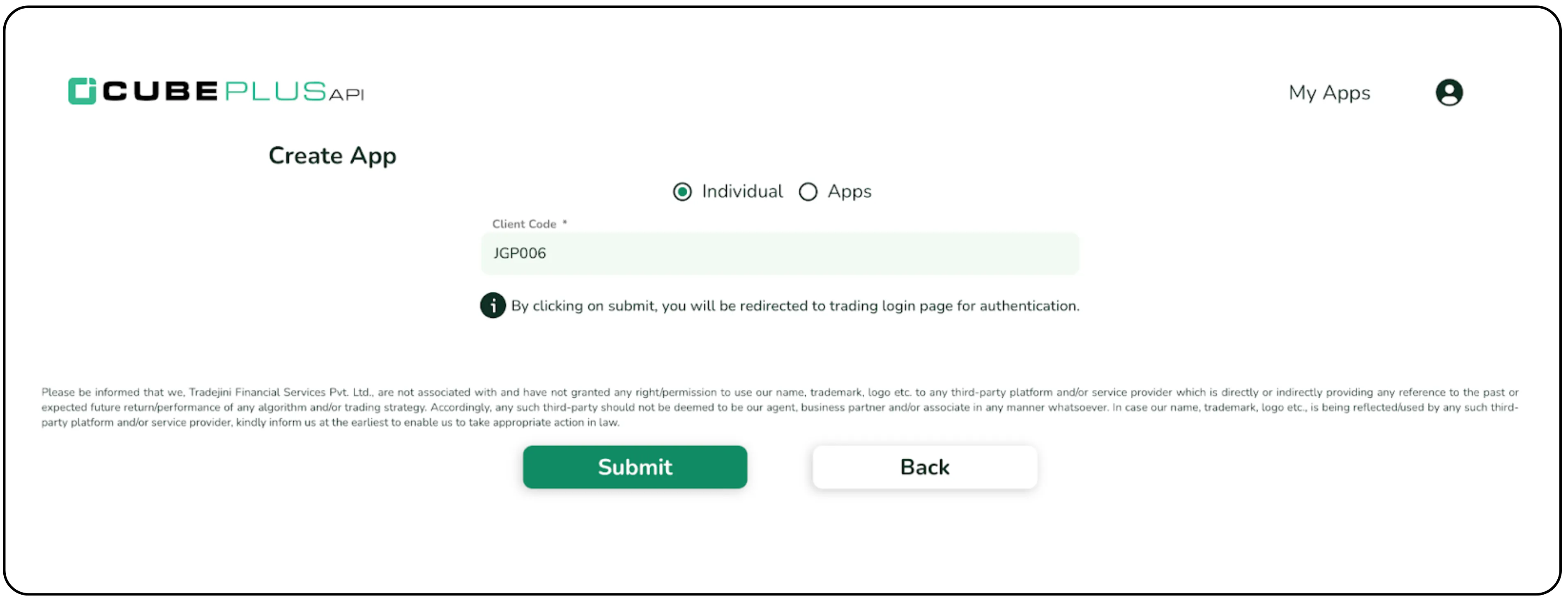
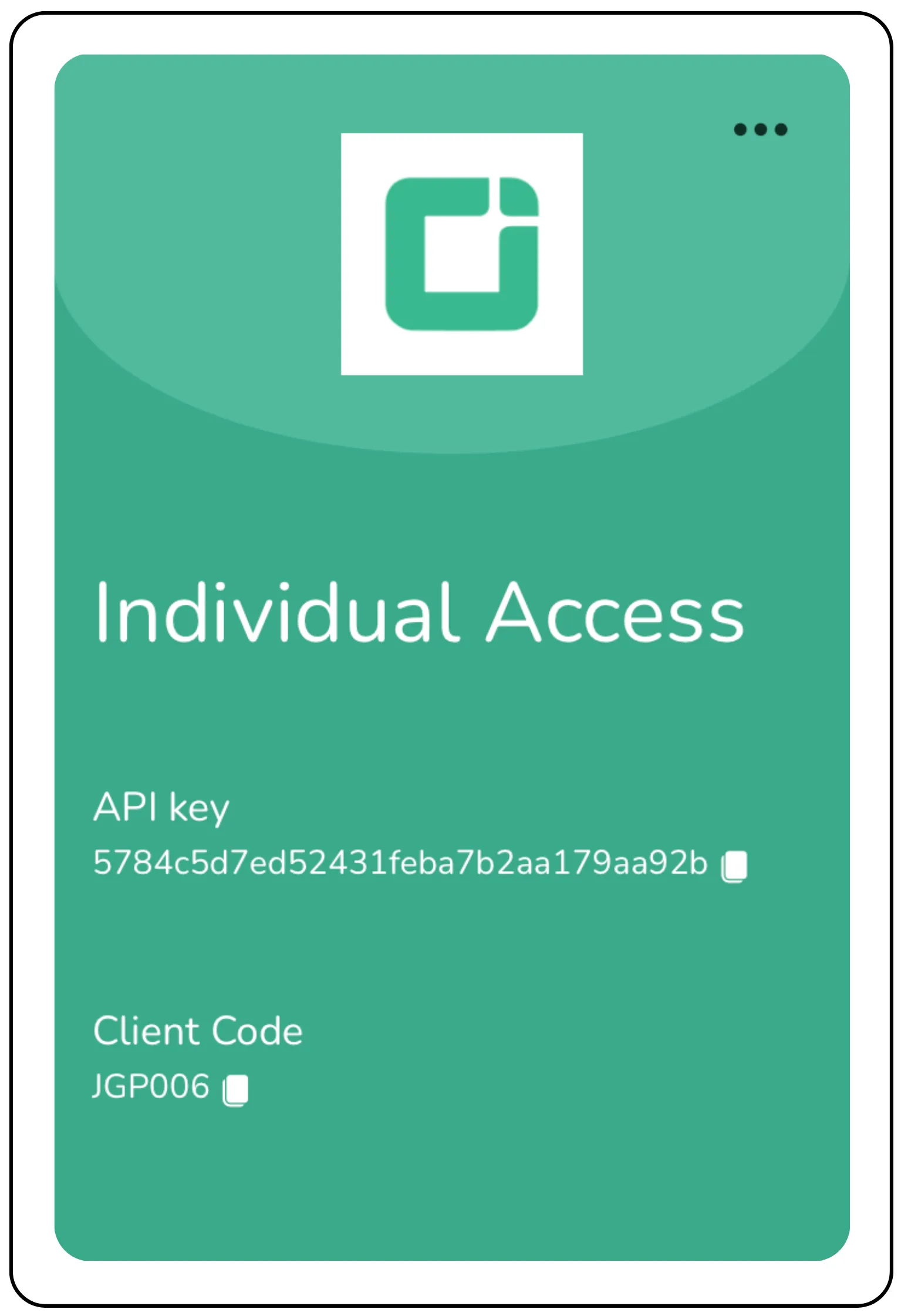
Step 2: Set Up Your Python Environment
- Open Visual Studio Code (VS Code).
- Go to File > Open Folder and select the extracted python-sdk folder.
- Open a new terminal in VS Code (Terminal > New Terminal).
Step 3: Install Required Libraries
The SDK relies on a few core libraries. You will need to install them one by one:
- First, check your file path. If it is in Python SDK file, then use this command to navigate to the API folder- cd api/
Note: for Windows, the forward slash is not required.
Run the following commands one by one:
python -m pip install openapi-client
python -m pip install pydantic
pip install setuptools (Note: Use this code, if setuptools is not installed by default.)
python setup.py install --user
Now, come back from the API folder to the Python SDK by using the command cd ..
Navigate to the api-sample folder, and to do that, use this command: cd api-sample/
And then run this command
python -m pip install websocket-client
The steps followed thus far are just a one time setup.
Step 4: Configure Your Trading Script
In VS Code, open api-sample/Sample.py.
Fill in the following details:
apiKey → Copy this from your Developer Portal dashboard.
password → Your CubePlus trading password.
two_fa → Your OTP or TOTP from the authenticator app.
twoFaTyp → Either "otp" or "totp".
Step 5: Discover the Right Symbol
Go to the API docs → Symbol Details → Scrip Master Data.
Enter Securities as the scripGroup and click Try.
Download the list, then search for your desired stock.
Example: EQT_TATASTEEL_EQ_NSE for Tata Steel in NSE equity.
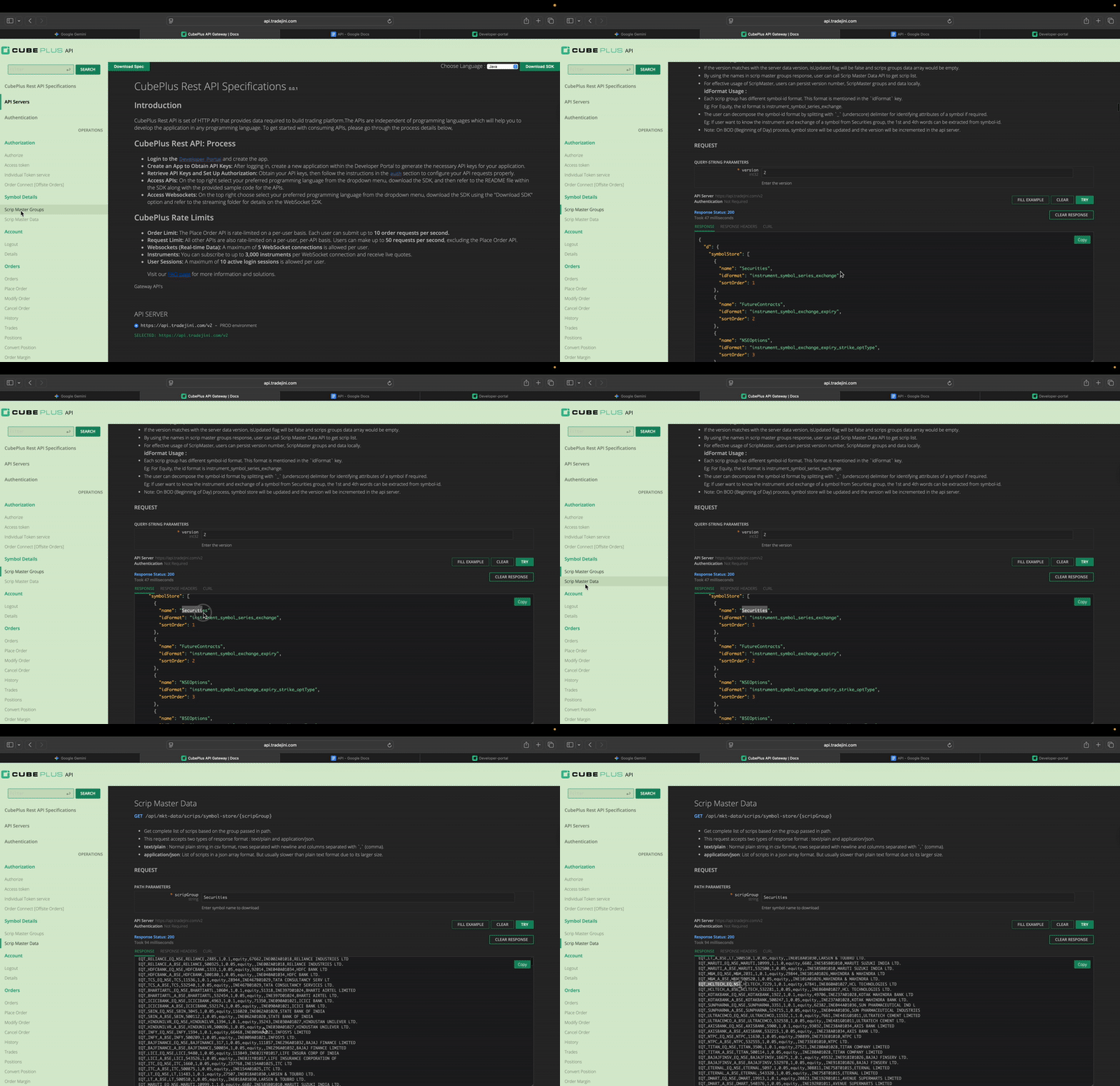
Step 6: Place a Market Order
To place a market order using the CubePlus API, you need to update the sample order function to send the correct payload for /api/oms/place-order.
Correct payload (per CubePlus spec):
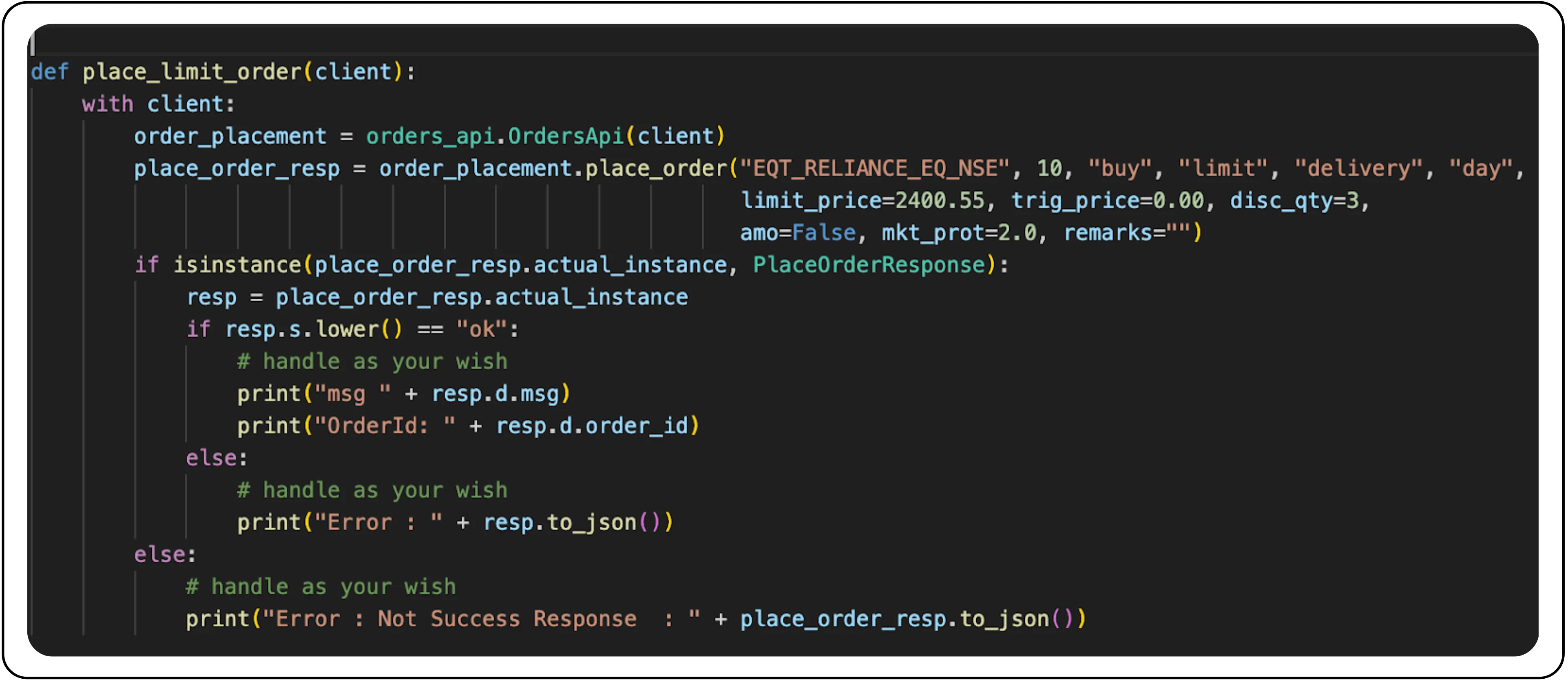
- symId → The unique symbol ID (from the Scrip Master). Example: EQT_TATASTEEL_EQ_NSE.
- qty → Number of shares/lots to buy or sell.
- side → Lowercase "buy" or "sell".
- type → Order type: "limit", "market", "stoplimit", "stopmarket".
- product → "delivery", "intraday", or "normal" (for derivatives).
- validity → How long the order is valid (day, ioc, gtc, eos).
- mktProt → Market order protection (%) to avoid freak trades.
- remarks → Short text tag (≤10 chars).
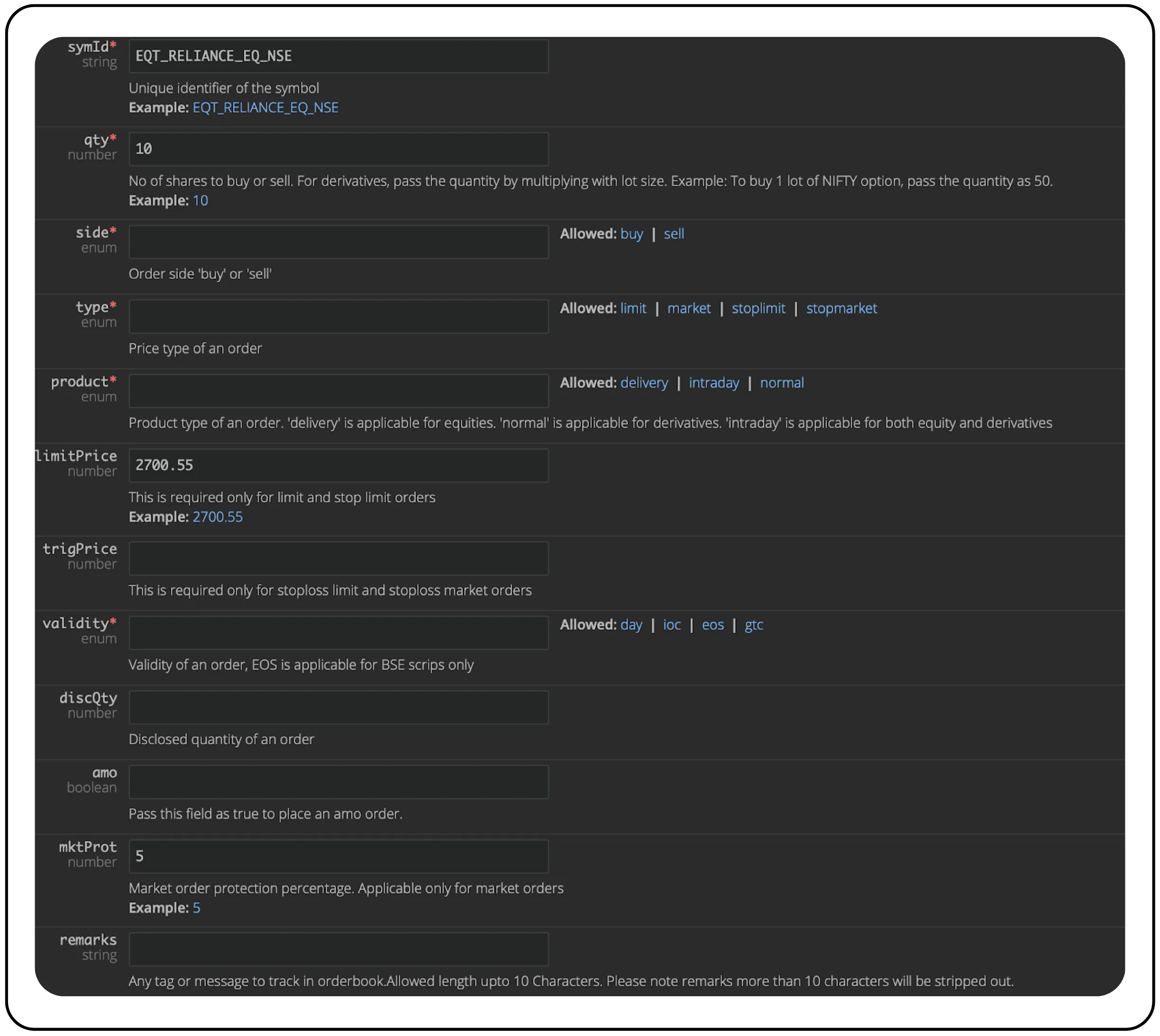
This is the format that you have to follow to place an order, and you can navigate to it in the api document at the Place Order tab.
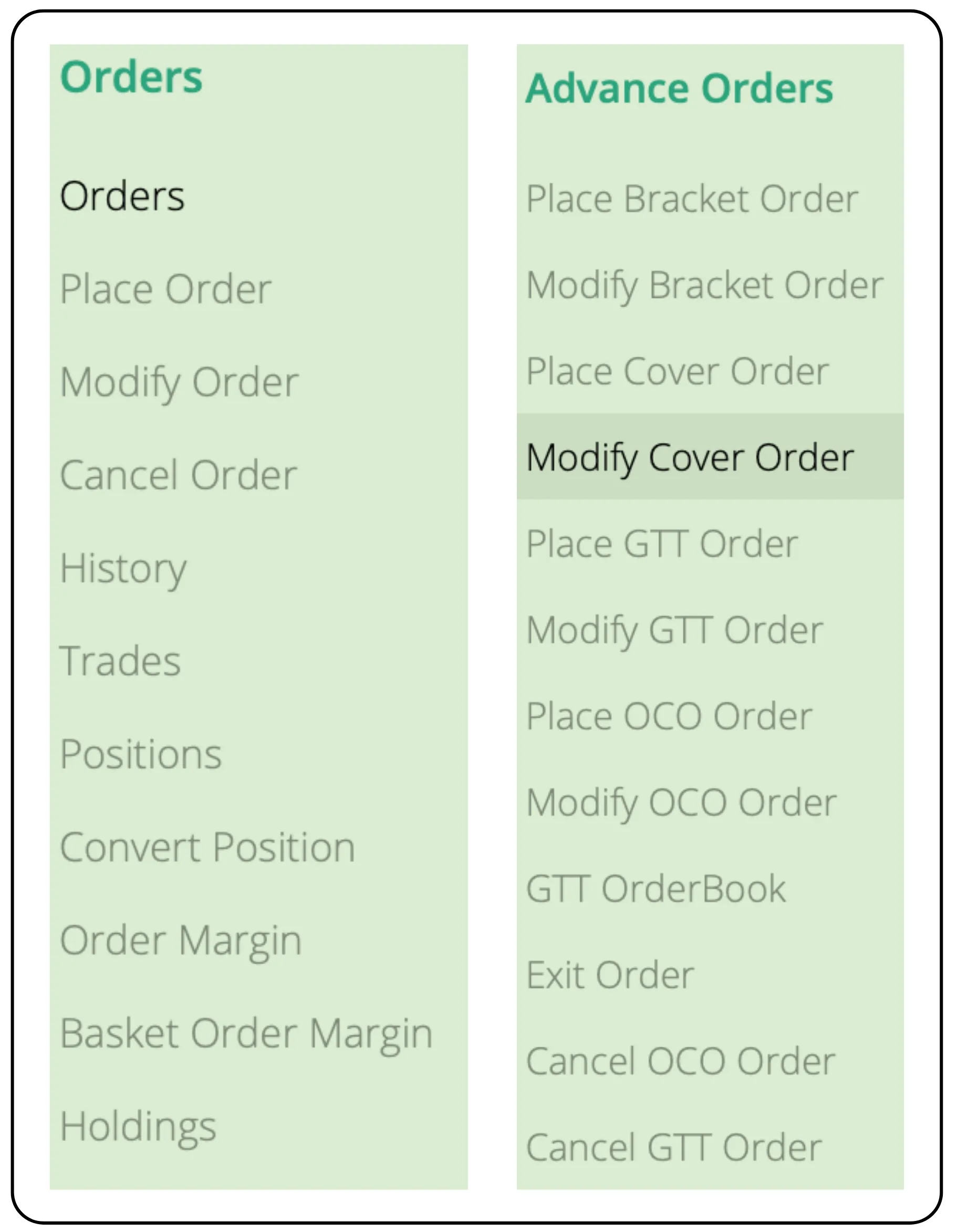
You can also see other kinds of orders under the Orders tab, where you can find the formats of the order.
Step 7: Run the Script
Execute the script by running: python Sample.py
If successful, you’ll see a response with orderId and a confirmation message.
Note: Make sure to enter the “TOTP”/”OTP” first and then run the script for the successful order, and also make sure to save the script before running.
Step 8: Verify the Order
- Log in to cubeplus.tradejini.com
- Go to the Orders tab to view your placed order.
- Use the Positions tab to check updated holdings.
Key API Compliance Checklist
- side → must be lowercase (buy/sell).
- Always include the validity (e.g., day).
- For market orders, set mktProt (e.g., 5).
- The remarks field is limited to 10 characters.
Disclaimer: The information provided in our blogs is for informational purposes only and should not be construed as financial, investment, or trading advice. Trading and investing in the securities market carries risk. Always conduct your own research and consult with a qualified financial advisor before making any investment decisions. Past performance is not indicative of future results. Copyrighted and original content for your trading and investing needs.
© 2025 — Tradejini. All Rights Reserved.

%252FCubePlus_Shield_Part%25203%2520Blog%2520Thumbnail.webp%3Falt%3Dmedia%26token%3Da5581624-5761-476f-8451-40c157b54840&w=3840&q=75)
%252FShield%2520on%2520Cubeplus%2520part2.webp%3Falt%3Dmedia%26token%3D252a5b48-a580-4e8d-b939-c82d4696eaef&w=3840&q=75)