Whether you are a seasoned trader or just getting started, having the right stocks on your radar makes all the difference. CubePlus makes it incredibly easy to not only build personalised watchlists, but also expand them in seconds and even share them with your fellow investors. Here's a complete walkthrough of two powerful features: importing instruments into your watchlist and sharing your watchlist with others on the CubePlus mobile app.
As a highly rated stock market app India, the CubePlus mobile app continually introduces updates that cater to both beginners and experts. These new CubePlus watchlist features will elevate your day-to-day trading routine.
Your Watchlist, Your Way
When you open the CubePlus app, your watchlist tab greets you with a live, real-time view of all the instruments you're tracking. In this example, the user has a custom watchlist called Radar, a curated set of 15 stocks they are actively monitoring, with live prices, bid/ask sizes, and percentage changes.
Whether you want to check the CubePlus percentage change of a specific asset or monitor the CubePlus bid ask mobile spread, the data is instantly accessible. Keeping track of CubePlus live prices mobile ensures you can respond to market fluctuations as they happen.
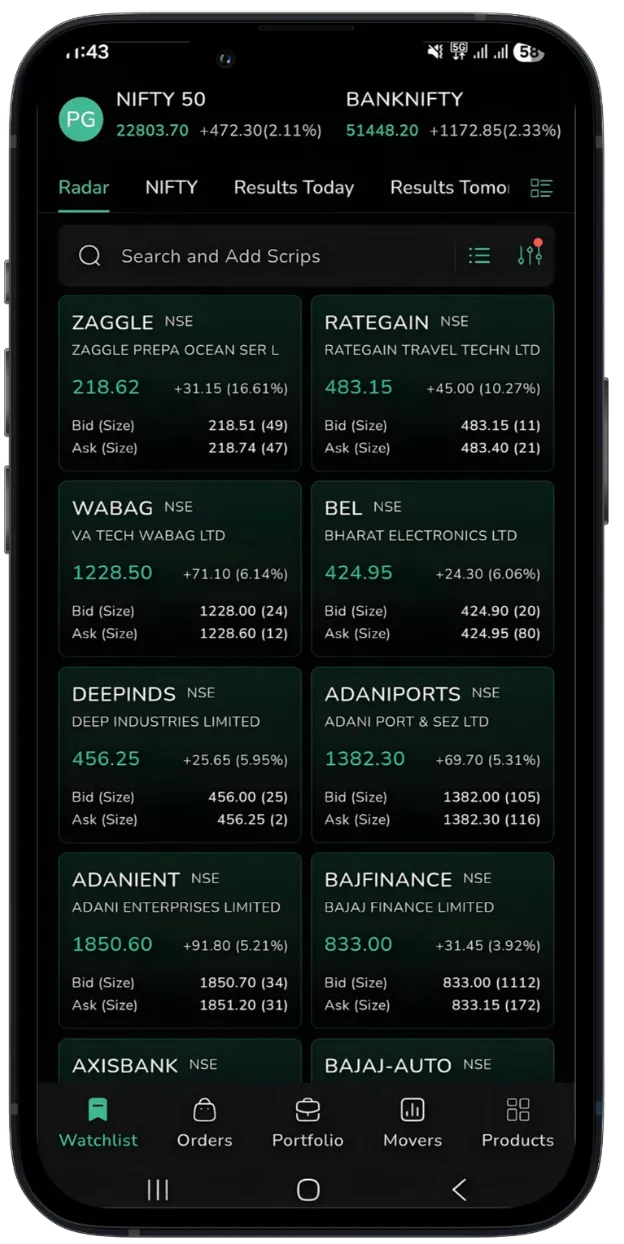
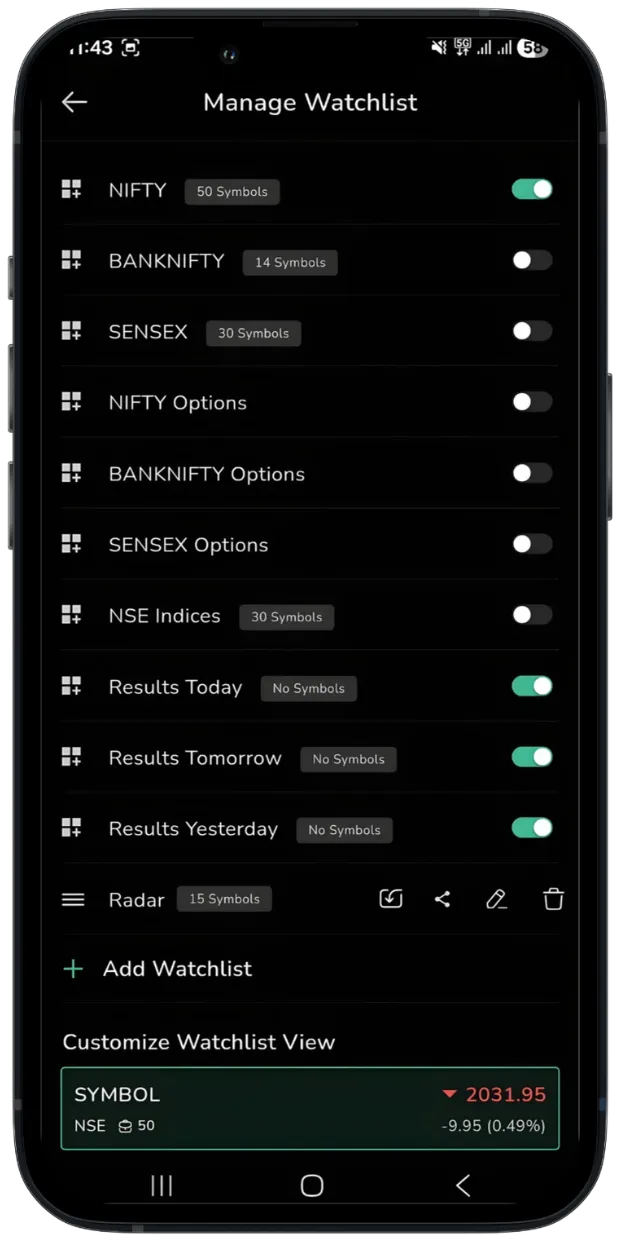
To manage this watchlist, simply tap the settings icon next to "Results Tomorrow" in the top-right corner of the watchlist tab. This opens the Manage Watchlist dashboard.
Users tracking corporate earnings will find the CubePlus results tomorrow tab extremely useful for preparing their trades in advance. Consistent use of these elements demonstrates smart CubePlus watchlist management.
The Manage Watchlist Dashboard
The Manage Watchlist screen gives you complete control. From here, you can toggle visibility for built-in indices like NIFTY 50, BANKNIFTY, SENSEX, NSE Indices, NIFTY Options and more using simple on/off switches. Results Today, Results Tomorrow, and Results Yesterday tabs are also toggled here.
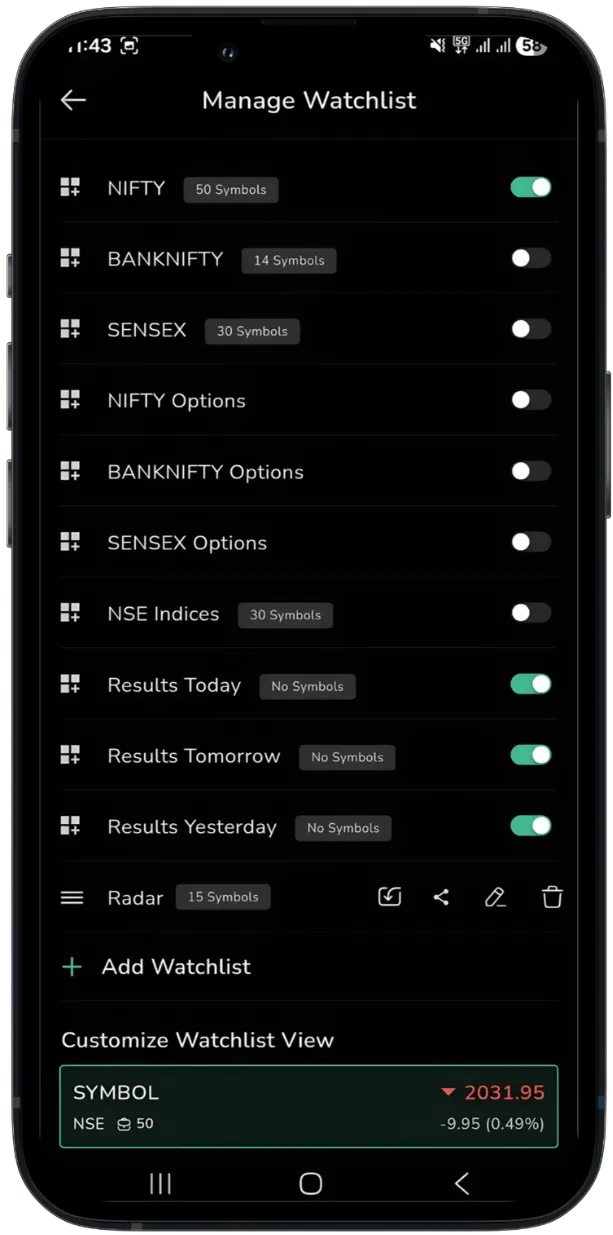
For traders focusing on particular segments, activating the CubePlus nifty watchlist mobile or the CubePlus banknifty watchlist can drastically reduce screen clutter. You can also track broader market movements by keeping the CubePlus sensex watchlist visible on your dashboard.
At the bottom of the list, you willl find your user-defined watchlists, in this case "Radar" with 15 symbols. Next to it are four cons:
- Import — add instruments from an index into your watchlist
- Share — share your watchlist with others
- Rename — rename your watchlist
- Delete — remove the watchlist
Whether you need to do a quick CubePlus watchlist rename to categorize your ideas, or initiate a CubePlus watchlist delete for outdated picks, the interface is highly intuitive. Knowing exactly how to build watchlist CubePlus helps maintain a focused and organized trading environment.
Feature 1: Import Instruments into Your Watchlist
Want to quickly add stocks from a specific index without searching one by one? The Import feature makes it effortless.
Here's how it works:
Step 1: On the Manage Watchlist dashboard, tap the import icon next to your custom watchlist (Radar).
Step 2: You will land on the "Import to Radar" screen. At the top, you willl see tabs for different indices like NIFTY, BANKNIFTY, SENSEX, and NSE Indices. Switch between them to browse stocks from your preferred index.
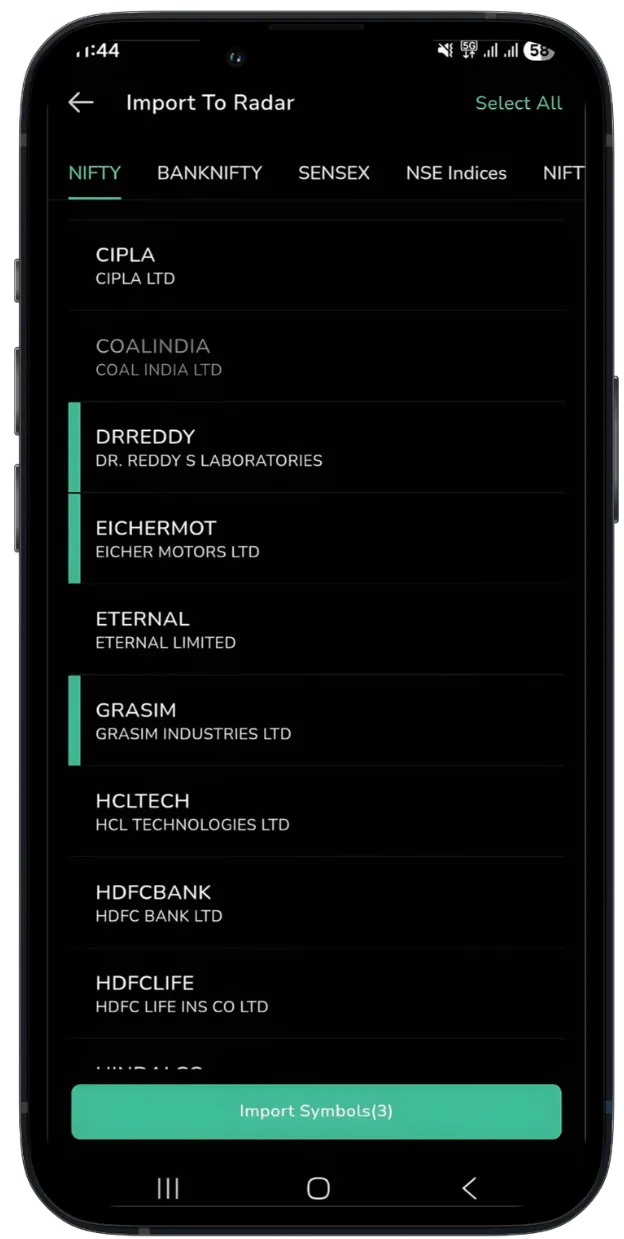
Step 3: Scroll through the list and select the instruments you want to add. You can tap individual stocks or hit "Select All" to grab the entire index. In this example, the user selects three stocks, DrReddy, Eichermot, and Grasim, and the button at the bottom updates to reflect the count: "Import Symbols (3)".
Step 4: Tap "Import Symbols" and you are done.
These robust and user-friendly features define the core Tradejini CubePlus mobile experience. By offering such comprehensive trading tools India mobile, investors gain a massive advantage in navigating the markets.
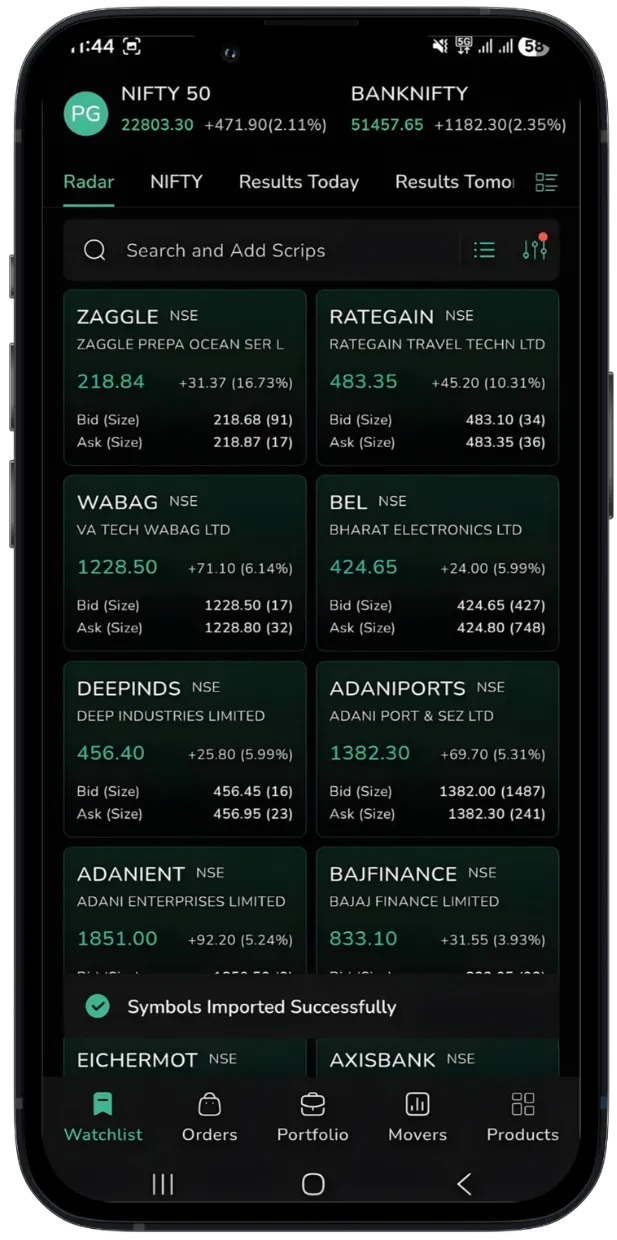
Your watchlist refreshes instantly and a confirmation message, "Symbols Imported Successfully", appears at the bottom of the screen. The newly added instruments like Eichermot are now live on your Radar watchlist alongside your existing picks.
No more manually searching and adding stocks one by one. With the Import feature, you can populate your watchlist from any major index in just a few taps.
Also Read: How to Place a Cover Order on CubePlus for Options Trading
Feature 2: Share Your Watchlist with Other CubePlus Users
Found a set of stocks you want others to track? CubePlus lets you share your entire watchlist in seconds, directly from the app.
Here's how it works:
Step 1: Head back to the Manage Watchlist dashboard and tap the share icon next to your Radar watchlist.
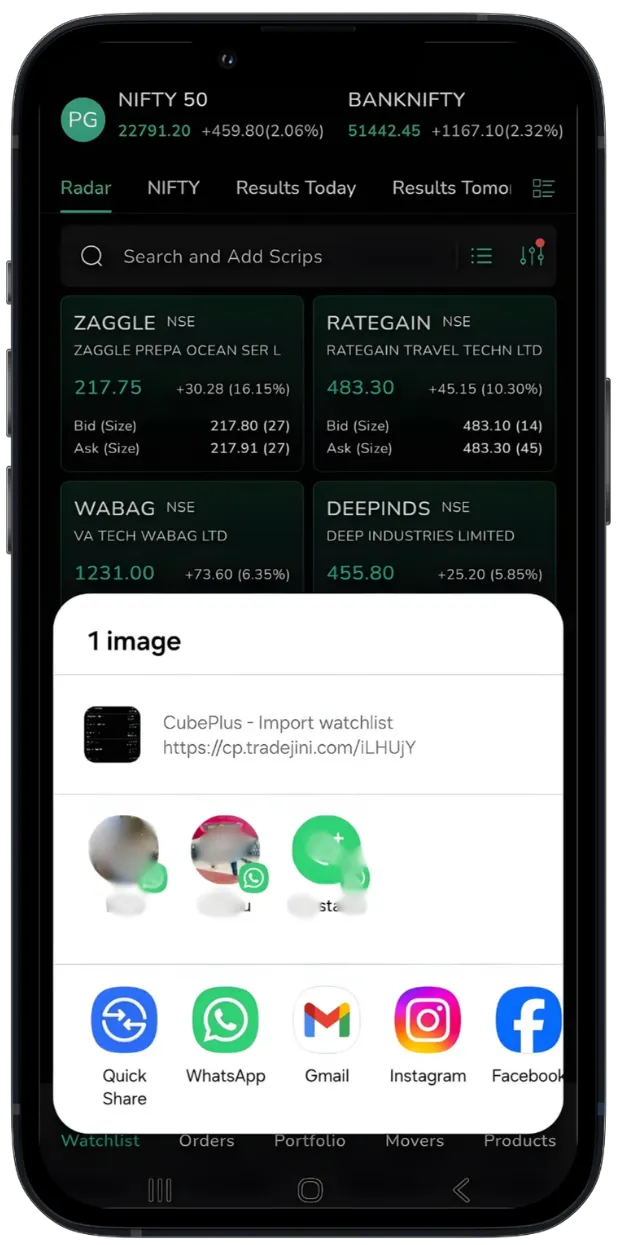
Step 2: A native share sheet pops up, showing a CubePlus - Import Watchlist link. From here, you can share your watchlist across:
- WhatsApp (directly to individual contacts)
- WhatsApp Status (broadcast it to all your contacts at once)
- Gmail
- Telegram (And more)
Whether you opt for a quick CubePlus whatsapp watchlist share or prefer a CubePlus telegram watchlist distribution, the platform supports multiple communication channels. You can even execute a CubePlus instagram watchlist share to connect with a wider audience of market enthusiasts.
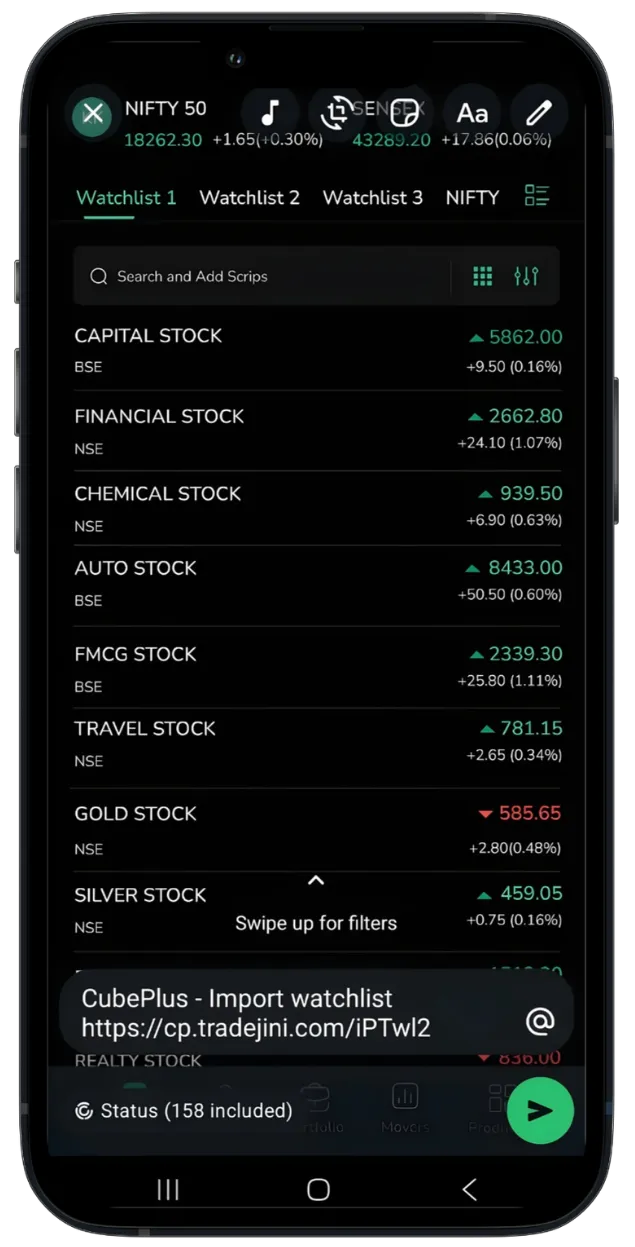
Step 3: When you choose to share via WhatsApp Status, a preview screen appears showing the watchlist link ready to be posted, visible to your WhatsApp contacts.
On the Receiving End: Importing a Shared Watchlist
When a friend sends you a CubePlus watchlist link:
Step 1: Click on the shared link. CubePlus opens automatically and displays an "Import Watchlist" prompt. You'll see the watchlist name (e.g., "Radar") and the number of symbols it contains.
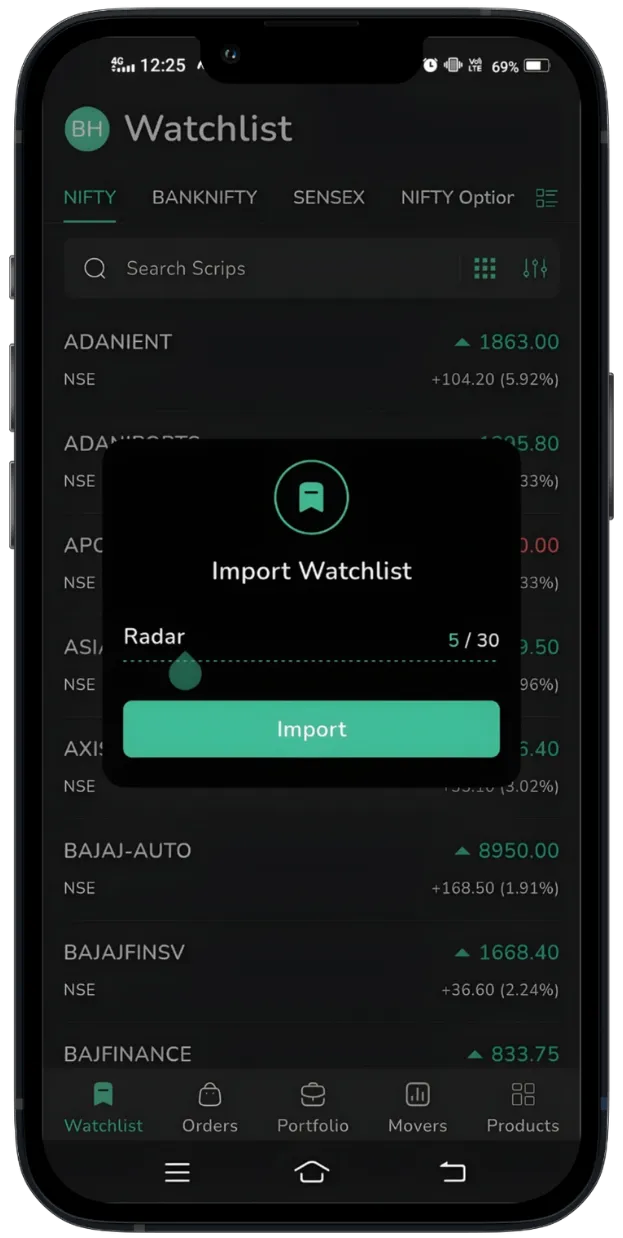
Step 2: You can rename the watchlist to something that works for you before importing.
Step 3: Tap "Import" and just like that, the shared watchlist is added directly to your CubePlus app.
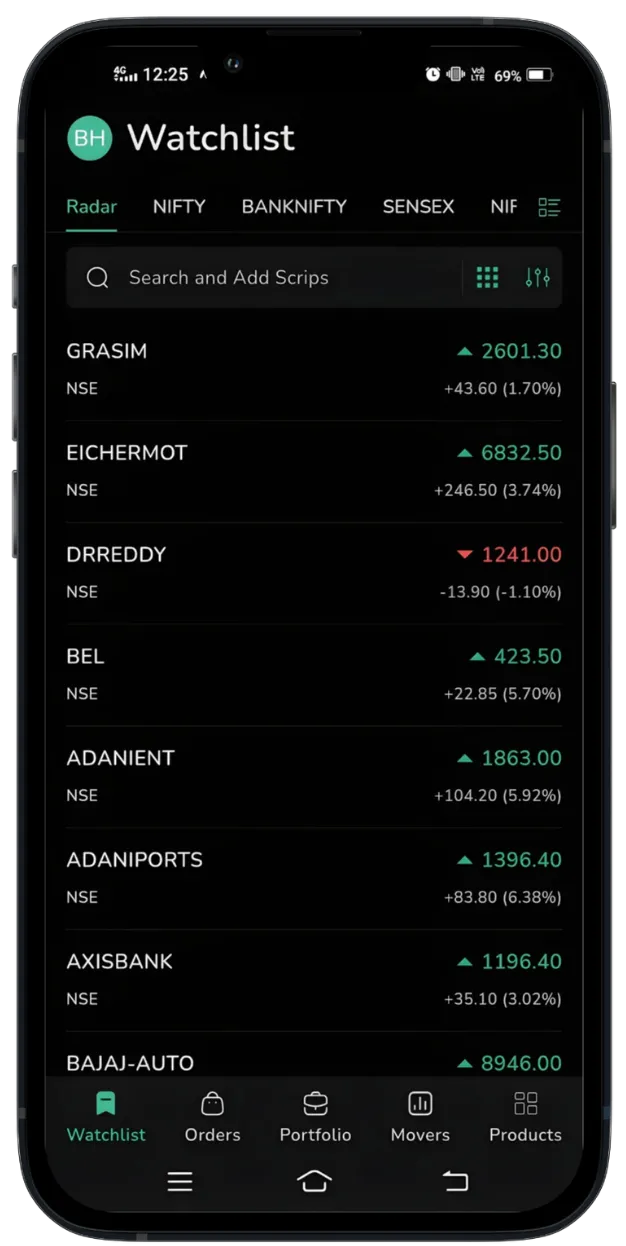
Step 4: The watchlist now appears as a new tab in your watchlist section, populated with all the stocks your friend curated, including Grasim, Eichermot, DrReddy, BEL, Adanient, Adaniports, Axisbank, Bajaj-Auto, and more, all live and ready to track.
Why These Features Matter
These features make CubePlus more than a trading app. They make it a collaborative investing tool:
Save time by bulk-importing stocks from any index instead of adding them individually
Stay connected with your investing circle by sharing and receiving curated watchlists
Discover new ideas when friends or analysts share their stock picks with you
Customise freely by renaming imported watchlists to suit your own trading style
Next time you find a strong list of stocks, don't just keep it to yourself. Share it, import it, and keep building smarter together with CubePlus.
Disclaimer: The information provided in our blogs is for informational purposes only and should not be construed as financial, investment, or trading advice. Trading and investing in the securities market carries risk. Always conduct your own research and consult with a qualified financial advisor before making any investment decisions. Past performance is not indicative of future results. Copyrighted and original content for your trading and investing needs.
© 2026 — Tradejini. All Rights Reserved.

%252FCubePlus_Shield_Part%25203%2520Blog%2520Thumbnail.webp%3Falt%3Dmedia%26token%3Da5581624-5761-476f-8451-40c157b54840&w=3840&q=75)
%252FShield%2520on%2520Cubeplus%2520part2.webp%3Falt%3Dmedia%26token%3D252a5b48-a580-4e8d-b939-c82d4696eaef&w=3840&q=75)