As a Tradejini client, you can integrate your trading account with leading algorithmic trading platforms like Tradetron and Quantiply. This guide walks you through the steps to generate your API credentials and complete the setup on both platforms.
Part 1: Setting up Tradejini with Tradetron
To start algorithmic trading on Tradetron using your Tradejini account, you need to create a specific "App" in the Tradejini Developer Portal to generate your API keys.
Step 1: Access the Developer Portal
- Open the Tradejini Developer Portal: https://api.tradejini.com/developer-portal/main
- Log in using your Tradejini credentials.
Step 2: Create the App Key
Once logged in, you need to create a "new app key" that will link to Tradetron.
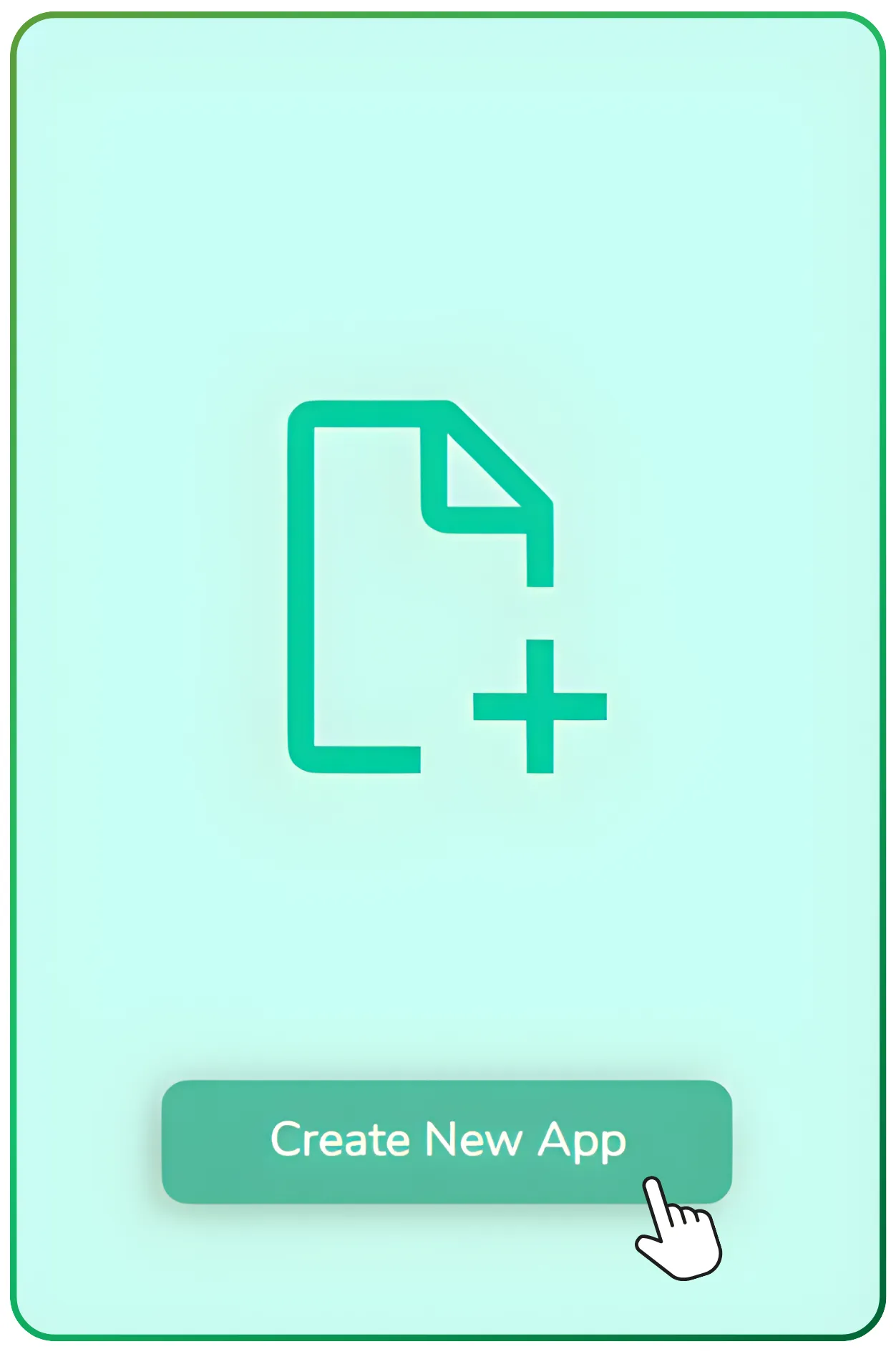
- Click on Create New App.
Fill in the following details specifically:
App Name: Tradetron
Redirect URL: https://tradejiniv2.tradetron.tech/login
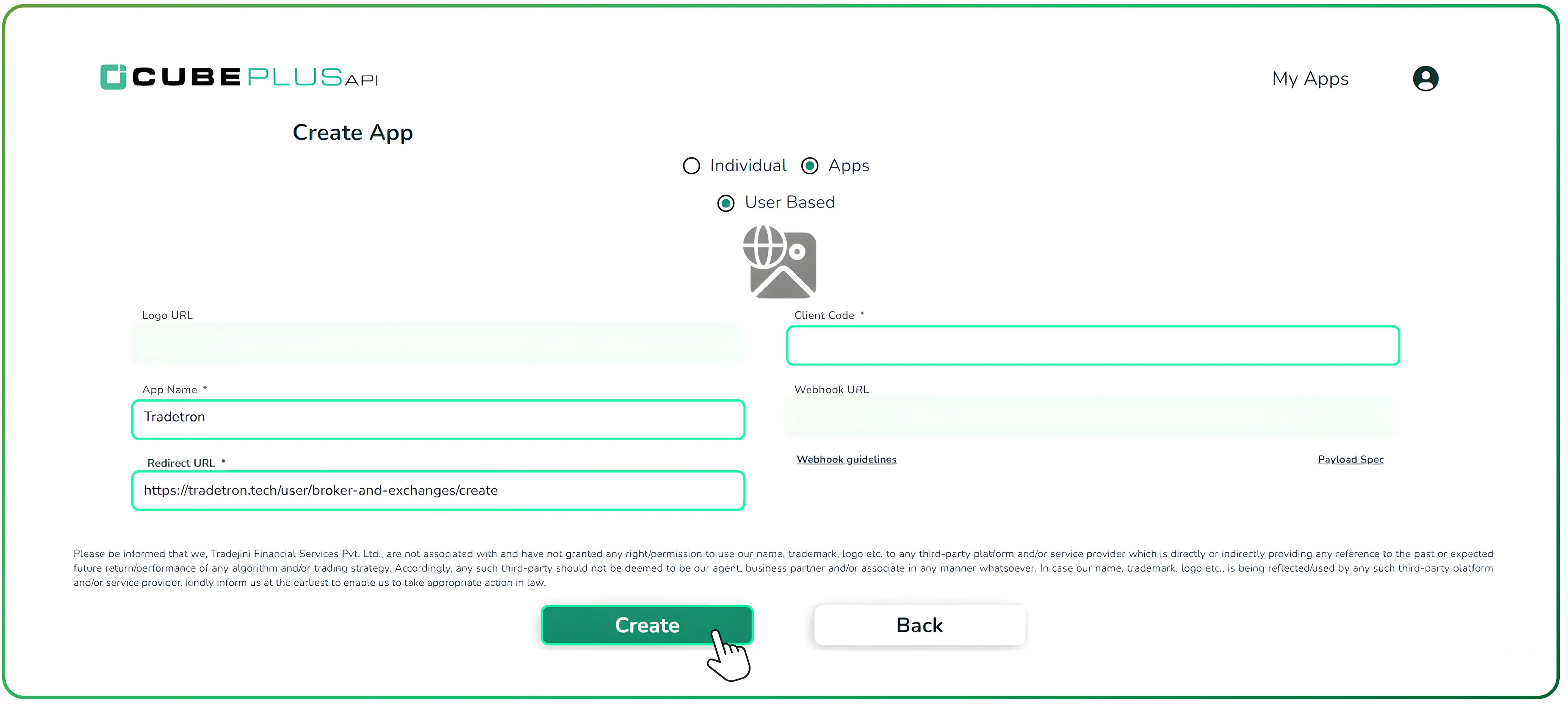
Note: Leave Webhook URL and Logo URL empty and make sure to enter the Redirect URL exactly as mentioned above
- Click Create.
Step 3: Retrieve API Credentials
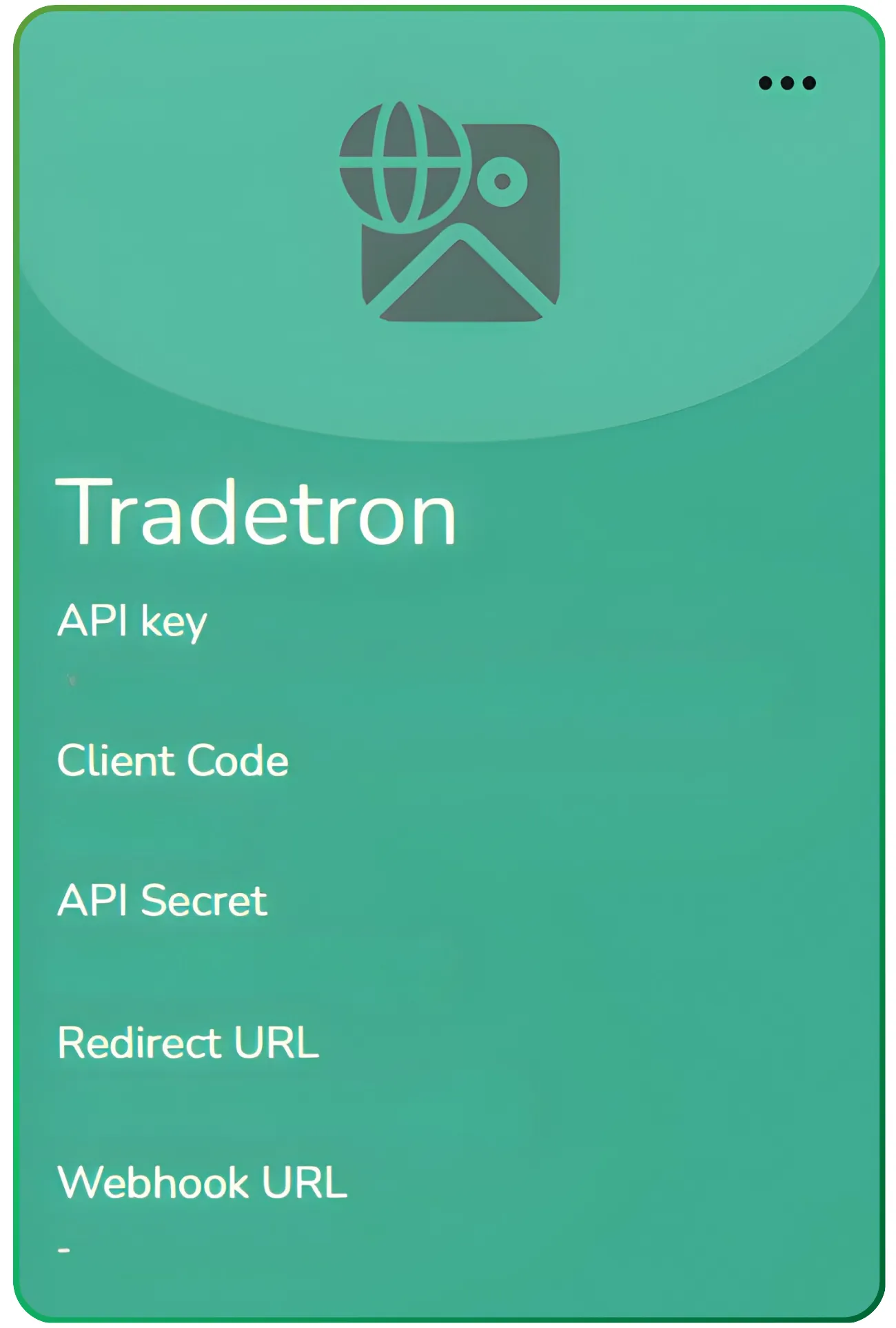
- After creating the app, you will see it listed on your dashboard.
- Note down the API Key and API Secret. You will need these for the next step.
Step 4: Configure Tradetron
Log in to your Tradetron account.
Click on the Profile Icon in the top right corner and select Broker and Exchanges.
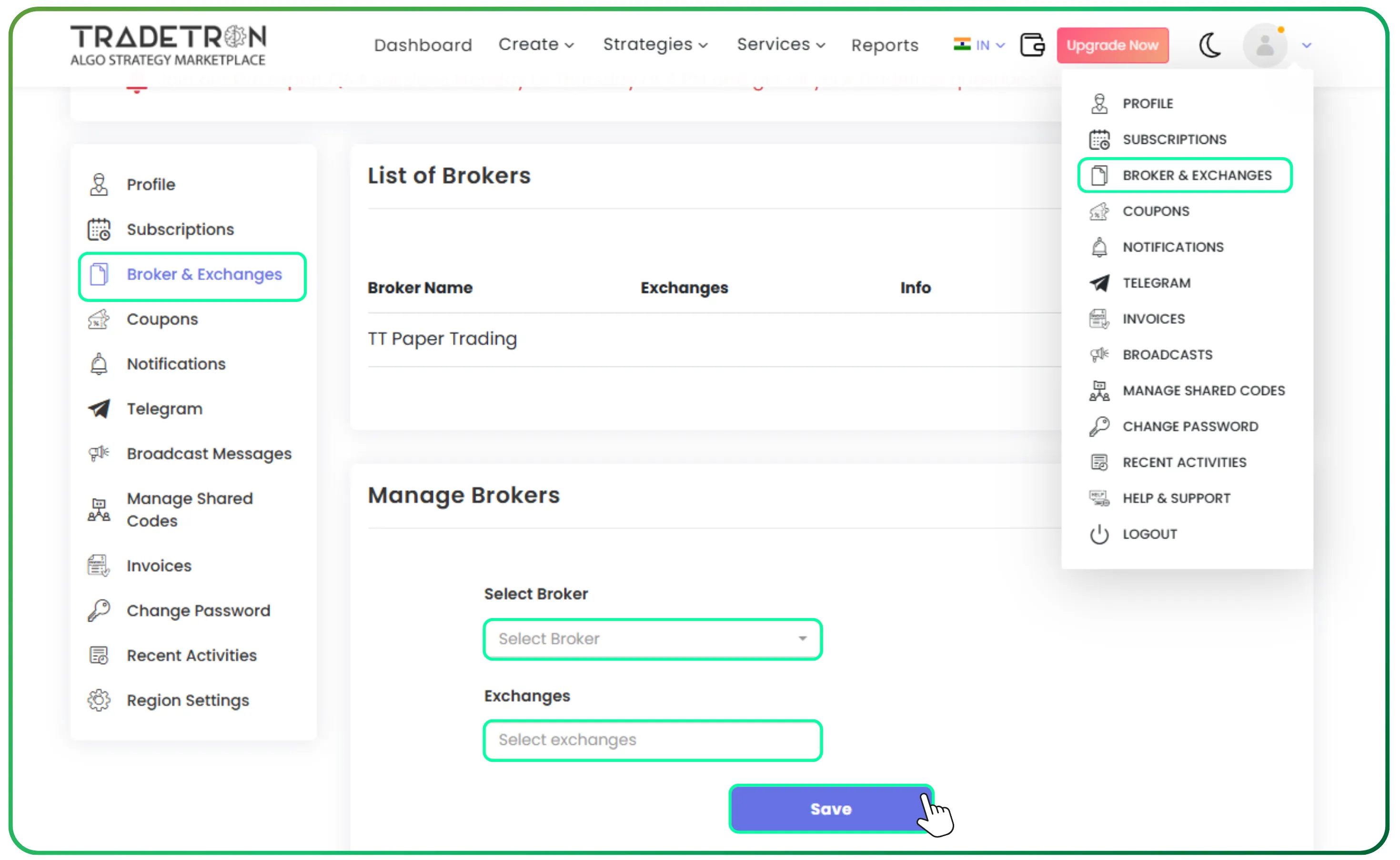
- Click on Add Broker.
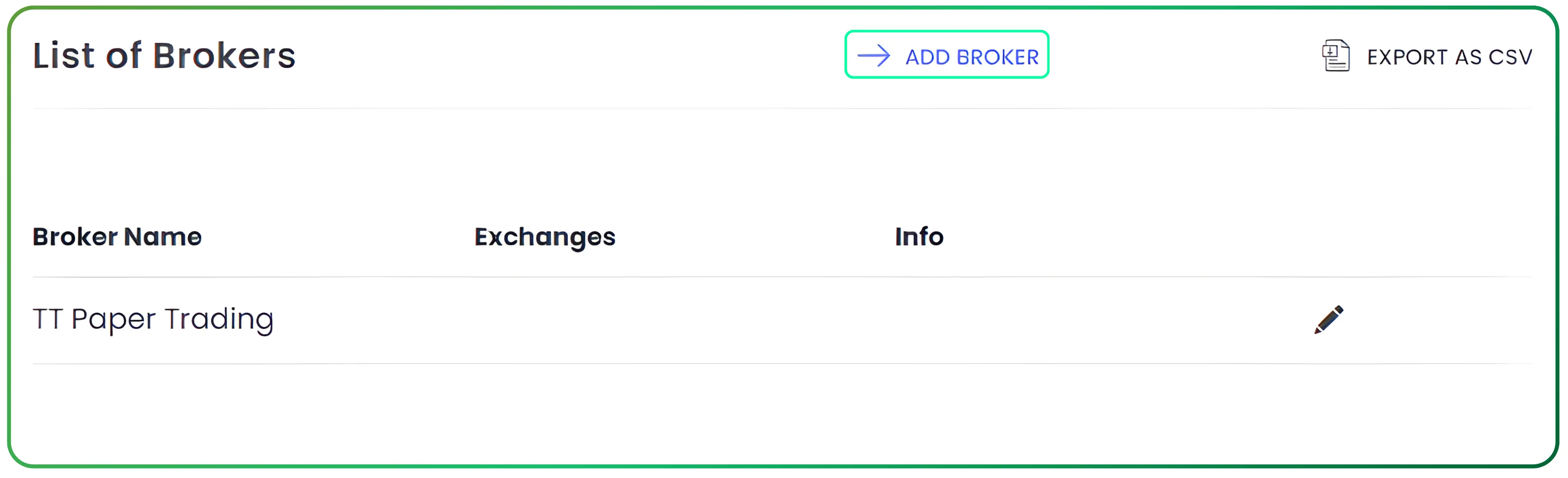
- From the dropdown menu, search for and select Tradejini CubePlus.
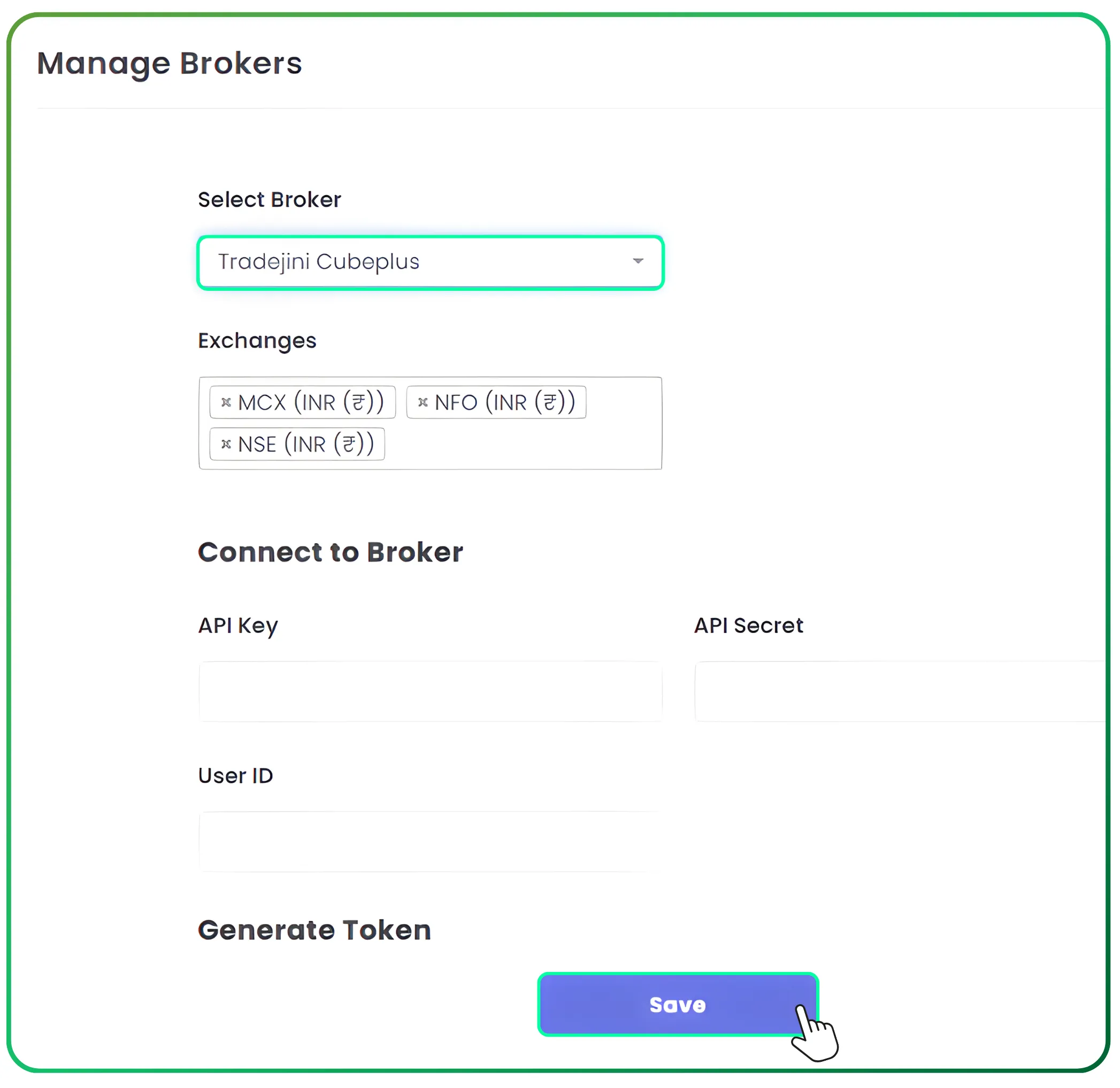
Enter the API Key and API Secret you generated in the previous step.
Enter your Tradejini Client ID.
Click Save.
Step 5: Generate Token
Once the broker is saved, you will see a Generate Token button next to Tradejini in your configured brokers list.
Click this button to authenticate your session.
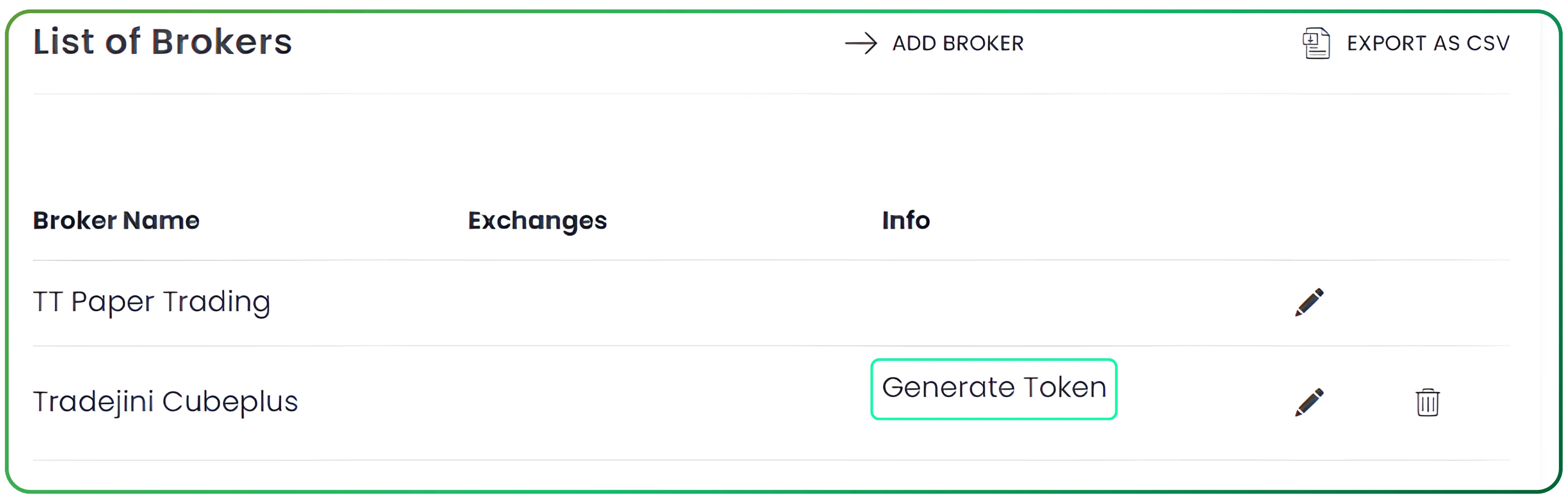
Note: You must generate this token manually every day before trading begins to ensure your connection is active.
Part 2: Setting up Tradejini with Quantiply
The setup for Quantiply requires retrieving specific URLs from the Quantiply dashboard first, and then using them to create your App in the Tradejini portal.
For the official documentation, you can refer to: Quantiply Tradejini Setup Guide.
Step 1: Get Redirect Details from Quantiply
Log in to your Quantiply account.
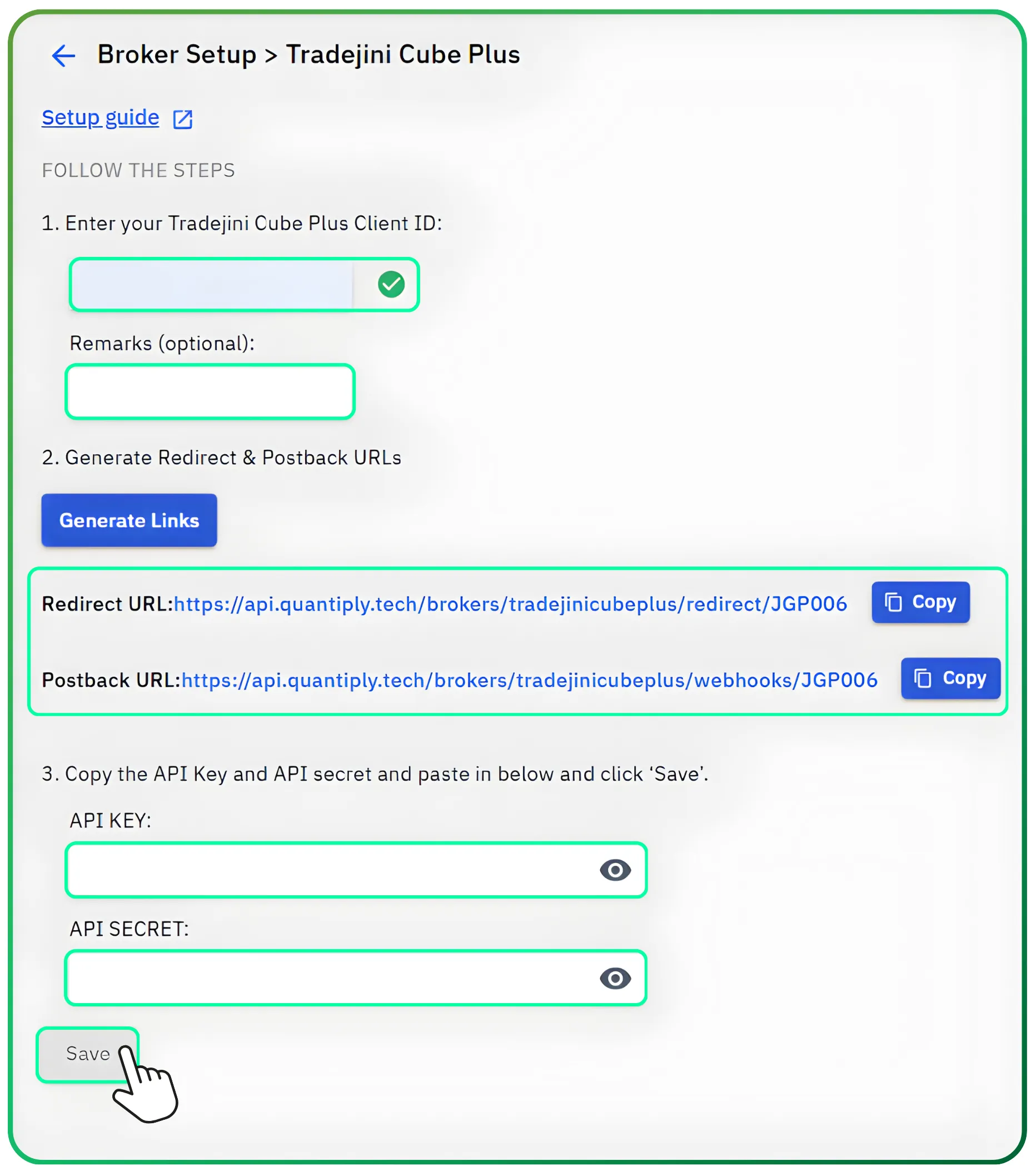
Navigate to the Broker Setup page.
Scroll down to find Tradejini CubePlus and click Setup.
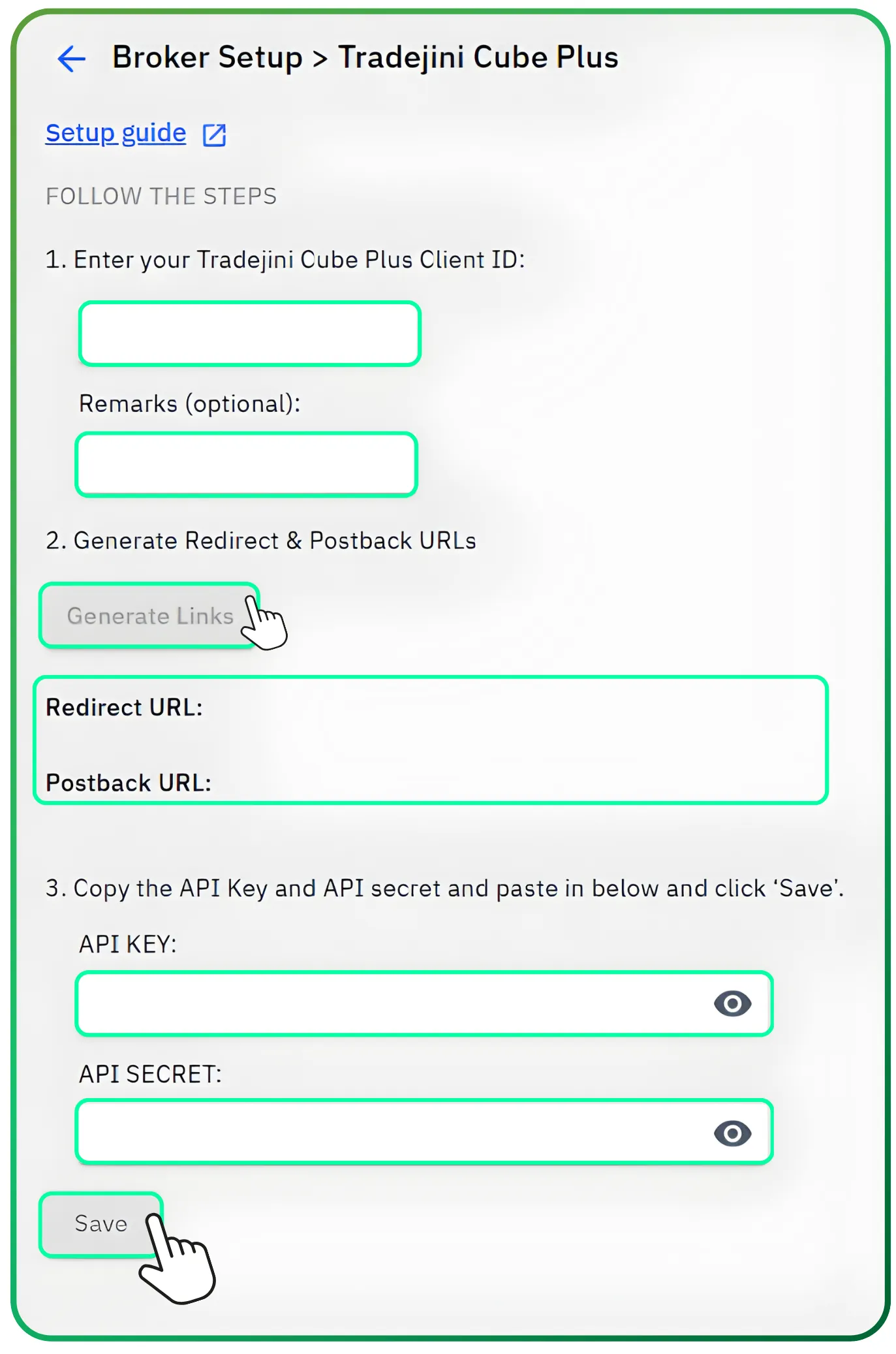
Enter your Tradejini Client ID in the designated field.
Click Generate Links.
You will now see a Redirect URL and a Postback URL. Keep this tab open; you will need to copy these links.
Step 2: Create the Quantiply App in Tradejini
Go back to the Tradejini Developer Portal.
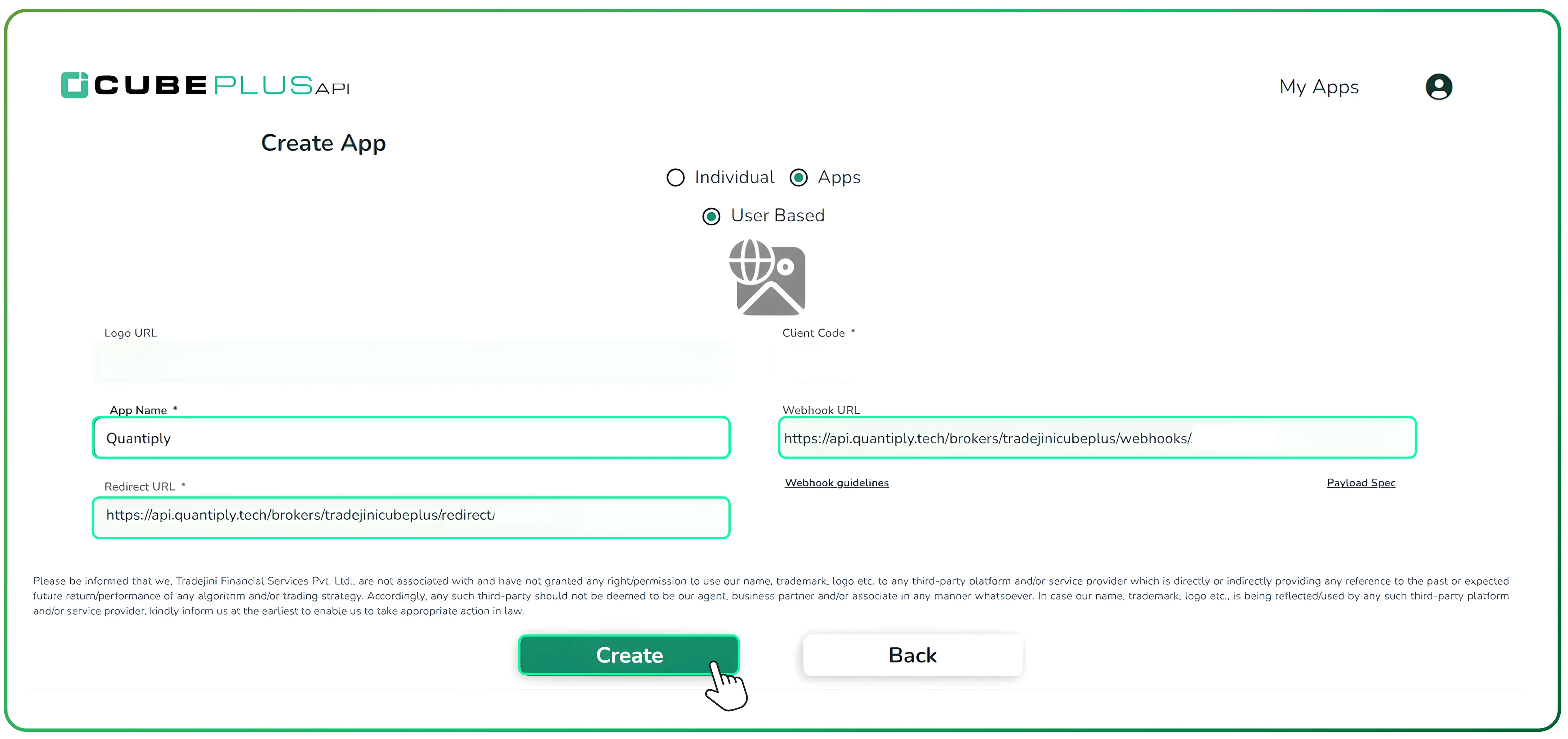
Click on Create New App (or "Apps" > "Create").
Fill in the details using the data from Quantiply:
App Name: Enter any name (e.g., QuantiplyAlgo).
Client Code: Enter your Tradejini Client ID.
Redirect URL: Copy and paste the Redirect URL from the Quantiply setup page.
Webhook URL: Copy and paste the Postback URL from the Quantiply setup page.
Click Create.
Step 3: Complete Configuration in Quantiply
Once the App is created in the Tradejini portal, copy the new API Key and API Secret.
Return to the Quantiply Broker Setup page.
Paste the API Key and API Secret into the respective fields.
Click Save.
Step 4: Verify Connection
After saving, go to the Broker Login page on Quantiply.
Perform a trial login to ensure the integration is successful.
If successful, you will see a status message confirming "Logged In".
Disclaimer: The information provided in our blogs is for informational purposes only and should not be construed as financial, investment, or trading advice. Trading and investing in the securities market carries risk. Always conduct your own research and consult with a qualified financial advisor before making any investment decisions. Past performance is not indicative of future results. Copyrighted and original content for your trading and investing needs.
© 2025 — Tradejini. All Rights Reserved.

%252FCubePlus_Shield_Part%25203%2520Blog%2520Thumbnail.webp%3Falt%3Dmedia%26token%3Da5581624-5761-476f-8451-40c157b54840&w=3840&q=75)
%252FShield%2520on%2520Cubeplus%2520part2.webp%3Falt%3Dmedia%26token%3D252a5b48-a580-4e8d-b939-c82d4696eaef&w=3840&q=75)