Every trader knows the routine. You check NIFTY, then go back, search for HDFC Bank, open its chart, go back again, search for TCS, wait for it to load... By the time you return to the index, it has already moved.
On a phone, this back-and-forth is even more painful. Small screens, the keyboard popping up, lost drawings and settings. It is easy to miss the one move you were waiting for.
Multichart on CubePlus mobile fixes this. Add up to 10 scrips once, and jump between their charts with a single tap. No searching, no reloading, no losing your place.
What Is Multichart?
Multichart is a quick-switch panel on the CubePlus chart screen. At the top of every chart you will see two buttons:
- A number button (for example, 4) that shows how many scrips you have added. Tap it to see them all.
- An Add button that lets you add more scrips to the list, up to 10.
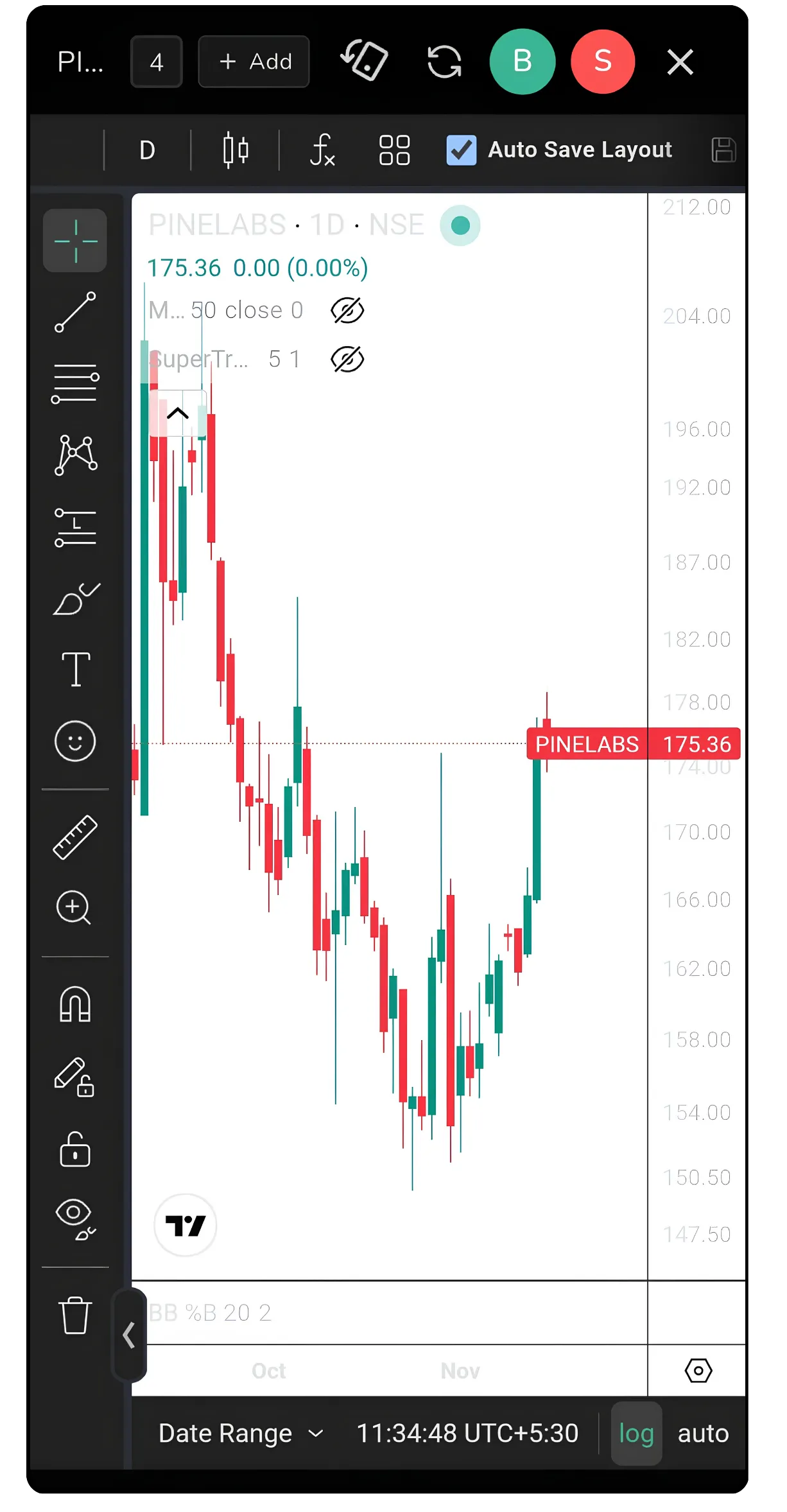
The CubePlus chart screen, with the number button and the Add button at the top.
Tap the number and your scrips appear as a row of tags right on top of the chart. Tap any tag and that chart opens instantly.
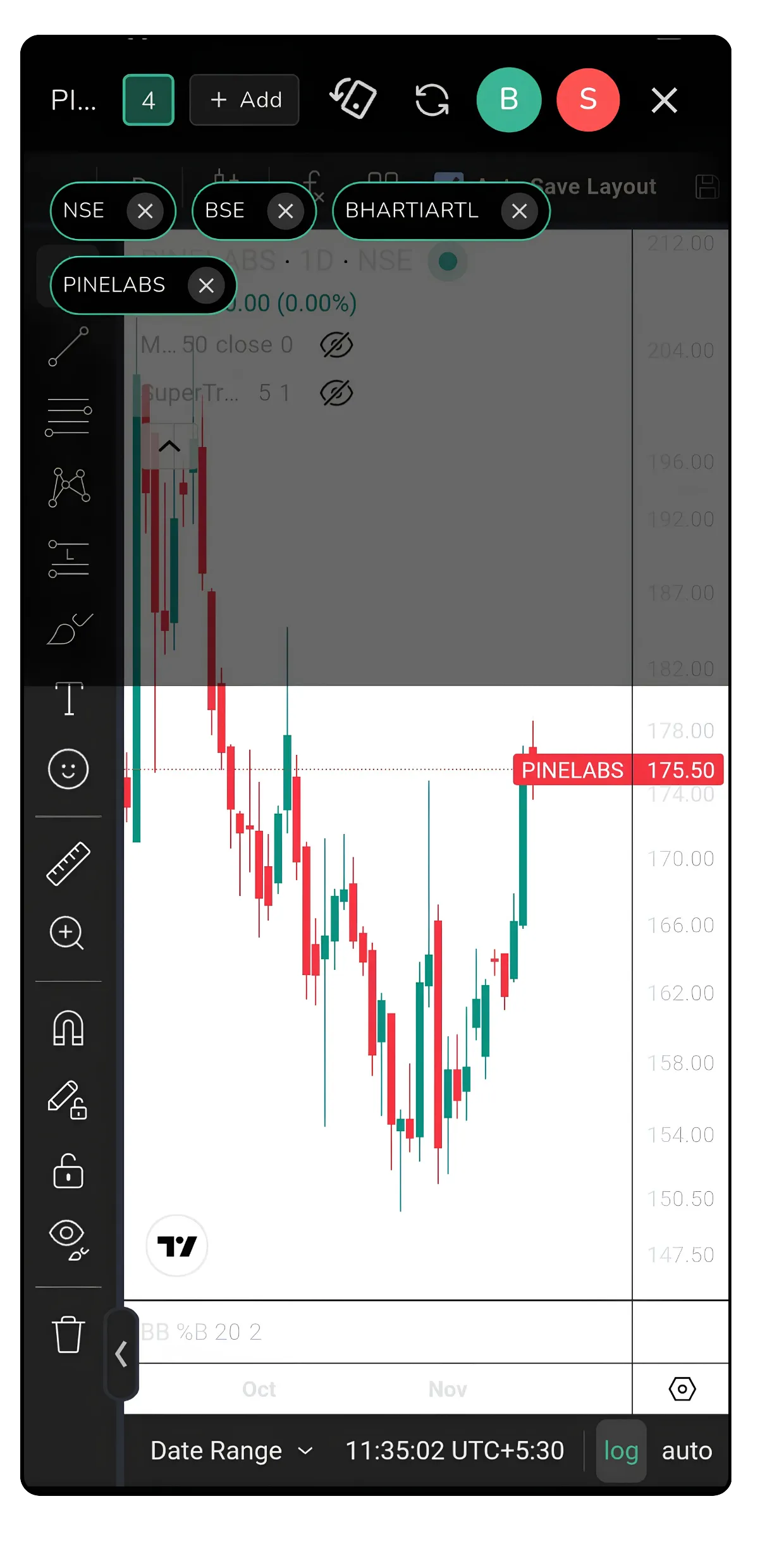
Tap the number to see your added scrips. Tap any one to open its chart.
Why It Matters: Speed, Context and Focus
| Without Multichart | With Multichart |
|---|---|
| Search for each scrip every time | Add once, switch with one tap |
| Lose track of which stocks you were watching | Your shortlist of up to 10 stays at the top of the chart |
| Miss moves while navigating menus | Check 5 or 6 charts in a few seconds |
| Hard to compare the index with stocks | Flip between the index and its heavyweights instantly |
Adding Scrips Takes Seconds
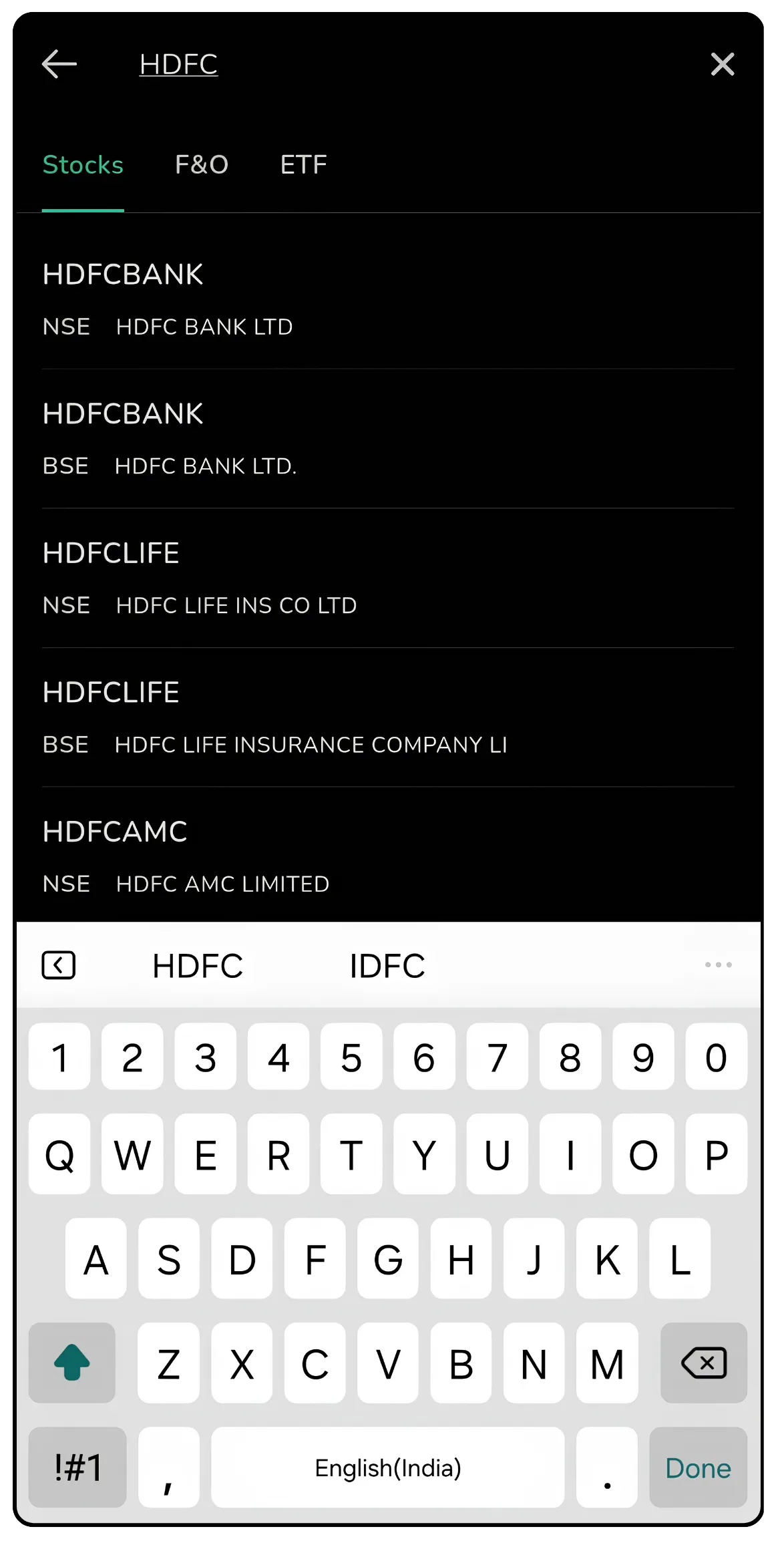
Tap Add, search for the scrip, and select it. You can add stocks, F&O contracts, ETFs and indices such as NIFTY 50, SENSEX and BANKNIFTY.
Tap Add to open the search page, then search for a scrip such as HDFC Bank.

Repeat for each scrip you want. Here, after adding HDFC Bank and TCS, the number button shows 6 and all six scrips are listed at the top.
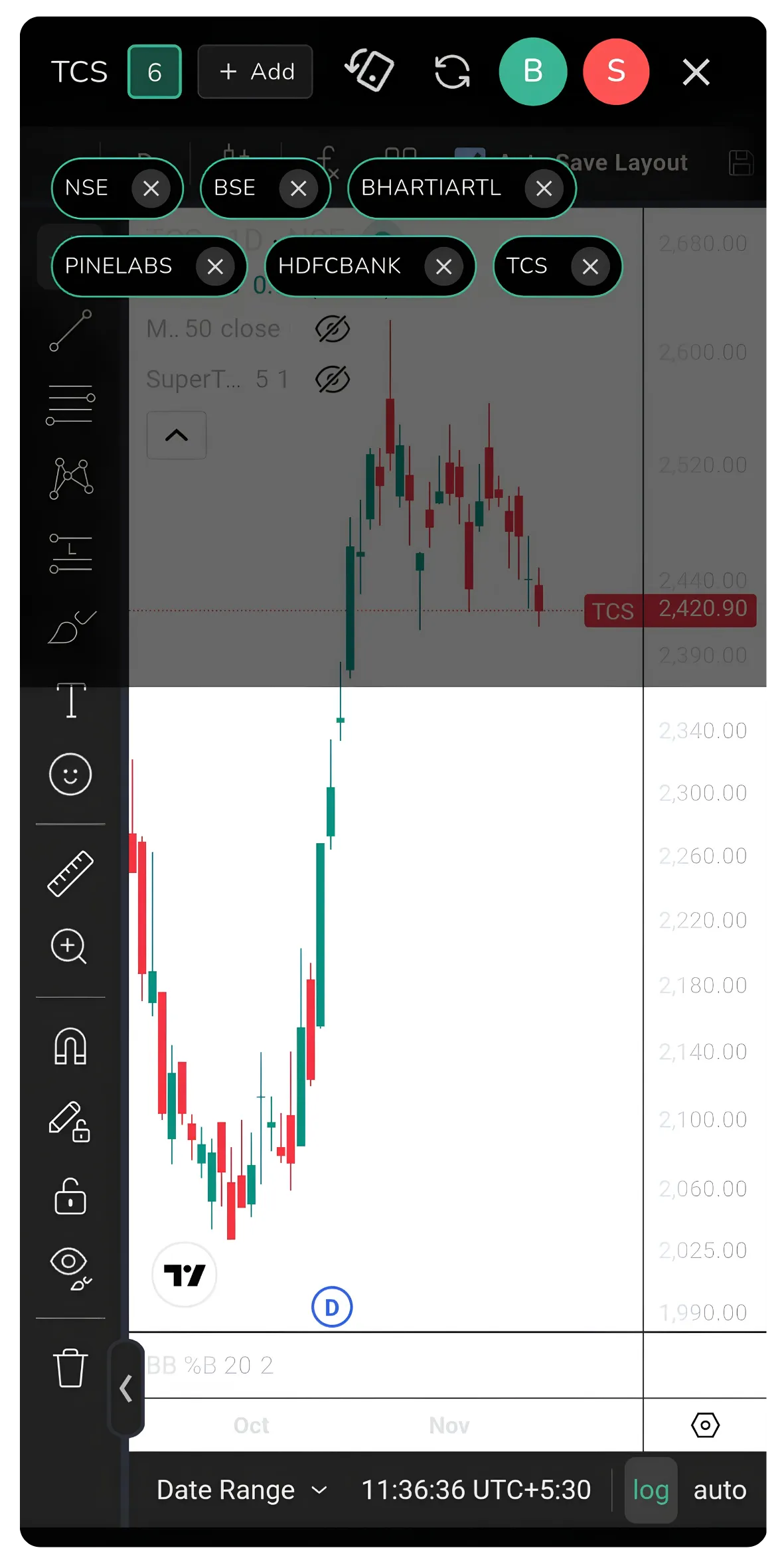
Six scrips added. Tap any one, such as TCS, to open its chart.
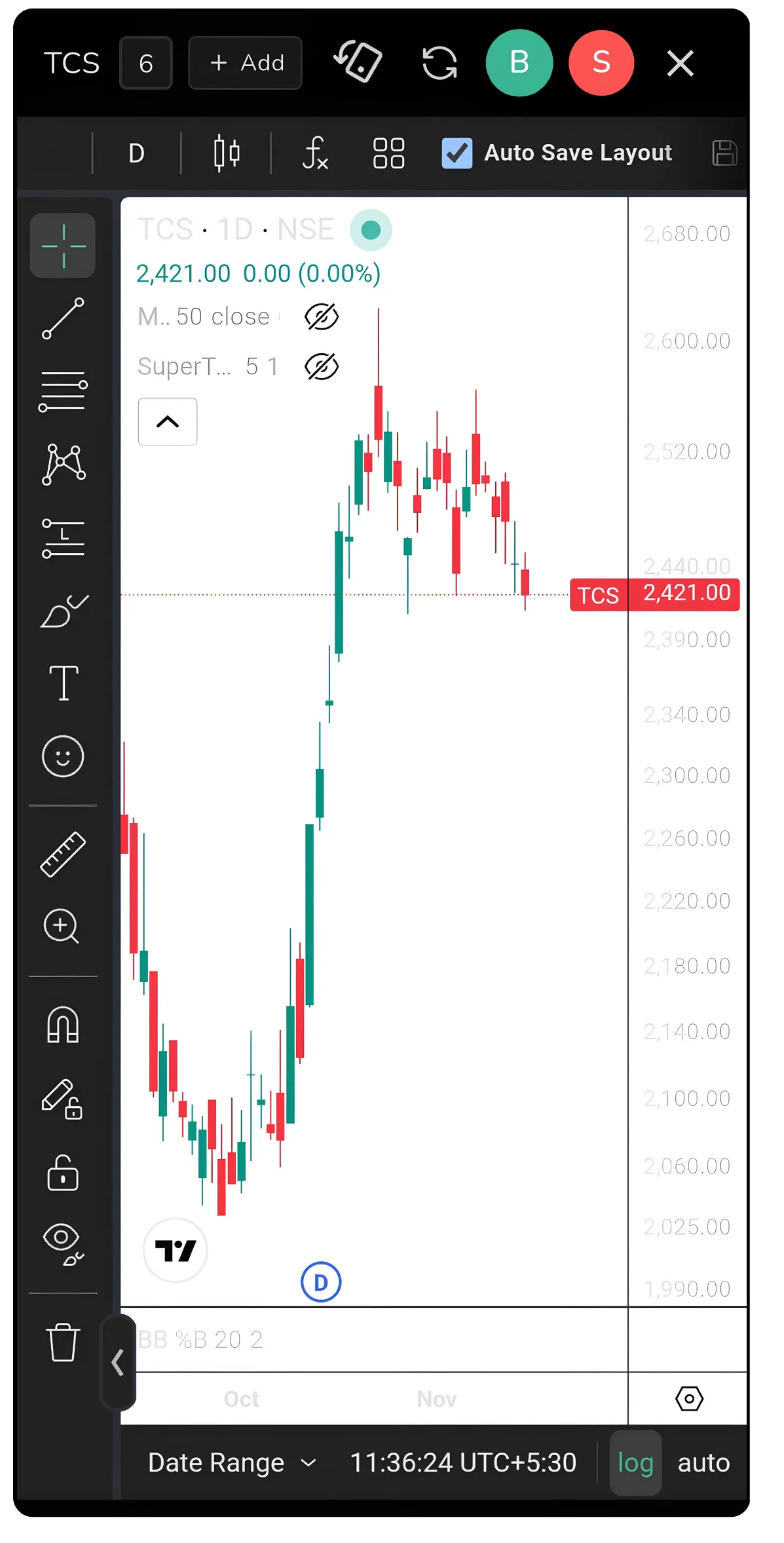
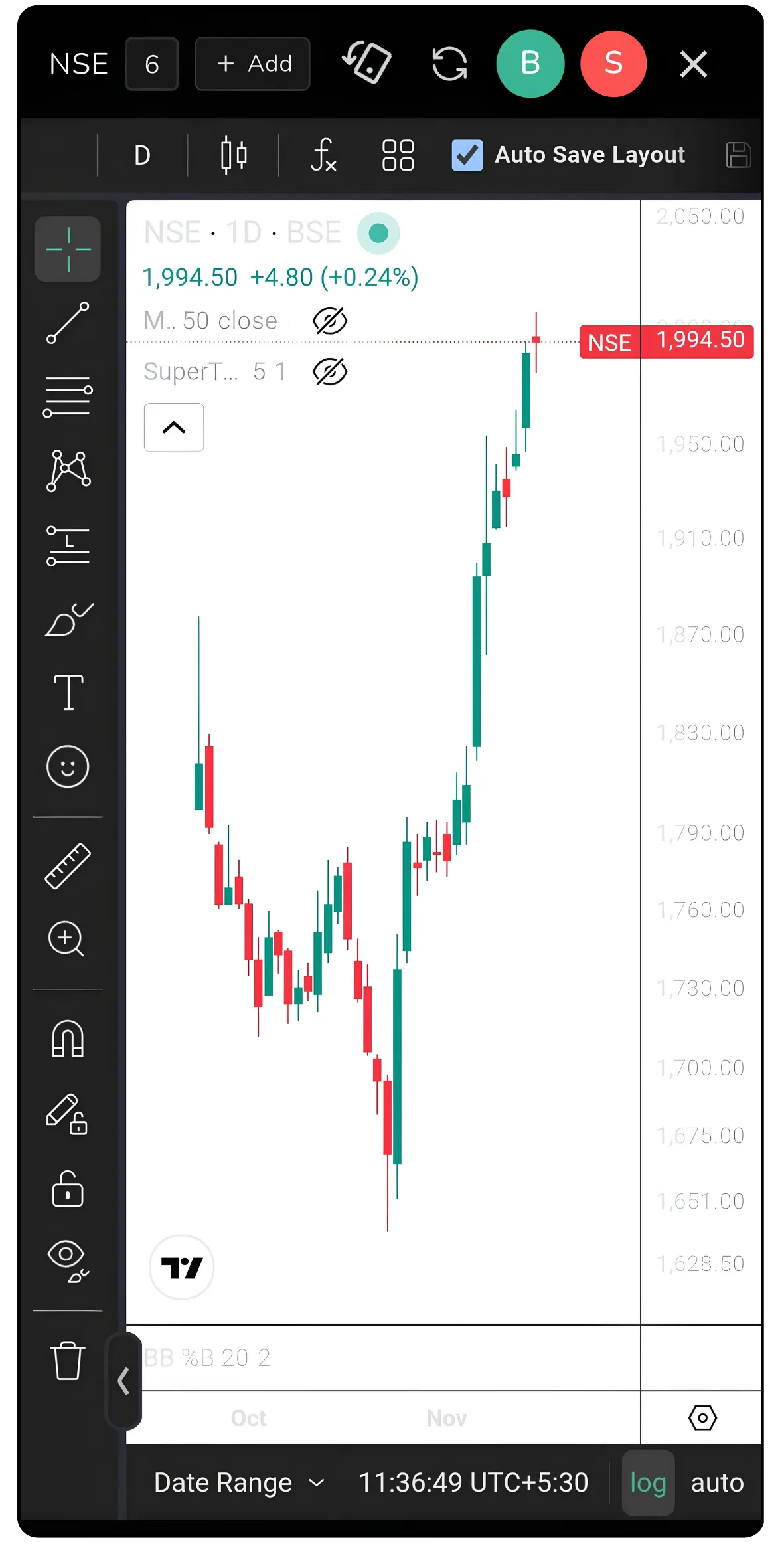
One tap takes you from the TCS chart to the NSE chart, with no searching in between.
How Traders Can Use Multichart: 7 Practical Ideas
1. The index-first, stocks-next routine
Add NIFTY 50 or BANKNIFTY, plus its biggest stocks (for example HDFC Bank, ICICI Bank, Reliance, Infosys, TCS). Check the index first to see the market's direction, then flip through the heavyweights to see which ones are leading or lagging. If the index is rising but its biggest constituents are not, the move may lack strength.
2. Options traders: watch the underlying and the index together
Trading BANKNIFTY options? Keep BANKNIFTY, HDFC Bank, ICICI Bank, Kotak Bank and Axis Bank in your Multichart. Before you buy or sell a strike, a few taps tell you whether the banks are moving together or pulling in different directions.
3. Opening-bell breakout list
Before 9:15, add the 8 to 10 stocks you expect to break out. Once the market opens, cycle through them every few minutes. You are not hunting for scrips while the move happens; your list is already there.
4. Sector rotation check
Build a quick sector basket: one or two leaders each from IT, banks, autos, pharma and metals. Flipping through them shows where money is flowing today, all from your phone.
5. Pair comparison
Comparing two similar companies, such as TCS and Infosys, or HDFC Bank and ICICI Bank? Add both and switch back and forth to compare structure, trend and key levels in seconds.
6. Results-season tracker
During earnings season, add the companies reporting this week. After each announcement, check how the chart reacts without searching for each name again.
7. Portfolio health check on the go
Long-term investors can add their top holdings and run a quick visual check during a coffee break: which stocks are holding support, which ones are breaking down, and where a stop-loss may need attention.
Tips to Get the Most Out of Multichart
- Keep it focused. Ten is the limit, but six to eight well-chosen scrips are easier to track than ten random ones.
- Build it before the market opens. Set up your list the night before or before 9:15, so you are ready from the first candle.
- Group with a purpose. An index with its constituents, one sector, or one strategy works better than a mixed bag.
- Refresh your list. Remove scrips that are no longer in play and add new ones as the day's story changes.
- Use the same timeframe. Comparing charts is easier when they all use the same interval.
The Bottom Line Markets reward traders who see the full picture quickly. Multichart on CubePlus mobile puts up to 10 charts one tap apart, so you can read the index, check the leaders and spot the setup, wherever you are.
Open the CubePlus app, go to any chart, tap Add, and build your first Multichart list today.
Disclaimer: The information provided in our blogs is for informational purposes only and should not be construed as financial, investment, or trading advice. Trading and investing in the securities market carries risk. Always conduct your own research and consult with a qualified financial advisor before making any investment decisions. Past performance is not indicative of future results. Copyrighted and original content for your trading and investing needs.
© 2026 — Tradejini. All Rights Reserved.