Markets move in seconds. The breakout you were waiting for, the strike that suddenly gets bid, the results-day gap: by the time you open a scrip, open the order window, pick the product, type the quantity and confirm, the price you wanted is often gone.
Pro Mode on the CubePlus mobile app removes those steps. It turns your watchlist into a trading pad: every scrip gets its own Buy and Sell buttons showing the live best price and quantity, with a quantity box in between. Type the quantity, tap, done. No separate order-entry screen for each scrip.
Here is how to set it up, how to read what the buttons are telling you, and how different kinds of traders can put it to work.
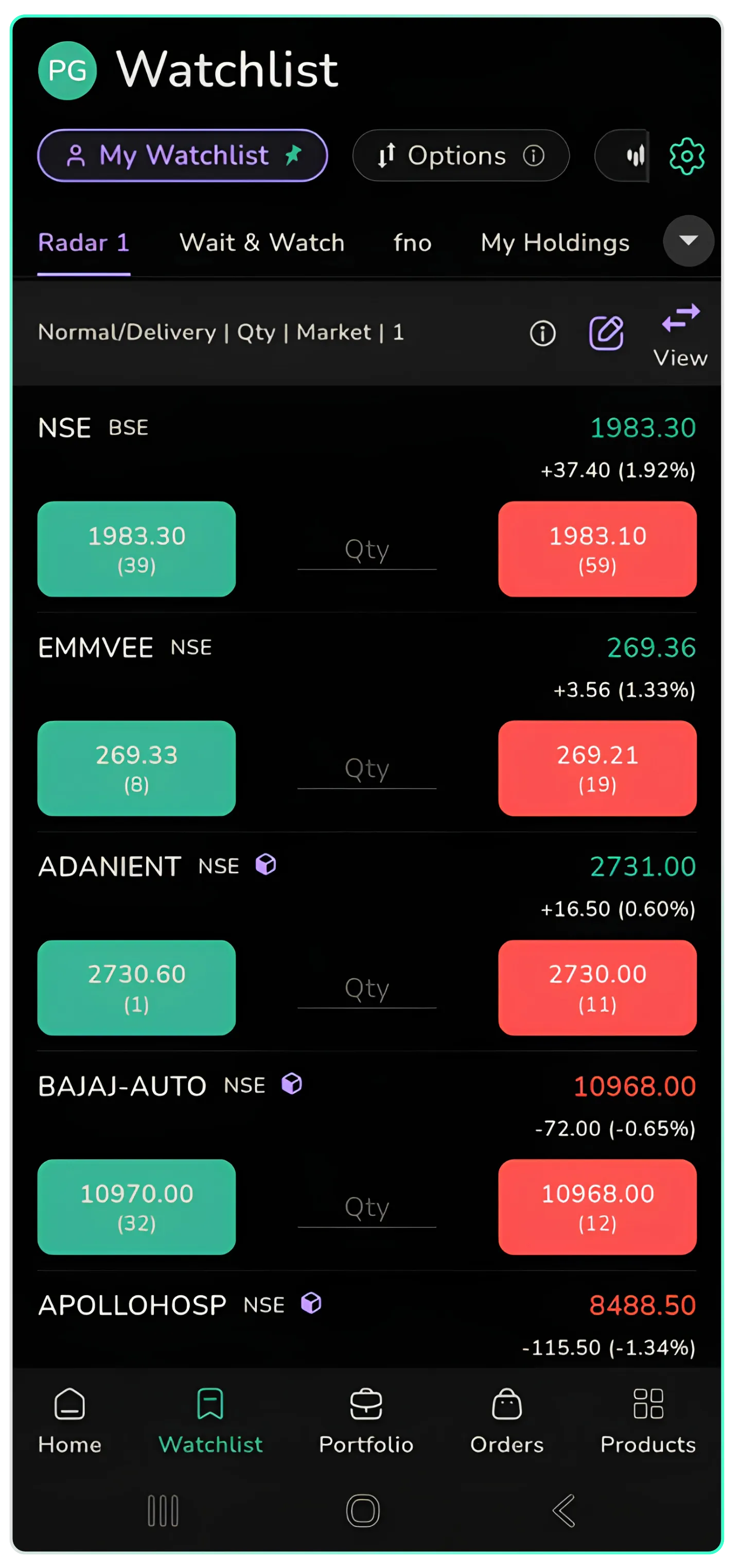
How Traders Can Use ProMode : Six Real Use Cases
The options scalper on NIFTY expiry. Open the Options watchlist and switch on Pro Mode . ATM and near-ATM CE and PE strikes now sit one below the other, each with its live best bid and ask. Set Products to Intraday, Qty / Lots to Lots and the multiplier to your standard size. When the index breaks your level, tap Buy on the CE (or PE). No searching for the strike, no order screen. When the target or stop is hit, tap Sell on the same row to exit.
The opening-bell momentum trader. Build a watchlist of the day's breakout candidates before 9:15, the way the Radar and Wait & Watch lists are used in the screenshots. Pre-fill the quantity for each scrip. When a stock breaks above its opening range, one tap sends the order while others are still opening the scrip page.
Results-day trader. Earnings announcements create sharp gaps and fast moves. Use Pro Mode inside the Results section to trade the companies reporting today directly from that list. Because liquidity can vanish around the announcement, glance at the bracket quantities and the spread on the buttons first, and prefer a limit order when the book looks thin.
Quick exit and profit booking. Pro Mode works on My Holdings too. If a holding spikes on news, or breaks below your stop, the Sell button with the current best bid is right there. Set Products to Normal for delivery holdings so the sell order goes against the shares you actually own.
Fast hedge for an open position. Holding a long futures or stock position when the index suddenly turns? From the Options or Index section, buy a protective put with one tap instead of navigating through menus while the market falls.
Liquidity scan before you trade. Even if you do not place the order through Pro Mode , the view is a fast way to check spreads and best-level quantities across your whole watchlist. Scrips with wide spreads or tiny bracket quantities are the ones to avoid for market orders, or to trade only with limits.
How to Access Pro Mode
Open the CubePlus app and tap Watchlist in the bottom navigation bar. This takes you to the My Watchlist screen, with your custom watchlists and the default views for F&O Stocks and My Holdings. The Pro Mode icon sits at the top-right of the watchlist.
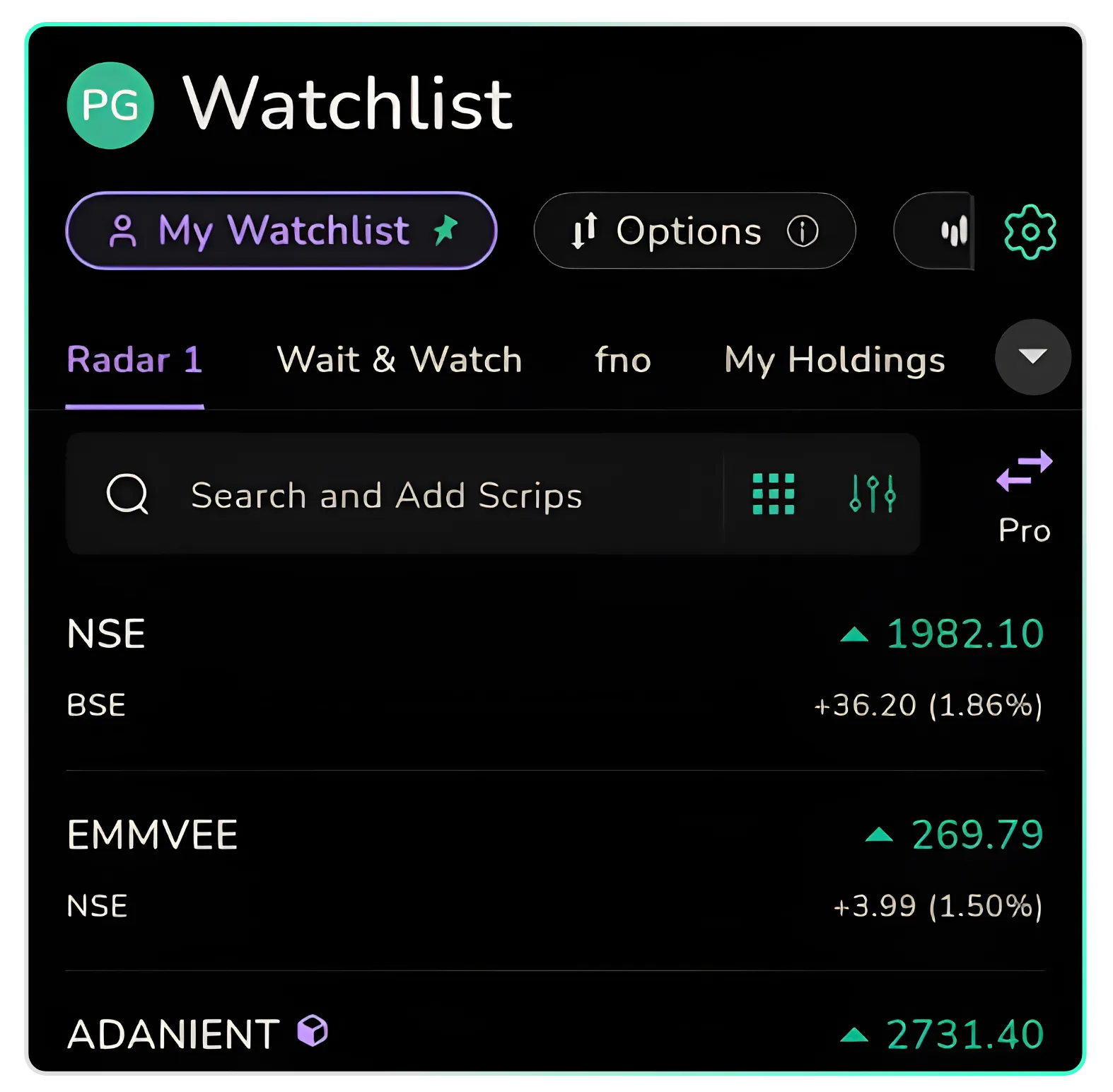
My Watchlist screen with the Pro Mode icon at the top-right.
Read the Buttons: A Mini Market Depth on Every Row
Tap the Pro Mode icon to switch to the quick-order view. Each scrip now shows a Buy button and a Sell button:
- Buy button: the lowest Ask Price, with the Ask Quantity in brackets. This is the best price a seller is offering right now.
- Sell button: the highest Bid Price, with the Bid Quantity in brackets. This is the best price a buyer is paying right now.
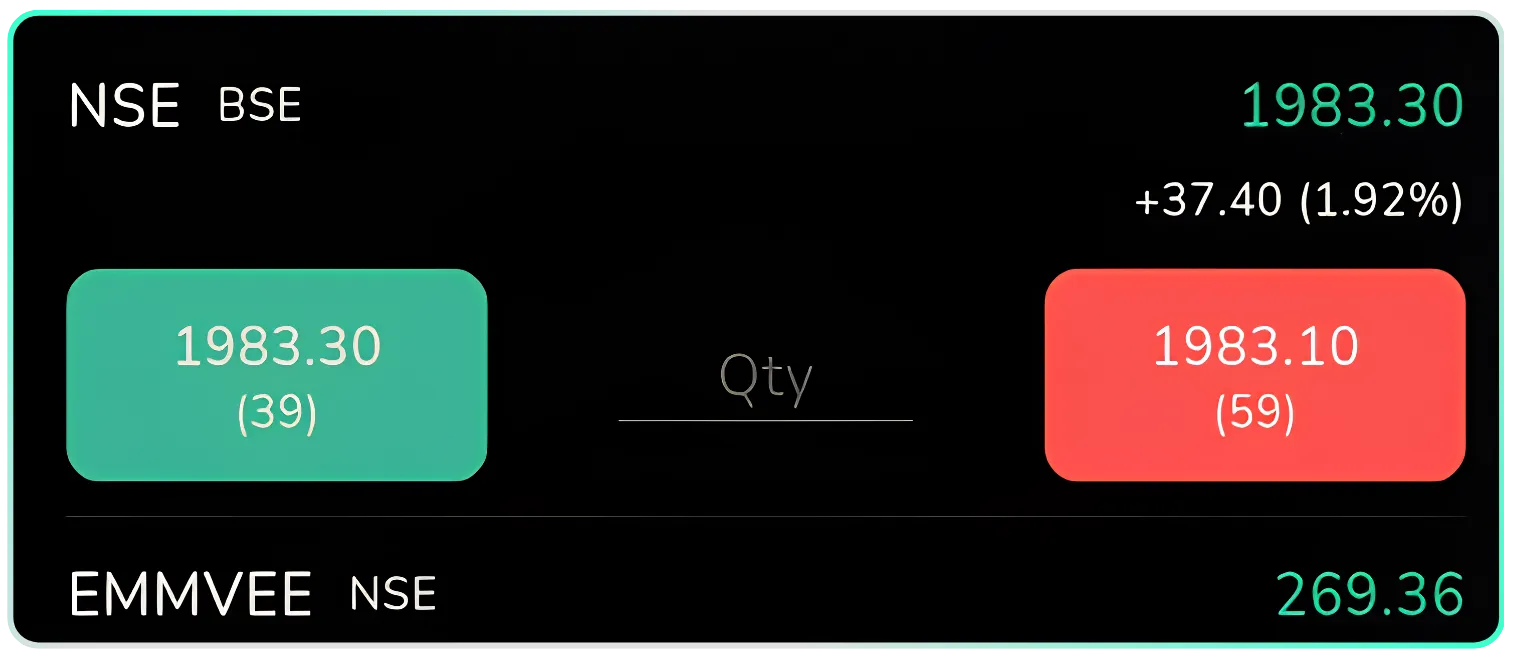
Pro Mode view displays Buy and Sell buttons against each scrip.
This is more useful than it looks. Without opening a single market-depth screen, you can see two things a trader should check before every order:
- The spread. The gap between the Buy and Sell prices. A tight spread means you can get in and out cheaply. A wide spread means you lose money the moment you enter.
- The liquidity. The quantities in brackets. If the best ask shows only 1 share and you want to buy 500, most of your order will fill at higher prices further up the book.
In the screenshot above, for example, one row shows a best ask with a quantity of just 1 against a best bid of 11. A trader scanning the list can spot that thin side instantly and switch to a limit order for that scrip.
Enter the Quantity and Tap
Type the quantity you want in the field between the Buy and Sell buttons, then tap Buy or Sell to submit the order request. Tap the View toggle any time to switch back to the normal watchlist.
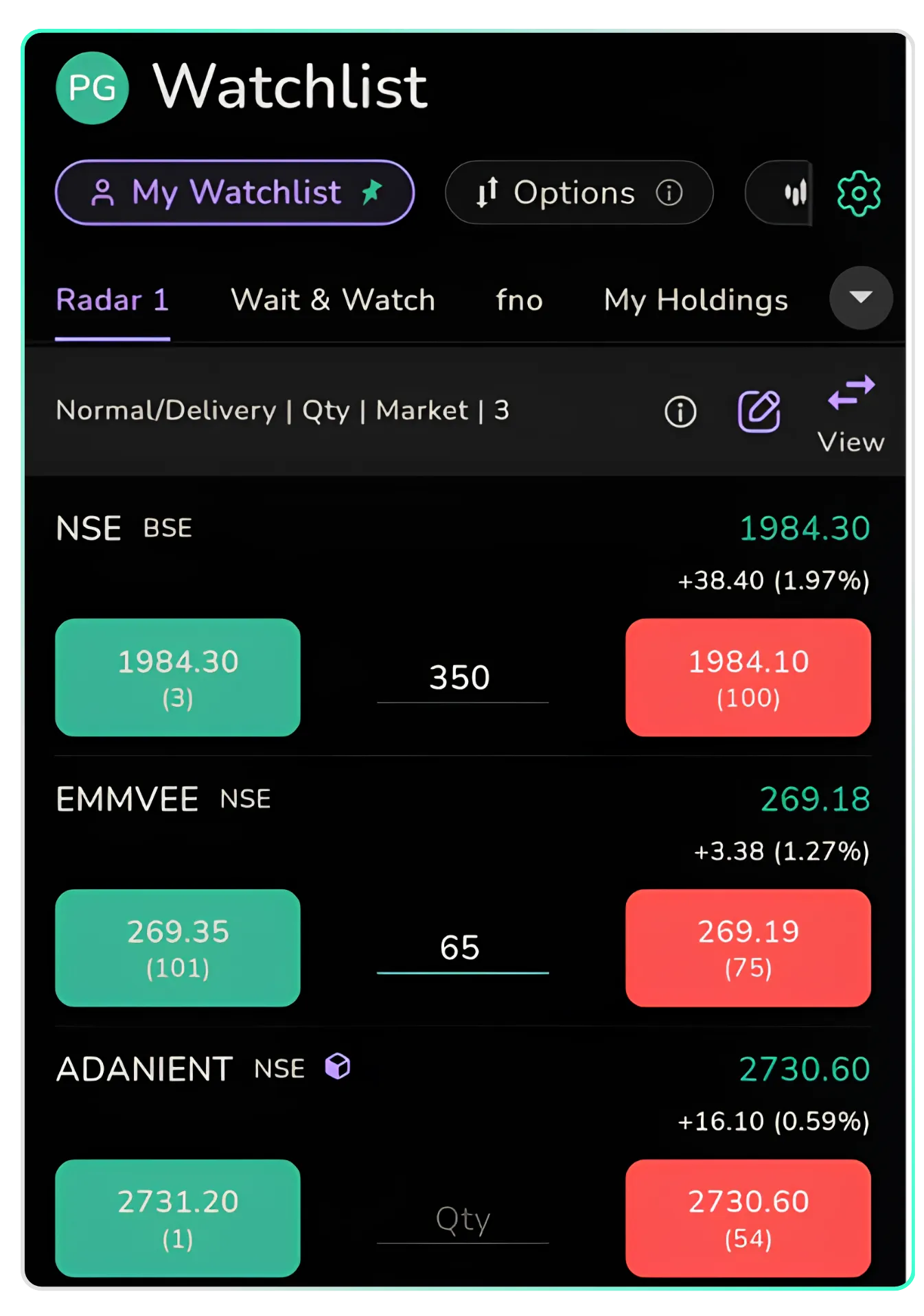
Enter the quantity in the field between the Buy and Sell buttons.
Set Your Defaults Once, Trade Faster All Day
Tap the pencil icon in the Pro Mode view to open Settings. Choose your default Products (Normal or Intraday), Qty / Lots, Order Type (Market or Limit) and Lot multiplier. The current settings are shown in the strip at the top of the Pro Mode view (for example, Normal/Delivery | Qty | Market | 1), so you always know what a tap will send.
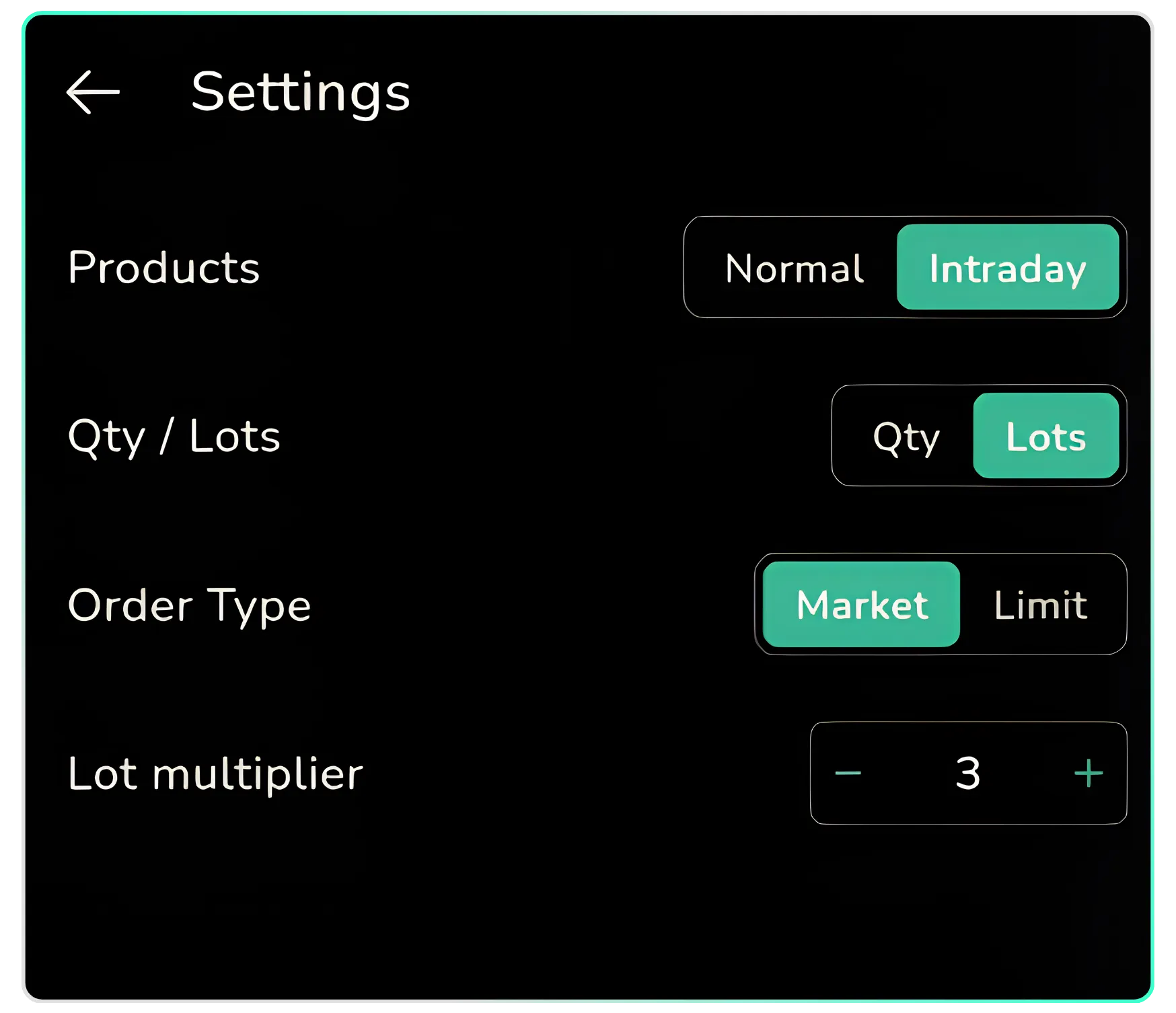
Settings screen for configuring default order preferences.
Pro Mode Across Watchlists
Pro Mode is not limited to your stock watchlist. It also works in the Options, Index and Results sections, so you can trade NIFTY, BANKNIFTY and SENSEX option strikes, index contracts and results-day stocks from the same quick-order view.
Pro Mode icon displayed in the Options watchlist. The feature is also available for Index and Results.
Good defaults depend on how you trade. Here is a starting point:
| Trader type | Products | Qty / Lots | Order Type | Lot multiplier |
|---|---|---|---|---|
| Index options scalper | Intraday | Lots | Limit in fast or thin strikes; Market only for liquid ATM strikes | Your standard size, e.g. 1 to 3 |
| Intraday stock momentum trader | Intraday | Qty | Limit for entries; Market for urgent exits | 1 |
| Swing / delivery investor | Normal | Qty | Limit | 1 |
| F&O futures trader | Intraday or Normal, as per holding period | Lots | Limit | Your standard size |
Tip: the lot multiplier is your position-size dial. Set it to your normal trade size so that one tap always sends the size you planned, not whatever you typed last time.
Understand the Quick Order Rules
Tap the information icon on the Pro Mode screen to view the Quick Order Rules. Orders can be placed with one click. The Buy button shows the lowest Ask Price and Ask Quantity; the Sell button shows the highest Bid Price and Bid Quantity. One click means speed, and it also means there is no second confirmation screen, so check your settings strip before you tap.
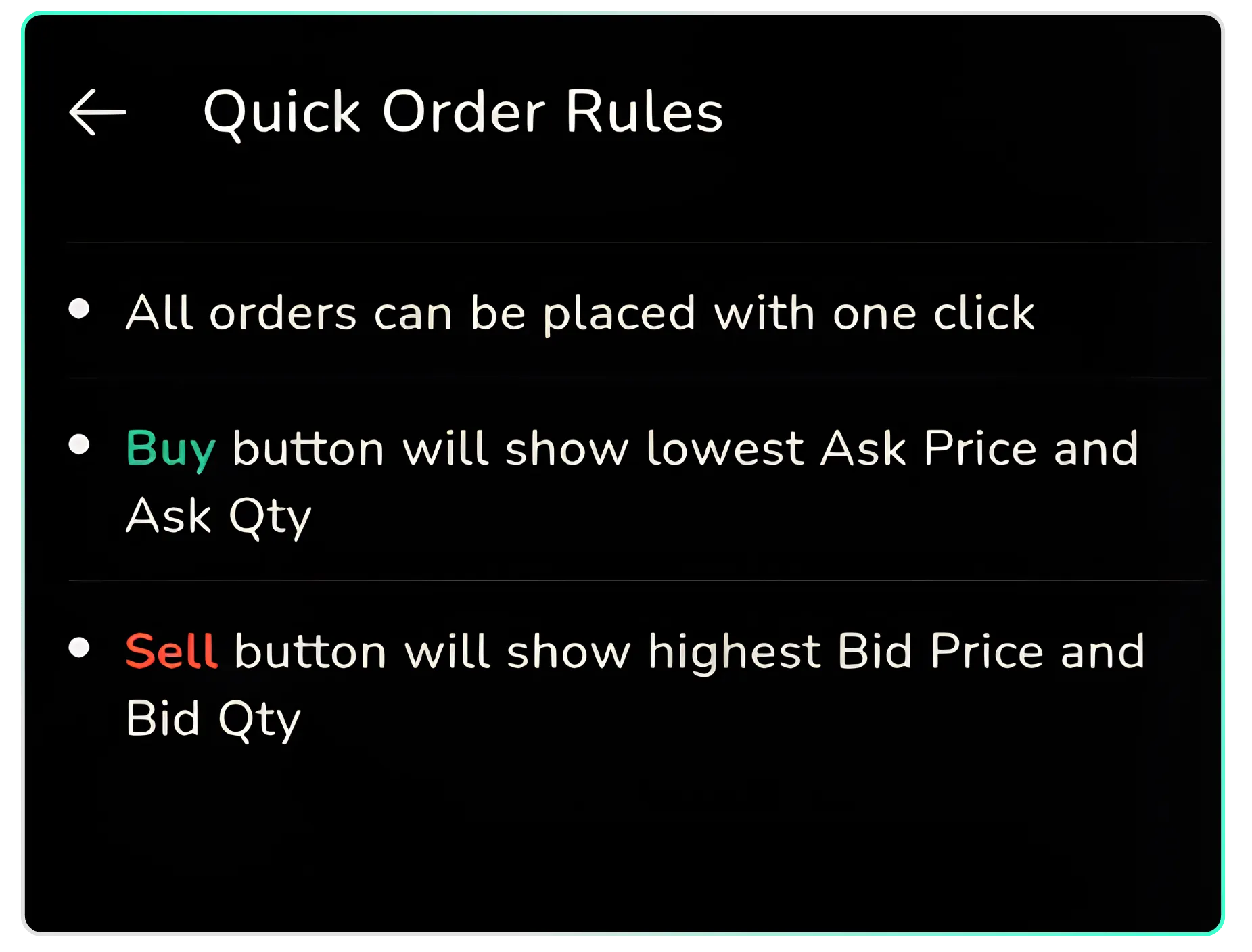
Quick Order Rules explaining the prices and quantities displayed on the buttons.
Check Your Order Request
After you tap Buy or Sell, a confirmation message, "Order request submitted", appears at the bottom of the screen. To see the status of the order, tap Orders in the bottom navigation bar. Remember that "submitted" is not the same as "executed": a limit order may still be pending.
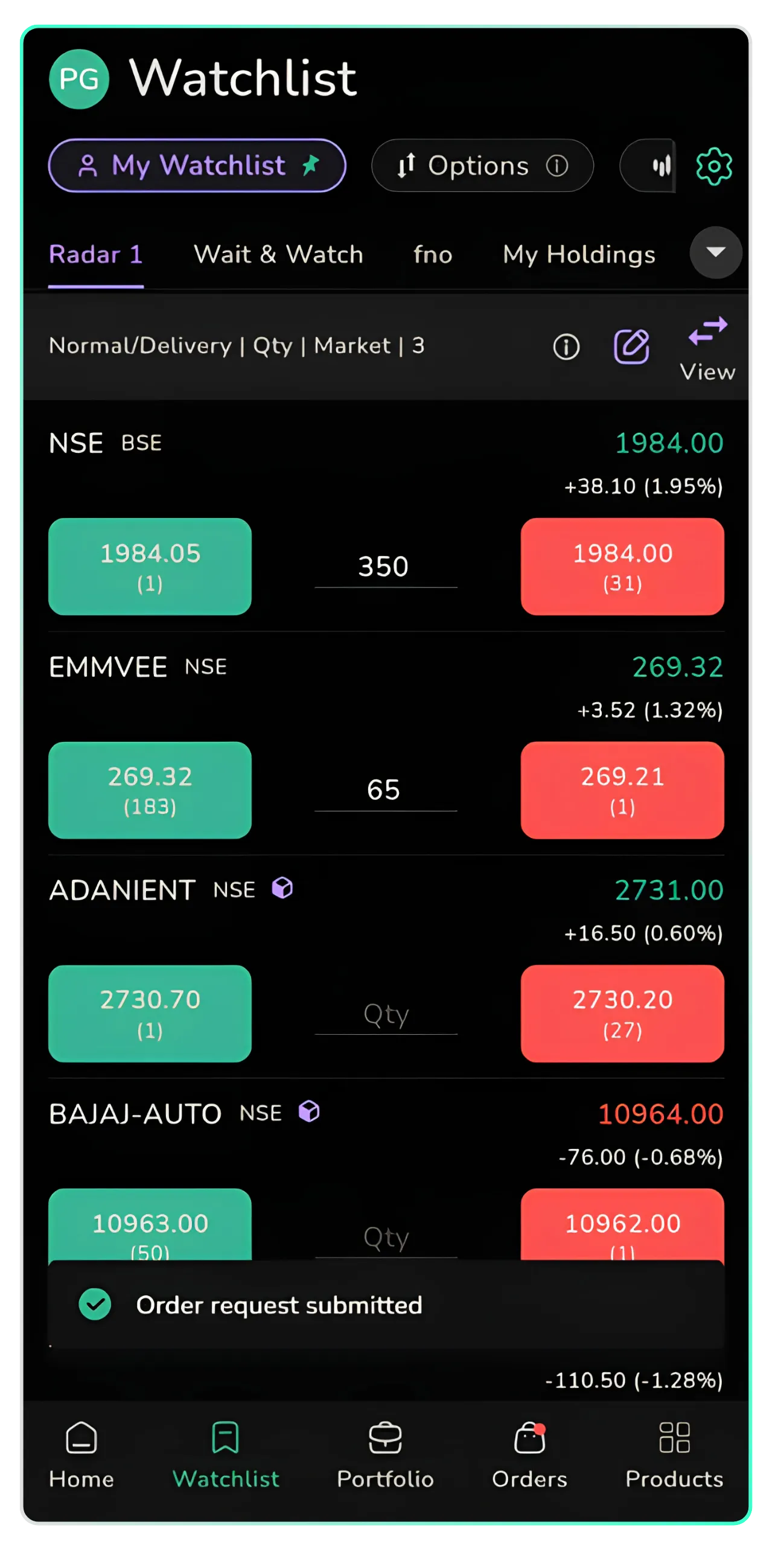
The confirmation message appears after the order request is submitted.
A Quick Safety Checklist for One-Tap Trading
Speed helps only when the order is right. Before you start tapping, make it a habit to check:
- Product: Intraday or Normal? An intraday order on a delivery holding, or the other way round, can cause problems.
- Qty or Lots: "3" in Lots mode on an index option is three full lots, not three units.
- Market or Limit: Market orders fill at whatever price is available. In thin or fast markets, use Limit.
- Which button: Green Buy on the left, red Sell on the right. Slow down for one second before you tap.
- Order status: Confirm in the Orders tab that the order executed, not just that the request was submitted.
With Pro Mode, you can view live best prices, enter quantities and submit buy or sell order requests directly from the CubePlus mobile watchlist. Set it up once, keep your watchlists sharp, and let your trading speed match the market's.
Disclaimer: The information provided in our blogs is for informational purposes only and should not be construed as financial, investment, or trading advice. Trading and investing in the securities market carries risk. Always conduct your own research and consult with a qualified financial advisor before making any investment decisions. Past performance is not indicative of future results. Copyrighted and original content for your trading and investing needs.
© 2026 — Tradejini. All Rights Reserved.