Most traders focus heavily on getting entries right. Far fewer spend the same effort thinking about how positions are monitored, adjusted, and exited once the trade is live. That gap is where most avoidable losses occur, especially in professional option trading software environments. Not because the idea was wrong, but because exposure drifted unnoticed, legs behaved differently than expected, or decisions were delayed due to lack of clarity after execution.
Once a trade is executed, the market does not pause. Greeks change in real time. Margins shift dynamically. Volatility compresses or expands. A position that looks balanced at entry can quietly turn directional. When this happens across multiple stocks or strategies, the real problem is no longer execution. It is visibility and control within the position management workflow.
Also Read: Precision Index Trading With One Tap Execution
The Trades feature in NxtOption exists for this exact phase of trading and functions as a dedicated NxtOption Trades feature guide for active traders. It is not an order placement screen and it is not a passive position list. It is the workspace where all open positions are monitored, analyzed, grouped, and acted upon in real time. This is where execution ends and position management begins.
What is the Trades feature in NxtOption
Trades is the position management and execution-control hub inside the NxtOption platform. It brings together every open position, pending order, risk metric, and analysis tool into one unified interface. Metrics are aggregated where needed and expanded only when required.
Understanding the Trades workspace
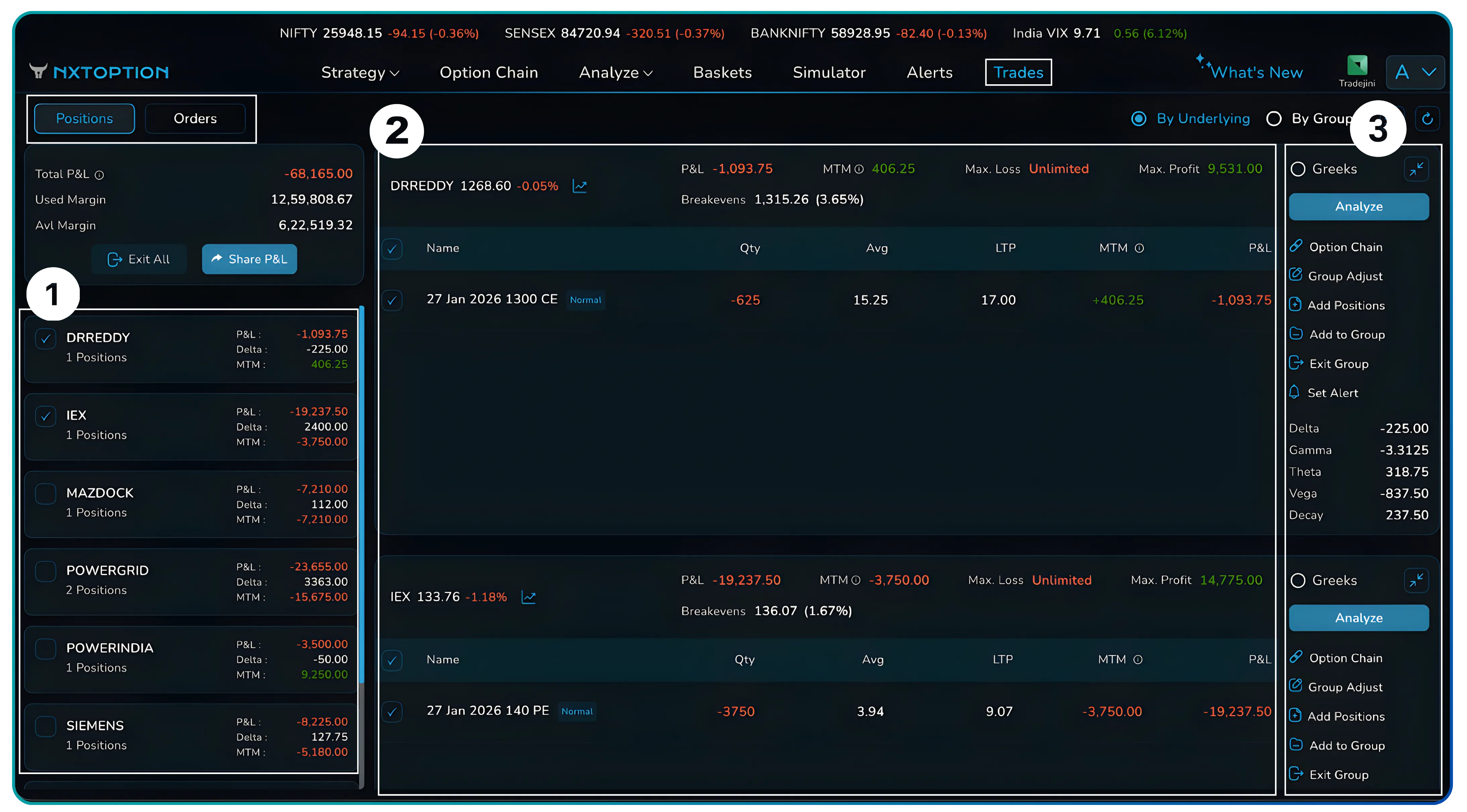
When you open Trades, the interface is divided into three functional layers.
- A side list that gives you a portfolio snapshot,
- Main pane that shows position-level detail,
- Action panel that lets you analyze or modify positions without leaving the screen.
The Positions tab is the default working view. It shows all open positions and updates in real time, enabling real-time Greeks monitoring across your entire tradebook.
The Orders tab sits alongside it and focuses purely on execution tracking. Here you can toggle between open orders and executed orders. Executed orders are displayed in a structured table showing the symbol, quantity, traded price, average price, product type, order status, trade value, and execution time. This gives you a clean audit trail without cluttering the position view.

The Open Orders tab is used to track your pending and active orders.

Also Read: Rolling an open positions with adjust button in NxtOption
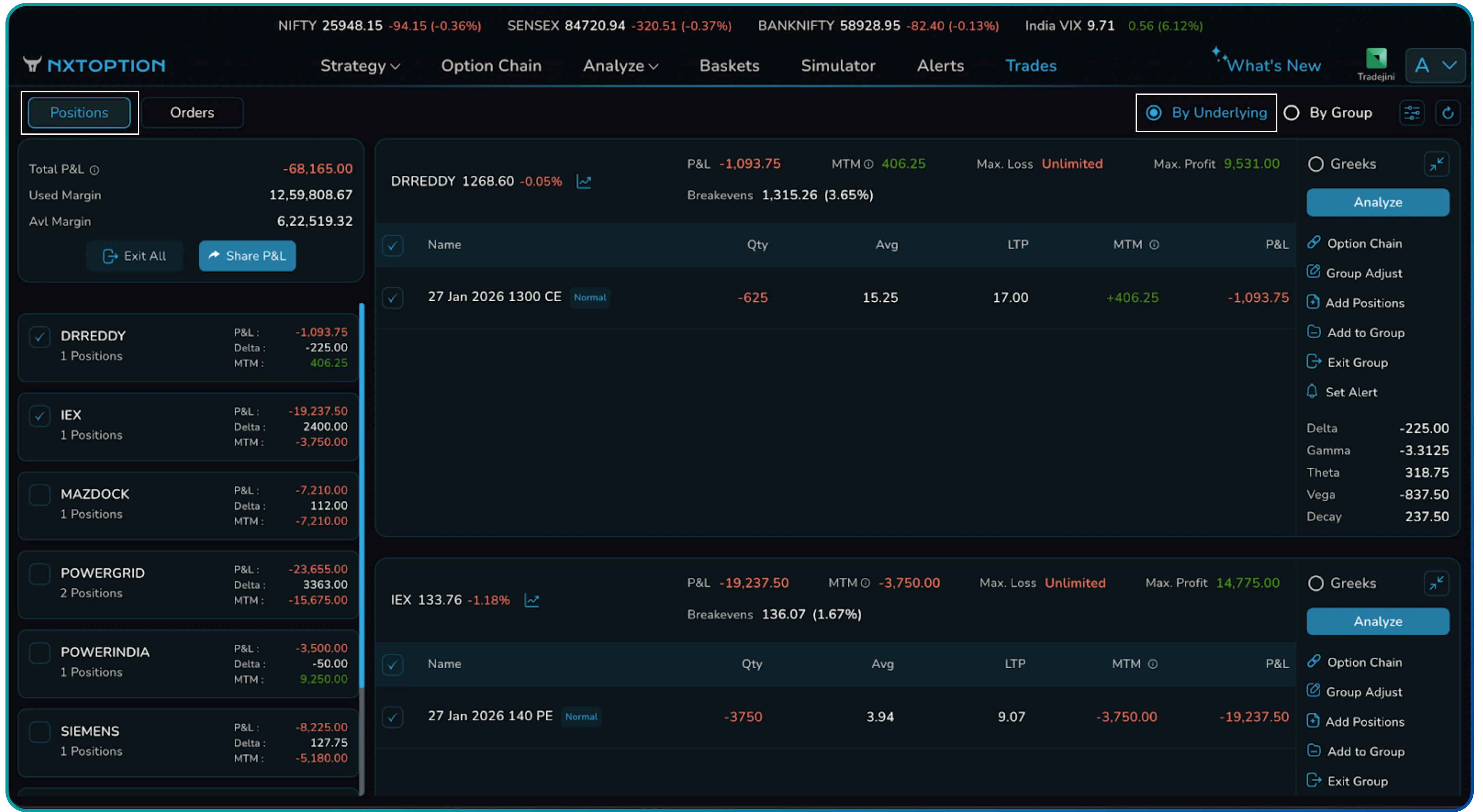
Viewing positions by underlying or by strategy
Trades allow you to organize positions in two fundamentally different ways depending on how you think about risk.
By Underlying view, positions are grouped stock-wise. This is useful when your mental model revolves around symbols of the underlying like IEX, DRREDDY, or BANKNIFTY. You can immediately see how much profit or loss, delta, and mark-to-market exposure you carry in each underlying, regardless of how many legs are involved.
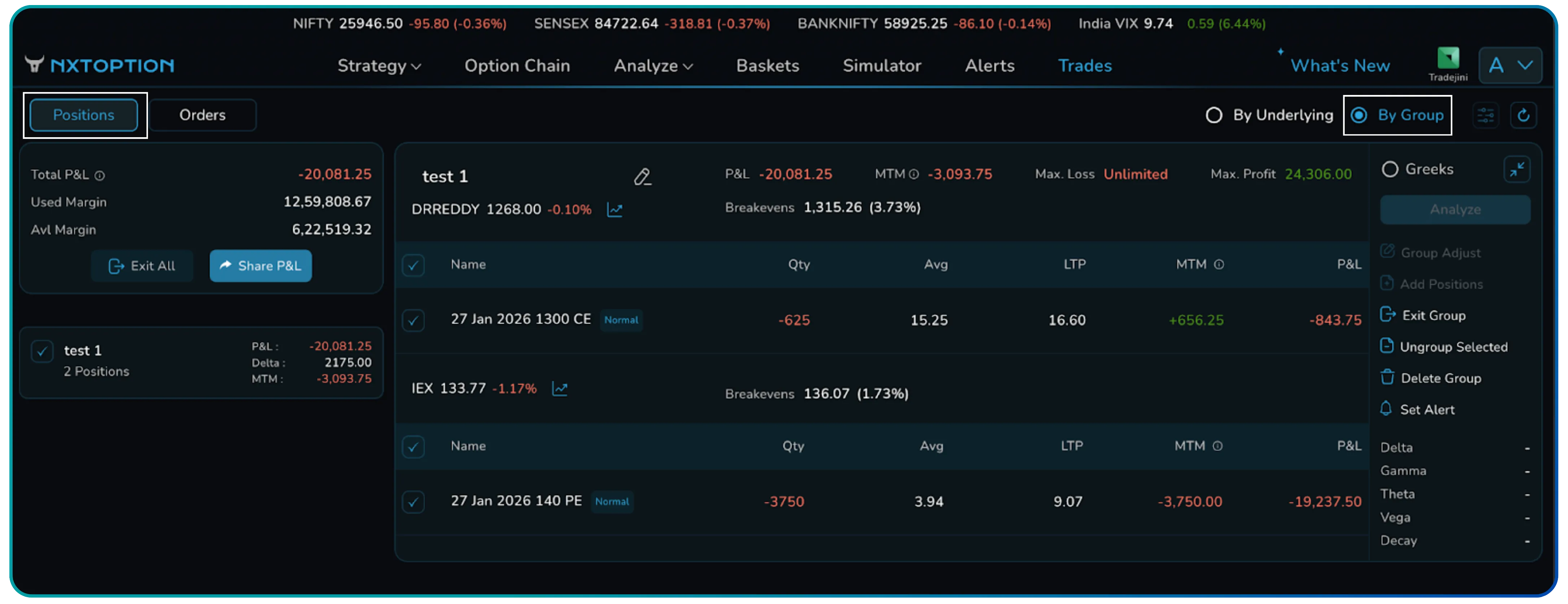
By Group view, positions are organized by custom strategy groups. This view supports multi-leg strategy adjustment by allowing traders to manage risk at the strategy level rather than at the individual leg level. Group names are editable, and actions apply at the group level. Instead of managing individual legs, you manage the strategy as a single unit. This reduces execution mistakes and makes it easier to reason about intent versus outcome.
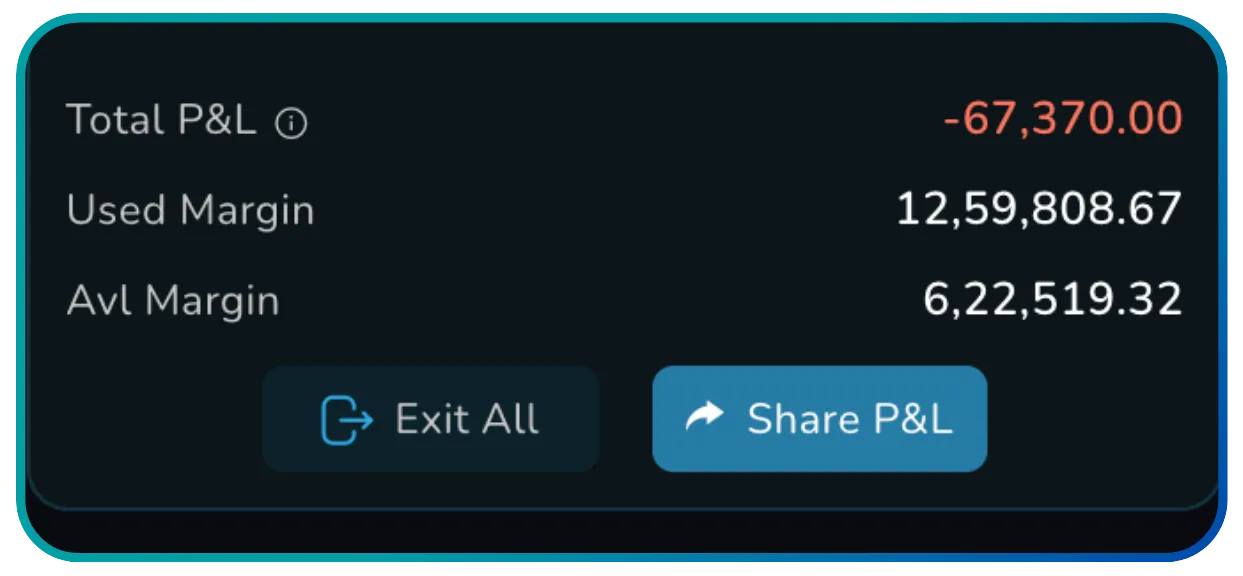
The Position header. The control summary
At the top of the Trades interface sits a consolidated summary that gives you immediate situational awareness. This header shows you total P&L along with the number of open positions, the margin currently in use, and the margin still available. It also contains two important controls.
The Exit All button allows you to flatten the entire book instantly. This is not something you use often, but when you need it, it must be visible and reliable. The Share P&L button opens a modal that allows you to share verified P&L during the permitted window between 3:30 PM and 11:50 PM IST on trading days.
Also Read: How Traders Can Use Straddle Charts in NxtOption with VWAP
Position list and core metrics. From overview to leg-level clarity
The Trades interface is intentionally layered. You start with a broad overview and only expand when you need precision. This reduces noise and helps you focus on what matters at each stage.
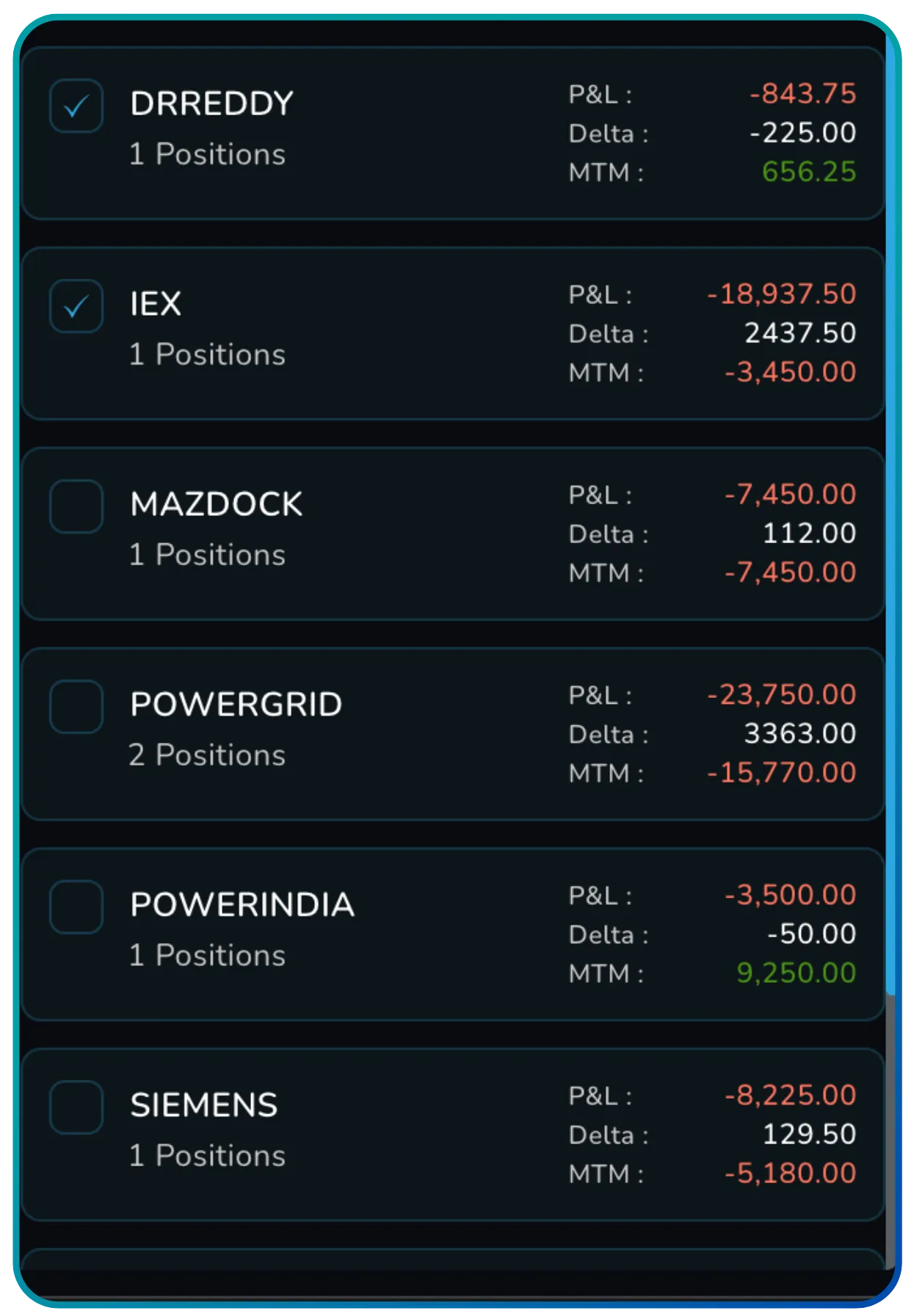
On the left-hand side, you see a compact list of all underlyings in your book. For each underlying, this list displays the number of open positions, net P&L, net delta, and net MTM. This view answers a single question very quickly. Where is my risk concentrated right now? You can scan for large losses, identify delta-heavy exposure, and decide which underlying needs attention first.
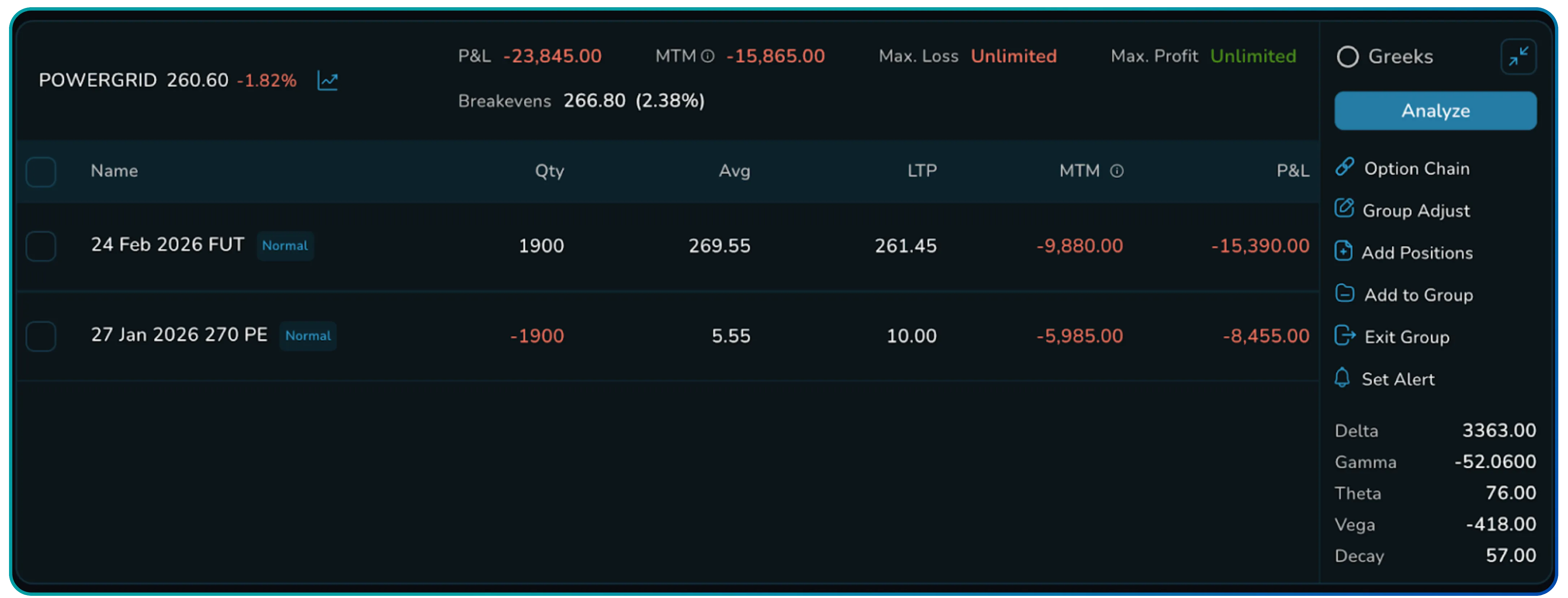
In the main pane, you can view all the positions in an expanded state, but by clicking the collapse icon on the top right-hand corner of the window, you can collapse the view. This consolidated view shows you the current price and percentage change of the underlying, total P&L, MTM, maximum profit, maximum loss, and breakeven levels expressed both in absolute terms and as a percentage. You can see the Greeks toggle and the Analyze button. At this stage, you are not thinking about individual legs. You are evaluating whether the position as a whole is behaving as expected.

The expanded view reveals the full position breakdown table. Each leg is listed with its contract name and expiry, product type, quantity, average price, last traded price, MTM, and P&L. This is the level where execution decisions are made. You can identify which leg is contributing to losses, adjust hedges, add or remove positions, or exit selectively instead of flattening the entire strategy. All values update live, and manual refresh is optional.
Action menu. Where management happens
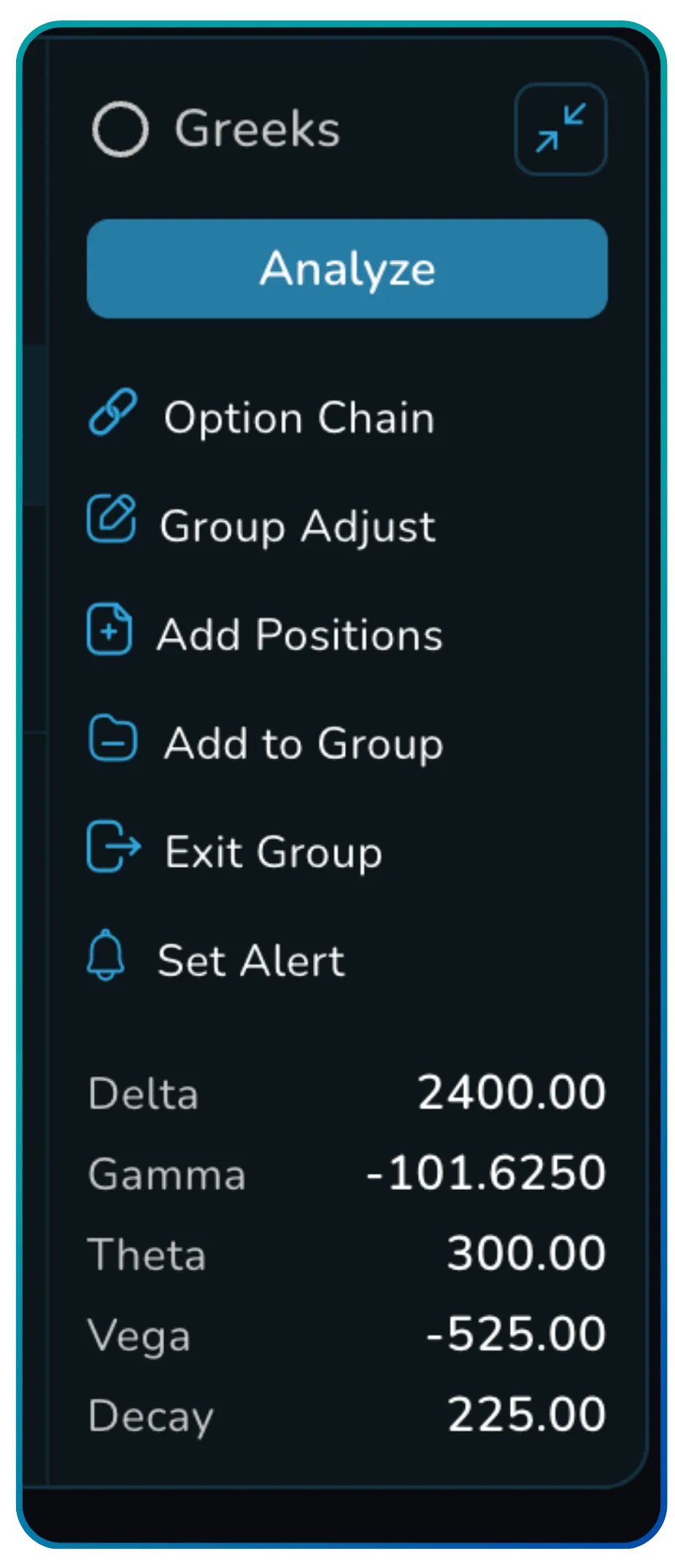
Alongside every expanded position or group is a contextual action menu. This menu is where Trades moves beyond observation and into control.
From here, you can open the analysis view, jump directly to the option chain for the same underlying, adjust group settings, add new positions, assign positions to groups, exit a group, or set alerts. In By Group view, additional actions such as ungrouping selected legs or deleting the entire group become available.
The key idea is that you never need to leave the position context to take action. Everything relevant to managing that position is accessible in one place.
Greeks view. Seeing risk as it actually exists
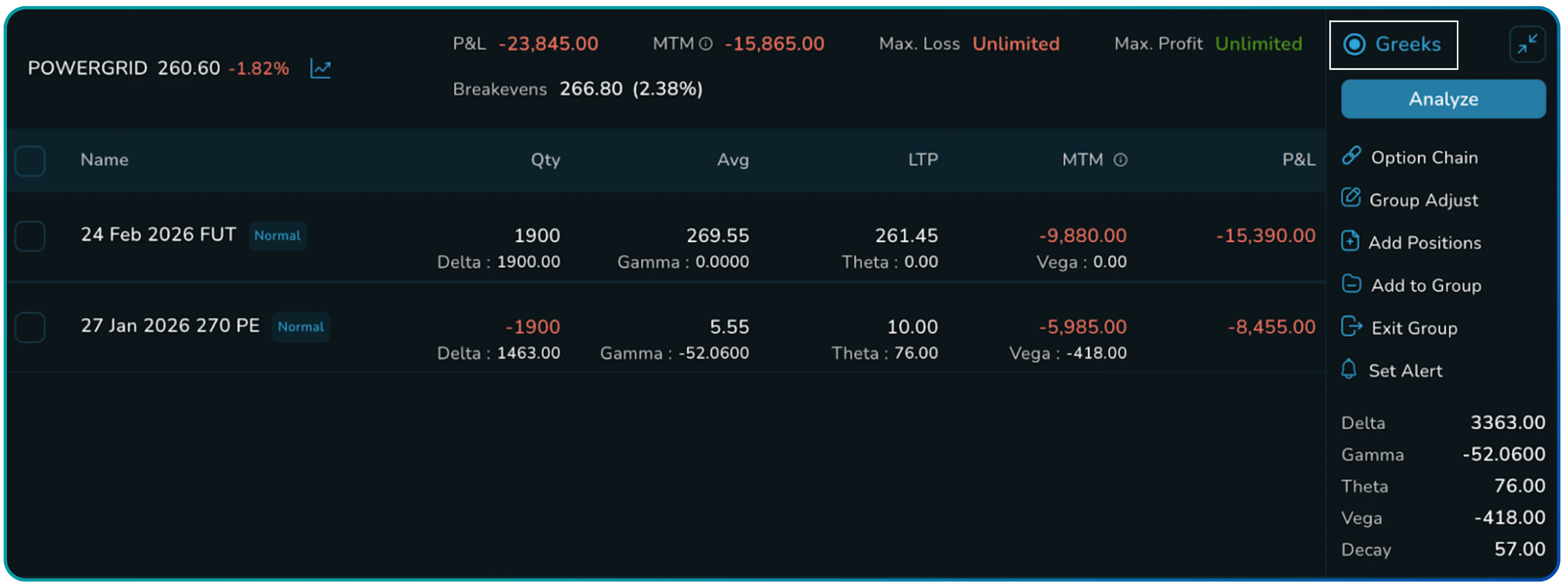
Trades allow you to toggle a dedicated Greeks view that surfaces directional and non-directional risk clearly, enabling real-time Greeks monitoring across strategies. Delta shows your directional exposure. Gamma tells you how quickly that exposure will change. Theta shows the impact of time decay. Vega captures sensitivity to volatility. Decay provides an additional measure of option erosion.
Also Read: Plan Trades Better with NxtOption
These Greeks can be viewed at both position and group level, allowing you to understand net exposure rather than guessing based on individual legs. This is especially useful when managing complex strategies where intuition often fails.
The analysis panel. Think before you adjust
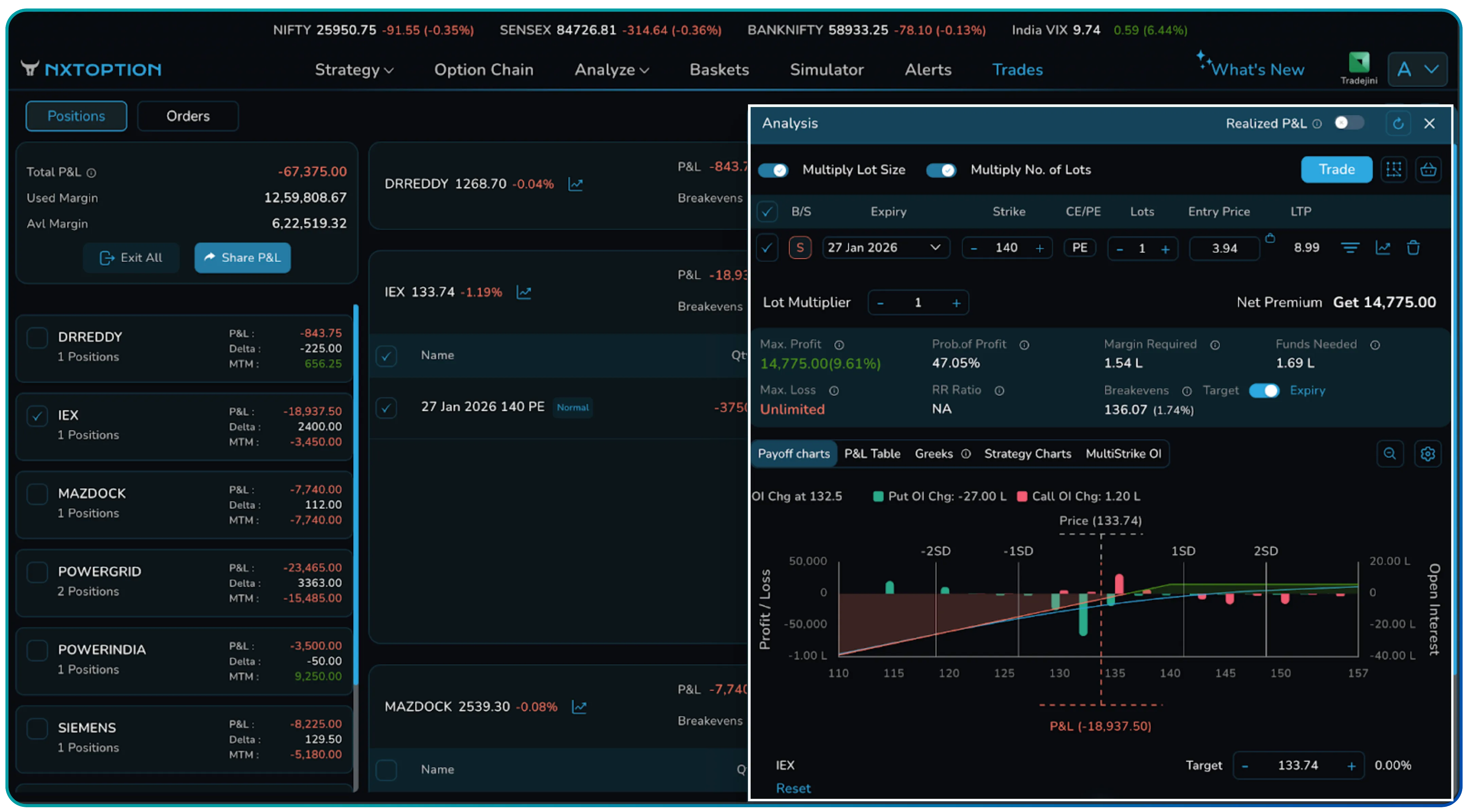
Clicking Analyze opens an embedded analysis panel without placing or modifying any trades. This panel shows the option payoff chart analysis, maximum profit, maximum loss, breakeven levels, probability of profit, margin requirement, and strategy-level Greeks.
The important point is that this analysis reflects your current book exactly as it is. You are not simulating a hypothetical trade. You are analyzing live risk. This allows you to make informed adjustments instead of reactive ones.
Practical controls and navigation
Trades include simple but effective controls that support speed. You can filter positions by buy or sell, calls or puts, futures, and expiry. You can manually refresh data when needed.
Accessing Trades is straightforward. Log in to your Tradejini CubePlus dashboard, open NxtOption from the main menu, and click on the Trades tab. You land directly in the Positions view, ready to manage your tradebook using professional option trading software.
The bottom line
Trades is not about placing trades faster. It is about managing them better.
It gives you centralized control over all open positions, reduces the chance of execution errors through grouping and aggregation, and presents risk in a structured, actionable way. Instead of reacting to numbers scattered across screens, you operate from a single source of truth.
Also Read: Volatility Insights that Sharpen Every Options Trade
For active options traders, clarity is not a luxury. It is an edge. Trades gives you that edge by turning position management into a deliberate, controlled process rather than an afterthought.
Disclaimer: The information provided in our blogs is for informational purposes only and should not be construed as financial, investment, or trading advice. Trading and investing in the securities market carries risk. Always conduct your own research and consult with a qualified financial advisor before making any investment decisions. Past performance is not indicative of future results. Copyrighted and original content for your trading and investing needs.
© 2026 — Tradejini. All Rights Reserved.