When monitoring your positions and orders, information overload can be just as problematic as insufficient data. CubePlus solves this with customizable column settings in the Positions and Orders tabs. You control exactly which information displays on your screen , showing only what you need, removing what you don't. Here's how it works.
Column Customization in the Positions Tab
Inside the Positions tab, you’ll notice a Customize Columns option on the top right.
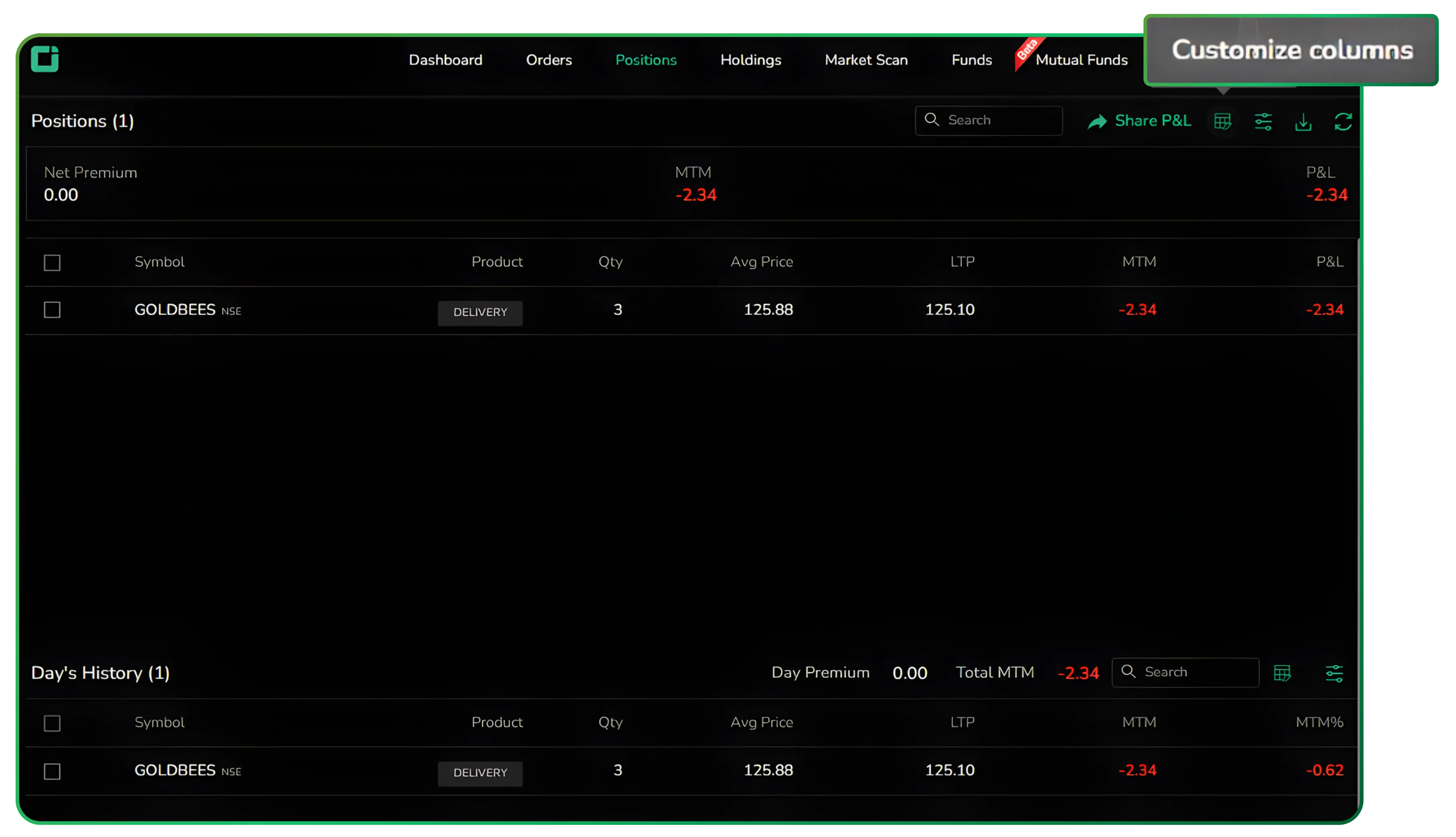
Clicking it opens a selection panel.
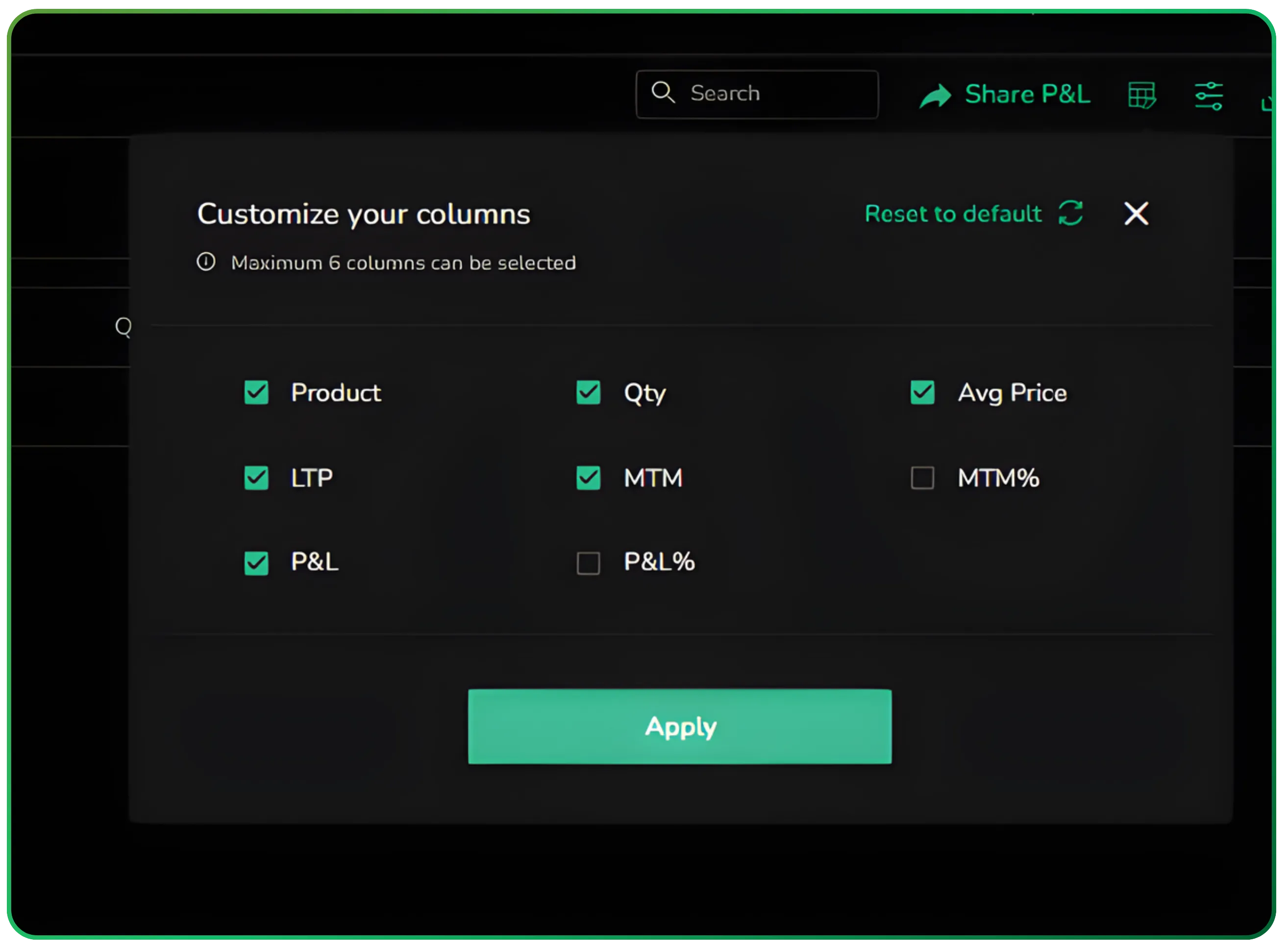
What You Can Choose
The customization window allows you to select up to 6 columns at a time. The available fields include:
- Product
- Qty
- Avg Price
- LTP
- MTM
- MTM%
- P&L
- P&L%
You simply tick the boxes for the fields you want visible and click Apply.
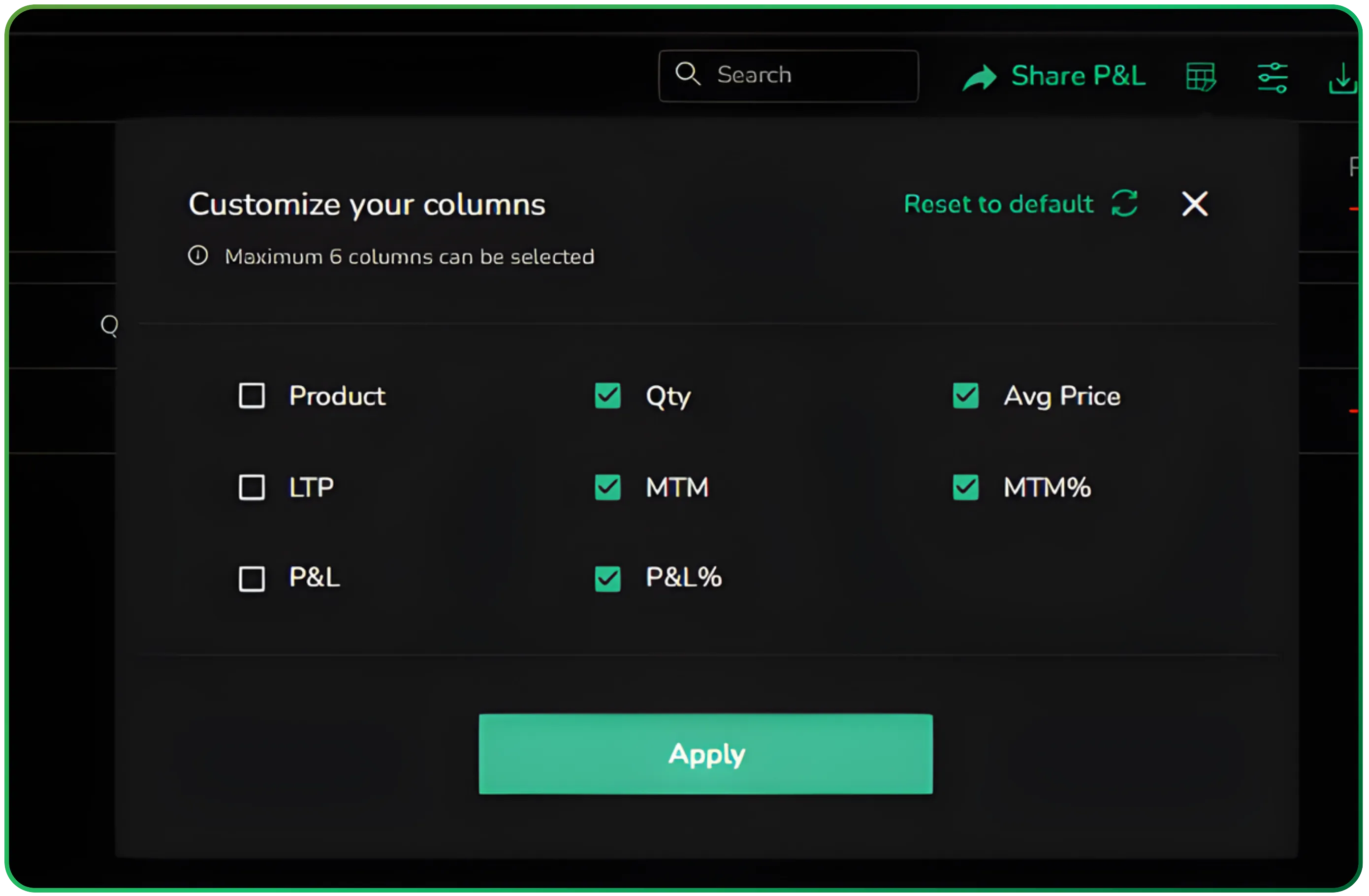
There’s also a Reset to Default option if you want to revert to the original layout.
No complicated settings. Just select and apply.
How It Reflects on the Positions Table
Once applied, the Positions table updates instantly.
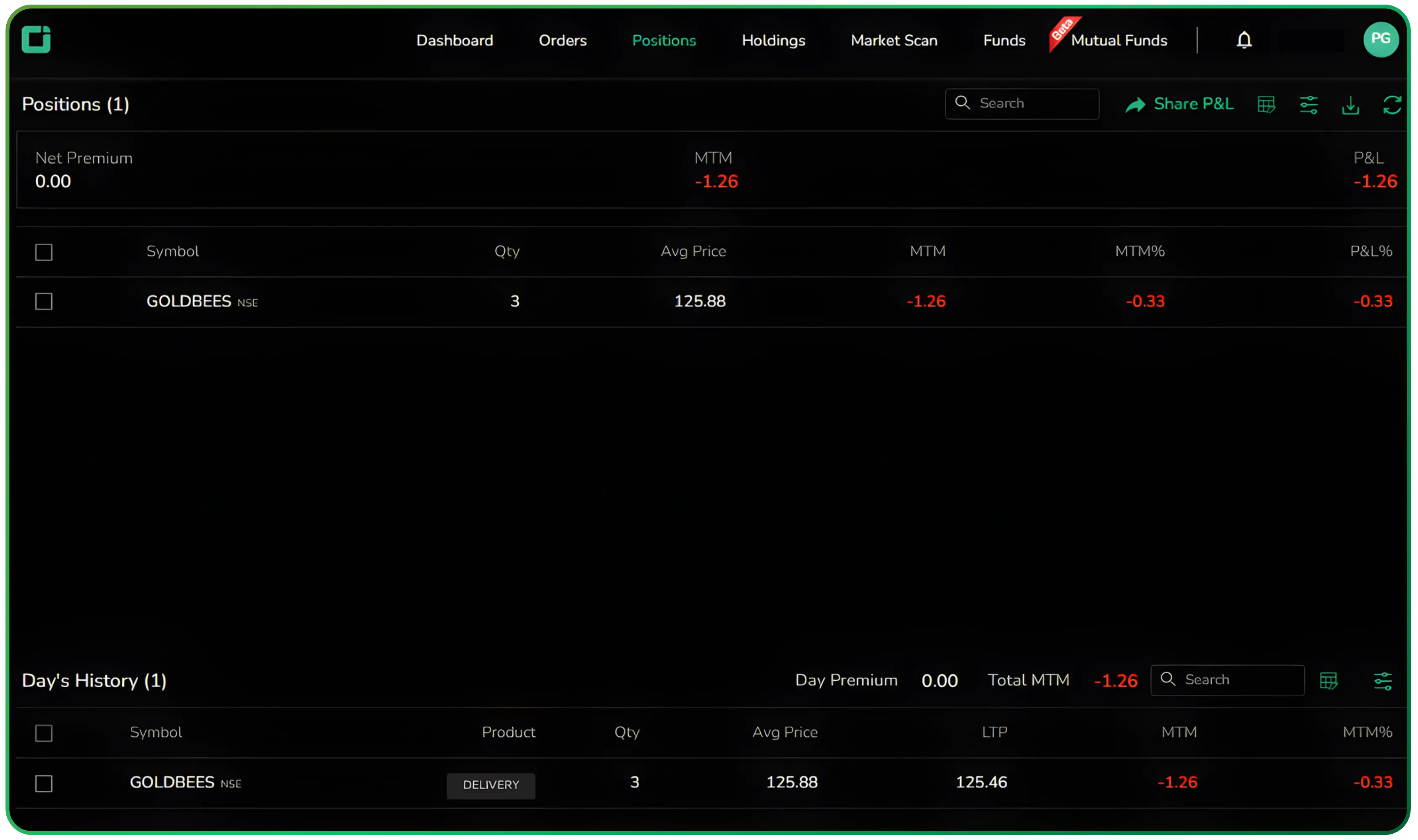
For example:
- If you prefer percentage-based tracking, you can enable MTM% and P&L%.
- If you focus more on price execution and quantities, you can prioritize Avg Price, Qty, and MTM.
- If you don’t need LTP constantly visible, you can remove it.
The table restructures itself based on your selection.
This keeps the interface clean and aligned with your trading style.
Also Read: NxtOption Rollover Analysis: Track Futures Roll Costs Before They Hurt Your Trade
Practical Use Cases
Different traders look at their positions differently, and that’s exactly where column customization becomes useful in the Positions tab guide
A short-term trader will usually focus on real-time movement. For them, fields like LTP, MTM, MTM%, and P&L matter the most. They want to know how the position is reacting right now and how much it is gaining or losing in the current session through real-time MTM monitoring.
A positional investor, on the other hand, is less concerned with minute-by-minute movement. Their focus is typically on Avg Price, Qty, Product, and overall P&L%. They want clarity on entry levels, allocation size, and broader performance without unnecessary noise using P&L percentage tracking
Then there’s a performance-focused view. Some traders prefer to evaluate everything in percentage terms rather than absolute values. Switching to MTM% and P&L% helps standardize performance across positions of different sizes, making comparisons more meaningful.
That’s the real advantage here. You’re not locked into a fixed layout. You shape the table based on how you think and trade.
Sorting Data for Faster Analysis
Along with column customization and filtering orders, Tradejini and CubePlus also allow you to sort the data directly within the Positions table.
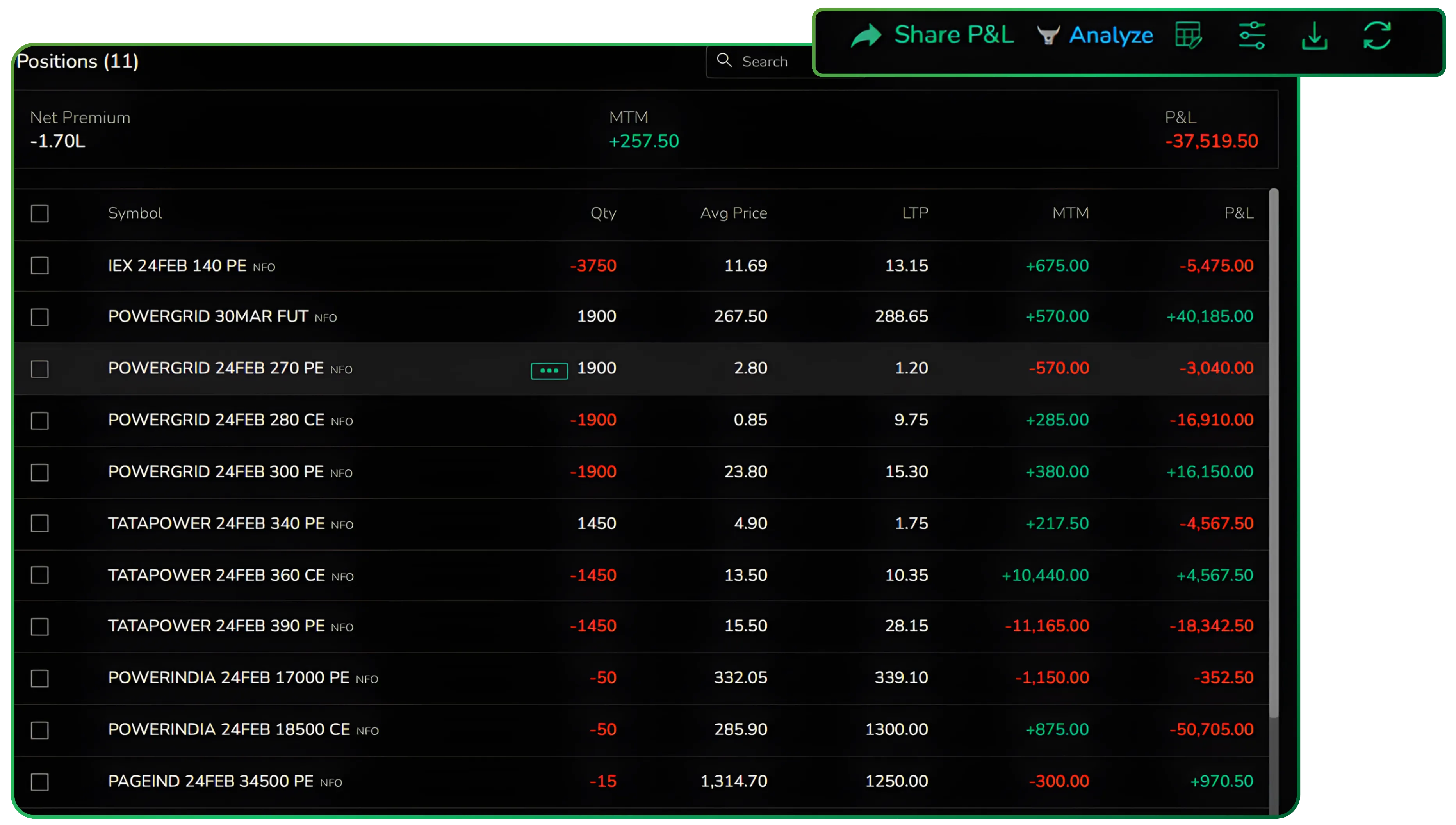
You can click on a column header such as Qty, Avg Price, LTP, MTM, or P&L to rearrange the data in ascending or descending order. This helps you instantly identify:
- The highest profit or loss positions
- The largest quantity exposures
- Positions with the highest MTM impact
- Extreme price movements
Instead of manually scanning the entire list, sorting brings the most relevant entries to the top. If you want to quickly assess risk concentration, you can sort by Qty. If you want to review performance, sort by MTM or P&L.
This small interaction makes analysis faster, especially when managing multiple positions. It reduces the time spent searching and helps you focus immediately on what requires attention.
Selecting and Exiting Positions Directly
CubePlus also allows you to select individual positions directly from the Positions tab and exit multiple positions at once with ease.
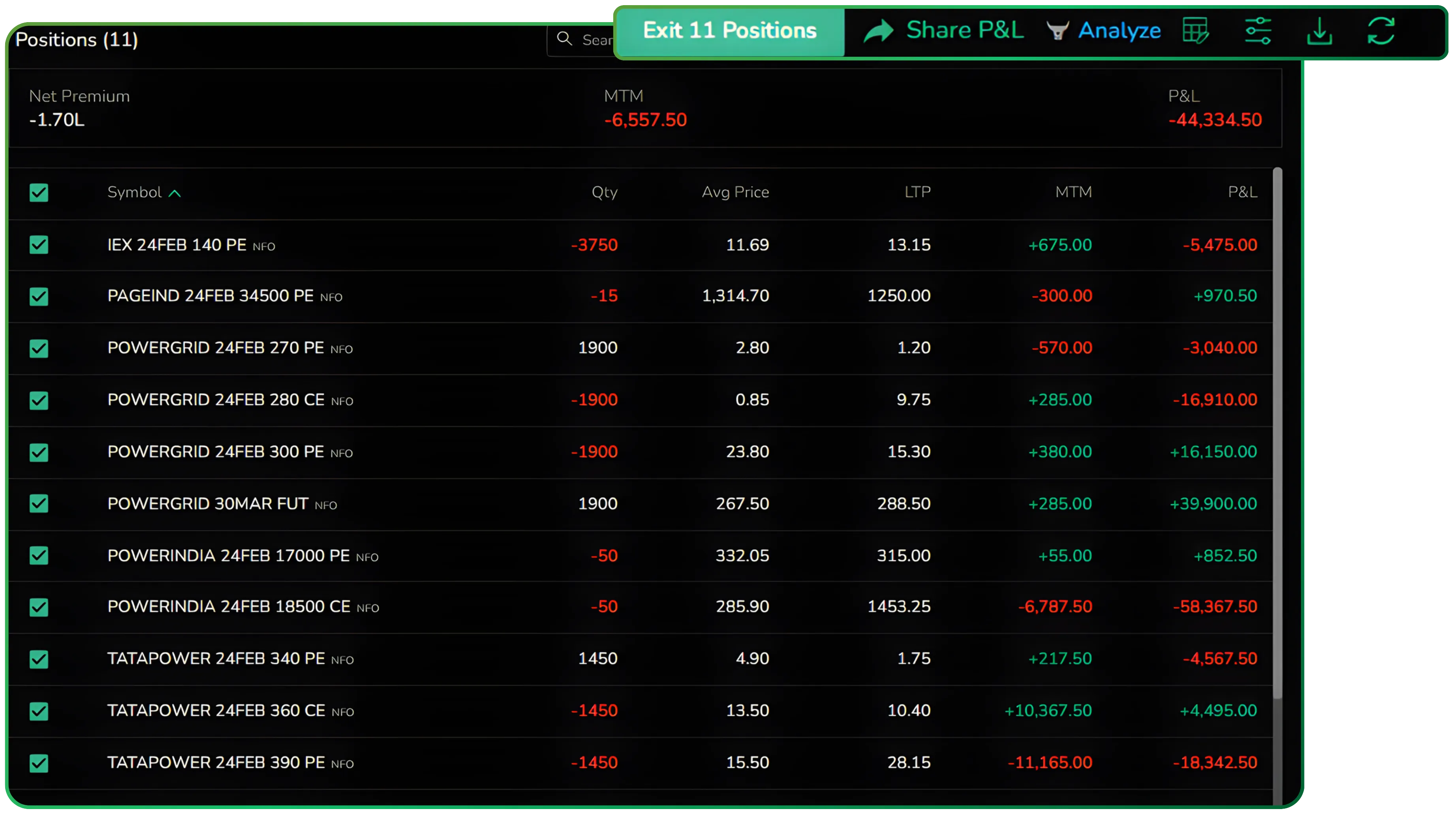
Each row includes a checkbox, allowing you to select one or multiple positions. Once selected, the Exit Positions option becomes active at the top. This enables you to close only the positions you choose, instead of manually exiting them one by one.
This is especially useful when:
- You want to partially reduce exposure
- You need to exit only loss-making positions
- You’re closing a specific strategy while keeping others active
The selection process is straightforward. Tick the positions, click exit, and proceed with execution. It saves time and keeps position management structured, particularly when handling multiple contracts.
Again, the idea is control. You decide what to close and when, without unnecessary steps.
Downloading and Refreshing Data
CubePlus also gives you quick control over data updates and exports directly from the Positions and Orders screens.
The Refresh icon lets you instantly reload the latest data. This is useful during active market hours when you want to ensure MTM, LTP, and P&L figures reflect current prices without waiting for automatic updates.
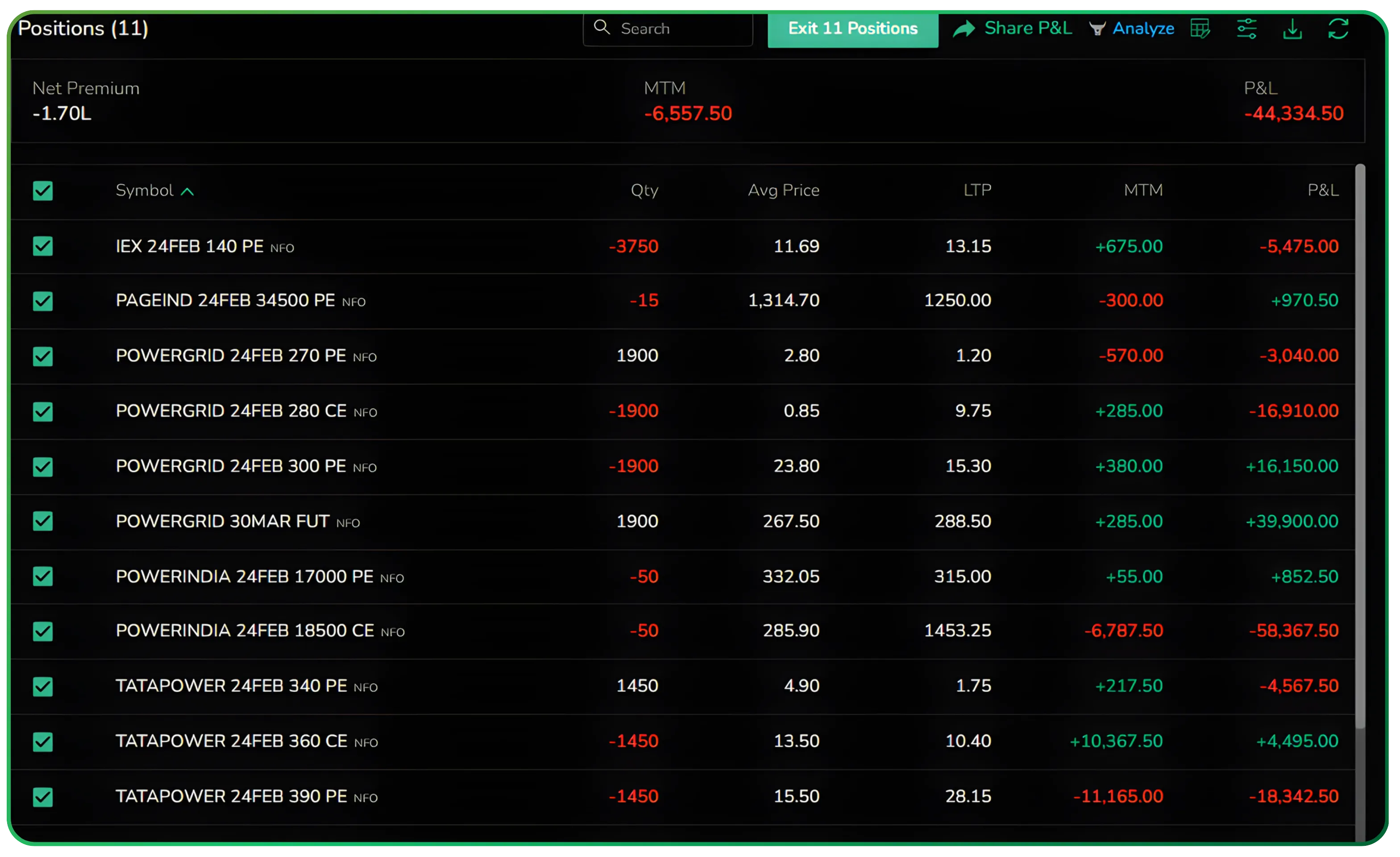
There’s also a Download option available on the screen. This allows you to export your positions or orders data for external review. You can use it for record-keeping, performance analysis, reconciliation, or sharing reports.
Both options are placed conveniently on the top bar, keeping them accessible without interrupting your workflow.
These small utilities make day-to-day tracking smoother. You can update, export, and review your data without switching platforms or doing manual extraction.
Filters in the Positions Tab
Column customization isn’t the only control you get.
There’s also a Filter option.
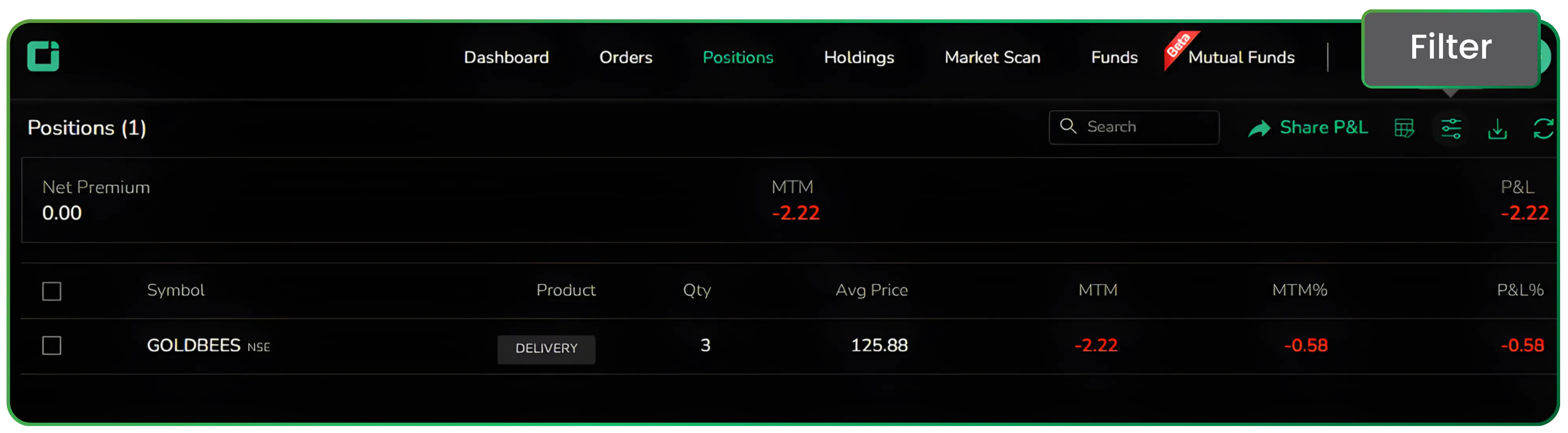
You can filter positions by:
Once applied, the metrics at the top such as:
- Net Premium
- MTM
- P&L
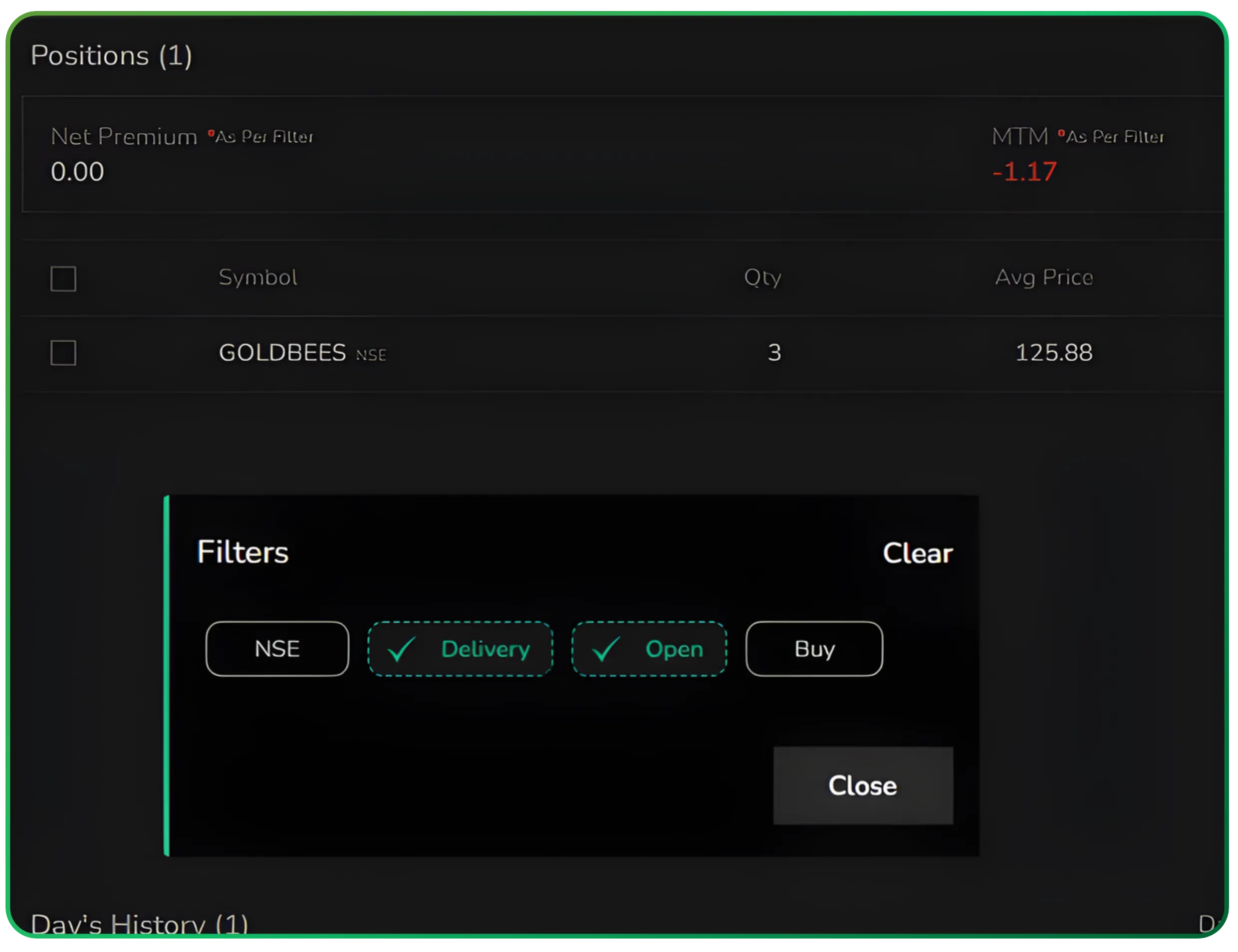
adjust as per the filter selection.
That means your summary numbers reflect only the filtered positions, not the entire book.
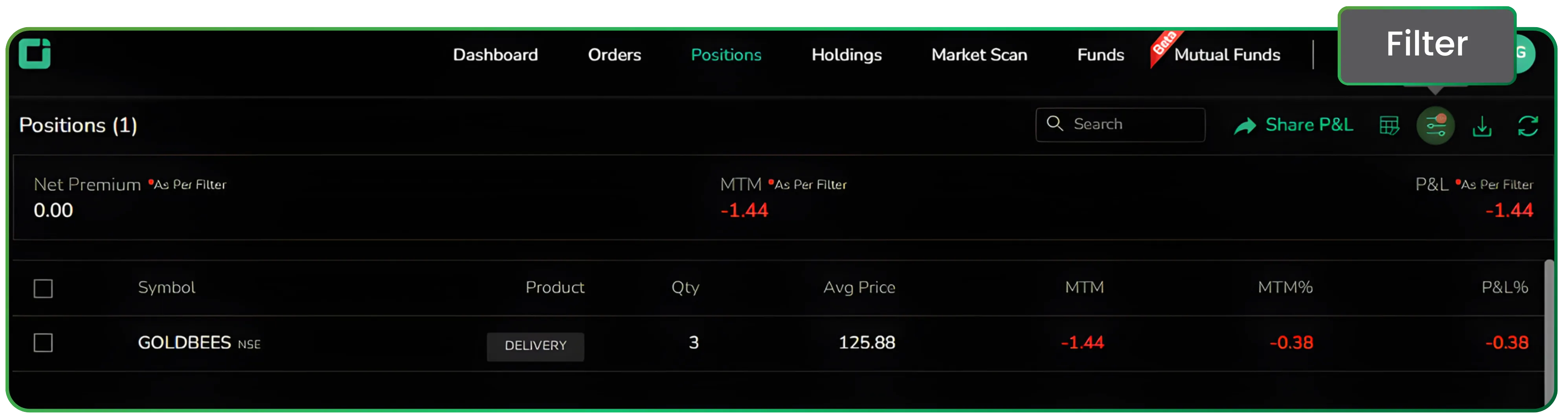
This becomes especially useful when you want to isolate delivery trades, review only open positions, or analyze a specific segment of your portfolio. Instead of scanning the entire book, you narrow it down to exactly what you want to evaluate. The top summary figures adjust automatically based on the selected filter, so your MTM and P&L reflect only that subset. There’s no need for separate calculations or manual tracking.
Also read: How Tradejini’s Exit by Percentage Feature Improves Trading Discipline
Filters in the Orders Tab
The Orders page also supports filtering.
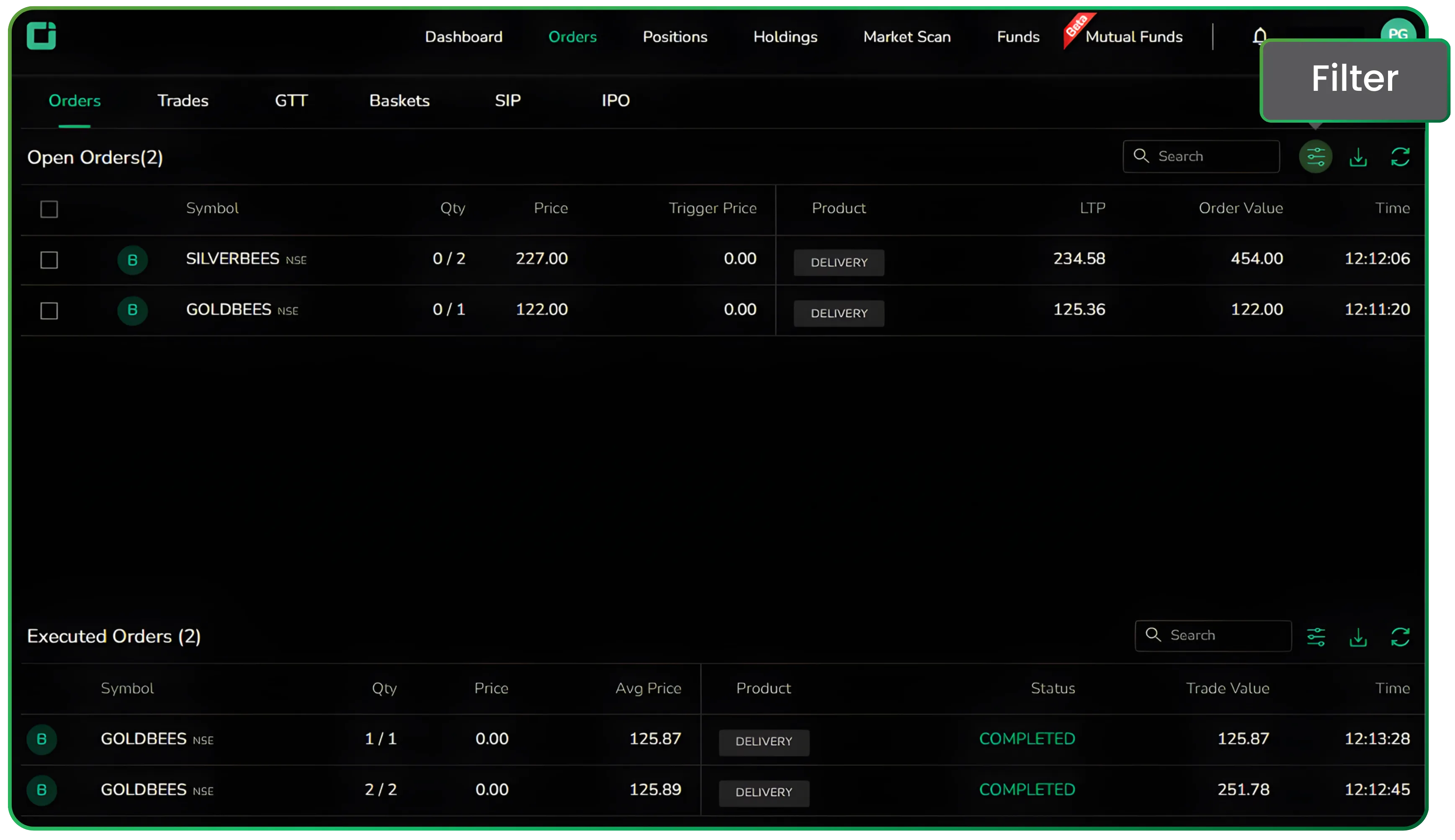
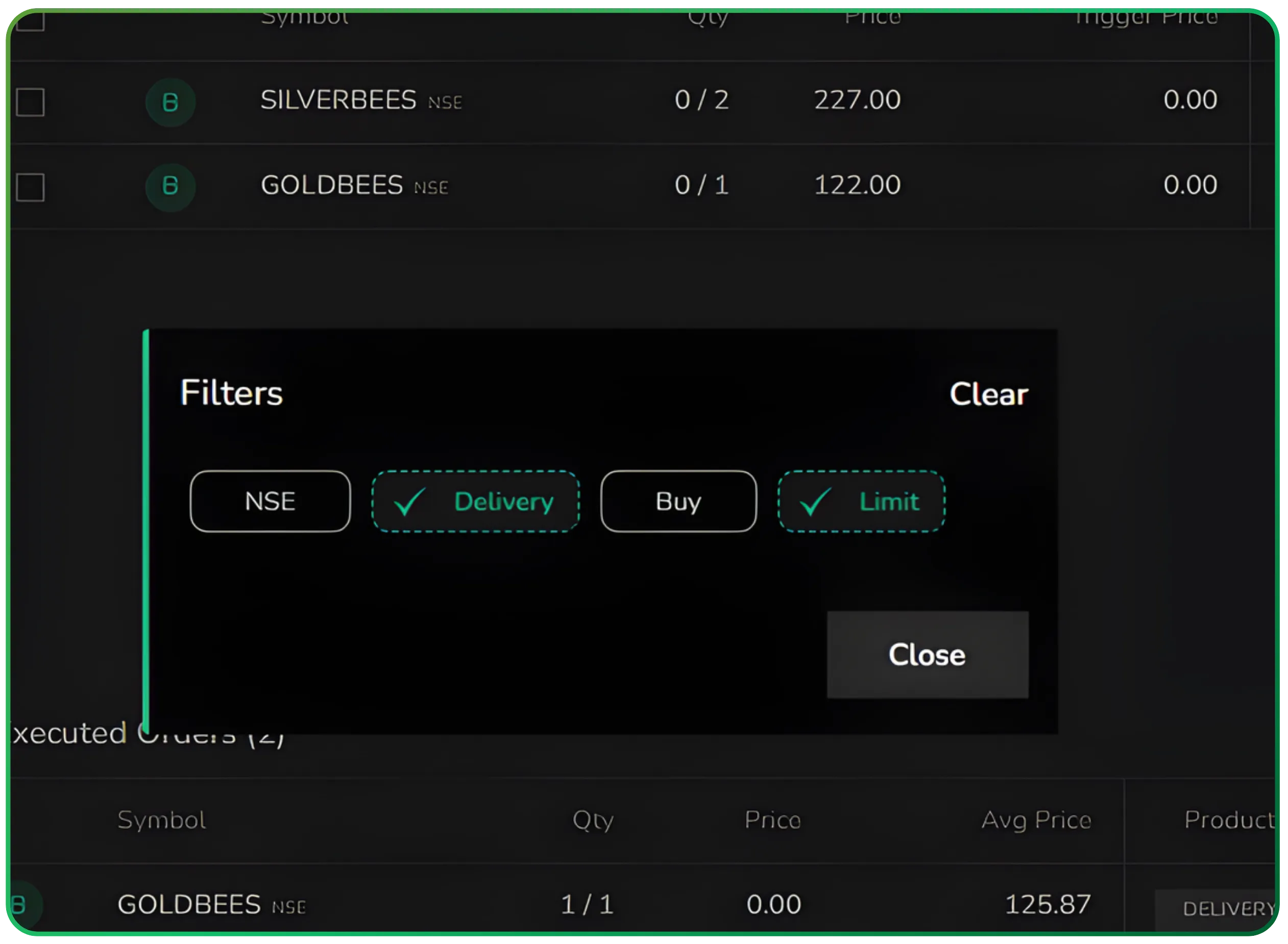
From the Orders screen, clicking on Filter allows you to refine your order view.
This is particularly helpful when you want to isolate open orders, review only executed trades, or track specific product types. Instead of scanning through every entry, you can narrow the list to exactly what you’re looking for. The Open Orders and Executed Orders sections stay neatly structured, but filtering makes the review process faster and more focused. In the end, it simply reduces clutter and keeps your workflow efficient.
Why This Matters
Trading dashboards often overload users with information. CubePlus keeps it simpler. Instead of locking you into a fixed layout, it puts you in control. You choose only the columns you need, remove what isn’t relevant, and adjust the view based on how you trade. You can switch between absolute values and percentage metrics depending on what you want to focus on. On the surface, it may look like a small feature, but in everyday use, it makes the interface far more practical and easier to work with.
Final Thoughts
Column customization in CubePlus is simple and practical. You select up to six fields, apply the changes, and the table updates instantly. When needed, you can add filters to narrow the view further, and the summary figures adjust automatically to reflect only what’s selected. Clear visibility reduces friction, and that’s what ultimately supports quicker, more confident decisions.
Disclaimer: The information provided in our blogs is for informational purposes only and should not be construed as financial, investment, or trading advice. Trading and investing in the securities market carries risk. Always conduct your own research and consult with a qualified financial advisor before making any investment decisions. Past performance is not indicative of future results. Copyrighted and original content for your trading and investing needs.
© 2026 — Tradejini. All Rights Reserved.

%252FCubePlus_Shield_Part%25203%2520Blog%2520Thumbnail.webp%3Falt%3Dmedia%26token%3Da5581624-5761-476f-8451-40c157b54840&w=3840&q=75)
%252FShield%2520on%2520Cubeplus%2520part2.webp%3Falt%3Dmedia%26token%3D252a5b48-a580-4e8d-b939-c82d4696eaef&w=3840&q=75)